Windows 11 Not Booting Up Proven Fixes You Can Try Today
When Windows 11 not booting up, you don’t need to panic. This guide walks you through proven fixes ranging from simple hardware checks to advanced recovery methods. You will learn how to diagnose boot errors, use built-in Windows tools, and prevent future startup problems. Whether your PC shows a black screen or gets stuck in a loop, these solutions work.
Key Takeaways
- Check hardware first: Loose cables or faulty RAM often cause Windows 11 not booting up issues.
- Use Safe Mode: It lets you troubleshoot without loading full drivers or software.
- Windows Recovery Environment is powerful: It offers startup repair, system restore, and reset options.
- BIOS settings matter: Wrong boot order or disabled NVMe drives can block startup entirely.
- Reinstalling Windows 11 is a last resort: But it fixes deep software corruption safely.
- Prevention saves time: Regular updates and disk checks keep boot problems away.
📑 Table of Contents
- Why Windows 11 Not Booting Up Happens
- Check Your Hardware Connections First
- Fix Common Boot Errors in Windows 11
- Use Windows Recovery Tools Effectively
- Rebuild Boot Data with Command Prompt
- Reinstall Windows 11 as a Last Resort
- Prevent Windows 11 Boot Problems in the Future
- Frequently Asked Questions
Why Windows 11 Not Booting Up Happens
Your PC refuses to start. The screen stays black. Or maybe you see a weird error message before anything loads. This is frustrating, especially when you need your computer for work or school. Understanding why Windows 11 not booting up occurs helps you pick the right fix.
Boot failures come from two main sources. Hardware problems include loose cables, dead RAM sticks, or a failing hard drive. Software issues involve corrupted system files, bad driver updates, or malware attacks. Sometimes a simple power glitch causes the whole thing.
The good news? Most boot problems are fixable at home. You do not need to be a tech expert. This guide gives you clear steps that anyone can follow. Let us dive into the solutions.
Check Your Hardware Connections First
Before trying anything software-related, look at the physical parts. Many people skip this step and jump straight to complex fixes. A loose connection is the simplest reason your PC will not start.
Inspect Power Cables and Peripherals
Unplug your computer completely. Wait ten seconds. Then plug everything back in firmly. Check the power cable going into the wall and the one going into the PC. Sometimes the cable feels snug but is not making proper contact.
Remove all USB devices except your keyboard. External hard drives, printers, and even USB hubs can interfere with the boot process. After removing them, try starting your PC again.
Test Your RAM Sticks
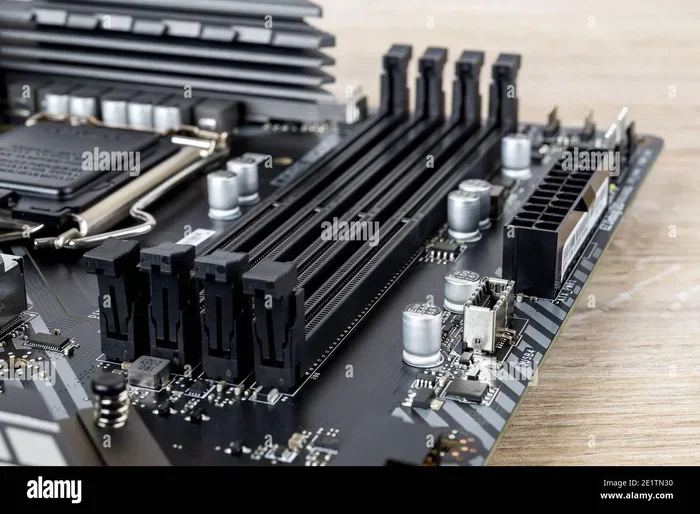
Faulty memory is a common culprit behind Windows 11 not booting up. If your laptop has 16GB RAM or 8GB RAM, a loose or damaged stick can stop the entire system from loading. Open your computer case and reseat the RAM modules. Push them down until you hear a click.
If you have two RAM sticks, try booting with just one. This helps you identify a bad module. Many users with Windows 11 16GB RAM laptops have fixed boot issues simply by reseating their memory.
Verify Your Storage Drive
Your NVMe SSD or hard drive holds Windows 11. If the drive is not detected, your PC cannot boot. Check the SATA cables or M.2 connections. You might also see a message about NVMe SSD not showing up in BIOS. This is a clear sign your storage drive needs attention.
If you recently upgraded your drive, make sure it is properly seated in the M.2 slot. A drive that is slightly crooked will not be recognized during startup.
Fix Common Boot Errors in Windows 11
Hardware checks did not solve it? Now let us look at software fixes. Boot errors show up in different ways. Each one points to a specific problem.
Black Screen on Startup
A black screen means your PC powers on but nothing loads. This often happens after a Windows Update. The display driver fails to start, and you see nothing.
Try plugging in an external monitor. If the external screen works, your laptop display or cable might be the issue. If both screens stay black, the problem is deeper. You need to access recovery tools.
Boot Loop Problems
A boot loop happens when your PC restarts over and over. It never reaches the desktop. This usually points to a corrupted system file or a conflicting driver. You will need to interrupt the boot process to fix it.
Press and hold the power button for ten seconds to force a shutdown. Repeat this three times. After the third forced shutdown, Windows will enter the Automatic Repair environment. This gives you access to advanced troubleshooting options.
Blue Screen During Boot
A blue screen error, also called a BSOD, stops the boot process completely. The error code on the screen gives you a clue about what went wrong. Common codes include CRITICAL_PROCESS_DIED and INACCESSIBLE_BOOT_DEVICE.
Write down the error code. Search for it online if you need more details. Many blue screen errors go away after rolling back a recent driver update or running a system file check.
Use Windows Recovery Tools Effectively
Windows 11 comes with powerful built-in recovery tools. These tools can repair startup problems without reinstalling the entire operating system. Learning how to access them is essential for every PC user.
Access the Recovery Environment
To reach the Windows Recovery Environment, you need to interrupt the boot process three times. Hold the power button during startup until the PC turns off. Do this three times in a row. On the fourth attempt, Windows will load the recovery menu automatically.
Another way is to use a Windows 11 bootable USB. Create one on another computer using the Media Creation Tool. Plug it into your non-booting PC and boot from the USB. Choose “Repair your computer” when prompted.
Run Startup Repair
Startup Repair is the first tool you should try. It automatically scans for problems that prevent Windows from loading. The tool fixes missing or corrupted boot files, bad registry entries, and damaged system configurations.
Go to Troubleshoot > Advanced Options > Startup Repair. Let the tool run. It may take 10 to 15 minutes. Do not turn off your PC during this process. After it finishes, restart and see if Windows loads normally.
Use System Restore
If Startup Repair does not work, try System Restore. This tool rolls back your PC to a previous state when everything worked fine. It does not delete your personal files. However, it removes recent apps, drivers, and updates.
Go to Troubleshoot > Advanced Options > System Restore. Pick a restore point from before the boot problem started. Follow the on-screen prompts. Your PC will restart and revert to that earlier state.
Check Your BIOS Boot Order
Sometimes the problem is simpler than you think. Your BIOS might be trying to boot from the wrong device. Enter your BIOS by pressing F2, F12, or Delete during startup. The key depends on your PC manufacturer.
Look for the Boot Order section. Make sure your internal SSD or hard drive is listed first. If your drive is not showing up at all, you might be dealing with a hardware detection issue. This connects directly to problems like NVMe SSD not showing up in BIOS or a drive that is not being recognized during the POST test.
Save your changes and exit. Your PC should now attempt to boot from the correct drive.
Rebuild Boot Data with Command Prompt
Advanced users can fix boot problems using Command Prompt commands. These commands rebuild the boot records that Windows needs to start. Do not worry if this sounds technical. I will walk you through each step.
Run Bootrec Commands
From the Windows Recovery Environment, go to Troubleshoot > Advanced Options > Command Prompt. Type these commands one at a time, pressing Enter after each:
- bootrec /fixmbr — repairs the master boot record
- bootrec /fixboot — writes a new boot sector
- bootrec /scanos — scans for Windows installations
- bootrec /rebuildbcd — rebuilds the boot configuration data
After running all four commands, type exit and restart your PC. These commands fix most boot-related errors caused by corrupted boot files.
Check Disk for Errors
Corrupted sectors on your drive can also prevent Windows from booting. Type chkdsk C: /f /r /x in the Command Prompt and press Enter. This command scans your drive for errors and attempts to fix them.
The scan may take a while depending on your drive size. Let it complete without interruption. Once done, restart your PC and check if it boots properly.
Reinstall Windows 11 as a Last Resort
If nothing else works, reinstalling Windows 11 is your final option. This fixes deep software corruption that no other tool can repair. Do not worry about your files. You can choose to keep them during the reinstall process.
Repair Install vs. Clean Install
A repair install keeps your files, apps, and settings while refreshing the system files. This is the safer option and should be your first choice. A clean install wipes everything and gives you a fresh start.
For a repair install, boot from your Windows 11 USB drive. Choose “Upgrade this PC now.” Follow the prompts. Windows will replace old system files without touching your personal data.
For a clean install, back up your files first. Then choose “Custom install” during setup. This gives you a completely fresh Windows 11 system. It takes more time but solves stubborn boot problems completely.
When to Seek Professional Help
If your PC still will not boot after all these steps, the problem might be hardware-related. A failing motherboard, damaged CPU, or dead power supply can all cause boot failures. In these cases, take your PC to a qualified technician. Do not open components you are not comfortable handling.
Also consider whether your PC is still under warranty. Many manufacturers cover hardware failures for one to three years. You might get a free repair or replacement.
Prevent Windows 11 Boot Problems in the Future
Once you fix the boot issue, take steps to prevent it from happening again. A few simple habits go a long way in keeping your PC healthy.
- Keep Windows Updated: Install updates regularly. They include security patches and bug fixes that prevent boot problems.
- Run Regular Disk Checks: Use chkdsk monthly to catch drive errors early.
- Avoid Force Shutdowns: Only hold the power button when your PC is frozen. Frequent force shutdowns can corrupt system files.
- Use a Surge Protector: Power surges can damage your motherboard and storage drives. A surge protector adds a layer of protection.
- Back Up Your Data: Use cloud storage or an external drive. If your PC ever fails to boot, your files stay safe.
- Monitor Drive Health: Use free tools like CrystalDiskInfo to check your SSD or hard drive health regularly.
These habits take only a few minutes each month. They save you hours of troubleshooting later. A well-maintained PC boots fast and reliably every single time.
Frequently Asked Questions
Why does my PC turn on but show a black screen with Windows 11 not booting up?
A black screen usually means the display driver failed to load or your monitor cable is loose. Try connecting an external monitor first. If that does not work, boot into Safe Mode by holding Shift while clicking Restart. From there, you can uninstall recent display drivers or run Startup Repair.
Can a dead CMOS battery cause Windows 11 not to boot?
Yes, a dead CMOS battery can reset your BIOS settings and cause boot failures. Your PC might not recognize the boot drive or might load incorrect settings. Replacing the small coin-cell battery on your motherboard is an easy and inexpensive fix.
How do I know if my hard drive is causing the boot failure?
Listen for clicking or grinding sounds from your drive. These noises often indicate a failing hard drive. You can also check your BIOS to see if the drive is detected. If it is not listed, the drive is likely dead or disconnected. Back up your data immediately if you can still access the drive.
Is it safe to reinstall Windows 11 if nothing else works?
Yes, it is safe. A repair install keeps your personal files while refreshing system files. A clean install removes everything, so back up your data first. Both options fix deep boot corruption that other tools cannot resolve.
How long does it take to fix Windows 11 not booting up?
Simple fixes like reseating RAM or checking cables take just a few minutes. Startup Repair and System Restore usually take 10 to 30 minutes. A full Windows reinstall can take one to two hours depending on your internet speed and drive size.
What should I do if Windows 11 keeps restarting in a loop?
A boot loop often results from a bad update or corrupted driver. Force shutdown three times to trigger Automatic Repair. From there, use Startup Repair or uninstall recent updates. If the loop persists, boot into Safe Mode and check for problematic drivers or software.