Windows Power Settings Guide To Save Battery And Speed
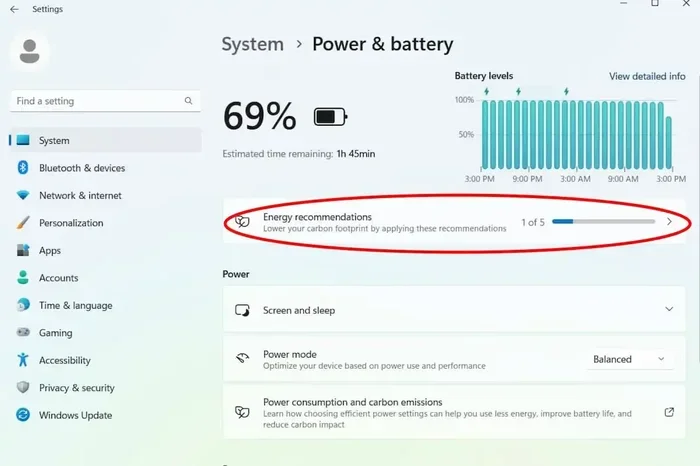
Windows power settings let you control how your PC uses energy. You can extend battery life and boost speed with a few simple changes. This guide walks you through every option step by step.
Windows power settings are one of the easiest ways to get more from your PC. Whether you are using a laptop or a desktop, these settings control how your system uses energy. With the right Windows power settings, you can save battery and keep your computer running fast.
Many people never touch their power options. They stick with the default plan and hope for the best. But a few small changes can make a big difference. Your battery performance and system performance both improve when you adjust the right settings.
This guide shows you exactly how to do it. You will learn about each power plan, advanced options, and simple tips that anyone can follow. By the end, you will know how to stop battery drain and speed up your PC. Let us get started.
Key Takeaways
- Switch power plans: Balanced, Power Saver, and High Performance each serve a different purpose for battery and speed.
- Tweak advanced settings: Adjust display brightness, sleep timers, and processor states to fine-tune battery performance.
- Avoid common mistakes: Leaving high performance mode on all day and ignoring sleep timers wastes power fast.
- Keep your PC updated: Windows updates often improve power management and fix bugs that drain battery.
- Small habits matter: Lowering brightness and closing unused apps work alongside power settings for the best results.
📑 Table of Contents
- Understanding Windows Power Settings
- How To Change Power Plans In Windows
- Advanced Power Settings For Better Battery Life
- Tips To Speed Up Your PC With Power Settings
- Common Power Setting Mistakes To Avoid
- Windows 10 vs Windows 11 Power Settings Comparison
- Extra Tips To Maximize Battery And Speed
- Conclusion
Understanding Windows Power Settings
Windows power settings control how your computer uses electricity. They decide when your screen turns off, when the hard drive sleeps, and how fast your processor runs. These settings are built into every version of Windows. You can find them in the Control Panel or the Settings app.
The main goal of power options is to balance energy efficiency with system performance. A laptop needs to save battery. A desktop might focus on speed instead. Either way, understanding these settings helps you get the most out of your PC.
What Is a Power Plan?
A power plan is a saved group of settings that controls how your PC uses power. Windows comes with several built-in plans. Each one is designed for a different purpose. You can also create your own custom plan if the defaults do not fit your needs.
Here are the most common power plans you will see:
- Balanced – This is the default plan. It adjusts power use based on what you are doing. It offers a good mix of battery life and speed.
- Power Saver – This plan reduces power consumption to stretch your battery. It slows down the processor and dims the screen.
- High Performance – This plan pushes your PC to run at full speed. It uses more energy but gives you the fastest system performance.
- Ultimate Performance – Available on some Windows versions. It removes even small power-saving limits for maximum speed.
Each plan has its place. The key is picking the right one for what you are doing right now.
How To Change Power Plans In Windows
Changing your Windows power settings is simple. You do not need to be a tech expert. Follow these steps to switch or customize your power plan.
In Windows 11
- Open the Settings app. You can do this by pressing Windows + I.
- Click on System, then select Power.
- You will see your current power plan and options to change it.
- Click on the plan you want to use, such as balanced mode or energy efficient options.
- Adjust the screen timeout and sleep settings to match your needs.
In Windows 10
- Open the Control Panel. You can search for it in the Start menu.
- Click on Hardware and Sound, then select Power Options.
- You will see your available power plans listed on the screen.
- Click Change plan settings next to your current plan.
- Adjust the brightness, sleep timers, and other options.
- Click Save changes when you are done.
Once you change your plan, the new settings take effect right away. You can always switch back if something does not feel right.
Advanced Power Settings For Better Battery Life
The default power plans work well for most people. But if you want to squeeze every bit of laptop battery life out of your device, advanced settings are the way to go. These options let you fine-tune almost every part of your system.
Adjust Display Brightness
Your screen uses a lot of power. Lowering the display brightness is one of the easiest ways to save battery. In the advanced power settings, you can set how bright the screen gets on battery versus when plugged in.
Try keeping brightness around 50% when you are working unplugged. You can always raise it when you are near a power outlet.
Manage Sleep and Hibernate Settings
Sleep mode and hibernate settings both help save power when you are not using your PC. Sleep uses a small amount of power to keep your session ready. Hibernate uses almost no power at all because it saves your work to the hard drive and shuts down completely.
For the best battery performance, set your PC to hibernate after 30 minutes of inactivity. This stops battery drain completely while keeping your open apps safe.
USB Selective Suspend
This setting turns off power to USB ports when they are not in use. It is a great way to reduce power consumption without losing any functionality. When you plug in a mouse or keyboard, Windows will wake the port automatically.
To enable this, go to Advanced settings and look for USB settings. Then set USB selective suspend to Enabled.
Processor Power Management
Your processor is the biggest power user in your PC. The processor power management settings let you control how fast it runs. You can set the minimum and maximum processor states to save energy.
For better battery life, set the maximum processor state to 80% on battery mode. This slows the CPU slightly but extends your battery life significantly.
Hard Disk Power Settings
You can set your hard drive to turn off after a period of inactivity. This saves power and reduces heat. In the advanced settings, look for Hard disk and set the turn off timer to 10 or 15 minutes.
This works great for energy efficient computing. Your drive will spin back up quickly when you need it again.
Tips To Speed Up Your PC With Power Settings
Saving battery is not the only reason to adjust Windows power settings. The right settings can also make your PC faster. Here are some tips to boost system performance through power options.
Use High Performance Mode When You Need Speed
If you are gaming, editing video, or running heavy software, switch to high performance mode. This plan keeps your processor running at full speed. It also prevents Windows from slowing down the CPU to save power.
Just remember that this mode uses more electricity. It is best for when you are plugged in and need every bit of speed.
Turn Off Fast Startup
Fast startup is a feature that helps your PC boot faster. It works by saving a snapshot of your system to a file. While this speeds up startup, it can sometimes cause issues with power settings and driver updates.
To turn it off, go to Power Options and click Choose what the power buttons do. Then uncheck Turn on fast startup. This can help with battery performance and overall system stability.
Adjust Screen Timeout
Setting a short screen timeout saves power and keeps your PC responsive. Set your display to turn off after 3 to 5 minutes of inactivity. This is one of the simplest changes you can make for better energy efficient computing.
For laptops, set a shorter timeout on battery than when plugged in. This way your screen stays on longer when you need it.
Keep Your Windows Power Settings Updated
Windows updates often include better power management improvements. Make sure you keep your system updated. New updates can improve battery drain behavior and fix bugs that waste power.
If you use a Windows 11 8GB RAM laptop, keeping power settings optimized helps your system run smoother with limited memory. The combination of good power settings and enough RAM makes a noticeable difference in daily use.
Common Power Setting Mistakes To Avoid
Even with the best intentions, people make mistakes with their Windows power settings. Here are the most common ones and how to fix them.
- Leaving power plans on default without checking them. The default plan is not always the best choice for your usage habits.
- Never changing screen brightness. A bright screen drains battery fast. Adjust it to match your environment.
- Ignoring sleep and hibernate timers. If your PC never sleeps, it wastes power all day long.
- Using high performance mode all the time. This plan is great for speed but terrible for battery life. Switch back to balanced when you are done.
- Not checking USB devices. Idle USB devices draw power. Use selective suspend to stop this waste.
Avoiding these mistakes alone can add hours to your battery life and keep your PC running smoothly.
Windows 10 vs Windows 11 Power Settings Comparison
Windows 10 and Windows 11 handle power settings a bit differently. Here is a quick comparison to help you understand the differences.
| Feature | Windows 10 | Windows 11 |
|---|---|---|
| Where to find power options | Control Panel | Settings app (System > Power) |
| Default power plan | Balanced | Balanced |
| Processor power management | Available in advanced settings | Available with cleaner UI |
| Sleep and hibernate controls | Full control in Power Options | Streamlined in Settings |
| Battery saver toggle | Available | Easier to access |
| USB selective suspend | Available | Available |
Both versions give you solid control over power consumption. Windows 11 makes it easier to find and change settings. But the core options are similar in both. If you have a Windows 11 16GB RAM laptop, you have plenty of power to run advanced settings without any slowdown.
Extra Tips To Maximize Battery And Speed
Beyond the built-in Windows power settings, there are other things you can do. These tips work alongside your power plan to get the best results.
- Close apps you are not using. Background apps drain battery and slow your PC.
- Keep your battery percentage between 20% and 80% for longer battery health.
- Use a power surge protector to keep your PC safe and running efficiently.
- Disable animations and visual effects for better system performance.
- Keep your laptop cool. Heat makes your fan work harder and wastes power.
- For students looking for the right setup, check out the best Windows laptop for students to find a machine that balances battery life and power efficiency.
These small habits add up over time. They help you get the most from every charge and keep your PC running at its best.
Conclusion
Windows power settings are a powerful tool for anyone who wants better battery life and faster performance. You do not need to be a tech expert to make these changes. Start with the basic power plan, then explore advanced settings to fine-tune your experience.
Remember to adjust your display brightness, manage sleep timers, and use USB selective suspend. Avoid common mistakes like leaving high performance mode on all the time. With these tips, your PC will run better and last longer on every charge.
Take a few minutes today to check your power options. Your battery and your PC will thank you. Small changes lead to big results when it comes to Windows power settings.
Frequently Asked Questions
What are Windows power settings?
Windows power settings are options built into your PC that control how it uses electricity. They manage things like screen brightness, sleep timers, and processor speed. You can find them in the Settings app or Control Panel depending on your Windows version.
How do I save battery on my laptop?
To save battery, switch to the Power Saver plan and lower your screen brightness. Enable sleep mode after a short period of inactivity. You can also turn on USB selective suspend to stop power from flowing to unused devices. These simple steps make a big difference in battery life.
Is high performance mode bad for battery?
Yes, high performance mode uses more electricity because it keeps your processor running at full speed. It is great for tasks that need speed, like gaming or video editing. But for everyday use, the Balanced plan is better for saving battery performance.
How often should I change my power plan?
You should switch your power plan based on what you are doing. Use Balanced for daily tasks, Power Saver when traveling, and High Performance for heavy workloads. There is no set schedule. Just pick the plan that fits your current needs.
Can power settings speed up my PC?
Yes, adjusting Windows power settings can improve system performance. Switching to High Performance mode keeps your CPU running fast. Turning off fast startup can also help with speed and stability. These changes are free and take only a few minutes.
What is the difference between sleep and hibernate?
Sleep mode keeps your PC in a low-power state while saving your session in memory. It uses a small amount of power. Hibernate saves your session to the hard drive and shuts down completely. It uses almost no power and is better for long breaks from your PC.
=== CONCLUSION ===
Learning how to use Windows power settings is one of the best things you can do for your PC. You save battery, boost speed, and avoid common mistakes that waste energy. Start with the tips in this guide and build a routine that works for you.
Your PC is a big investment. Taking a few minutes to optimize your power options pays off every single day. Whether you are working, studying, or just browsing, the right settings make everything smoother.
Now that you know how to tweak every setting, go ahead and try them out. Your battery will last longer and your PC will feel faster. That is a win no matter how you look at it.