Disable These Windows Settings to Boost Speed and Security
Disabling the right Windows settings can dramatically improve your PC speed and protect your privacy. Many default Windows features consume system resources you don’t even notice. This guide walks you through the most impactful settings to turn off right now.
Your Windows PC comes packed with features you never asked for. Some of these settings run quietly in the background, eating up your system resources and slowing things down. Others send your personal data to Microsoft servers without asking. The good news? You can fix all of this by disabling these Windows settings.
Whether you use a Windows 11 8GB RAM laptop or a powerful desktop, these tweaks apply to almost every setup. You do not need to be a tech expert. A few clicks can make your PC optimization journey simple and rewarding. Let us walk through the settings that matter most.
Key Takeaways
- Visual effects slow you down: Turning them off frees up valuable system resources.
- Background apps eat your speed: Disabling them gives your PC a noticeable boost.
- Telemetry sends your data away: Turning it off improves both privacy and performance.
- Startup programs delay boot time: Managing them gets your PC ready faster.
- Power settings matter more than you think: Tweaking them can change everything.
- Security settings need balance: Some can be safely disabled without risk.
📑 Table of Contents
- Why You Should Disable These Windows Settings
- Disable Visual Effects for Better Performance
- Turn Off Background Apps and Telemetry
- Optimize Startup Programs and Services
- Tweak Power and Search Settings
- Security Settings You Can Disable Safely
- Quick Tips to Maximize Your Gains
- Common Mistakes to Avoid
- Conclusion
Why You Should Disable These Windows Settings
Windows is designed to work out of the box for everyone. But that means it includes a lot of features most people never use. These hidden processes run constantly, using your system resources and slowing down your daily tasks.
Think about it. Your PC has to handle animations, background data collection, and unnecessary services all at once. On a machine like a Windows 11 16GB RAM laptop, you might not notice the difference right away. But on systems with less memory, the impact is huge. Even if you own a best Windows laptop for students, these tweaks can transform your experience.
Disabling the right settings gives you more speed, better battery life, and improved privacy. It is one of the easiest forms of PC optimization you can do. Let us dive into the specific settings you should target.
Disable Visual Effects for Better Performance
Windows loves eye candy. Animations, shadows, and transparency effects look nice, but they cost you performance. Every fancy visual effect uses your system resources for something you barely notice.
Turn Off Windows Animations
Open the Start menu and search for “Adjust the appearance and performance of Windows.” You will see a list of visual effects. Uncheck everything except “Smooth edges of screen fonts.” This single change makes your PC feel noticeably snappier. You lose some eye appeal but gain real speed.
On older machines or a Windows 10 8GB RAM laptop, this makes a massive difference. Your Windows performance improves because your processor can focus on real work instead of drawing animations. It is a win-win.
Disable Transparency Effects
Go to Settings, then Personalization, then Colors. Turn off the transparency effects toggle. This stops Windows from rendering semi-transparent panels and menus. The change is small but it adds up, especially when you have many windows open at once.
Many users report that disabling transparency makes their screen feel cleaner and their system faster. This is one of the quickest PC optimization wins you will ever find.
Turn Off Background Apps and Telemetry
Background apps run without you knowing they are there. They check for updates, send notifications, and use your internet connection. Meanwhile, telemetry data collects information about how you use your PC and sends it back to Microsoft.
Stop Background Apps from Running
Go to Settings, then Privacy, then Background apps. You will see a long list of apps that run in the background. Turn off everything you do not actively need. Your system resources will thank you immediately.
Apps like Spotify, Skype, and Microsoft Teams often run in the background by default. Unless you need them active at all times, disable them. This alone can free up significant system resources and improve your battery life on a Windows 11 laptop 8GB RAM setup.
Reduce Telemetry and Diagnostic Data
Go to Settings, then Privacy, then Diagnostics and feedback. Set the diagnostic data level to “Required.” Then turn off both “Improve inking and typing” and “Tailored experiences.” These settings send detailed usage data to Microsoft servers.
Reducing telemetry not only protects your privacy and security but also reduces background network activity. Less data sending means more bandwidth for your actual work. It is a simple change with real benefits.
Disable Customer Experience Improvement Program
Search for “Customer Experience Improvement Program” in the Start menu. Turn it off. This program sends usage reports to Microsoft. Most users never benefit from it, and it runs quietly in the background. Turning it off is a smart PC optimization move.
Optimize Startup Programs and Services
Every time you turn on your PC, dozens of programs launch automatically. Many of them you never open. They sit in your system tray, consuming memory and processing power from the moment you log in.
Manage Startup Programs
Open Task Manager by pressing Ctrl + Shift + Esc. Click the “Startup” tab. You will see a list of programs that launch at boot. Right-click anything you do not need immediately and select “Disable.”
Common culprits include Adobe updaters, Microsoft Office helpers, and third-party software. After disabling unnecessary startup items, your boot time drops significantly. This is one of the most satisfying PC optimization steps you can take.
Disable Unnecessary Windows Services
Press Win + R, type “services.msc,” and hit Enter. You will see a long list of Windows services. Some of these run even when you do not need them. Here are the ones you can safely disable:
- Print Spooler: Disable this if you do not use a printer.
- Fax: Almost nobody uses this anymore. Turn it off.
- Xbox Live services: Disable if you do not game on PC.
- Remote Registry: This service has no use for most home users.
Be careful here. Only disable services you understand. If you are unsure, leave a service running. This is a key part of keeping your Windows performance strong without breaking anything.
Tweak Power and Search Settings
Windows default power settings are designed to balance performance and energy use. But you can push your system resources further by adjusting a few power options. Similarly, Windows Search can slow things down if you let it index everything.
Switch to High Performance Power Mode
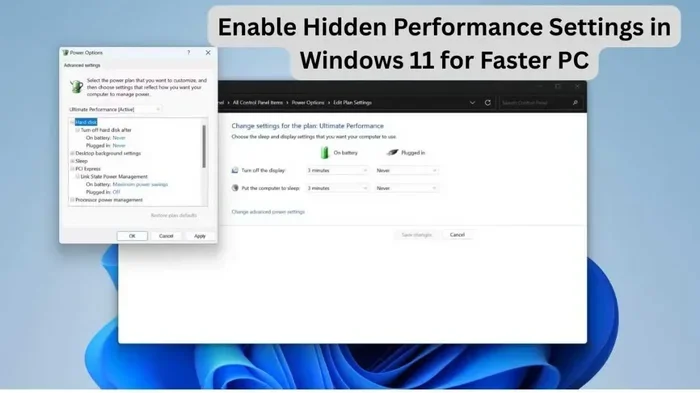
Go to Settings, then System, then Power and battery. Change the power mode to “Best Performance.” This tells your PC to use more energy for speed instead of saving power.
If you are on a laptop, this will drain your battery faster. But when you are plugged in, the speed boost is real. Your system resources stay fully available for your tasks instead of being throttled to save energy.
Limit Windows Search Indexing
Windows Search builds an index of all your files so you can find them quickly. But this indexing uses constant system resources in the background. To limit it, open Services, find “Windows Search,” and set it to Manual or Disabled.
You can also go to Indexing Options and remove folders you do not need indexed. For example, you probably do not need your entire Downloads folder indexed. Removing it saves system resources and speeds up your overall experience.
Disable Cortana and Unused Features
Cortana runs in the background on many Windows setups. It uses memory, processes voice data, and offers features most people ignore. You can disable Cortana through the Task Manager or by removing it from startup. This frees up system resources and reduces clutter.
Other features worth reviewing include Windows Tips, Suggested Content, and OneDrive syncing. Each of these runs quietly and uses your system resources without providing real value to most users.
Security Settings You Can Disable Safely
Some people think more security is always better. But certain Windows security features run redundant processes that slow your PC without adding meaningful protection. You can disable a few of these safely.
Turn Off Windows Defender Cloud Protection
Windows Defender cloud protection sends suspicious files to Microsoft for analysis. This uses your internet connection and background processing. If you already have a strong third-party antivirus, you can turn this off without much risk.
Go to Windows Security, then Virus and threat protection, then Manage settings. Toggle off “Cloud-delivered protection.” Just make sure your alternative security solution is active and up to date. This is a smart move for privacy and security conscious users who want fewer background processes.
Disable Windows Error Reporting
When your PC crashes or an app fails, Windows sends error reports to Microsoft. This uses bandwidth and system resources. To disable it, search for “Problem Reports Settings” and choose “Never check for solutions.”
Most users never benefit from these reports. Disabling them is a safe way to reduce background activity and keep your system resources focused on your actual work.
Remove Unnecessary Windows Features
Windows includes many features you may never use. Open “Turn Windows features on or off” and review the list. Features like Internet Explorer, Windows Media Player (if you use alternatives), and XPS Writer can be safely removed.
Removing unused features frees up disk space and reduces background processes. This is a deeper form of PC optimization that keeps your system lean and fast.
Quick Tips to Maximize Your Gains
Here are a few bonus tips to get even more out of your PC after making these changes:
- Restart your PC regularly: This clears temporary files and resets system resources.
- Keep your drivers updated: Updated drivers improve Windows performance across the board.
- Run disk cleanup monthly: This removes temporary files that pile up over time.
- Use an SSD: If you still use an HDD, upgrading to an SSD transforms your speed.
- Check your RAM usage: If you are constantly running low on memory, consider upgrading. A Windows 11 8GB RAM laptop handles most tasks, but heavy users benefit from more memory.
These small habits complement the settings changes above. Together, they create a faster, more secure, and more responsive Windows experience.
Common Mistakes to Avoid
Not all settings should be disabled. Here are common mistakes people make when tweaking Windows:
- Disabling Windows Update: This leaves your system vulnerable to security threats. Always keep updates enabled or set them to manual.
- Turning off core services: Some Windows services are essential. Do not disable anything you do not understand.
- Ignoring driver updates: Disabling settings without updating drivers can cause conflicts.
- Over-optimizing: Sometimes the default settings are fine. Focus on the changes that matter most for your usage.
Balance is key. You want speed and security without breaking your system. Take it one step at a time and test after each change.
Remember, a well-optimized PC feels faster, runs cooler, and lasts longer on battery. These are all benefits you can achieve by simply disabling these Windows settings. Start with the visual effects and background apps, then move on to the more advanced tweaks as you grow comfortable.
Conclusion
Disabling these Windows settings is one of the simplest and most effective ways to improve your PC speed and protect your privacy. You do not need expensive software or technical skills. Just a few minutes of tweaking can deliver noticeable results.
Start with the visual effects and background apps. Then move on to telemetry, startup programs, and power settings. Each change builds on the last, creating a compounding effect on your Windows performance. Your PC will feel faster, lighter, and more secure.
Take control of your machine today. These settings were designed for millions of users, but your needs are unique. Customize Windows to work for you, not against you. The speed and security gains are well worth the effort.
Frequently Asked Questions
Will disabling these settings void my Windows warranty?
No. These are standard Windows features and settings that you can toggle on and off freely. Microsoft does not consider these changes warranty violations. They are built into the operating system for a reason.
Can I re-enable these settings if something breaks?
Absolutely. Every setting mentioned in this guide can be reversed. Simply go back to the same location and toggle the setting back on. Your PC will return to its default state without any permanent changes.
Do I need to disable all of these settings at once?
No. You can pick and choose based on your needs. Start with the visual effects and background apps, since those deliver the most noticeable speed improvements. Add more changes as you become comfortable.
Will these changes affect my antivirus protection?
Most changes are safe. However, if you disable Windows Defender cloud protection, make sure you have an active alternative antivirus installed. Keeping your security settings balanced is important for ongoing protection.
How often should I review these settings?
A quarterly check is usually enough. New updates sometimes re-enable certain features. Reviewing your settings every few months keeps your system resources optimized and your PC running smoothly.
Do these tweaks work on older Windows versions like Windows 7?
Many of these settings apply to Windows 7, 8, and 10 as well. The exact paths may vary slightly, but the core concepts remain the same. Any PC running Windows benefits from reducing unnecessary background activity.