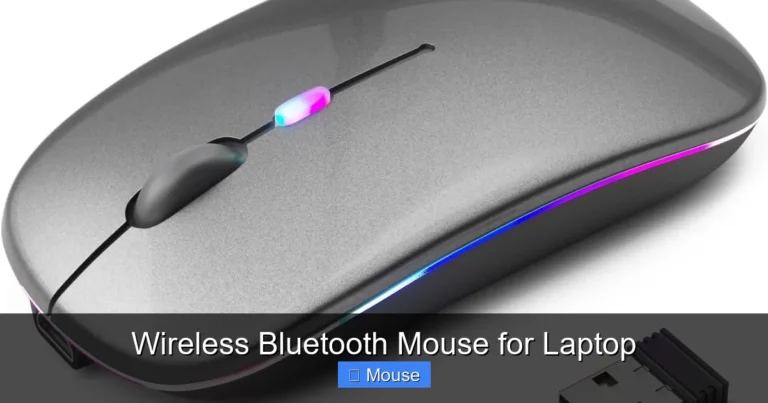
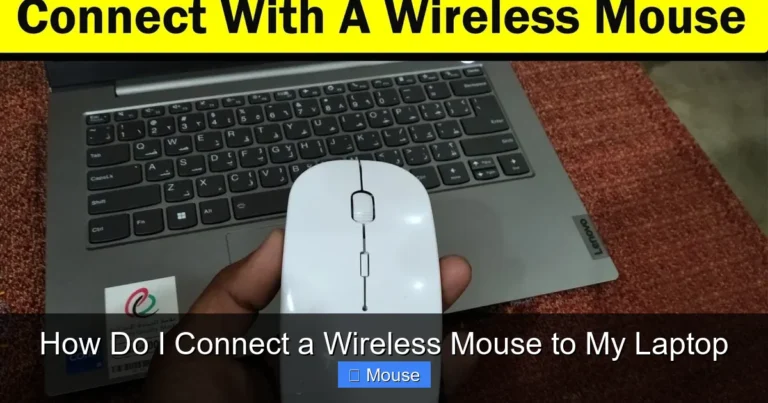
Wireless Laptop Mouse and Keyboard

A wireless laptop mouse and keyboard combo transforms your workspace by eliminating cable clutter and boosting portability. Whether you’re a student, remote worker, or gamer, the right wireless peripherals can dramatically improve your comfort, speed, and overall computing experience. This guide covers everything you need to know—from choosing the perfect set to troubleshooting common connection issues.
Key Takeaways
- Wireless freedom matters: A wireless laptop mouse and keyboard give you flexibility to work from anywhere without being tethered to your desk.
- Connection types vary: Most wireless peripherals use Bluetooth or USB receivers (2.4 GHz), each with distinct advantages for range, speed, and compatibility.
- Battery life is critical: Look for devices offering 6–24 months of battery life to avoid constant recharging or battery swaps.
- Ergonomics boost productivity: Choosing an ergonomic wireless keyboard and mouse reduces strain during long work sessions.
- Combo vs. separate: Wireless keyboard and mouse combos offer convenience and cost savings, while separate purchases allow for more customization.
- Gaming needs differ: Gamers should prioritize low-latency wireless technology and high-DPI mice for competitive performance.
- Setup is simple: Connecting a wireless mouse and keyboard to your laptop usually takes under five minutes with plug-and-play technology.
📑 Table of Contents
- Why a Wireless Laptop Mouse and Keyboard Changes Everything
- Types of Wireless Connections: Bluetooth vs. USB Receiver
- How to Choose the Best Wireless Laptop Mouse and Keyboard
- Top Benefits of Going Wireless
- How to Connect Your Wireless Mouse and Keyboard to Your Laptop
- Wireless Keyboard and Mouse Combo vs. Buying Separately
- Tips for Getting the Most Out of Your Wireless Setup
- Conclusion
Why a Wireless Laptop Mouse and Keyboard Changes Everything
Let’s be honest—working on a laptop can feel cramped. The built-in trackpad is fine for quick tasks, but it’s not ideal for long typing sessions or precise cursor control. That’s where a wireless laptop mouse and keyboard comes in. These peripherals give you the comfort of a full desktop setup with the freedom to work from your couch, a coffee shop, or across the room.
Wireless technology has come a long way. Gone are the days of laggy connections and constant battery drain. Today’s wireless peripherals are reliable, responsive, and incredibly convenient. Whether you’re typing up reports, editing photos, or gaming late into the night, the right wireless setup makes a noticeable difference.
In this guide, we’ll walk you through everything—from understanding the different types of wireless connections to picking the perfect combo for your needs. By the end, you’ll know exactly what to look for and how to get the most out of your new gear.
Types of Wireless Connections: Bluetooth vs. USB Receiver
Bluetooth Connectivity
Bluetooth is the most common wireless technology in modern laptops, phones, and tablets. A wireless laptop mouse and keyboard that uses Bluetooth connects directly to your device without needing any extra hardware. That means one less USB port taken up and one less dongle to lose.

Visual guide about Wireless Laptop Mouse and Keyboard
Image source: shayarifever.com
Bluetooth works great for everyday tasks like browsing, typing documents, and casual gaming. Most Bluetooth peripherals have a range of about 30 feet, which is more than enough for typical use. The latest Bluetooth 5.0 and 5.1 standards offer improved battery efficiency and more stable connections compared to older versions.
However, Bluetooth can occasionally experience interference in crowded wireless environments—think busy coffee shops or offices packed with devices. If you notice lag or disconnections, switching to a USB receiver-based device might solve the problem.
2.4 GHz USB Receiver
The other major wireless option uses a small USB dongle, often called a nano receiver. This tiny plug-and-play device creates a dedicated connection between your peripherals and your laptop. The result? Lower latency and more consistent performance compared to Bluetooth.
Gamers and professionals who need pinpoint accuracy often prefer 2.4 GHz wireless because the response time is nearly indistinguishable from a wired connection. Many high-end wireless gaming mice use this technology specifically for that reason.
The downside is that you need an available USB port. If your laptop only has USB-C ports, you might need an adapter. Also, losing that tiny receiver can be a real headache—some manufacturers include a storage compartment in the mouse or keyboard for safekeeping.
Dual-Mode Devices
Why choose when you can have both? Many modern wireless peripherals offer dual-mode connectivity, meaning they can switch between Bluetooth and a USB receiver. This is incredibly useful if you use multiple devices. You could connect via Bluetooth to your laptop and switch to the USB receiver when you need rock-solid performance for gaming or video editing.
How to Choose the Best Wireless Laptop Mouse and Keyboard
Consider Your Primary Use Case
Not every wireless setup is created equal. The best wireless laptop mouse and keyboard for a college student taking notes is very different from what a graphic designer or competitive gamer needs.

Visual guide about Wireless Laptop Mouse and Keyboard
Image source: susanshek.com
For office work and productivity: Look for a full-size or compact wireless keyboard with quiet keys and a comfortable mouse with smooth scrolling. Battery life should be a top priority—you don’t want your keyboard dying in the middle of a deadline.
For gaming: You’ll want a high-DPI wireless mouse (10,000+ DIPS is ideal) and a mechanical or membrane keyboard with fast response times. Check out our guide on the best wireless keyboard and mouse for gaming for specific recommendations.
For travel and portability: Compact, lightweight designs are key. Some keyboards even fold or roll up for easy packing. A smaller mouse that fits in your laptop bag pocket is also a smart choice.
Ergonomics and Comfort
If you spend hours at your laptop, ergonomics should be near the top of your list. A poorly designed mouse or keyboard can lead to wrist pain, carpal tunnel syndrome, and general discomfort.
Look for a wireless mouse that fits naturally in your hand. Some models feature a contoured shape or even a vertical design that keeps your hand in a more neutral position. For keyboards, consider one with a slight tilt or built-in wrist rest. Split keyboards are another excellent option for reducing strain.
Our article on the best ergonomic keyboard and mouse dives deeper into this topic if comfort is your main concern.
Battery Life and Power Options
Nothing kills productivity faster than dead batteries. Most wireless peripherals run on either disposable AA/AAA batteries or built-in rechargeable lithium-ion batteries.
Disposable battery models can last anywhere from 6 to 24 months depending on usage. Rechargeable models typically need charging every few weeks but are more environmentally friendly and cost-effective over time. Some premium keyboards and mice even support fast charging—just 15 minutes of charging can give you hours of use.
Pro tip: Always check the battery indicator on your device or in your operating system settings. Many wireless mice and keyboards will warn you when power is running low, giving you time to recharge or swap batteries before they die completely.
Build Quality and Durability
A wireless laptop mouse and keyboard is an investment, so you want something that lasts. Look for devices with solid construction, quality key switches, and durable mouse feet. Metal or high-plastic builds tend to outlast cheaper alternatives.
Keyboards with mechanical or scuttle switches generally last longer than cheap membrane options. For mice, check the click rating—higher-end models are rated for 20 million to 80 million clicks.
Top Benefits of Going Wireless
Declutter Your Workspace
One of the most immediate benefits of switching to a wireless laptop mouse and keyboard is the dramatic reduction in cable clutter. Fewer cables mean a cleaner desk, easier setup, and a more professional-looking workspace. If you’ve ever tried to untangle a mess of cords behind your laptop, you know exactly what we mean.
Enhanced Portability
Wireless peripherals are inherently more portable. You can toss a compact wireless mouse and keyboard into your bag and set up a comfortable workstation anywhere. This is a game-changer for digital nomads, students moving between classes, and anyone who works from multiple locations.
Improved Aesthetics
Let’s not underestimate the visual appeal. A clean desk with sleek wireless peripherals just looks better. Many modern wireless keyboards and mice come in stylish designs with RGB lighting, slim profiles, and premium finishes that complement any setup.
Flexible Positioning
Without cables dictating where your peripherals can sit, you have complete freedom to position your mouse and keyboard wherever they’re most comfortable. This flexibility can improve your posture and reduce strain during long work sessions.
How to Connect Your Wireless Mouse and Keyboard to Your Laptop
Connecting via Bluetooth
Pairing Bluetooth peripherals is straightforward on most modern laptops. Here’s the general process:

Visual guide about Wireless Laptop Mouse and Keyboard
Image source: c8.alamy.com
- Turn on your wireless mouse or keyboard and put it in pairing mode (usually by holding a dedicated button).
- Open your laptop’s Bluetooth settings—on Windows, go to Settings > Bluetooth & devices. On Mac, go to System Preferences > Bluetooth.
- Click “Add device” or “Pair new device” and select your peripheral from the list.
- Follow any on-screen prompts, and you’re connected.
If you run into trouble, our detailed guide on how to connect a wireless mouse to a laptop covers troubleshooting steps for common issues.
Connecting via USB Receiver
This is even simpler. Just plug the nano receiver into an available USB port on your laptop. Most devices will connect automatically within a few seconds—no drivers or software needed. This true plug-and-play experience is one of the biggest selling points of USB receiver-based wireless peripherals.
If your laptop doesn’t have a standard USB-A port, you’ll need a USB-C to USB-A adapter. These are inexpensive and widely available.
Troubleshooting Connection Issues
Sometimes things don’t go smoothly. If your wireless mouse or keyboard isn’t connecting, try these steps:
- Make sure the device is charged or has fresh batteries.
- Toggle Bluetooth off and on again on your laptop.
- Remove the device from your Bluetooth paired list and re-pair it.
- Try a different USB port if using a receiver.
- Restart your laptop—it’s cliché, but it works more often than you’d think.
For more specific help, check out our article on why your laptop mouse might not be working.
Wireless Keyboard and Mouse Combo vs. Buying Separately
The Case for Combos
A wireless keyboard and mouse combo is the most convenient option for most people. You get both peripherals in a single package, often at a lower price than buying them separately. Combos also ensure compatibility—both devices are designed to work together and usually share a single USB receiver, saving you a port.

Visual guide about Wireless Laptop Mouse and Keyboard
Image source: image2.slideserve.com
Combos are perfect for general users who want a hassle-free setup without researching individual products. They’re great for office environments, home use, and students who need a reliable setup without breaking the bank.
Our roundup of the best wireless keyboard mouse combos highlights top picks across different budgets and use cases.
The Case for Separate Purchases
Buying your wireless mouse and keyboard separately gives you more control over your setup. Maybe you want a premium mechanical keyboard but a budget-friendly mouse. Or perhaps you need a high-DPI gaming mouse paired with a quiet membrane keyboard for late-night work.
Separate purchases also make it easier to upgrade one component at a time. If your mouse wears out but your keyboard is still going strong, you only need to replace one item.
Tips for Getting the Most Out of Your Wireless Setup
Optimize Your Wireless Mouse Settings
Once your wireless mouse is connected, take a few minutes to customize the settings. Adjust the pointer speed and DPI to match your preferences. Most people find that a slightly faster cursor speed reduces hand movement and increases efficiency.

Visual guide about Wireless Laptop Mouse and Keyboard
Image source: c8.alamy.com
If your mouse has programmable buttons, assign them to frequently used functions like copy, paste, or switching between applications. These small customizations can save you significant time over weeks and months of use.
Keep Firmware Updated
Many wireless peripherals receive firmware updates that improve performance, fix bugs, and add new features. Check the manufacturer’s website or companion software periodically to make sure your devices are running the latest firmware.
Use a Mouse Pad
Even with a wireless mouse, a good mouse pad improves tracking accuracy and provides a consistent surface. It also protects your desk from scratches and gives your wrist a smoother gliding experience.
Manage Battery Life Proactively
Set a reminder to check your peripheral battery levels weekly. If you’re using rechargeable devices, get into the habit of charging them during a consistent time—like every Sunday night—so you’re never caught off guard by a dead mouse or keyboard.
Conclusion
A wireless laptop mouse and keyboard is one of the simplest upgrades you can make to improve your daily computing experience. Whether you choose a convenient combo kit or hand-pick separate peripherals, the freedom, comfort, and cleanliness of a wireless setup are hard to beat.

Visual guide about Wireless Laptop Mouse and Keyboard
Image source: cdn.antarafoto.com
Take the time to consider your specific needs—whether that’s gaming performance, ergonomic comfort, or portability—and choose accordingly. With the right wireless peripherals, your laptop becomes a far more powerful and enjoyable tool for work, creativity, and play.
Ready to make the switch? Start by exploring the options that match your budget and use case. You’ll wonder how you ever managed with just a trackpad and cramped laptop keyboard.
Frequently Asked Questions
What is wireless laptop mouse and keyboard?
wireless laptop mouse and keyboard is an important topic with many practical applications.