Wosoda Trail Camera Not Recording at Night
Is your Wosoda trail camera failing to capture footage after dark? This is a common issue, usually stemming from incorrect settings, power problems, or sensor misalignment. The solution involves a systematic check of your camera’s night vision (IR) settings, battery health, SD card, and physical placement. Don’t assume it’s broken—most night recording problems are fixable with a few targeted troubleshooting steps.
Key Takeaways
- Incorrect Mode is the #1 Culprit: Your camera must be set to “Auto” or specifically “Black/IR” mode for night recording. “Day” mode disables the infrared.
- Batteries Are Critical at Night: The IR LEDs consume significant power. Weak or mismatched batteries are the most common cause of night failure.
- SD Card & Formatting Matter: An incompatible, full, or improperly formatted card will stop recordings silently, often more noticeable at night.
- Physical Obstructions Block IR: Twigs, camera straps, or even a dirty lens cover can reflect IR light back into the lens, causing a “whiteout” or no trigger.
- Sensor Sensitivity Needs Adjustment: The PIR (Passive Infrared) motion sensor may be set too low, or its detection angle is blocked, preventing triggers in low light.
- Firmware Glitches Happen: Outdated or corrupted firmware can cause erratic behavior, including night mode malfunctions. A factory reset or update can help.
- Environment Plays a Role: Extreme cold drains batteries faster. Heavy foliage or lack of ambient light can also challenge the camera’s night capabilities.
[FEATURED_IMAGE_PLACEHOLDER]
📑 Table of Contents
- Why Your Wosoda Trail Camera Isn’t Recording at Night: A Complete Guide
- The Usual Suspects: Settings and Modes
- Power Problems: The Silent Night Killer
- Storage and Media Issues That Halt Recording
- Physical Obstructions and Sensor Alignment
- Environmental and Advanced Troubleshooting
- Conclusion: Getting Your Night Vision Back
Why Your Wosoda Trail Camera Isn’t Recording at Night: A Complete Guide
You set up your new Wosoda trail camera with high hopes. You check the SD card after a few days, and it’s filled with perfect daytime shots of deer and squirrels. But when you look for the nocturnal action—the opossums, the owls, the deer under the moon—there’s nothing. The timestamp is there, but the video is black, or there’s no file at all. Frustrating? Absolutely. Permanent? Almost never. When a Wosoda trail camera is not recording at night, it’s almost always a solvable puzzle.
Trail cameras like those from Wosoda are marvels of modern, affordable tech. They use a combination of a passive infrared (PIR) motion sensor and infrared (IR) LEDs to see in the dark. The PIR detects heat signatures (like an animal’s body heat), and the IR LEDs provide invisible illumination that the camera’s sensor can see, but your eyes cannot. When this system fails at night, it’s usually one of a handful of predictable culprits. This guide will walk you through every possible reason, from the simplest setting error to more complex hardware issues, and give you the clear, step-by-step fixes to get your night vision back.
The Usual Suspects: Settings and Modes
Before you dismantle anything, start here. Over 50% of “not recording at night” complaints are due to the camera simply not being in the correct operational mode. It sounds basic, but it’s incredibly easy to overlook, especially after fiddling with other settings during the day.
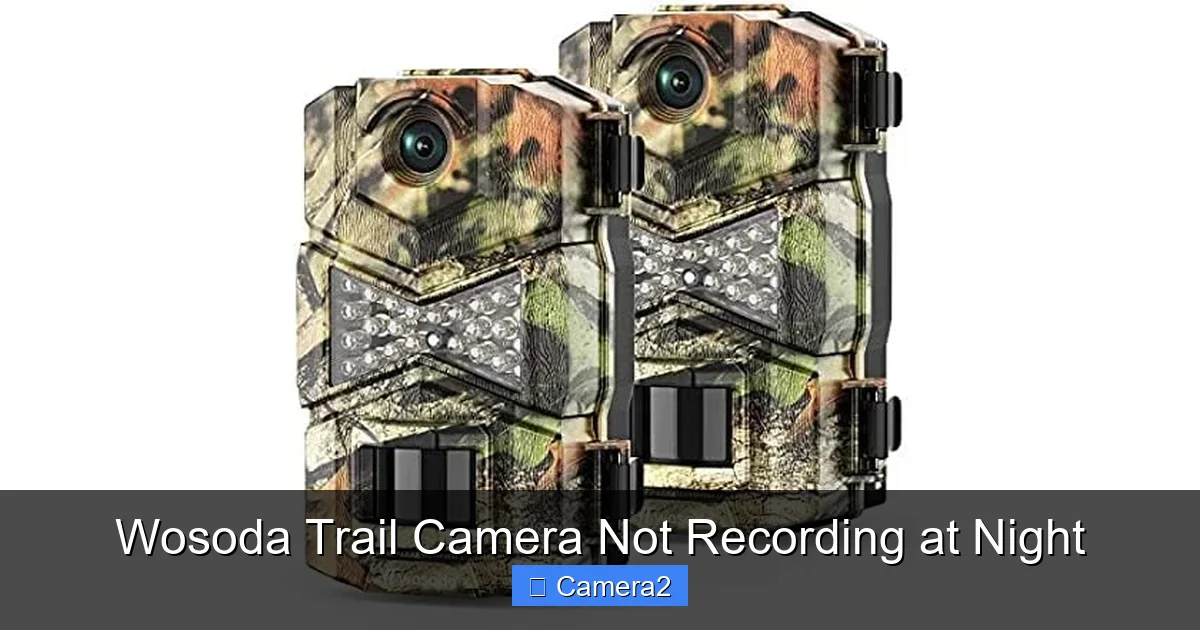
Visual guide about Wosoda Trail Camera Not Recording at Night
Image source: images-na.ssl-images-amazon.com
Is Your Camera Actually in “Night” or “IR” Mode?
Wosoda cameras typically have several shooting modes: “Photo,” “Video,” “Photo+Video,” and often a “Time Lapse” mode. More importantly, they have a day/night sensor mode setting. This is frequently labeled as “IR Mode,” “Night Vision,” “Black/White (B/W),” or simply “Auto.”
- Auto Mode: The camera automatically switches between color (day) and black/white (night) based on ambient light. This is the best setting for most users.
- Day/Color Mode: Forces the camera to stay in color mode. In low light, the image will be very dark, grainy, and may appear black. The IR LEDs will NOT fire in this mode.
- Night/BW/IR Mode: Forces the camera into black/white and turns on the IR LEDs constantly, regardless of light. Useful for testing.
Action Step: Go into your camera’s main menu (usually accessed by pressing the “Menu” or “OK” button). Navigate to the “Camera Settings” or “Setup” tab. Look for an option called “IR Mode,” “Night Vision,” or “Day/Night.” Ensure it is set to “Auto”. If you’re troubleshooting, set it to “IR” or “Night” to force the LEDs on and see if they illuminate a dark room.
PIR Sensor Settings: Sensitivity and Delay
The PIR sensor is your camera’s trigger. If it’s not detecting the animal, the camera won’t take a picture or video, no matter how good the night vision is.
- PIR Sensitivity: This is often a 3-level setting (High, Medium, Low). For most wildlife, High sensitivity is best, especially at night when animals are farther away and the temperature differential is smaller. Low sensitivity might only trigger for a large, warm animal very close.
- PIR Interval (Delay): This is the “cool-down” period after a trigger before the camera can trigger again. If set too long (e.g., 1 minute), a fast-moving animal might only get one picture. If set to “0” or “1 sec,” it will capture rapid sequences. Ensure it’s not set to an excessively long time like 10 minutes if you expect multiple animals.
- PIR “Working Range”: Some models let you set the detection zone (e.g., “Wide” or “Narrow”). “Wide” is generally better for night use to catch animals at the edges of the frame.
Action Step: In the menu, find “PIR Settings” or “Motion Detect.” Set Sensitivity to High. Set the Interval/Delay to 1-5 seconds for video or rapid photos. Test this by walking in front of the camera at night (you’ll see the IR LEDs glow faintly red if they’re on).
Power Problems: The Silent Night Killer
The IR LEDs are power-hungry. When they fire, they can draw a significant portion of the camera’s total power budget. If your power source is marginal during the day, it will fail at night.
Visual guide about Wosoda Trail Camera Not Recording at Night
Image source: images-na.ssl-images-amazon.com
Battery Type and Quality
This is the single most common hardware-related cause.
- Use Lithium Batteries: Wosoda cameras, like most trail cams, perform best and last longest with 1.5V Lithium (non-rechargeable) AA batteries. Brands like Energizer Ultimate Lithium or similar are the gold standard. They maintain a stable voltage even in cold weather, which is crucial for night operation.
- Avoid Alkaline Batteries: Standard alkaline (Duracell, Energizer Max) batteries start at 1.5V but quickly drop to 1.2V or lower. The camera’s voltage monitor may think they’re “low” and disable power-intensive functions like the IR LEDs to conserve energy, resulting in black night videos.
- Rechargeable NiMH are a Gamble: While some users report success, NiMH batteries have a nominal voltage of 1.2V, which is often below the camera’s operating threshold for full functionality, especially IR. If you must use them, choose low-self-discharge (LSD) types like Eneloop, and be prepared for shorter night life.
Action Step: Replace all batteries with a fresh set of name-brand Lithium AA batteries. Do not mix old and new, or different brands/types. This is the first and most effective hardware fix.
External Power Source Check
If you’re using an external 12V battery box or solar panel:
- Check all connections for corrosion or looseness.
- Ensure the external battery is sufficiently charged. A deep-cycle battery below 12.4V may not provide enough peak current for the IR LED burst.
- Verify the power cable is the correct type and polarity for your specific Wosoda model. An incorrect cable can damage the camera or provide insufficient power.
Storage and Media Issues That Halt Recording
Your camera might think it’s recording perfectly, but if it can’t write to the SD card, the file is lost. This is often silent—no error message on the camera’s small screen.
Visual guide about Wosoda Trail Camera Not Recording at Night
Image source: content.propertyroom.com
SD Card Compatibility and Speed
Trail cameras are picky about SD cards. The wrong card will cause missed triggers and corrupted files.
- Capacity: Most Wosoda models support up to 32GB SDHC cards. Some newer ones support 64GB or 128GB SDXC. Check your manual. Using a 128GB card in a camera that only supports 32GB will cause failures.
- Speed Class: You need a Class 10 or UHS-I (U1) card minimum. “U3” is also fine. Avoid “UHS-II” cards—they are often incompatible. Look for the “10” or “C10” inside a circle on the card.
- Brand Matters: Use reputable brands like SanDisk (Extreme, Ultra), Samsung (EVO, PRO), or Kingston. Avoid generic, no-name, or “high-capacity” (HC) cards from unknown manufacturers.
Formatting is Non-Negotiable
Always format the SD card in the camera itself. Formatting on a computer uses a file system (exFAT, NTFS) that may not be optimal for the camera’s embedded system.
Action Step:
- Insert the SD card into the camera.
- In the menu, find “Format” or “Delete All.”
- Select “Format” (this is a quick, low-level format). Do not just “Delete” files.
- Wait for it to complete. Do not remove the card or power off the camera during formatting.
If the “Format” option is grayed out or fails, the card may be physically damaged or locked (check the small lock switch on the side).
Physical Obstructions and Sensor Alignment
The IR system is a delicate balance of light emission and detection. Physical interference can break this balance.
The “Whiteout” or “Glare” Problem
If your night videos are completely white or washed out, the IR light is bouncing back into the lens. This is often caused by:
- Camera strap or mounting bracket hanging down in front of the lens.
- Twigs, leaves, or grass growing directly in front of the camera.
- A dirty lens or protective lens cover. Wipe the lens and the clear plastic cover in front of it with a soft, microfiber cloth. A thin film of dust or moisture can scatter IR light.
- Reflective surfaces like a metal feeder, a wet rock, or a car bumper very close to the camera. The IR light bounces off these directly into the lens.
Action Step: Physically inspect the camera from the front. Remove any strap ends, clear vegetation within a 3-foot radius, and clean the lens thoroughly. Point the camera at a blank, non-reflective tree trunk for a test.
PIR Sensor Window Obstruction
The small, dark Fresnel lens (the plastic sheet with concentric rings) in front of the PIR sensor must have a clear view. If this is blocked by a leaf, a smear of mud, or even a spider web, the sensor won’t “see” the heat signature of an animal.
Action Step: Gently clean the PIR sensor window with a dry cotton swab or soft brush. Ensure nothing is obstructing its field of view.
Environmental and Advanced Troubleshooting
If you’ve checked settings, power, and cards, and the camera still won’t record at night, consider these factors.
Extreme Cold Weather Performance
All batteries lose capacity in cold temperatures, but Lithium batteries handle it best. At temperatures consistently below 20°F (-7°C), even Lithium batteries can weaken. The camera’s internal logic may shut down the IR LEDs to preserve enough power for a basic trigger and timestamp. The camera might register a trigger (you see a file) but the video is black because the LEDs didn’t fire.
Action Step: In very cold climates, use a dedicated 12V external battery box with a larger lead-acid or lithium-ion battery. This provides more stable, high-current power. Also, insulate the camera body with a neoprene sleeve or foam to help retain heat from the batteries.
Firmware Glitches and Factory Reset
Software bugs can cause odd behavior. A corrupted setting can disable night mode.
- Firmware Update: Go to the official Wosoda website (or the retailer’s support page). Find your exact model number (on the back/bottom of the camera). Check for any available firmware updates. Follow their instructions precisely to update via SD card.
- Factory Reset: This clears all custom settings and restores defaults. It’s often the cure for mysterious software issues. In the menu, look for “Reset” or “Default Set.” Note: You will have to reconfigure all your settings (mode, resolution, interval, etc.) after a reset.
Conclusion: Getting Your Night Vision Back
A Wosoda trail camera not recording at night is a solvable problem. The key is a methodical, top-down approach. Start with the simplest, most likely fixes first: verify the IR/Auto mode setting, replace with fresh Lithium batteries, and format the SD card in the camera. These three steps resolve the vast majority of issues. Then, move to physical inspection—clean the lens and PIR window, and remove any obstructions. Finally, consider environmental factors like cold and perform a firmware update or factory reset if software is suspected.
Remember, your trail camera is a tool that needs proper setup and maintenance. By understanding its core components—the PIR sensor, the IR illuminators, and the power system—you become an effective troubleshooter. Don’t let a black screen fool you into thinking the camera is broken. With this guide, you have the roadmap to diagnose and fix the issue, ensuring you capture all the mysterious, magical activity that happens under the cover of darkness. Your next SD card review will be filled with the glowing eyes of raccoons and the stealthy movements of foxes, proving that your Wosoda is once again the reliable night watchman you bought it to be.
Frequently Asked Questions
My Wosoda camera’s IR LEDs don’t seem to glow at all at night. Is it broken?
Not necessarily. First, ensure the camera is in “Auto” or “IR” mode in a completely dark room. The LEDs emit a faint red glow that is hard to see in daylight but visible in total darkness. If they still don’t glow, you likely have weak batteries, a faulty power source, or a settings issue where night mode is disabled.
The night videos are all black, but the daytime videos are fine. What gives?
This points directly to the IR system failing to activate. The primary causes are: 1) The camera is set to “Day” mode instead of “Auto,” 2) Weak batteries that can’t power the IR LEDs, 3) An SD card error that prevents video writing, or 4) A physical obstruction causing IR “whiteout” that the camera’s processing interprets as black.
Can I use rechargeable batteries in my Wosoda trail camera for night use?
You can, but it’s not recommended for reliable night operation. Standard NiMH rechargeables have a lower voltage (1.2V) than disposable alkaline (1.5V) and much lower than Lithium (1.5V stable). The camera’s voltage sensor may disable power-hungry functions like the IR LEDs to conserve energy, leading to black night videos. If you must use them, use low-self-discharge (LSD) types like Eneloop and expect significantly shorter runtime.
How do I know if my SD card is the problem?
First, try a different, known-good SD card (a name-brand Class 10/U1 card, 16GB or 32GB). If the problem disappears, your original card is faulty or incompatible. Second, always format the card IN THE CAMERA. Formatting on a computer can cause issues. A full card will also stop new recordings.
My camera triggers at night (I see a file), but the video is just black. Why?
This means the PIR sensor detected motion and the camera started recording, but the IR LEDs either did not fire or their light was blocked/reflected. Check battery strength, IR mode setting, and physical obstructions in front of the lens. A very quick trigger (like a bird) might also happen before the IR LEDs fully power on.
Is there a way to test the night vision without waiting for an animal?
Yes! After dark, set your camera to “IR” or “Night” mode (forces LEDs on). Walk in front of it. You should see the faint red glow of the IR LEDs if you look at the camera front-on in total darkness. Then, check the playback. If it records your walk, the night vision system works. If it doesn’t, you now know the problem is with the LEDs, power, or recording system, not the PIR sensor or animal detection.