Wsl Sudo Stopped Working On Windows 11 Top Fixes Guide
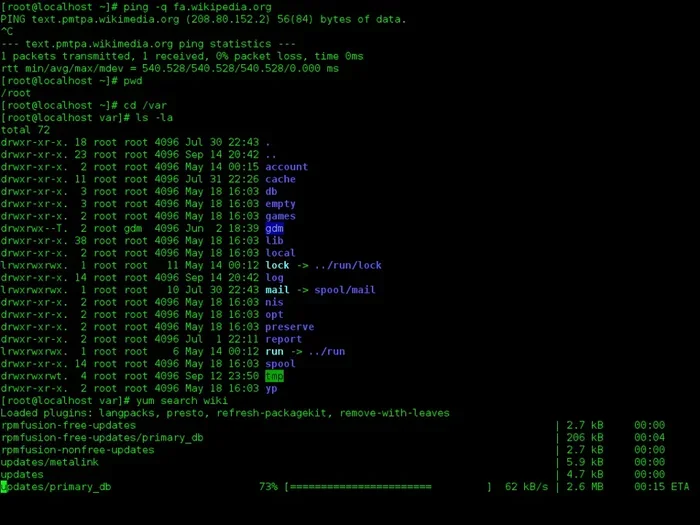
Wsl Sudo Stopped Working On Windows 11 is a frustrating but common problem that many Linux users face. This guide walks you through the top fixes to get your sudo command working again quickly. Whether it is a permissions issue, a WSL configuration glitch, or a Windows update conflict, we cover every solution you need.
Wsl Sudo Stopped Working On Windows 11 can bring your entire development workflow to a halt. You type sudo before a command, hit Enter, and nothing happens. Or worse, you get a dreaded error message that makes no sense. This is one of the most common issues people run into when using the Windows Subsystem for Linux on their Windows 11 machines. The good news is that it is almost always fixable without reinstalling anything major.
In this guide, we walk you through every proven fix for WSL sudo not working on Windows 11. We start with the simplest solutions and work our way up to more advanced troubleshooting. Each step is explained in plain language so you do not need to be a Linux expert to follow along. If you have also noticed that your mouse stopped working on laptop while troubleshooting, make sure your system is fully updated first.
By the end of this article, you will know exactly why sudo fails in WSL and how to fix it fast. You will also learn how to prevent the problem from coming back. Let us dive in and get your Linux terminal working again on Windows 11.
Key Takeaways
- WSL sudo failures on Windows 11 are usually caused by permission misconfigurations or outdated WSL versions.
- Updating WSL and the Linux kernel often resolves the issue in just a few commands.
- Resetting your WSL distribution is a powerful fix when simpler methods do not work.
- Checking the sudoers file ensures your user account still has the correct admin privileges.
- Keeping Windows 11 updated prevents compatibility conflicts with WSL and Linux tools.
- Reinstalling your WSL distro is the last resort but almost always fixes deep-rooted problems.
📑 Table of Contents
Why WSL Sudo Stops Working on Windows 11
Before jumping into fixes, it helps to understand what is going wrong. The sudo command in Linux lets users run programs with admin-level privileges. When it stops working, something in the chain between your user account, the Linux distribution, and Windows 11 has broken.
Common Reasons Sudo Fails in WSL
- Outdated WSL version: Older versions of WSL have known bugs that affect sudo permissions.
- Corrupted sudoers file: The file that controls who can use sudo can get damaged during updates.
- User not in sudo group: Your Linux user account may have been removed from the sudo group by accident.
- Windows 11 update conflicts: Major Windows updates can sometimes reset WSL configurations.
- File system permission issues: WSL shares files with Windows, and permission clashes can block sudo.
Understanding the root cause helps you pick the right fix. Most people find that one of the solutions below solves their problem in under five minutes.
Fix 1: Update WSL and the Linux Kernel
The first thing you should do when WSL sudo stopped working is update everything. Microsoft releases regular updates that fix bugs and improve compatibility with Linux distributions.
Step-by-Step Update Process
- Open PowerShell as Administrator on your Windows 11 PC.
- Type wsl –update and press Enter.
- Wait for the update to download and install.
- Restart your computer to apply the changes.
- Open your WSL terminal and try sudo again.
This simple step fixes the issue for many users. If updating does not help, move on to the next fix. Also, if you are running a Windows 11 8GB RAM laptop, keeping WSL updated ensures you get the best performance from your system.
How to Check Your Current WSL Version
You can verify which version of WSL you are running by typing wsl –version in PowerShell. If your version is below 2.0, you should upgrade. WSL 2 offers much better Linux compatibility and fewer permission-related bugs. The update command will automatically move you to the latest version if you are on an older build.
Fix 2: Reset WSL Configuration
Sometimes the WSL configuration files themselves become corrupted. This can happen after a failed update or when multiple Linux tools conflict with each other. Resetting the configuration often brings sudo back to life.
How to Reset WSL Safely
- Close all WSL terminal windows.
- Open PowerShell as Administrator.
- Type wsl –shutdown and press Enter.
- Then type wsl –repair Ubuntu (replace Ubuntu with your distro name).
- Restart WSL and test sudo commands again.
This fix does not delete your files or installed programs. It simply resets the core configuration that controls how WSL handles permissions and user access. Many users report that this single step resolved their WSL sudo permission denied error immediately.
When a Full Reset Is Needed
If the repair command does not work, you can try a full reset. Use wsl –unregister Ubuntu followed by a fresh install from the Microsoft Store. This is more drastic but clears out any deeply corrupted files. Make sure you back up any important work before doing this.
Fix 3: Check User Permissions and the Sudoers File
The sudoers file is the gatekeeper that decides which users can run commands with admin rights. If this file gets misconfigured or corrupted, sudo simply will not work. Checking and fixing permissions is one of the most effective solutions.
How to Edit the Sudoers File
- Open your WSL terminal.
- Type su – to switch to the root user.
- Enter visudo to safely edit the sudoers file.
- Look for a line with your username and the word sudo.
- Make sure it reads: yourusername ALL=(ALL:ALL) ALL.
- Save and exit the editor.
If your username is missing from the sudoers file, add it using the format above. This is a very common reason why WSL sudo stopped working after a system change. Always use visudo instead of a regular text editor because it checks for syntax errors before saving.
Adding Your User to the Sudo Group
Another quick check is to verify your user is in the sudo group. Run groups yourusername in the terminal. If sudo is not listed, you can add it with usermod -aG sudo yourusername. Log out and log back in for the change to take effect.
Fix 4: Reinstall Your WSL Distribution
When nothing else works, reinstalling your Linux distribution through WSL is the nuclear option. This fix has a very high success rate for resolving deep-rooted sudo and permission issues.
Steps to Reinstall Your WSL Distro
- Back up any important files from your Linux environment.
- Open PowerShell as Administrator.
- Type wsl –unregister Ubuntu (use your distro name).
- Open the Microsoft Store and search for your Linux distro.
- Click Install and set up your username and password.
- Test sudo commands in the fresh installation.
This gives you a clean Linux environment on Windows 11 with no lingering configuration problems. It does take a few extra minutes, but it almost always solves the problem. If you are also dealing with other system quirks, you might want to check our guide on why is mouse not working on laptop for additional troubleshooting tips.
Tips for a Smooth Reinstall
- Write down any custom configurations you had before reinstalling.
- Export your installed packages list so you can reinstall them quickly.
- Use wsl –export and wsl –import to back up your entire distro.
- After reinstalling, run sudo apt update first to refresh your package lists.
Fix 5: Update Windows 11 and System Drivers
Windows 11 updates frequently include fixes for WSL compatibility. Running an outdated version of Windows can cause sudo commands to fail even when your Linux setup is perfectly fine.
How to Update Windows 11
- Open Settings and go to Windows Update.
- Click Check for Updates.
- Install any pending updates.
- Restart your computer.
- Open WSL and test sudo again.
Do not skip driver updates either. Graphics and network drivers can affect how WSL communicates with the Windows kernel. A simple driver refresh through Device Manager can sometimes unblock sudo access in WSL. If you are managing a laptop keyboard and mouse stopped working situation alongside WSL issues, a full system update often resolves both problems at once.
Enabling WSL Through Windows Features
Sometimes the WSL feature itself gets toggled off after a Windows update. Go to Control Panel, then Programs, then Turn Windows Features On or Off. Make sure both Virtual Machine Platform and Windows Subsystem for Linux are checked. This simple check has saved many users from unnecessary troubleshooting.
Preventing WSL Sudo Issues in the Future
Once you get sudo working again, you want to keep it working. A few simple habits can prevent most WSL sudo problems from ever coming back.
Best Practices for WSL Maintenance
- Update regularly: Run wsl –update at least once a month.
- Avoid mixing Windows and Linux file edits: Editing the same files from both environments can cause permission conflicts.
- Do not run WSL as root constantly: Only use root access when you really need it.
- Keep your distro current: Run sudo apt update && sudo apt upgrade regularly inside WSL.
- Monitor Windows updates: After a major Windows 11 update, test sudo to make sure it still works.
These small habits take almost no time but save you from hours of frustration down the road. Think of them as routine maintenance for your development environment.
When to Seek Additional Help
If you have tried every fix above and WSL sudo still does not work, it might be time to look deeper. Check the WSL GitHub issues page for known bugs with your specific Windows 11 build. You can also try running wsl –log to see detailed error messages that point to the exact cause. Community forums and Stack Overflow are also great places to find solutions for rare edge cases.
Conclusion
Wsl Sudo Stopped Working On Windows 11 is a solvable problem in the vast majority of cases. Start with simple fixes like updating WSL and checking your sudoers file. Move to resetting your configuration or reinstalling your distro if the simpler steps do not work. Keeping Windows 11 and your Linux distribution up to date is the best way to prevent these issues from returning.
Most users find their fix within the first two or three steps. You do not need to be a Linux expert to follow this guide. Just work through the solutions in order, and you will have sudo running smoothly again in no time. Bookmark this page for the next time WSL gives you trouble, and share it with anyone else who might be dealing with the same frustration.
Frequently Asked Questions
Why does sudo keep failing in WSL on Windows 11?
Sudo keeps failing in WSL usually because of a corrupted sudoers file, outdated WSL version, or your user account being removed from the sudo group. Updating WSL and checking your permissions are the first steps to fix this.
Can I fix WSL sudo issues without reinstalling my distro?
Yes, in most cases you can fix sudo without reinstalling. Updating WSL, resetting the configuration, and editing the sudoers file are all effective solutions that do not require a full distro reinstall.
Is it safe to use visudo to edit the sudoers file in WSL?
Yes, visudo is the safest way to edit the sudoers file because it checks for syntax errors before saving. Using a regular text editor can break the file and make sudo stop working entirely.
What should I do if wsl –update does not fix the sudo problem?
If updating WSL does not help, try resetting your WSL configuration with wsl –repair or wsl –unregister. These commands reset core settings without deleting your files or installed programs.
Does Windows 11 version affect WSL sudo functionality?
Yes, older versions of Windows 11 can have compatibility issues with newer WSL features. Keeping Windows 11 fully updated ensures the best support for WSL and prevents sudo-related bugs.
How can I prevent WSL sudo problems from coming back?
Regular updates for both Windows 11 and your Linux distro, avoiding mixed file editing between Windows and Linux, and only using root access when needed are the best ways to prevent sudo issues from returning.
=== INTERNAL LINKS ===
For related troubleshooting, check out our guides on why is mouse not working on laptop and laptop keyboard and mouse stopped working if you are experiencing other system issues alongside WSL problems.