Ycc365 Plus Camera Rtsp Support
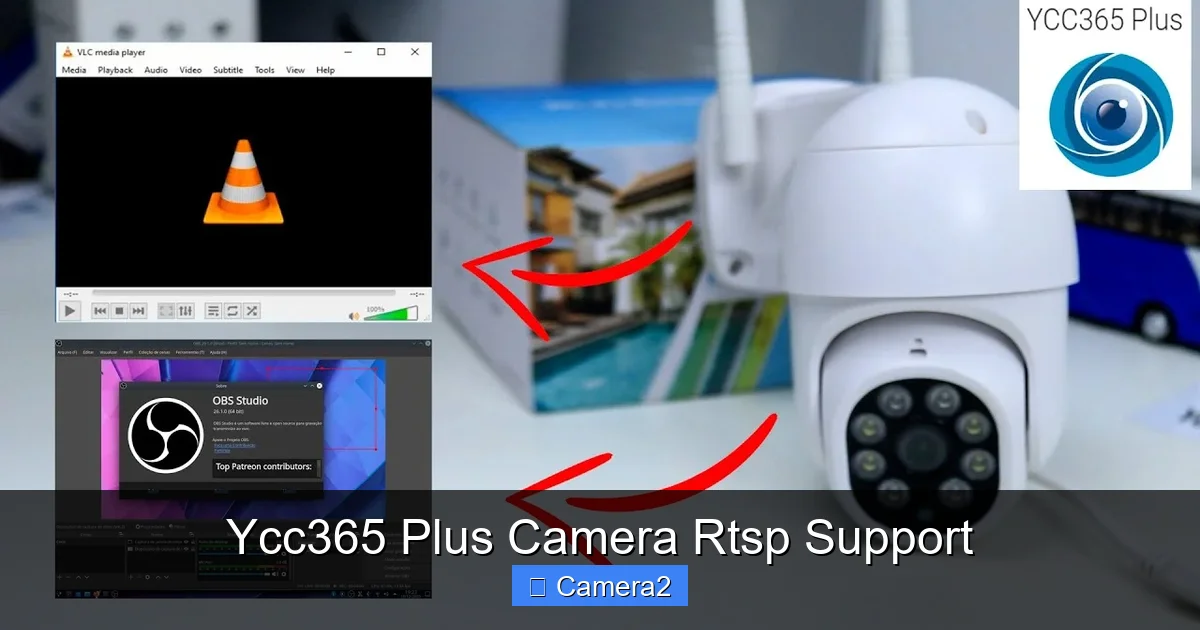
Ycc365 Plus Camera RTSP support unlocks live streaming to any RTSP‑compatible player, giving you flexible remote monitoring. This guide walks you through setup, configuration, and troubleshooting, so you can watch your camera from anywhere, on any device.
Key Takeaways
- Easy activation: Enabling RTSP on the Ycc365 Plus takes just a few clicks in the web interface.
- Broad compatibility: RTSP streams work with VLC, OBS, Home Assistant, and most NVR software.
- Security first: Use strong passwords and, if possible, VPN or SSL tunneling to protect the stream.
- Performance tips: Adjust resolution and bitrate to match your bandwidth for smooth playback.
- Troubleshooting shortcuts: Common issues like “connection timed out” often stem from port blocking or firewall rules.
- Integration ideas: Combine Ycc365 Plus with smart home systems for motion alerts and automated recordings.
- Future‑proofing: Firmware updates add new codecs and improve stability, so keep the camera up to date.
📑 Table of Contents
- Introduction: Why RTSP Matters for the Ycc365 Plus Camera
- 1. Understanding RTSP and How It Works with Ycc365 Plus
- 2. Preparing Your Network for RTSP Traffic
- 3. Enabling RTSP Support in the Ycc365 Plus Web Interface
- 4. Securing Your RTSP Stream
- 5. Optimizing Performance for Smooth Playback
- 6. Integrating Ycc365 Plus RTSP into Smart Home and NVR Systems
- 7. Troubleshooting Common Issues
- Conclusion: Unlock Full Potential with Ycc365 Plus Camera RTSP Support
Introduction: Why RTSP Matters for the Ycc365 Plus Camera
When you buy a security camera, the first thing you want is to see what it sees—live, real‑time, and from anywhere. The Ycc365 Plus camera offers a handy web UI, but many users quickly discover that the built‑in video player is limited to a browser window. That’s where RTSP (Real‑Time Streaming Protocol) comes in. RTSP lets you pull the video feed to any compatible player, from a smartphone app to a full‑blown Network Video Recorder (NVR). In short, enabling Ycc365 Plus camera RTSP support turns a simple IP camera into a flexible streaming hub.
In this article we’ll walk through the entire process: discovering the RTSP URL, activating the feature, securing the stream, and troubleshooting the most common hiccups. We’ll also sprinkle in practical examples—like adding the feed to VLC, OBS, and a Home Assistant dashboard—so you can start watching right away.
1. Understanding RTSP and How It Works with Ycc365 Plus
What is RTSP?
RTSP is a network protocol designed for controlling streaming media servers. It works like a remote control: you send commands such as PLAY, PAUSE, and TEARDOWN to the camera, which then delivers a continuous video stream over UDP or TCP. Most modern media players (VLC, MX Player, ffmpeg) understand RTSP out of the box.
Visual guide about Ycc365 Plus Camera Rtsp Support
Image source: support.sannce.com
Why Ycc365 Plus Supports RTSP
The Ycc365 Plus camera runs on an embedded Linux system with an H.264 hardware encoder. The firmware includes an RTSP server module that can be toggled on or off. When enabled, the camera advertises a stream URL that looks like:
rtsp://<username>:<password>@<camera‑ip>:554/stream1
This URL can be copied into any player, and the camera will start sending packets directly to the client.
2. Preparing Your Network for RTSP Traffic
Check Your Router Settings
RTSP typically uses port 554. Make sure this port is not blocked by your router’s firewall. Log into your router’s admin panel, locate the “Port Forwarding” or “Virtual Server” section, and add a rule that forwards external port 554 to the internal IP address of your Ycc365 Plus camera.
Visual guide about Ycc365 Plus Camera Rtsp Support
Image source: image.winudf.com
Assign a Static IP or DHCP Reservation
Dynamic IP addresses can change after a reboot, breaking your RTSP link. Reserve a static IP for the camera in your router’s DHCP settings, or set a static IP directly on the camera under Network → Advanced → IP Settings.
3. Enabling RTSP Support in the Ycc365 Plus Web Interface
Step‑by‑Step Activation
- Open a web browser and navigate to
http://<camera‑ip>. Log in with the admin credentials. - Go to Advanced Settings → Stream Settings.
- Find the toggle labeled “Enable RTSP” and switch it on.
- Select the desired video profile (e.g., 1080p @ 25 fps) and click Save.
- The camera will reboot the streaming service for a few seconds.
After these steps, the RTSP URL becomes active. You can view it by hovering over the “RTSP URL” field and copying the full string.
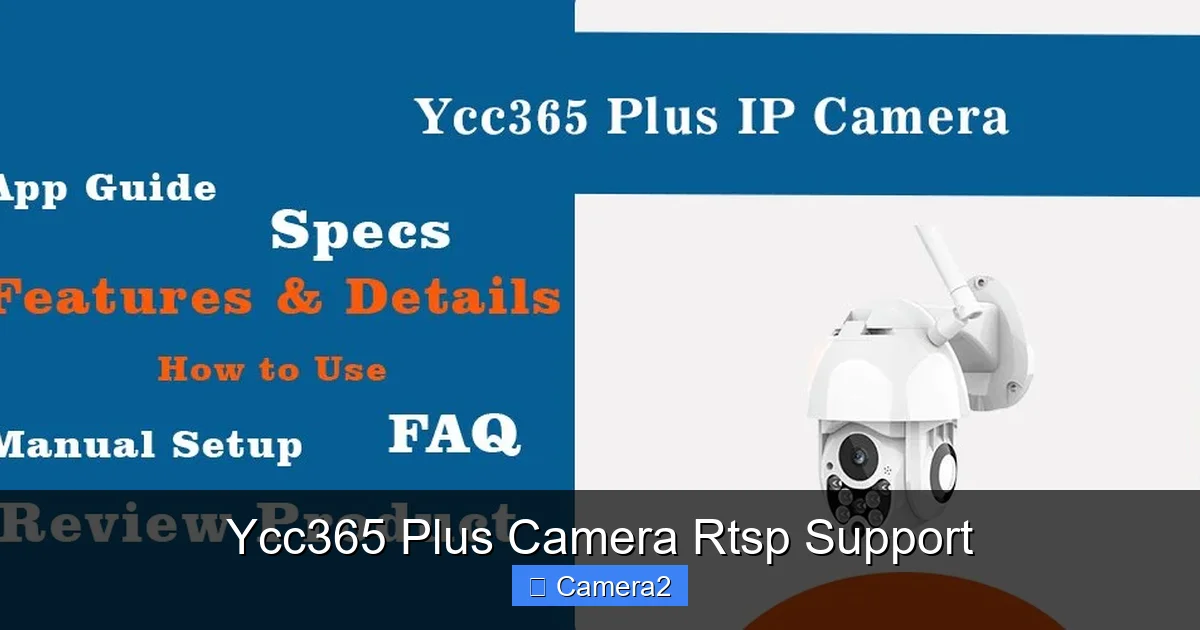
Visual guide about Ycc365 Plus Camera Rtsp Support
Image source: image.winudf.com
Testing the Stream with VLC
Open VLC, choose Media → Open Network Stream, paste the RTSP URL, and click Play. If everything is set up correctly, you’ll see live video within seconds.
4. Securing Your RTSP Stream
Strong Authentication
The default admin password is often “admin”. Change it immediately under System → User Management. Use a mix of letters, numbers, and symbols to make brute‑force attacks harder.
Network‑Level Protection
- VPN: Run the camera behind a VPN server (OpenVPN, WireGuard). Only devices connected to the VPN can reach the RTSP port.
- SSL/TLS Tunneling: Some NVR software can wrap RTSP in an encrypted tunnel, preventing eavesdropping.
Disable Unused Services
If you’re not using the built‑in HTTP viewer, disable it under Service Settings → HTTP Server. Fewer open ports mean a smaller attack surface.
5. Optimizing Performance for Smooth Playback
Choosing the Right Resolution and Bitrate
Higher resolution looks great, but it also consumes more bandwidth. A good rule of thumb:
- 1080p @ 2 Mbps for LAN viewing.
- 720p @ 1 Mbps for remote viewing over cellular.
Adjust these values in Stream Settings → Video Profile. Test the stream after each change to find the sweet spot.
Reducing Latency
RTSP latency can be affected by buffering in the client. In VLC, go to Tools → Preferences → Input / Codecs** and set “Network caching (ms)” to 200–300 ms for near‑real‑time monitoring.
6. Integrating Ycc365 Plus RTSP into Smart Home and NVR Systems
Home Assistant
Add the following to your configuration.yaml:
camera:
  - platform: ffmpeg
    name: Ycc365_Plus
    input: rtsp://user:pass@192.168.1.45:554/stream1
After restarting Home Assistant, the camera appears in the dashboard and can trigger automations, like turning on lights when motion is detected.
OBS Studio for Live Streaming
In OBS, click the “+” under Sources, choose “Media Source”, uncheck “Local File”, paste the RTSP URL, and set “Input Format” to “RTSP”. You can now broadcast the feed to YouTube or Twitch.
Commercial NVR Integration
Many NVRs (e.g., Hikvision, Dahua) accept “Custom RTSP” cameras. In the NVR’s camera add wizard, select “RTSP” as the protocol and enter the URL. The Ycc365 Plus will show up alongside native models, letting you record, playback, and set motion alerts.
7. Troubleshooting Common Issues
“Connection Timed Out” Errors
Typical causes:
- Port 554 blocked by firewall—verify router and OS firewall rules.
- Incorrect IP address—ensure the camera’s static IP matches the one in the URL.
- RTSP service not started—re‑enable RTSP in the web UI and reboot the camera.
Pixelated or Choppy Video
Lower the bitrate or resolution. Also, check for network congestion; a wired Ethernet connection is preferred over Wi‑Fi for high‑definition streams.
Audio Not Playing
The Ycc365 Plus may not transmit audio over RTSP by default. Enable “Audio Stream” under Advanced → Audio Settings** if your model supports it. Some players need the “Enable audio” checkbox ticked.
Firmware‑Related Bugs
If you encounter strange behavior after a firmware upgrade, revert to the previous stable version or check the release notes for known RTSP issues. Keeping a backup of the old firmware file is a good habit.
Conclusion: Unlock Full Potential with Ycc365 Plus Camera RTSP Support
Enabling RTSP on your Ycc365 Plus camera transforms a basic IP cam into a versatile streaming device that works with every major media player, NVR, and smart‑home platform. By following the steps above—activating the service, securing the connection, optimizing settings, and troubleshooting common pitfalls—you’ll have a reliable, low‑latency video feed you can watch from anywhere.
Remember to keep your firmware up to date, use strong passwords, and consider a VPN for the best security. With the Ycc365 Plus camera and RTSP support, remote monitoring becomes effortless, affordable, and future‑proof.
Frequently Asked Questions
How do I find the RTSP URL for my Ycc365 Plus camera?
Log into the camera’s web UI, go to Advanced Settings → Stream Settings**, and copy the RTSP URL displayed under “RTSP URL”. It usually follows the format rtsp://user:pass@IP:554/stream1.
Can I view the RTSP stream on a smartphone?
Yes. Install an RTSP‑compatible app such as VLC for Android/iOS, TinyCam, or IP Cam Viewer, and paste the RTSP URL. Make sure the phone is on the same network or use a VPN for remote access.
Why does my RTSP stream show a black screen?
A black screen often means the camera’s video encoder is disabled or the selected profile is unsupported. Re‑enable the video stream in Stream Settings**, choose a compatible resolution, and save.
Is RTSP encrypted?
By default, RTSP traffic is unencrypted, which can be intercepted on open networks. Use a VPN or an SSL/TLS tunnel to protect the stream if you need privacy.
What ports do I need to open for RTSP?
The primary port is 554 (TCP/UDP). Some cameras also use 8554 for alternate streams. Open these ports on both your router and any local firewalls.
Can I record the RTSP stream directly on a PC?
Absolutely. Software like OBS Studio, ffmpeg, or Blue Iris can capture the RTSP feed and save it as MP4, MKV, or other formats for later review.