1tb Nvme Pcie M.2 Ssd
A 1TB NVMe PCIe M.2 SSD delivers blazing-fast storage speeds and ample space for games, files, and applications. This guide covers everything you need to know about choosing, installing, and getting the most from your 1TB NVMe PCIe M.2 SSD.
If you have been looking to speed up your computer, a 1TB NVMe PCIe M.2 SSD is one of the best upgrades you can make. Whether you are a gamer, a content creator, or someone who just wants a faster PC, this type of drive changes everything. It loads games in seconds, opens apps instantly, and makes your whole system feel snappy.
But with so many options on the market, how do you pick the right one? What does NVMe even mean? And is a PCIe Gen4 drive worth the extra cost? This guide answers all those questions and more. You will learn exactly what a 1TB NVMe PCIe M.2 SSD is, how it works, and which one fits your needs best.
Key Takeaways
- Speed: NVMe PCIe M.2 SSDs offer dramatically faster read and write speeds than traditional hard drives and SATA SSDs.
- Capacity: A 1TB capacity strikes the ideal balance between storage space and affordability for most users.
- Compatibility: Most modern desktops and laptops support M.2 NVMe drives, but always check your motherboard or laptop specs first.
- Installation: Installing an M.2 SSD is straightforward and usually takes less than 10 minutes.
- Gen4 vs Gen3: PCIe Gen4 drives are faster, but Gen3 drives still offer excellent performance at a lower price point.
- Value: Prices for 1TB NVMe M.2 SSDs have dropped significantly, making them an excellent storage upgrade choice.
📑 Table of Contents
What Is a 1TB NVMe PCIe M.2 SSD?
Let us break this down piece by piece. NVMe stands for Non-Volatile Memory Express. It is a communication protocol designed specifically for flash storage. Unlike older SATA connections, NVMe uses the PCIe (Peripheral Component Interconnect Express) bus to transfer data. This means much higher speeds and lower latency.
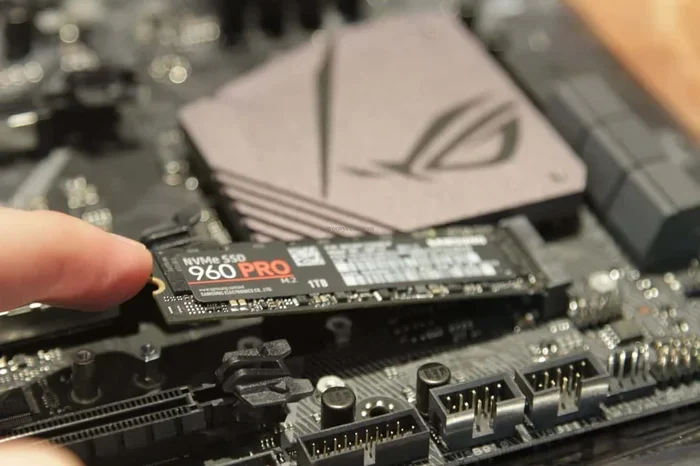
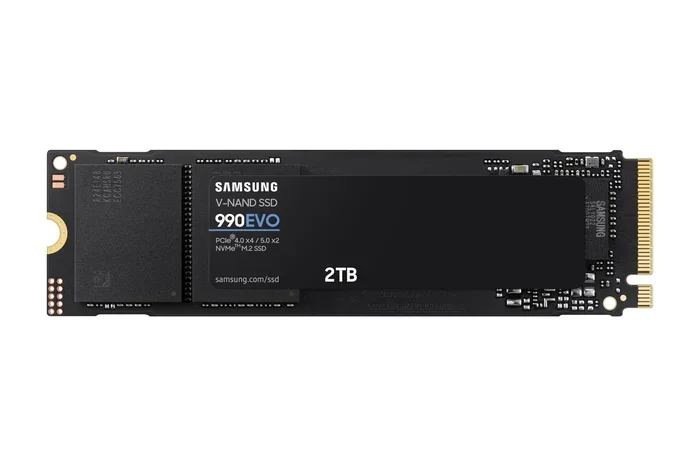
The M.2 part refers to the physical shape and size of the drive. M.2 drives are small, flat sticks that plug directly into your motherboard. They look like a stick of gum. There is no cables, no mounting brackets, and no fuss. You simply insert the drive into the M.2 slot and secure it with a tiny screw.
A 1TB capacity gives you 1,000 gigabytes of storage. That is enough room for your operating system, dozens of games, creative projects, and plenty of documents and media files. For most users, 1TB hits the sweet spot between speed and storage space.
How Does NVMe Compare to SATA?
To understand why a 1TB NVMe PCIe M.2 SSD is so much faster, it helps to compare it to a traditional SATA SSD. A SATA III connection maxes out at about 550 megabytes per second (MB/s). That is fine for everyday tasks, but it creates a bottleneck for modern workloads.
An NVMe PCIe drive can reach speeds of 3,500 MB/s on PCIe Gen3 and up to 7,000 MB/s on PCIe Gen4. Some Gen5 drives even hit 10,000 MB/s or more. That is a massive difference. Boot times drop from minutes to seconds. Game load times shrink dramatically. Large file transfers happen in a fraction of the time.
If you want to learn more about the differences between NVMe and SATA M.2 drives, check out our guide on SSD NVMe PCIe M.2 for a deeper dive.
Why Choose a 1TB Capacity?
Storage capacity matters more than most people realize. Too little space and you constantly have to delete things. Too much and you waste money. A 1TB NVMe PCIe M.2 SSD gives you the perfect balance.
Here is what 1TB can comfortably hold:
- Operating System: Windows or macOS takes up about 30 to 50GB.
- Games: Modern AAA titles range from 50GB to 150GB each. You can store 10 to 20 games easily.
- Applications: Productivity software, browsers, and creative tools add up but still leave plenty of room.
- Media Files: Thousands of photos, music tracks, and documents fit without breaking a sweat.
- Room to Grow: You will still have free space for future needs without constantly managing storage.
Compared to a 512GB drive, a 1TB option gives you double the space for only a modest price increase. And compared to a 2TB drive, it costs significantly less while still meeting the needs of most users. If you want to explore other 1TB options, our article on 1TB NVMe M.2 SSD covers several popular choices.
PCIe Gen3 vs Gen4: Which Should You Pick?
One of the biggest decisions when buying a 1TB NVMe PCIe M.2 SSD is choosing between PCIe Gen3 and Gen4. Both use the M.2 form factor and the NVMe protocol, but they differ in speed and price.
PCIe Gen3 NVMe SSDs
Gen3 is the older generation, but it is still very capable. Sequential read speeds typically range from 3,000 to 3,500 MB/s. Write speeds land around 2,000 to 3,000 MB/s. For most everyday tasks, Gen3 is more than fast enough. Games, applications, and system boot times feel instant.
Gen3 drives also tend to be more affordable. If you are on a budget or your motherboard only supports PCIe Gen3, this is a smart choice. The Solid State Drive PCIe 3.0 TLC NVMe M.2 SSD is a great example of a reliable Gen3 option that delivers excellent value.
PCIe Gen4 NVMe SSDs
Gen4 doubles the bandwidth of Gen3. You can expect sequential read speeds of 5,000 to 7,000 MB/s and write speeds of 4,000 to 5,000 MB/s. The difference is most noticeable when transferring very large files, loading heavily textured games, or working with video and photo editing projects.
However, Gen4 requires a compatible motherboard with a Gen4 M.2 slot. If your system only has Gen3 slots, a Gen4 drive will still work but will be limited to Gen3 speeds. Before buying, check your motherboard manual or use a tool like CPU-Z to verify your PCIe generation support.
Quick Comparison Table
Here is a side-by-side look at Gen3 vs Gen4:
- PCIe Gen3: Read speeds up to 3,500 MB/s, write speeds up to 3,000 MB/s, lower price, widely compatible.
- PCIe Gen4: Read speeds up to 7,000 MB/s, write speeds up to 5,000 MB/s, higher price, requires Gen4 motherboard support.
- Real-World Difference: Gen4 feels faster in heavy workloads, but for general use, Gen3 is already blazingly quick.
Top Brands and Models to Consider
Not all NVMe M.2 SSDs are created equal. Some brands prioritize raw speed, while others focus on endurance or value. Here are some well-known options in the 1TB category that consistently earn strong reviews.
The Crucial P310 is one of the most popular budget-friendly options. It offers solid read speeds of up to 3,500 MB/s and comes in a compact M.2 2280 form factor. It is a great pick for anyone who wants reliable performance without spending a fortune.
For those who need top-tier Gen4 speeds, the Crucial T705 delivers exceptional performance with PCIe Gen5 support. It is one of the fastest consumer SSDs available today. You can also explore the Crucial T705 variants in 2TB and 4TB capacities if you need even more room.
Other brands like Kingston and Samsung also offer excellent 1TB NVMe M.2 drives. The Kingston NV2 is a popular mid-range choice, and Samsung’s 970 EVO Plus remains a fan favorite for its consistent performance and strong endurance ratings.
How to Install a 1TB NVMe PCIe M.2 SSD
Installing an M.2 SSD is one of the easiest hardware upgrades you can do. You do not need to be a tech expert. In most cases, it takes less than 10 minutes.
What You Will Need
- A 1TB NVMe PCIe M.2 SSD
- A small Phillips-head screwdriver
- Your motherboard manual (to find the right M.2 slot)
- A stable workspace with good lighting
Step-by-Step Installation
- Power off your PC: Shut down completely and unplug the power cable. Press the power button for a few seconds to discharge any remaining electricity.
- Open the case: Remove the side panel of your desktop tower. Use a screwdriver if needed.
- Locate the M.2 slot: Look for a slot on your motherboard labeled M.2. It is usually near the CPU or along the bottom edge. Your motherboard may have multiple M.2 slots.
- Remove the heatsink (if present): Some M.2 slots have a small heatsink or cover. Unscrew it carefully and set it aside.
- Insert the SSD: Hold the M.2 drive at a 30-degree angle and gently slide it into the slot. The notch on the drive should align with the key on the slot.
- Secure the drive: Press the drive down flat and screw it into place with the small M.2 screw. Do not overtighten.
- Reassemble and boot: Replace the side panel, plug in your power cable, and turn on your PC. Enter BIOS or UEFI to make sure the drive is detected.
- Initialize and format: If you are installing Windows, you may need to initialize the drive through Disk Management. For a fresh install, simply follow the on-screen prompts.
For laptops, the process is similar but the M.2 slot is usually accessible from the bottom of the device. Check your laptop manual before opening the case.
Common Mistakes to Avoid
Even though installing an M.2 SSD is simple, there are a few mistakes that can cause problems. Here are some to watch out for.
- Forcing the drive: The M.2 drive should slide in smoothly with gentle pressure. If it resists, check the alignment. Forcing it can damage the connector.
- Using the wrong slot: Not all M.2 slots support NVMe. Some only support SATA. Check your motherboard manual to confirm which slots support PCIe NVMe drives.
- Skipping the BIOS update: Older motherboards sometimes need a BIOS update to properly recognize Gen4 NVMe drives. Always check for the latest firmware before buying a Gen4 SSD.
- Ignoring thermals: Fast NVMe drives can run hot. If your drive comes without a heatsink, consider adding one. Overheating can cause throttling and slower speeds.
- Not cloning your drive: If you are replacing an old drive, use cloning software to transfer your operating system and files. This saves you from reinstalling everything from scratch.
Is a 1TB NVMe PCIe M.2 SSD Worth It?
The short answer is yes. A 1TB NVMe PCIe M.2 SSD is one of the most impactful upgrades you can make for your computer. It transforms how your system feels on a daily basis. Applications launch instantly, games load in seconds, and your operating system boots faster than you can imagine.
Prices for 1TB NVMe M.2 SSDs have dropped considerably over the past couple of years. You can find excellent drives in the $50 to $100 range depending on the brand and generation. For that price, the performance boost is well worth it.
If you are still deciding between different options, consider what you will be using the drive for. A 1TB NVMe PCIe M.2 SSD works beautifully as a primary boot drive for your operating system and favorite applications. You can always pair it with a larger hard drive or SATA SSD for mass storage of photos, videos, and older files.
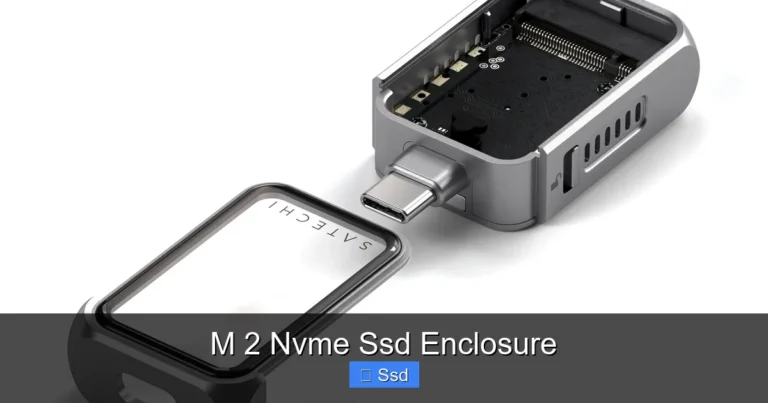
For those exploring enclosure options to use an NVMe drive externally, our review of the Ugreen M.2 NVMe SATA SSD Enclosure is a great resource.
Ultimately, whether you are building a new PC or upgrading an existing one, a 1TB NVMe M.2 drive is a smart investment. It offers the perfect mix of speed, capacity, and value. Your future self will thank you every time your PC boots up or a game loads in the blink of an eye.
FAQ
What does NVMe stand for?
NVMe stands for Non-Volatile Memory Express. It is a protocol designed specifically for flash storage that allows much faster data transfer speeds than older SATA connections. NVMe drives use the PCIe bus, which provides significantly higher bandwidth and lower latency.
Can I use a PCIe Gen4 NVMe SSD in a Gen3 motherboard slot?
Yes, you can. A Gen4 NVMe SSD is backward compatible with Gen3 slots. However, it will operate at Gen3 speeds, which means you will not get the full Gen4 performance. The drive will still work perfectly and be much faster than a traditional hard drive or SATA SSD.
How long does a 1TB NVMe M.2 SSD last?
Most quality NVMe SSDs are rated for hundreds of terabytes written (TBW). A typical 1TB NVMe drive can last 5 to 10 years under normal use, depending on how much data you write to it daily. For most users, the drive will outlast the rest of the computer.
Do I need a heatsink for my M.2 NVMe SSD?
It depends on your workload. For everyday use and gaming, most M.2 NVMe SSDs run cool enough without a heatsink. However, if you do heavy video editing, large file transfers, or sustained workloads, a heatsink helps prevent thermal throttling and maintains peak speeds.
Is a 1TB NVMe SSD enough for gaming?
Absolutely. A 1TB NVMe SSD can comfortably hold 10 to 20 modern AAA games, plus your operating system and applications. If you have a large game library, you can use the NVMe SSD for your most-played games and store less frequently used titles on a larger secondary drive.
What is the difference between M.2 SATA and M.2 NVMe SSDs?
The main difference is the interface. M.2 SATA SSDs use the SATA III protocol and max out at around 550 MB/s. M.2 NVMe SSDs use the PCIe bus and NVMe protocol, reaching speeds of 3,500 MB/s or higher. NVMe drives are significantly faster, especially for large file transfers and intensive workloads.