1tb Nvme M 2 Ssd
A 1TB NVMe M.2 SSD is the modern performance storage standard. It uses the PCIe bus for incredible speed, dwarfing older SATA SSDs, all in a tiny, screwless form factor. This drive is the ultimate upgrade for gamers, content creators, and professionals who need instant load times and seamless file transfers, fitting effortlessly into most modern desktops and laptops.
Key Takeaways
- Revolutionary Speed: NVMe drives use the high-speed PCIe lane, offering sequential read/write speeds 5-7x faster than SATA SSDs, drastically reducing game load times and file transfer waits.
- M.2 Form Factor: This tiny, gumstick-shaped design saves space inside PCs and laptops, connects directly to the motherboard without cables, and is secured with a single screw.
- Ideal Capacity: 1TB is the sweet spot for most users, offering enough space for a large game library, operating system, and essential applications without the premium cost of 2TB+ models.
- Check Compatibility: Your motherboard must have an M.2 slot that supports NVMe (PCIe) protocol. Many modern boards have multiple slots, but some older ones only support the slower SATA protocol in the M.2 slot.
- Thermal Management Matters: High-performance 1TB NVMe M.2 SSDs can generate heat. Many come with built-in heatsinks, or you may need a motherboard heatsink or third-party cooler to prevent thermal throttling.
- Not All M.2 Are Equal: The “M.2” label refers only to the physical shape. You must specifically look for “NVMe” or “PCIe” in the specs to ensure you’re getting the fast technology, not a SATA-based M.2 drive.
📑 Table of Contents
- The Storage Revolution: Why Your Next Drive Must Be a 1TB NVMe M.2 SSD
- Decoding the Name: NVMe, M.2, and 1TB Explained
- NVMe M.2 vs. SATA SSD: The Clear Winner for Performance
- Who Needs a 1TB NVMe M.2 SSD? Real-World Use Cases
- Your 2024 Buying Guide: What to Look For in a 1TB NVMe M.2 SSD
- Installation Made Simple: How to Install Your 1TB NVMe M.2 SSD
- The Future is Fast: What’s Next for NVMe Storage?
- Conclusion: The No-Brainer Upgrade
The Storage Revolution: Why Your Next Drive Must Be a 1TB NVMe M.2 SSD
Remember the days of hearing your hard drive whir and click, waiting for a game to load or a large file to open? Those days are officially over. The 1TB NVMe M.2 SSD isn’t just an upgrade; it’s a fundamental leap in how your computer accesses and uses data. It represents the convergence of capacity, speed, and physical efficiency that defines modern computing. Whether you’re building a new PC, upgrading an older laptop, or optimizing a workstation, understanding this technology is key to unlocking a truly responsive system. Let’s dive deep into what makes this tiny component a giant killer in the world of storage.
We’re going to break it down from the ground up—what the jargon means, why it matters for your specific tasks, how to pick the perfect model, and how to install it yourself. By the end, you’ll be a confident expert, ready to make a purchase that will transform your computing experience for years to come.
Decoding the Name: NVMe, M.2, and 1TB Explained
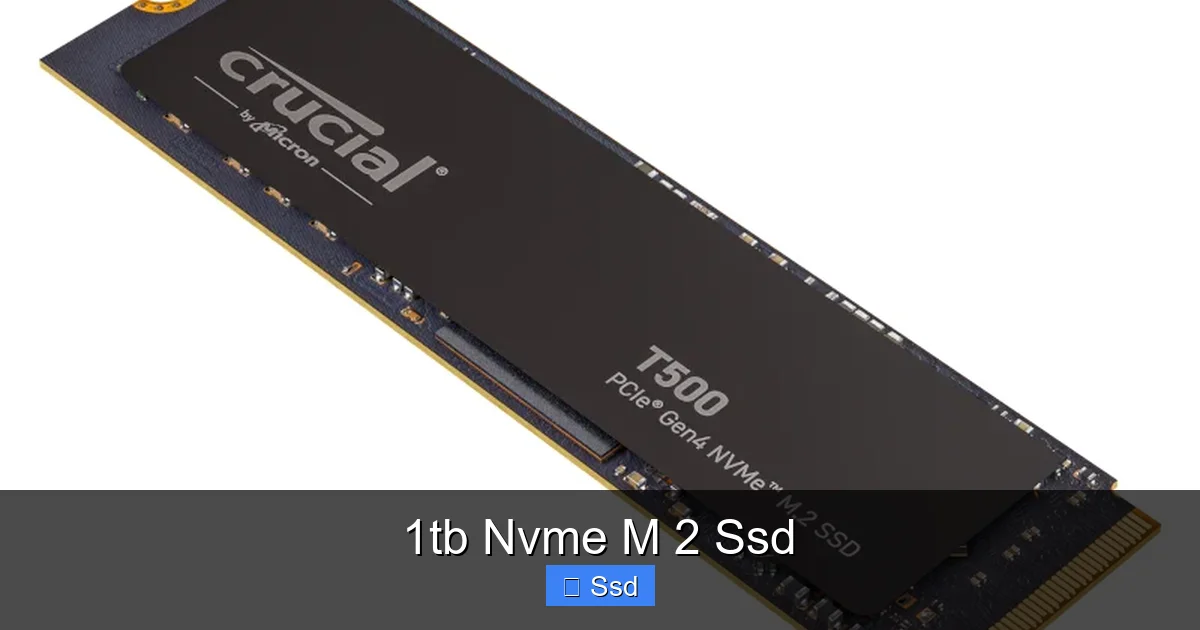
Before we talk about buying, we need to translate the tech-speak. The name “1TB NVMe M.2 SSD” is actually three distinct specifications packed into one product. Think of it like a car: the body style (M.2), the engine type (NVMe), and the fuel tank size (1TB).
Visual guide about 1tb Nvme M 2 Ssd
Image source: syntech.co.za
What is M.2? The Physical Form Factor
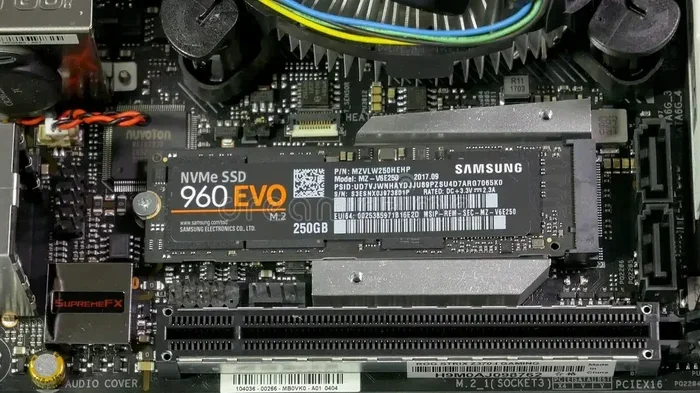
M.2 is simply the shape and size of the drive. It’s a small, flat card, about the size of a stick of gum (commonly 22mm wide and either 42mm, 60mm, 80mm, or 110mm long; 2280 is the most common). It slots directly into a dedicated socket on your motherboard. No power cables, no data cables—just a direct electrical connection. This design saves immense space inside small form factor PCs and laptops, eliminates cable clutter for better airflow, and makes installation incredibly simple.
What is NVMe? The Communication Protocol & The Speed King
This is the most important part. NVMe stands for Non-Volatile Memory Express. It’s the language the drive uses to talk to your computer’s processor. Older SSDs (and even some M.2 drives) use the SATA interface and AHCI protocol, which was originally designed for much slower hard drives. NVMe was built from the ground up for flash memory. It uses the high-speed PCI Express (PCIe) lanes on your motherboard, resulting in a massive increase in speed and efficiency. A SATA III SSD maxes out around 550MB/s. A PCIe 3.0 x4 NVMe drive easily hits 3,500MB/s. PCIe 4.0 doubles that to ~7,000MB/s, and PCIe 5.0 is pushing past 10,000MB/s. For context, that’s the difference between mailing a letter (SATA) and sending a high-res video file via fiber optic internet (NVMe).
Why 1TB? The Sweet Spot Capacity
1 Terabyte (TB) is the gold standard capacity for a primary drive in 2024. Modern AAA games regularly exceed 100GB. A Windows 10/11 installation with updates and software can easily take 60-80GB. Video editing projects, photo libraries, and application suites add up fast. 512GB fills up too quickly for most power users, forcing constant management. 2TB offers breathing room but at a significant cost premium. The 1TB NVMe M.2 SSD provides the perfect balance: ample space for your OS, several large games, your creative projects, and a buffer of free space (which is crucial for SSD performance and longevity) without breaking the bank.
NVMe M.2 vs. SATA SSD: The Clear Winner for Performance
It’s worth a direct comparison to understand the magnitude of the upgrade. If you’re still on a SATA SSD or, heaven forbid, a hard disk drive (HDD), the jump to NVMe is transformative.
- Speed: As noted, sequential read/write speeds are 5-6 times faster. But more importantly, 4K random read/write speeds (the metric that most affects OS responsiveness, app launching, and game texture loading) are dramatically higher. Your entire system will feel snappier.
- Physical Footprint: A 2.5″ SATA SSD needs a drive bay and a separate SATA data cable plus power cable. An M.2 NVMe SSD sits flush on the motherboard, using zero cabling. This is a huge win for small builds and laptops.
- Price per GB: While NVMe used to be much more expensive, the gap has closed significantly. You now pay a small premium for the top-tier speed, but the value proposition for 1TB is excellent.
The Bottom Line: For any system with an available M.2 NVMe slot, there is almost no reason to choose a SATA SSD for your primary drive unless budget is the absolute, overriding constraint. The performance difference in everyday use is palpable.
Who Needs a 1TB NVMe M.2 SSD? Real-World Use Cases
This isn’t just for hardcore enthusiasts. The benefits apply to a wide range of users.
Visual guide about 1tb Nvme M 2 Ssd
Image source: image.citycenter.jo
The Competitive Gamer & Esports Enthusiast
For you, every millisecond counts. Faster load times get you into matches quicker, and more importantly, assets like textures and maps load seamlessly during play, preventing pop-in. Games designed for PCIe 4.0/5.0 (like newer titles with DirectStorage on the horizon) will see even greater benefits. A 1TB drive holds your core competitive titles and your OS without compromise.
The Content Creator & Professional
Video editors, 3D artists, photographers, and music producers work with massive files. Scrubbing through 4K/8K video timelines, loading large Photoshop projects, or rendering complex scenes is all bottlenecked by storage I/O. An NVMe drive reduces export times, improves timeline performance, and makes handling raw footage from high-bitrate cameras a breeze. The 1TB capacity is essential for active projects.
The General Power User & Developer
Even if you’re not gaming or creating, you’ll notice the difference. Booting Windows in 10 seconds instead of 30. Opening Chrome with a dozen tabs instantly. Launching bulky applications like Visual Studio or the Adobe Suite without a coffee break. Your entire interaction with the computer becomes frictionless. For developers, compiling large codebases is significantly faster.
The Laptop Upgrader
Many modern ultrabooks and performance laptops come with a single M.2 slot, often with a slow, low-end SSD. Swapping it for a 1TB NVMe drive is the single most impactful upgrade you can make, breathing new life into a machine by eliminating storage bottlenecks and adding crucial space.
Your 2024 Buying Guide: What to Look For in a 1TB NVMe M.2 SSD
The market is crowded, but a few key specs separate the contenders from the also-rans.
1. PCIe Generation: 4.0 is the New Standard
You must check your motherboard’s M.2 slot specifications.
- PCIe 3.0: Still perfectly capable, offering speeds up to ~3,500 MB/s. Great value if your system only supports 3.0.
- PCIe 4.0: The current mainstream king. Speeds up to ~7,000 MB/s. Requires a compatible AMD Ryzen 3000+/Intel 11th Gen+ platform. Most new builds should target this.
- PCIe 5.0: The bleeding edge, with speeds double PCIe 4.0. Only available on the latest Intel 13th/14th Gen and AMD Ryzen 7000 series platforms. Drives are currently more expensive and run very hot, often requiring robust heatsinks. The real-world benefit for most tasks is minimal over a good PCIe 4.0 drive today, but it’s future-proofing.
Tip: Don’t buy a PCIe 4.0 drive for a PCIe 3.0-only motherboard—it will work but at 3.0 speeds. Conversely, a PCIe 3.0 drive in a 4.0 slot is a waste of potential.
2. The Critical Controller and NAND Memory
The “brain” of the SSD is its controller (like Phison, Samsung, Silicon Motion). The “memory cells” are the NAND flash (like TLC, QLC). For a 1TB drive:
- NAND Type: Aim for TLC (3-bit per cell). It offers the best balance of performance, endurance, and cost. QLC (4-bit) is cheaper but has lower endurance and slower write speeds once its cache is full. Avoid for a primary drive. MLC is rare and expensive now.
- DRAM Cache: A dedicated DRAM chip acts as a fast buffer for the drive’s mapping table, significantly improving sustained performance. Many modern DRAM-less designs use system RAM (HMB – Host Memory Buffer) effectively, but a drive with its own DRAM cache is still a mark of a higher-end, reliable product for heavy workloads.
3. Endurance (TBW) and Warranty
Endurance is measured in Terabytes Written (TBW). A typical 1TB consumer NVMe drive offers 600-1200 TBW. This means you could write 200-300 GB *every single day* for 5-10 years before wearing it out. For almost all users, this is a non-issue. SSDs fail from other causes long before they wear out from writes. A 5-year warranty is standard and a good sign of manufacturer confidence.
4. Heat and Heatsinks
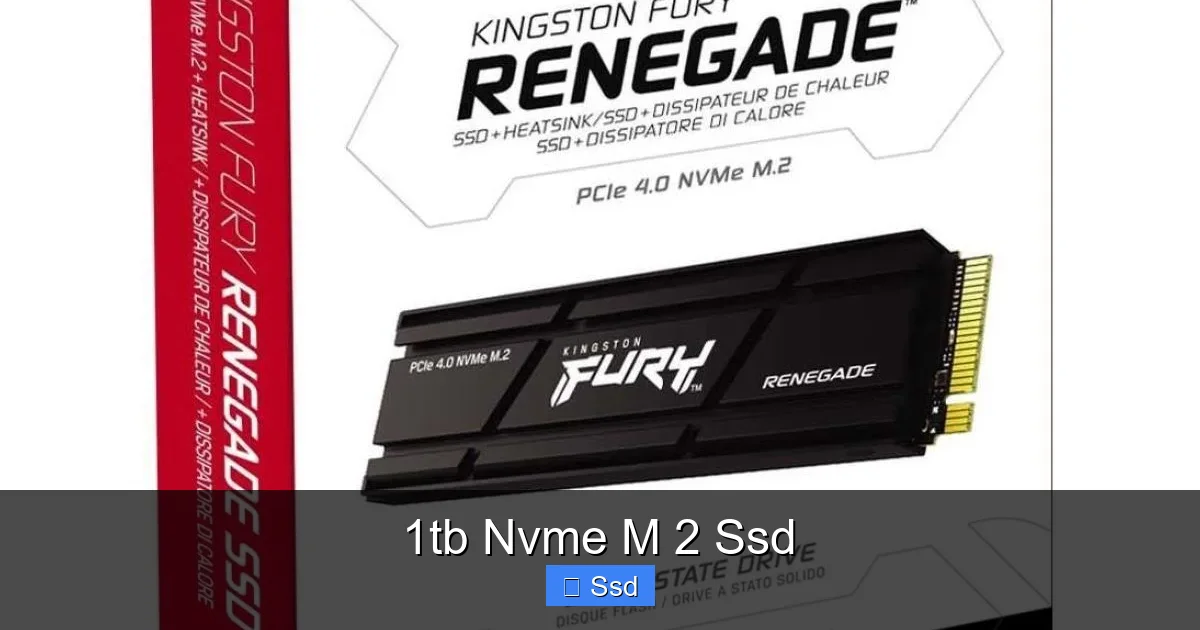
High-speed PCIe 4.0 and 5.0 drives get hot. Thermal throttling (the drive slowing down to cool off) can reduce performance. Many motherboards come with M.2 heatsinks. Some drives (like the Samsung 980 Pro, WD Black SN850X) include a heatsink. If yours doesn’t and your motherboard doesn’t have one, consider an aftermarket heatsink, especially for PCIe 4.0+ drives in a case with poor airflow.
5. Top Contender Recommendations (Late 2024)
While models change, the current leaders in the 1TB NVMe M.2 category are:
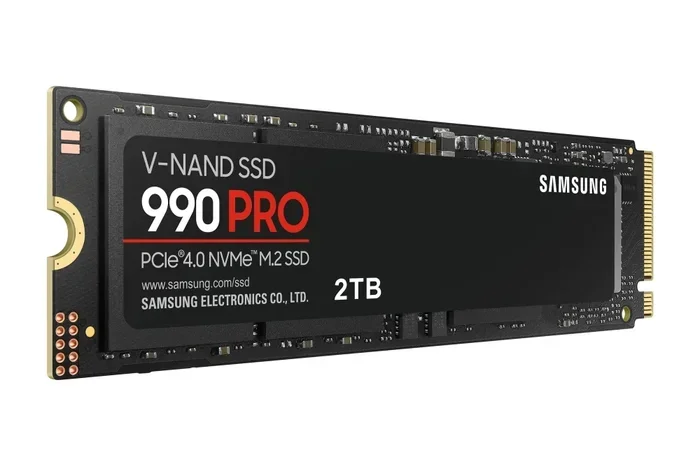
- Best Overall / Performance King: Samsung 990 Pro (PCIe 4.0) or Crucial T705 (PCIe 5.0).
- Best Value / Great Performance: WD Black SN850X, SK hynix Platinum P41, or Solidigm P44 Pro.
- Excellent Budget / Mainstream: Crucial P5 Plus, TeamGroup MP44L.
Always check recent professional reviews for the latest head-to-head comparisons, as pricing and performance shifts occur frequently.
Installation Made Simple: How to Install Your 1TB NVMe M.2 SSD
This is the easiest upgrade in PC building. Here’s a step-by-step guide for a desktop. Laptop installation is similar but involves removing the bottom panel.
- Power Down & Unplug: Shut down your computer completely and unplug the power cable. Press the power button once to discharge residual power.
- Ground Yourself: Use an anti-static wrist strap or touch a grounded metal part of the case to prevent static discharge.
- Locate the M.2 Slot: Consult your motherboard manual. It’s usually located between the PCIe slots, sometimes under a heatsink cover. Ensure it’s an M.2 slot that supports NVMe (PCIe), not just SATA.
- Remove the Mounting Screw: Unscrew the tiny standoff screw at the far end of the slot.
- Insert the Drive: Hold the drive by the edges. Align the notch on the drive’s connector with the key in the M.2 slot. Insert it at a 30-degree angle until it clicks securely into place.
- Secure the Drive: Gently lay the drive flat against the motherboard spacer. Use the screw you removed to secure it. Do not overtighten. Finger-tight is usually sufficient.
- Reassemble & Boot: Put your case side panel back on, plug in, and power on. Your new drive will appear in your BIOS/UEFI. You’ll need to initialize and format it in your operating system’s Disk Management tool (Windows) or Disk Utility (macOS).
Pro Tip: If you’re replacing your old boot drive, you’ll need to clone it to the new SSD or reinstall your OS from scratch. Cloning is simpler for a seamless transition.
The Future is Fast: What’s Next for NVMe Storage?
The technology isn’t slowing down. PCIe 5.0 is here, with drives already hitting 14,000 MB/s. While the real-world benefit for everyday tasks is minimal right now, future technologies like Microsoft’s DirectStorage (which allows games to load assets directly from the SSD to the GPU, bypassing the CPU) will demand the high throughput of PCIe 5.0. Furthermore, innovations in storage class memory and even faster NAND types are on the horizon. Investing in a quality 1TB NVMe M.2 SSD today ensures your system is not only fast now but also ready for the software demands of tomorrow.
Conclusion: The No-Brainer Upgrade
The 1TB NVMe M.2 SSD has earned its title as the essential storage upgrade for 2024 and beyond. It solves the universal computing bottleneck of slow storage with a solution that is affordable, capacious, physically elegant, and shockingly fast. Whether you’re frustrated with loading screens, drowning in slow project renders, or just want your computer to feel as quick as your thoughts, this is the component that delivers. Do your homework on compatibility, pick a reputable brand with a good controller and TLC memory, and enjoy the newfound speed. You’ll wonder how you ever tolerated anything slower.
Frequently Asked Questions
Is a 1TB NVMe M.2 SSD worth it over a SATA SSD?
Absolutely, for most users. The speed difference is night and day in system responsiveness, game loading, and file transfers. The M.2 form factor is also cleaner and easier to install. The slight price premium is well worth the massive performance gain.
Will a 1TB NVMe M.2 SSD work in my older computer?
It depends. Your motherboard must have a physical M.2 slot. More importantly, that slot must support the NVMe (PCIe) protocol. Some very old motherboards have M.2 slots that only support the slower SATA protocol. Check your motherboard’s manual or specifications online to be sure.
Do I need a heatsink for my 1TB NVMe M.2 SSD?
For PCIe 3.0 drives, it’s rarely necessary. For PCIe 4.0 drives, it’s highly recommended, especially in cases with limited airflow. Many motherboards include M.2 heatsinks. For PCIe 5.0 drives, a heatsink is almost mandatory to maintain top speeds. Some high-end drives include a heatsink in the box.
How long will a 1TB NVMe M.2 SSD last?
Extremely long. Modern 1TB drives have an endurance rating (TBW) of 600-1200 terabytes written. Even if you wrote 100GB every single day, it would take over 15 years to reach that limit. SSDs are more likely to become obsolete or be replaced due to capacity needs before they wear out from normal use.
Can I use a 1TB NVMe M.2 SSD as my only drive?
Yes, absolutely. 1TB is a practical capacity for a single drive in many setups. You can install your operating system, all your essential applications, and a healthy library of games or projects. Just be mindful to keep around 10-20% of the drive free for optimal performance and longevity.
What’s the difference between NVMe M.2 and a regular ‘M.2 SSD’?
This is a crucial distinction. “M.2” describes the physical shape. An “M.2 SSD” could use either the fast NVMe (PCIe) protocol or the slower SATA protocol. You must look for the keywords “NVMe,” “PCIe,” or the specific speed (e.g., “7000 MB/s”) in the product description to ensure you’re getting the high-performance drive. A SATA-based M.2 drive will be limited to ~550 MB/s.