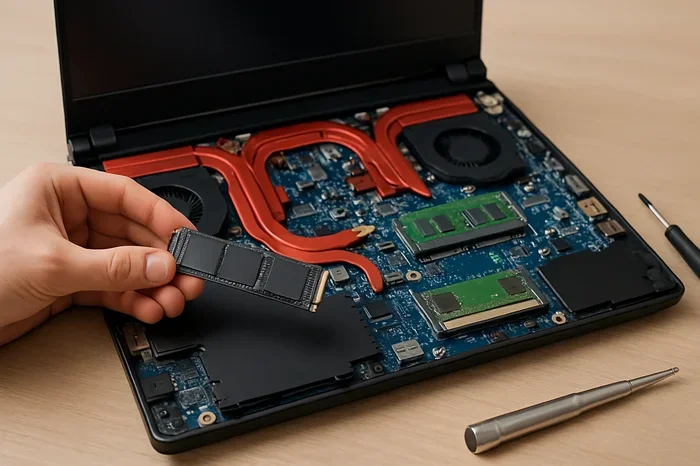
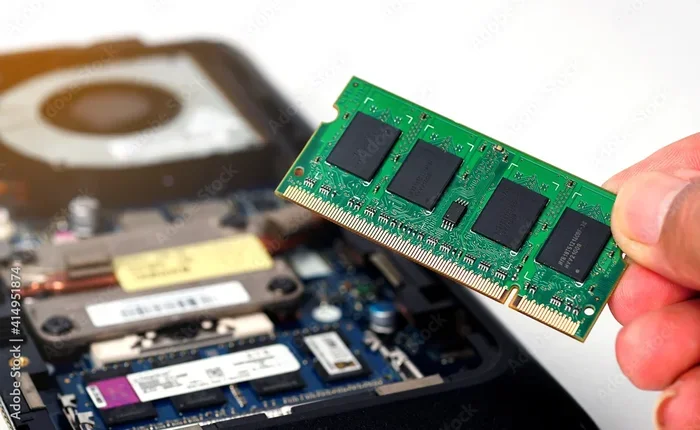
32 Gb Ddr5 Laptop Ram
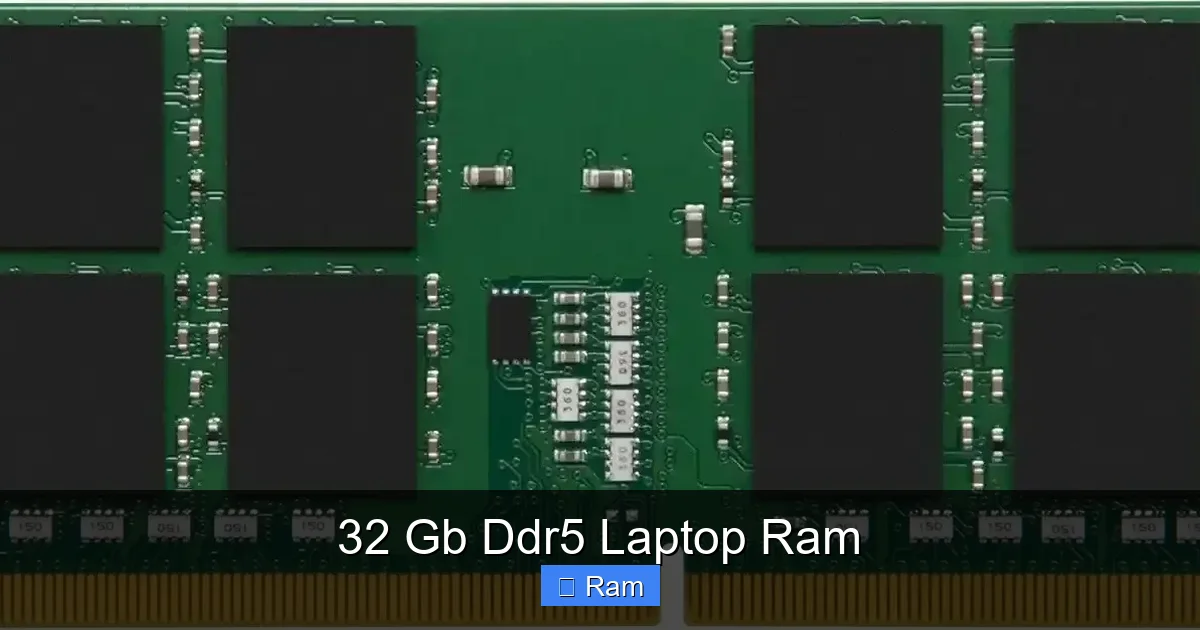
32 GB of DDR5 RAM is the new sweet spot for high-performance laptops, offering a massive leap in speed and efficiency over DDR4. It eliminates bottlenecks for demanding applications like 4K video editing, AAA gaming, and complex data analysis, while providing crucial headroom for future software. Upgrading to this capacity ensures your laptop remains fast and capable for years to come.
Remember the feeling? You’re deep in a video editing project, with Premiere Pro humming along, a browser with a dozen tabs for research, Slack pinging with team messages, and maybe Spotify playing in the background. Then… it happens. The spinning beach ball of death. The audio stutters. Your smooth timeline grinds to a halt. Your laptop’s memory—its RAM—has hit a wall. For years, 16 GB was the comfortable recommendation. But in 2024 and beyond, that wall is coming faster. The hero we need? 32 GB of DDR5 laptop RAM. It’s not just a luxury for power users anymore; it’s becoming the essential foundation for a laptop that can truly keep up with modern workflows and future demands.
But what does “32 GB DDR5” actually mean for you? Is it worth the upgrade cost? Can your laptop even handle it? This guide will cut through the jargon and give you a clear, practical understanding. We’ll explore what DDR5 brings to the table, who absolutely needs 32 GB, how to know if your laptop can be upgraded, and what to look for when shopping. By the end, you’ll be a confident, informed buyer ready to make a decision that will transform your laptop’s performance for the next 3-5 years.
Key Takeaways
- DDR5 is a generational leap: DDR5 offers significantly higher base speeds (4800 MT/s+) and improved power efficiency compared to DDR4, with 32 GB modules now widely available.
- 32 GB is the modern professional standard: For content creation, software development, engineering, and serious gaming, 32 GB provides essential multitasking muscle and future-proofing.
- Your laptop must support DDR5 and 32 GB modules: Not all laptops can be upgraded. You must check your specific model’s maximum supported RAM, RAM type (DDR5), and whether the RAM is soldered or slots are available.
- Dual-channel performance is critical: For optimal speeds, install two identical 16 GB sticks (totaling 32 GB) rather than a single 32 GB stick, if your laptop has two slots, to enable dual-channel mode.
- Speed (MT/s) and latency (CL) matter: Higher MHz ratings (e.g., 5600, 6400) boost performance, but lower CAS latency (CL) also improves responsiveness. Balance both based on your budget and use case.
- Compatibility is king: Always verify the RAM’s voltage (typically 1.1V for DDR5), timings, and that it’s on your laptop manufacturer’s qualified vendor list (QVL) for the best stability.
[FEATURED_IMAGE_PLACEHOLDER]
📑 Table of Contents
- The DDR5 Revolution: Why It’s More Than Just “Newer”
- Why 32 GB? The Sweet Spot for Today and Tomorrow
- Can My Laptop Even Take 32 GB of DDR5? The Compatibility Check
- Buying 32 GB DDR5 Laptop RAM: What the Specs Actually Mean
- Installation and Optimization: Getting the Most from Your Upgrade
- Real-World Scenarios: Is 32 GB DDR5 Right for YOU?
- Conclusion: The Performance Pillar
The DDR5 Revolution: Why It’s More Than Just “Newer”
Let’s start with the alphabet soup. DDR stands for Double Data Rate. DDR4 has been the standard for nearly a decade. DDR5 isn’t just an incremental speed bump; it’s a redesign of the memory architecture. Think of it like moving from a two-lane country road (DDR4) to a modern, multi-lane superhighway with smarter on-ramps (DDR5).
Higher Bandwidth, Lower Power
The most obvious upgrade is speed. DDR5 starts at a base frequency of 4800 megatransfers per second (MT/s), with common modules at 5600, 6000, and even 6400 MT/s. Compare that to typical DDR4 speeds of 2666-3200 MT/s. This means the data highway between your CPU and RAM is much wider and faster. For tasks that constantly shovel data back and forth—like loading game textures, applying filters in Photoshop, or compiling code—this bandwidth is pure performance gold.
Paradoxically, this increased speed comes with better power efficiency. DDR5 operates at a standard voltage of 1.1V, down from DDR4’s 1.2V. It also uses an on-die ECC (Error Correcting Code) mechanism that helps maintain data integrity without a major power penalty. For laptops, where battery life is paramount, this efficiency is a critical win. You get more speed without a proportional hit to your battery.
Improved Architecture for Real-World Tasks
DDR5 doubles the number of memory banks per channel from 8 to 16. This allows the memory controller to access more data simultaneously, improving efficiency in multi-threaded workloads. It also features a 16n prefetch buffer (up from 8n in DDR4), meaning it can fetch more data in a single operation. While these are technical details, the real-world effect is smoother performance in memory-intensive applications, especially when you have multiple programs running at once.
Why 32 GB? The Sweet Spot for Today and Tomorrow
If DDR5 is the new road, 32 GB is the number of lanes you need to avoid traffic jams. While 8 GB is for basic use and 16 GB is the entry point for modern computing, 32 GB is where you transition from “getting by” to “effortless.”
For the Creative Professional: No More Compromises
If you work with high-resolution media, 32 GB is non-negotiable. A single 8K video frame can take up hundreds of megabytes. Working with multiple layers in Photoshop, complex 3D renders in Blender, or a large After Effects composition will quickly consume 16 GB, forcing your system to use the much slower SSD as “virtual memory” (a process called thrashing). This causes severe lag. With 32 GB of DDR5, you can have your full project suite open—your editing software, reference materials, communication apps—with room to spare. The system stays responsive because your active data lives in the fast, plentiful RAM.
For the Serious Gamer & Streamer: Beyond the Game
Modern AAA games at high settings with ray tracing are increasingly memory-hungry, often using 10-12 GB on their own. But today’s gamer is rarely *just* gaming. If you stream using OBS, have Discord and a browser open for guides or music, and run overlays, you’re easily pushing 16 GB to its limit. This can lead to frame rate stutters as the system scrambles for memory. 32 GB provides a comfortable buffer, ensuring your game has all the RAM it demands while your background tasks hum along without stealing resources. It’s the difference between a smooth 60+ FPS and annoying dips.
For the Power User & Developer: The Multitasking Mandate
This is the core of the argument. Software developers running virtual machines, IDEs, multiple browser windows with hundreds of tabs, and local servers. Engineers running simulation software with massive datasets. Data analysts with multiple Excel workbooks and database clients. These users live in a world of concurrent applications. 32 GB allows you to have everything open at once, switching instantly without waiting for apps to reload from disk. The productivity gain is tangible—you stop thinking about your computer and start focusing entirely on your work.
The Future-Proofing Factor
Software only gets more demanding. Operating systems, browsers, and applications are continuously adding features that consume more memory. What runs perfectly on 16 GB today might feel tight in two years. Investing in 32 GB now extends the viable lifespan of your laptop by years. It’s a one-time upgrade that protects your investment against the relentless march of software bloat.
Can My Laptop Even Take 32 GB of DDR5? The Compatibility Check
This is the most important question. Having the best RAM is useless if your laptop can’t use it. You must become a detective and check three critical things.
1. Does It Use DDR5? (The Obvious One)
This seems simple, but it’s crucial. Laptops with Intel’s 12th Gen (Alder Lake), 13th Gen (Raptor Lake), and 14th Gen (Raptor Lake Refresh) Core processors, and AMD’s Ryzen 6000/7000 series (with “H” or “HS” series mobile CPUs) typically use DDR5. However, some budget or thin-and-light models from these generations still use DDR4 to save cost. You must verify. Check your laptop’s specifications on the manufacturer’s website or use a system information tool (like CPU-Z on Windows) to see the current RAM type listed as “DDR5”.
2. What Is the Maximum Supported RAM?
Even if it uses DDR5, the laptop’s chipset and BIOS have a hard limit. Many modern performance laptops support up to 64 GB (two 32 GB sticks). Many others, especially thinner models, are capped at 32 GB total (two 16 GB sticks). Some have the RAM soldered directly to the motherboard, meaning zero upgradeability. You must find the official spec sheet for your exact model number (e.g., “Dell XPS 15 9530,” not just “XPS 15”). Look for “Memory,” “RAM,” or “Upgradability” sections. The spec will state something like “Up to 32 GB, 2 slots” or “16 GB, soldered.”
3. How Many Slots Are Available? (SODIMM Form Factor)
Laptop RAM uses a smaller form factor called SODIMM. Most upgradeable laptops have two SODIMM slots accessible from the bottom panel. Some have one slot with the other stick soldered (e.g., 8 GB soldered + 1 slot). To reach 32 GB, your configuration must allow for two 16 GB sticks or one 32 GB stick in an available slot. If you have one 16 GB stick soldered, you can only add another 16 GB stick for a total of 32 GB. If you have two empty slots, you can install two 16 GB sticks. If you have a single 32 GB stick already, you’re already at your max if there’s no second slot.
How to Check: Power off, remove the bottom panel (consult a service manual or YouTube video for your model), and visually inspect. Or, use a tool like HWiNFO64 to see “Memory Slots Used” and “Physical Memory.”
Buying 32 GB DDR5 Laptop RAM: What the Specs Actually Mean
Once you’ve confirmed compatibility, you face a wall of numbers on RAM sticks: DDR5-5600, CL40, 1.1V. Let’s decode them.
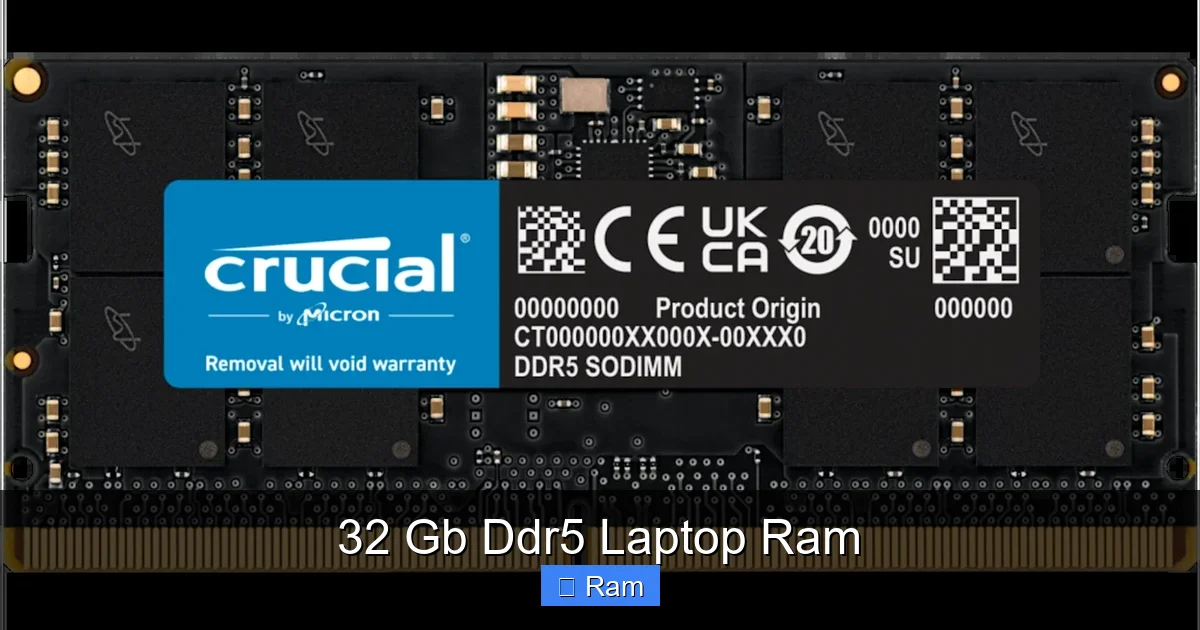
Visual guide about 32 Gb Ddr5 Laptop Ram
Image source: res.cloudinary.com
Speed (MT/s or MHz): The Bandwidth Number
This is the first number you see—DDR5-4800, DDR5-6000, DDR5-6400. It’s the effective data transfer rate in megatransfers per second. Higher is generally better for bandwidth-heavy tasks like gaming, large file transfers, and integrated graphics (which use system RAM). However, the real-world difference between, say, DDR5-5600 and DDR5-6400 in most applications is often minimal (5-10% at best). The biggest jump is from DDR4 to DDR5. For most users, a mid-range speed like DDR5-5600 or DDR5-6000 offers the best price-to-performance ratio.
CAS Latency (CL): The Timing Number
This is the “CL” number, like CL40 or CL32. It represents the delay (in clock cycles) between when a command is issued and when the data is available. Lower is better. A kit rated at DDR5-6000 CL40 has a higher latency than a kit at DDR5-5600 CL36. These two specs are a trade-off. A higher speed kit might have slightly looser timings. The formula to get a rough idea of true latency is: (CAS Latency / Data Rate) * 2000. For example, CL40 at 6000 MT/s = (40 / 6000) * 2000 = 13.33 nanoseconds. CL36 at 5600 MT/s = (36 / 5600) * 2000 = 12.86 ns. So the 5600 CL36 kit is actually slightly faster in this hypothetical. For the average user, don’t stress over a few CL points. For high-end gaming or competitive esports, optimizing this balance matters more.
Voltage and XMP/EXPO
Standard DDR5 runs at 1.1V. Some high-performance kits are rated for 1.25V, 1.35V, or even 1.4V (Extreme Memory Profiles). These require more power and cooling. Most laptop BIOSes have limited voltage control, so a standard 1.1V or 1.15V kit is safest. XMP (Intel) and EXPO (AMD) are pre-configured overclocking profiles. Your RAM will run at its JEDEC standard speed (often 4800 MT/s) by default. To run at its advertised 6000+ MT/s speed, you must enable XMP/EXPO in your laptop’s BIOS. This is critical. If you buy 6000 MT/s RAM and don’t enable the profile, it will run at 4800 MT/s. Not all laptop BIOSes expose this setting—gaming laptops from Alienware, ASUS ROG, and MSI usually do; many business laptops do not. Check your laptop’s BIOS or manual before buying a high-speed kit.
Installation and Optimization: Getting the Most from Your Upgrade
You’ve bought the RAM. Now what?
The Physical Installation: Simple but Delicate
1. Power Down: Shut down the laptop completely. Unplug it and remove the battery if it’s removable (rare nowadays).
2. Ground Yourself: Use an anti-static wrist strap or touch a metal part of the chassis to discharge static electricity.
3. Open the Case: Remove the bottom panel screws. They are often different lengths; keep them organized.
4. Locate the Slots: Find the existing SODIMM sticks. They are held by small retention clips on each side.
5. Remove Old RAM: Gently pry the clips outward. The stick will pop up at an angle. Pull it out.
6. Install New RAM: Align the notch on the new stick with the slot. Insert it firmly but gently at a 45-degree angle until the gold contacts are fully in. Press it down flat until the clips snap into place with a soft *click*.
7. Reassemble and Test: Reattach the panel, power on, and immediately enter the BIOS (usually F2, F10, Del) to confirm the new capacity and speed are recognized. Then boot into your OS.
Enabling XMP/EXPO in BIOS
If your RAM is rated above 4800 MT/s, you must enable its profile. In the BIOS, look for sections like “Overclocking,” “AI Tweaker,” “Memory,” or “Advanced.” The setting is typically called “XMP Profile,” “DOCP” (ASUS), “EOCP” (Gigabyte), or “EXPO.” Select the profile (usually Profile 1). Save and exit (F10). Your system will reboot. Re-enter BIOS or use a system tool (CPU-Z’s “Memory” tab) to verify the RAM is running at the correct speed and timings.
Dual-Channel vs. Single-Channel: The Non-Negotiable Rule
This is the most important installation tip. For maximum performance, your RAM must run in dual-channel mode. This means the CPU can access two sticks simultaneously, doubling the effective bandwidth.
The Rule: If your laptop has two slots, you must install two identical sticks (same capacity, speed, timings, brand/model) to get dual-channel. A single 32 GB stick will run in single-channel mode, crippling performance. Therefore, for a 32 GB upgrade on a two-slot laptop, your only correct option is two 16 GB sticks.
How to check? Use CPU-Z. Go to the “Memory” tab. Look at “Channel #”. It should say “Dual.” If it says “Single,” your sticks are mismatched or you have only one installed. If your laptop has one slot (rare), you have no choice but a single stick, accepting the single-channel penalty.
Real-World Scenarios: Is 32 GB DDR5 Right for YOU?
Let’s make this concrete with specific user profiles.
The Content Creator on the Go
Profile: Video editor using DaVinci Resolve, photographer in Lightroom, graphic designer in Illustrator. Works with 4K/6K footage, large PSD files, and multiple apps open.
Verdict: Absolute Yes. 16 GB will cause constant hiccups. 32 GB of fast DDR5 (6000 MT/s) is the minimum for smooth scrubbing, real-time effects, and quick project loading. This is the primary use case where you will feel the difference every single day.
The Competitive Gamer & Streamer
Profile: Plays modern AAA titles and competitive shooters (Valorant, CS2) at high refresh rates while streaming via OBS, with Discord, browser, and Spotify running.
Verdict: Strong Yes. While 16 GB might suffice for the game alone, adding streaming and background apps puts you over the edge. 32 GB eliminates frame time inconsistencies caused by memory pressure. Pair it with a fast GPU, and you have a no-compromise portable gaming/streaming rig.
The Software Developer / Data Scientist
Profile: Runs a local web server, a database, an IDE (VS Code/IntelliJ), Docker containers, and 50+ Chrome tabs.
Verdict: Non-Negotiable Yes. This is pure, unadulterated multitasking. 16 GB will lead to constant swapping and slowdowns. 32 GB is the entry point for a productive dev environment. For heavy data science with large datasets in memory (Pandas, R), 64 GB might be the next target, but 32 GB is a massive and necessary first step.
The Student / General Power User
Profile: Has 100+ browser tabs open, runs Office suite, watches YouTube, has Zoom calls, and does light photo editing.
Verdict: Probably No (for now). 16 GB is still perfectly adequate for this use case. 32 GB would be overkill and an unnecessary expense. However, if this student is also into light video editing, game development, or 3D modeling as a hobby, the upgrade becomes worthwhile. For pure general use, save the money.
Conclusion: The Performance Pillar
The jump to 32 GB of DDR5 laptop RAM is one of the most impactful single-component upgrades you can make to a modern laptop. It’s not about chasing the highest benchmark scores; it’s about eliminating the friction in your computing experience. It’s the difference between your computer being a tool that works for you and a bottleneck that you work around.
Before you buy, do your homework. Confirm your laptop supports DDR5, check its maximum RAM capacity and slot configuration, and understand its BIOS capabilities regarding XMP. If it all checks out, investing in a quality 32 GB kit (preferably two 16 GB sticks for dual-channel) is a decision you will not regret. It buys you seamless multitasking, future-proofs your machine against increasingly demanding software, and provides the stable, high-bandwidth foundation that lets your laptop’s CPU and GPU truly shine. In the ecosystem of a high-performance laptop, RAM is not an accessory—it’s the fundamental workspace. Give it the space it deserves.
Frequently Asked Questions
Can I mix a new 32 GB DDR5 stick with my old 16 GB DDR5 stick?
Technically, you can physically mix them, but it is strongly discouraged. The RAM will run at the speed, timings, and voltage of the slowest module (the old 16 GB stick). This often results in suboptimal performance, instability, and the system may not boot at all if the modules are incompatible. For best results, always install a matched kit of identical sticks.
Is 32 GB of slower DDR5 (e.g., 4800 MT/s) better than 16 GB of faster DDR5 (e.g., 6400 MT/s)?
For almost all real-world productivity and multitasking workloads, yes, capacity almost always trumps speed. Once you hit a memory capacity limit, your system slows to a crawl by using the much slower SSD as virtual memory. Doubling your capacity from 16 GB to 32 GB eliminates this bottleneck entirely. The bandwidth gain from 4800 to 6400 MT/s is often marginal (low single-digit percentages) in comparison. Prioritize 32 GB capacity first.
My laptop has 32 GB of DDR5 soldered. Can I still upgrade?
No. If the RAM is soldered (directly attached to the motherboard), there are no user-accessible slots. The memory is permanently fixed and cannot be upgraded or replaced. This is common in ultra-thin laptops and many business models. Your only upgrade path is to purchase a new laptop with more RAM from the start.
Will enabling XMP/EXPO void my laptop’s warranty?
Generally, no. Enabling a manufacturer-supported memory profile (XMP/EXPO) within the BIOS is considered a standard user configuration change and does not void the warranty. However, manually overvolting the RAM or pushing it beyond its specified XMP profile could be grounds for denial of a warranty claim if a failure is linked to the overclock. Stick to the pre-set XMP profile.
Do I need to install anti-static RAM in a laptop?
No. “Anti-static” is a marketing term. All RAM modules have some basic ESD protection. The key is to handle them carefully: hold them by the edges, avoid touching the gold contacts, and ground yourself by touching the laptop’s metal chassis before handling the sticks. The risk of damage from static is low if you take basic precautions.
How do I know if my 32 GB upgrade was successful?
First, your laptop will boot normally. Then, check in your operating system: In Windows, go to Settings > System > About, and look at “Installed RAM.” It should show 32.0 GB. For definitive proof, download and run CPU-Z (freeware). Go to the “Memory” tab and the “SPD” tab for each slot. You should see the correct total capacity, type (DDR5), and for each stick, its size (16 GB), speed (e.g., 6000 MT/s), and timings. The “Channel #” should read “Dual.”