No mouse pointer on your laptop? Discover quick troubleshooting steps—from checking touchpad settings and driver updates to using keyboard shortcuts—that instantly restore cursor visibility. Follow our clear, step‑by‑step guide to get back to seamless navigation in minutes.
No Mouse Pointer on Laptop
Ever been in the middle of an important document or a video call, and suddenly the cursor just disappears? It’s like the screen is staring back at you, but you can’t point, click, or even select text. Trust me, I’ve been there, and it feels like the universe has decided to press the pause button on my work.
When you’re dealing with a no mouse pointer on laptop situation, the frustration can quickly turn into panic—especially if you’re on a deadline. The good news? Most of the time the problem isn’t a hardware disaster; it’s a simple setting or a tiny glitch that you can fix in minutes. In this post, we’ll walk through why the cursor vanishes, how to bring it back, and what to do if the issue keeps coming back.
Key Takeaways
- Check Touchpad: Ensure the touchpad is enabled in settings or BIOS.
- Update Drivers: Install latest touchpad and display drivers from the manufacturer.
- Restart the Laptop: A simple reboot can reset hidden pointer settings.
- Inspect Accessibility Settings: Disable any “Hide pointer when typing” or similar options.
- Test External Mouse: Connect USB or Bluetooth mouse to verify the issue is software‑based.
- Reset Windows Pointer Settings: Go to Settings → Devices → Mouse → Additional mouse options → Pointer Options and reset.
- Perform System Restore: Roll back to a point before the pointer disappeared if recent changes caused it.
📑 Table of Contents
What Causes the Mouse Pointer to Disappear?
Software Glitches
Operating systems are powerful, but they’re not immune to bugs. A recent Windows update, a corrupted driver, or a misbehaving app can cause the no mouse pointer on laptop syndrome. Often the cursor is still there—it’s just hidden behind a transparent layer.
Touchpad Settings
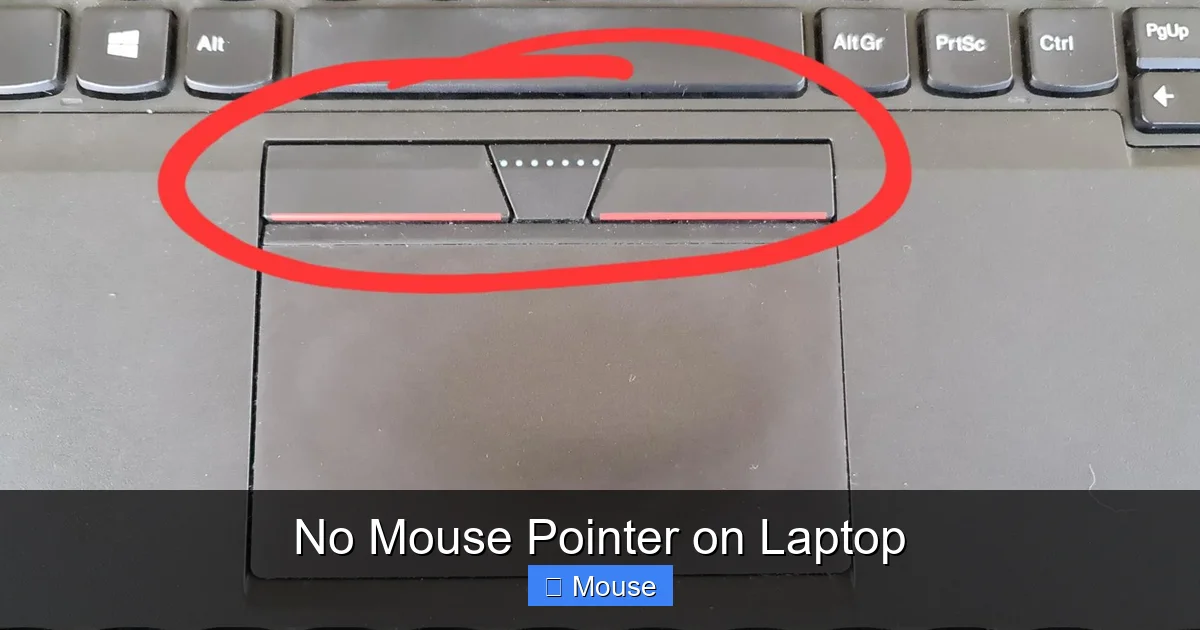
Many laptops let you enable or disable the touchpad with a function key (Fn + F7, for example). Accidentally hitting that combo will instantly hide the pointer, giving you a classic no mouse pointer on laptop experience.
External Devices Conflict
If you’ve plugged in a USB mouse, a docking station, or a wireless receiver, the system may switch control to the external device and hide the built‑in cursor. When the external device disconnects, the pointer sometimes fails to reappear.
Power Management
To save battery, some laptops turn off the touchpad after a period of inactivity. If the power plan is too aggressive, you might end up with a no mouse pointer on laptop situation right after waking the machine.
Corrupted User Profile
Occasionally a user profile gets corrupted, and settings that control the cursor become unreadable. Logging into a different account can instantly bring the pointer back, confirming the issue.
Quick Fixes You Can Try Right Now
Restart the Explorer Process
Press Ctrl + Shift + Esc to open Task Manager. Find Windows Explorer, right‑click and select Restart. This reloads the UI and often restores the missing cursor.
Visual guide about No Mouse Pointer on Laptop
Image source: support.microsoft.com
Toggle the Touchpad On and Off
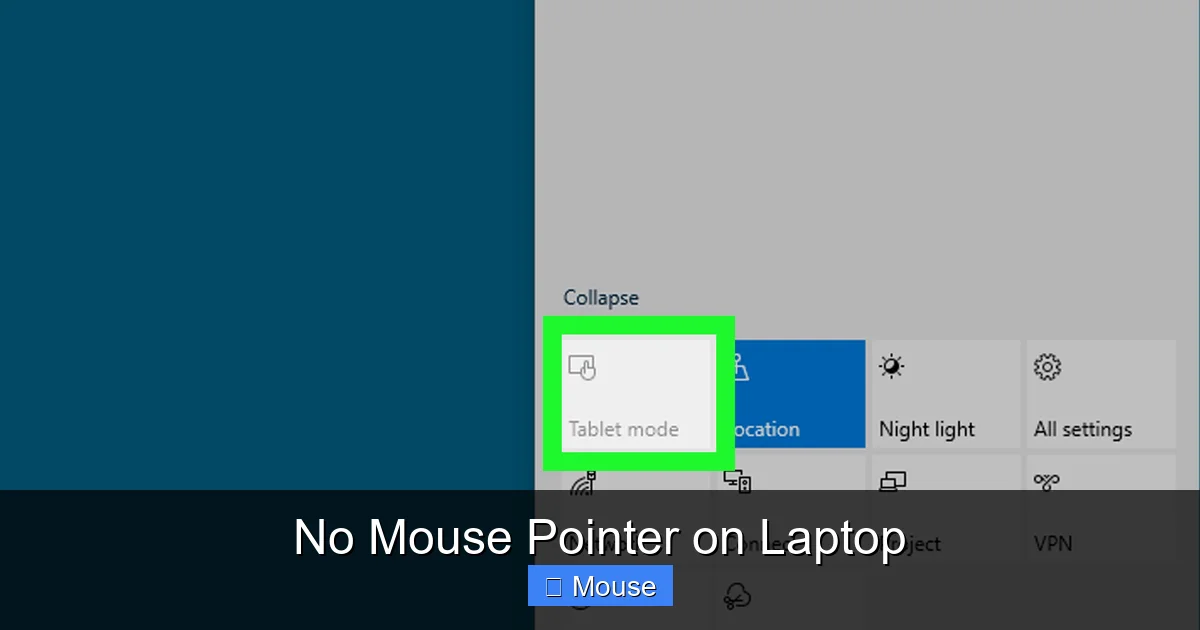
Look for the touchpad icon on your function keys (usually a rectangle with dots). Press Fn + that key to toggle the pad. You’ll hear a sound, and the pointer should pop back.
Update or Roll Back Drivers
Go to Device Manager → Mice and other pointing devices. Right‑click your touchpad driver and choose Update driver. If the problem started after a recent update, select Roll back driver instead.
Check Mouse Settings
Open Settings → Devices → Touchpad. Make sure the toggle is set to On and that the pointer speed isn’t set to zero. Also, verify that “Hide pointer while typing” isn’t causing it to disappear while you work.
Plug in an External Mouse
If the built‑in cursor won’t show, connect a USB or Bluetooth mouse. If the external pointer works, the issue is likely with the touchpad hardware or its driver.
Run the Built‑In Troubleshooter
Windows has a handy troubleshooter for hardware. Go to Settings → Update & Security → Troubleshoot → Additional troubleshooters and run the “Keyboard” and “Hardware and Devices” troubleshooters.
When Simple Fixes Fail: Deeper Diagnostics
Boot Into Safe Mode
Restart your laptop and press F8 (or hold Shift while clicking Restart) to enter Safe Mode. If the cursor appears, a third‑party app is likely the culprit. Uninstall recent software or perform a clean boot to isolate the offender.
Check BIOS/UEFI Settings
Some laptops let you enable or disable the internal pointing device from the BIOS. Restart, enter BIOS (usually Del or F2), and look for “Internal Touchpad” or “Pointing Device”. Ensure it’s set to Enabled.
Test With a Live Linux USB
Booting from a Linux live USB (Ubuntu, for example) gives you a fresh OS environment. If the cursor works there, the hardware is fine, and the problem is Windows‑specific.
System File Checker (SFC) Scan
Open Command Prompt as administrator and run sfc /scannow. This command repairs corrupted system files that could be affecting the cursor display.
Reset Windows Settings
If nothing else works, consider resetting Windows while keeping your files. Go to Settings → Update & Security → Recovery → Reset this PC. Choose “Keep my files” to preserve documents and apps.
Preventing Future No Mouse Pointer Issues
Keep Drivers Updated
Set Windows Update to automatically install driver updates, or visit your laptop manufacturer’s website for the latest touchpad driver.
Visual guide about No Mouse Pointer on Laptop
Image source: wikihow.com
Adjust Power Settings
In Power Options, choose a balanced plan and click “Change plan settings”. Then click “Change advanced power settings” and under “USB settings” make sure “Selective suspend” is disabled for the touchpad.
Regularly Clean the Touchpad
Dust and oils can interfere with the sensor. Use a soft, lint‑free cloth slightly dampened with water to clean the surface weekly.
Create a Restore Point Before Major Updates
Before installing a big Windows feature update, create a system restore point. If the cursor disappears afterward, you can roll back with one click.
Backup Your Settings
Export your mouse and touchpad configuration using the manufacturer’s utility (like Synaptics or ELAN). If a driver reinstall wipes the settings, you can quickly restore them.
Data Table: Common Causes vs. Recommended Fixes
| Cause | Quick Fix | Deep Fix |
|---|---|---|
| Accidental touchpad disable | Press Fn + touchpad key | Check BIOS for disabled device |
| Corrupted driver | Update driver via Device Manager | Roll back driver or reinstall from OEM site |
| Power‑saving setting | Adjust power plan to “Balanced” | Disable selective suspend in advanced power settings |
| Software conflict | Restart Explorer process | Clean boot to isolate offending app |
| Hardware failure | Connect external mouse | Visit service center for touchpad replacement |
Final Thoughts: Getting Your Cursor Back Fast
Finding yourself with a no mouse pointer on laptop can feel like an unexpected roadblock, but most of the time the solution is just a few clicks (or taps) away. Start with the quick fixes—restart Explorer, toggle the touchpad, or update the driver. If those don’t work, move on to deeper diagnostics like Safe Mode or BIOS checks. And remember, keeping drivers fresh, adjusting power settings, and creating restore points are the best ways to keep the cursor from hiding on you again.

Visual guide about No Mouse Pointer on Laptop
Image source: alvarotrigo.com
Visual guide about No Mouse Pointer on Laptop
Image source: i.stack.imgur.com
For more detailed steps on specific models, you might want to read Lost Mouse Cursor On Laptop or learn how to Get The Mouse Back On A Laptop. If the problem persists, the article on Mouse Disappeared On Dell Laptop offers brand‑specific troubleshooting.
With a little patience and the right steps, you’ll have that little arrow dancing across the screen again in no time. Happy computing!
Frequently Asked Questions
What could cause a laptop to have no mouse pointer?
Common reasons include a disabled touchpad, driver corruption, a stuck “Trackpad Off” shortcut, or a hardware fault in the touchpad or graphics subsystem. Checking the touchpad settings and updating drivers usually resolves the issue.
How do I enable the touchpad if the mouse pointer disappears?
Press the function key that toggles the touchpad (often Fn + F7 or F8) or go to Settings → Touchpad and ensure the touchpad is turned on. Some laptops also allow enabling it via the BIOS under the “Advanced” or “Device Manager” section.
Is it normal for the pointer to vanish after a system update?
Occasionally, Windows or macOS updates introduce driver incompatibilities that can hide the pointer. Reinstalling the latest touchpad driver or rolling back to a previous driver version can restore normal cursor behavior.
Can a faulty USB mouse cause the laptop to show no pointer?
Yes. If the laptop’s built‑in cursor is disabled by the operating system when a USB mouse is connected, a malfunctioning mouse may prevent the on‑screen pointer from appearing. Disconnecting the mouse and testing the touchpad can confirm this.
How can I check if the “no mouse pointer on laptop” issue is hardware or software?
Connect an external mouse; if the cursor appears, the problem is likely with the touchpad or its drivers. If no pointer shows with any input device, the graphics driver or hardware may be at fault.
What steps should I take if my laptop has no mouse pointer after a BIOS update?
Enter the BIOS and reset to default settings, then reboot into the OS. If the pointer reappears, reinstall the latest touchpad and graphics drivers from the laptop manufacturer’s website.