What Is the Mouse on a Laptop Called
The built‑in “mouse” on a laptop is called a touchpad or trackpad, a flat surface that lets you move the cursor with finger gestures. It replaces a traditional mouse, offering scrolling, tapping, and multi‑finger commands right on your laptop’s chassis. Understanding its features helps you navigate faster and troubleshoot common issues.
Key Takeaways
- Touchpad definition: The laptop’s built‑in mouse is officially known as a touchpad or trackpad.
- Gesture support: Modern touchpads recognize taps, scrolls, pinches, and multi‑finger swipes.
- Customization: Settings let you adjust sensitivity, tap‑to‑click, and enable/disable gestures.
- Hardware vs. software: Problems can stem from driver issues, disabled touchpad, or physical damage.
- Alternatives: External mice, USB or Bluetooth, can replace the touchpad when needed.
- Maintenance tips: Keep the surface clean and update drivers to ensure smooth operation.
- Internal resources: Learn how to unlock, fix, or replace your touchpad with our step‑by‑step guides.
📑 Table of Contents
- Introduction: Meet the Laptop’s Built‑In Mouse
- What Exactly Is a Touchpad?
- Common Names and Variations
- Features and Gestures You Should Know
- Why Does the Touchpad Matter?
- Troubleshooting Common Touchpad Problems
- How to Customize Your Touchpad Settings
- Future Trends: From Touchpad to Touchscreen
- Conclusion
Introduction: Meet the Laptop’s Built‑In Mouse
When you open a laptop, the first thing you’ll notice is a smooth, rectangular pad right below the keyboard. Most people call it the “mouse,” but the correct term is touchpad or trackpad. It does the same job as a traditional mouse—moving the cursor, clicking, and scrolling—without needing any extra hardware.
In this article we’ll answer the question “what is the mouse on a laptop called?” and dive deep into how the touchpad works, why it’s designed the way it is, and how you can get the most out of it. Whether you’re a student, a remote worker, or just curious, you’ll finish this read with a clear picture of your laptop’s hidden pointing device.
What Exactly Is a Touchpad?
Definition and terminology
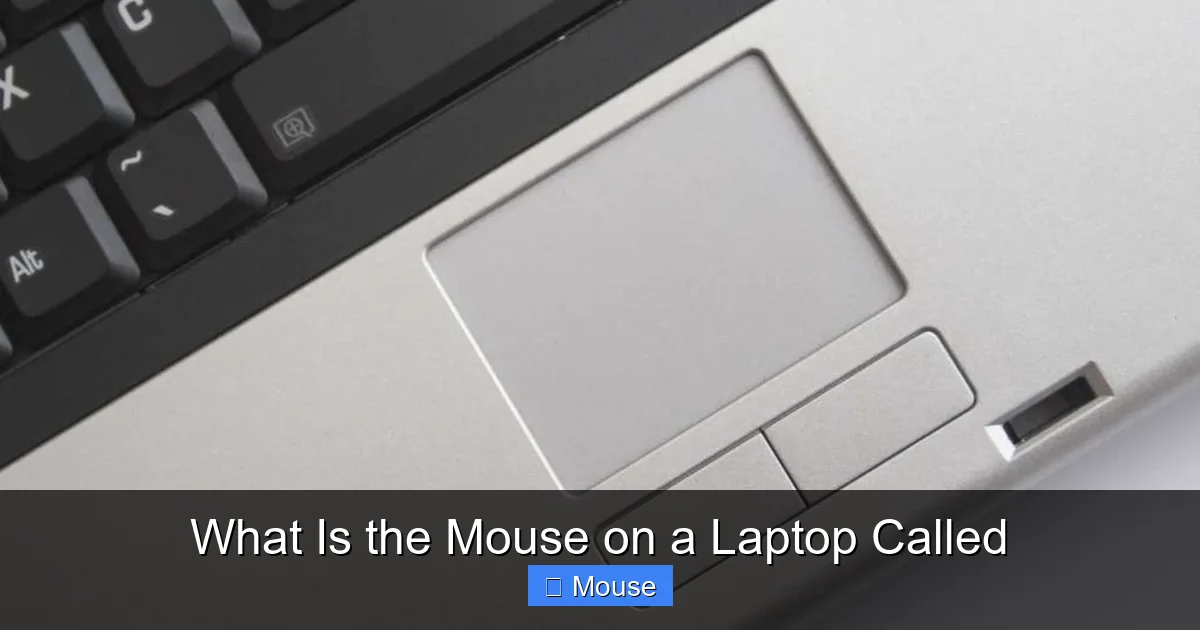
A touchpad is a flat, pressure‑sensitive surface that detects the movement of your fingers. Manufacturers often brand it as a “trackpad,” but the industry standard term remains “touchpad.” It replaces the external mouse that used to sit next to desktop computers.
Visual guide about What Is the Mouse on a Laptop Called
Image source: m.media-amazon.com
How it works
Under the surface are tiny capacitive sensors. When your finger touches the pad, it changes the electric field, and the controller translates that change into cursor movement on the screen. The software layer interprets gestures—like two‑finger scrolling or three‑finger swipes—and sends the appropriate commands to the operating system.
Key components
- Sensor matrix: Detects finger position and pressure.
- Controller chip: Processes raw data into movement vectors.
- Firmware/driver: Communicates with Windows, macOS, or Linux.
Common Names and Variations
Touchpad vs. Trackpad vs. Clickpad
While “touchpad” is the generic term, you’ll also hear “trackpad,” especially on Apple devices. Some laptops use a “clickpad,” where the entire surface can be pressed down to register a click, rather than having separate left‑ and right‑click buttons.

Visual guide about What Is the Mouse on a Laptop Called
Image source: media.geeksforgeeks.org
Brand‑specific names
Manufacturers sometimes give their touchpads a trademarked name—Microsoft calls theirs the “Precision Touchpad,” while Lenovo may refer to it as the “UltraNav.” Regardless of branding, they all answer the same question: what is the mouse on a laptop called?
Features and Gestures You Should Know
Basic actions
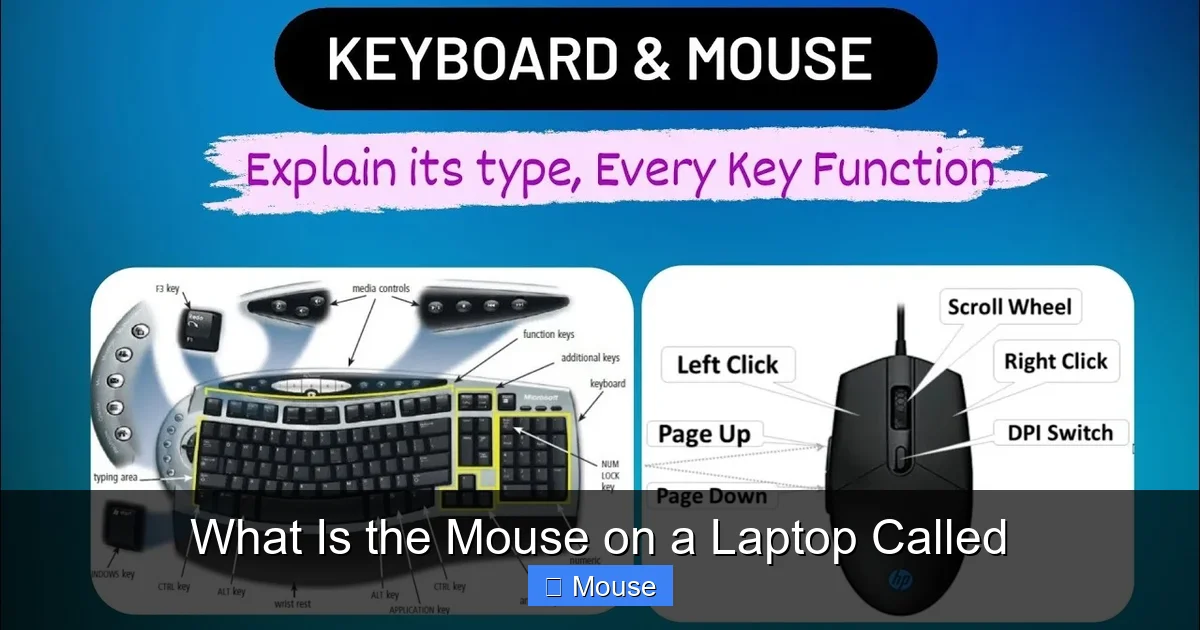
- Move cursor: Slide a finger across the pad.
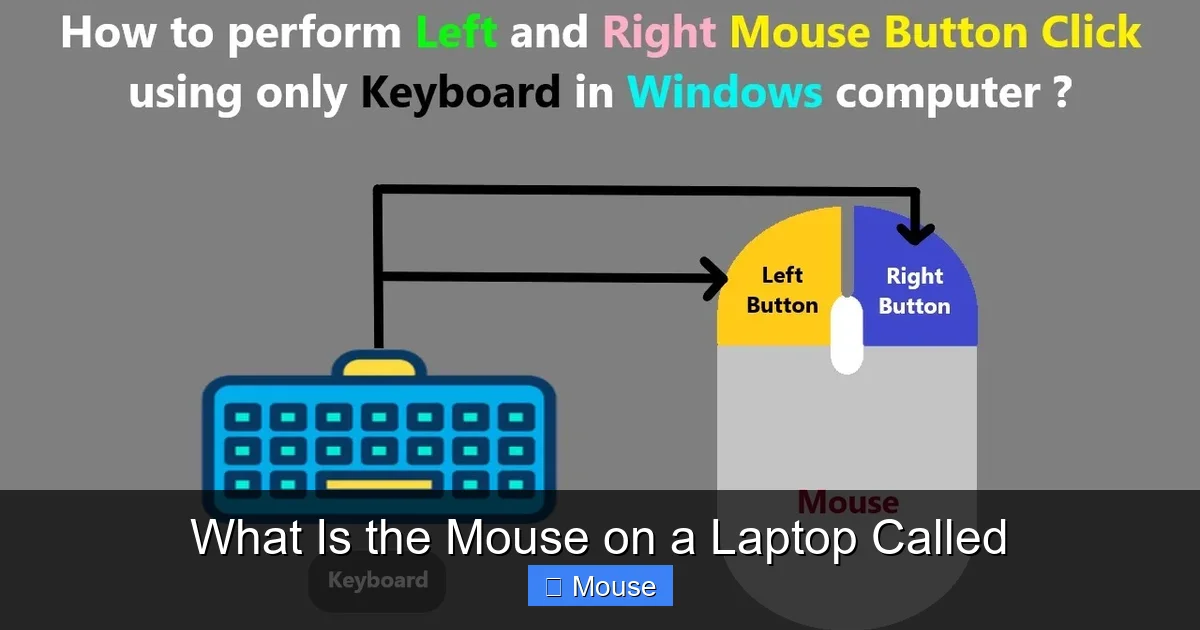
- Left‑click: Tap once or press down if you have a clickpad.
- Right‑click: Two‑finger tap or press the lower‑right corner on some models.
Advanced gestures
- Two‑finger scroll: Slide two fingers up or down to scroll pages.
- Pinch‑to‑zoom: Bring fingers together or apart to zoom in/out.
- Three‑finger swipe: Switch between virtual desktops or open the task view.
- Four‑finger tap: Open the Action Center (Windows) or Launchpad (macOS).
Customizing gestures
All major operating systems let you enable, disable, or change the sensitivity of these gestures. On Windows, go to Settings → Devices → Touchpad. On macOS, open System Preferences → Trackpad. Tailor the settings to match your workflow and you’ll feel more in control of your laptop.
Visual guide about What Is the Mouse on a Laptop Called
Image source: i.ytimg.com
Why Does the Touchpad Matter?
Portability and convenience
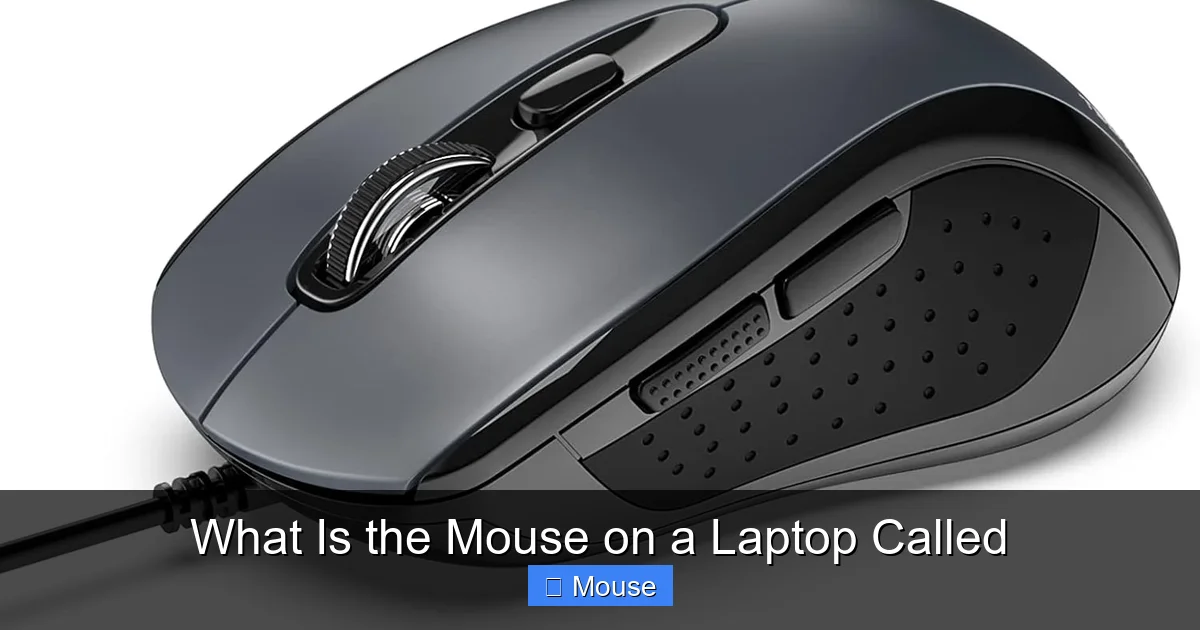
The biggest advantage of a touchpad is that it’s built right into the laptop. You don’t need to carry an extra mouse, which saves space in a backpack or briefcase. This is why many travelers and students prefer ultrabooks with responsive touchpads.
Visual guide about What Is the Mouse on a Laptop Called
Image source: m.media-amazon.com
Precision for everyday tasks
Modern touchpads, especially those with high DPI (dots per inch) sensors, offer pixel‑perfect control for tasks like photo editing, gaming, and design work. They may not replace a high‑end gaming mouse, but they’re more than capable for most daily activities.
Accessibility
For users with limited mobility, the ability to perform multiple actions with just a few fingers can be a game‑changer. Gesture shortcuts reduce the need to reach for external devices.
Troubleshooting Common Touchpad Problems
Touchpad not responding
If the cursor disappears, the first step is to check whether the touchpad is disabled. Many laptops have a function key (often Fn + F7 or similar) that toggles the pad on and off. You can also verify the setting in the OS: Settings → Devices → Touchpad on Windows or System Preferences → Trackpad on macOS.
Visual guide about What Is the Mouse on a Laptop Called
Image source: laptop.dapodik.co.id
For a deeper dive, see our guide on Why Is The Mouse Not Working On My Laptop.
Gestures not working
Outdated or corrupted drivers are often to blame. Visit the laptop manufacturer’s website, download the latest touchpad driver, and install it. Windows Update can also push driver updates automatically.
Cursor jumps or is jittery
Clean the surface with a soft, lint‑free cloth. Dust and oils can interfere with the capacitive sensors. If the problem persists, try adjusting the sensitivity and palm‑rejection settings in the touchpad menu.
Touchpad disabled after sleep
Sometimes the system fails to re‑enable the pad after waking from sleep. A quick fix is to disable and re‑enable the device in Device Manager, or simply restart the laptop.
When to consider an external mouse
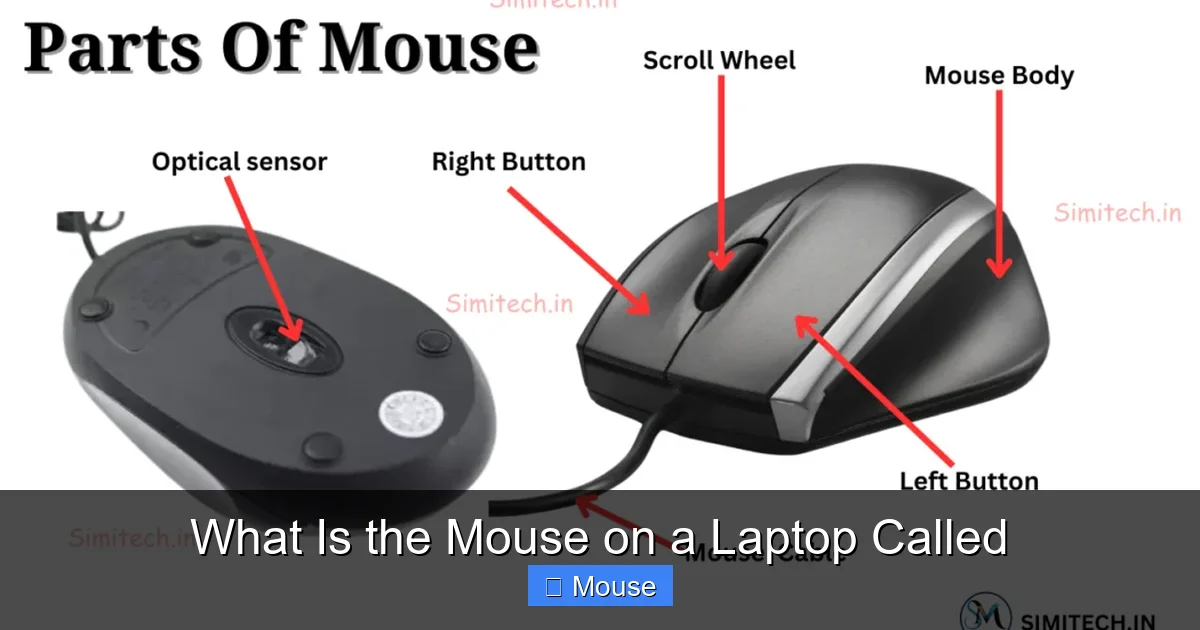
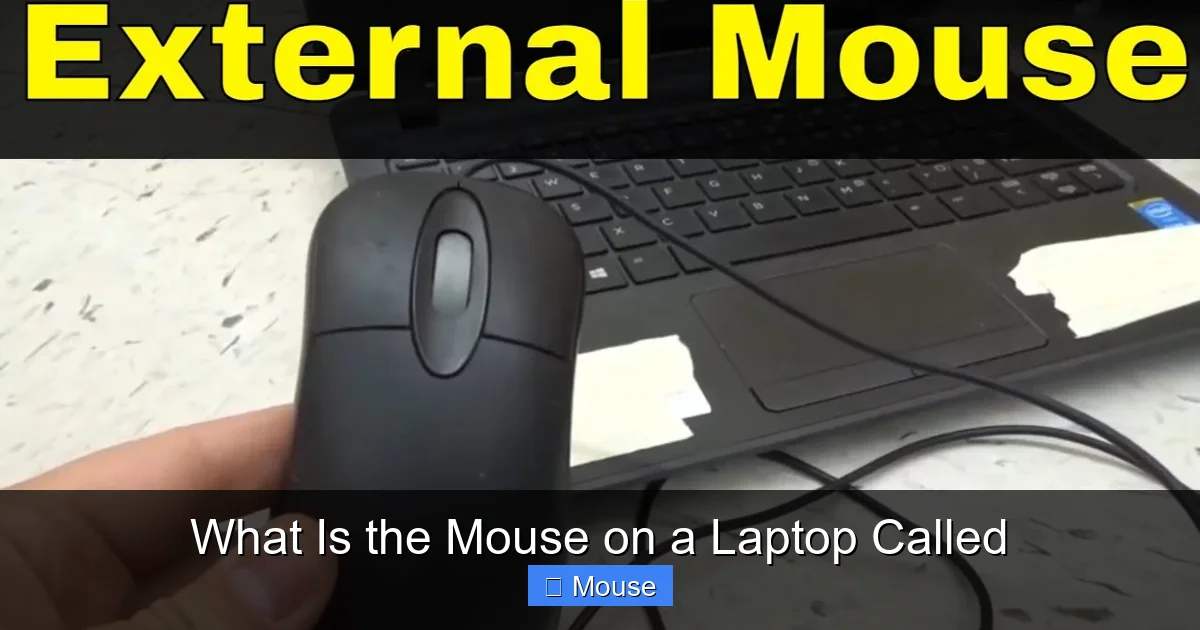
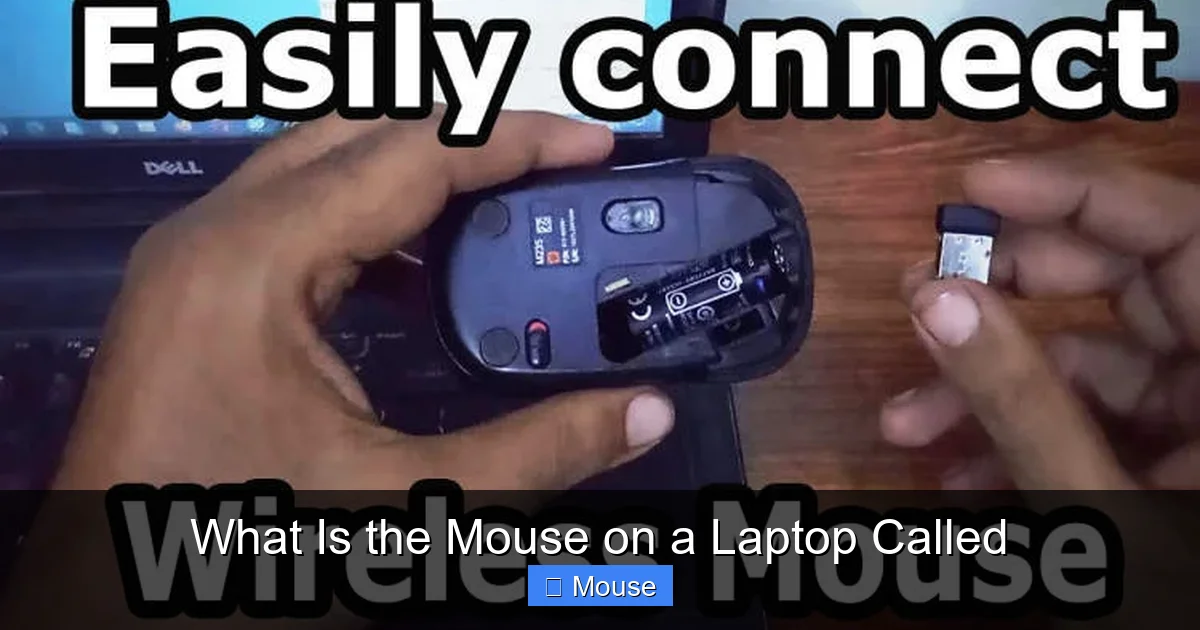
If you need higher precision for gaming or graphic design, an external USB or Bluetooth mouse might be preferable. Check out Adding A Wireless Mouse To A Laptop for a smooth transition.
How to Customize Your Touchpad Settings
Windows 10/11
- Open Settings → Devices → Touchpad.
- Toggle the touchpad on/off.
- Adjust sensitivity: Low, Medium, High.
- Enable or disable gestures such as three‑finger swipe or pinch‑to‑zoom.
- Click Additional settings for manufacturer‑specific options.
macOS
- Open System Preferences → Trackpad.
- Choose between Tap to click and Physical click.
- Configure scrolling direction, zoom, and swipe gestures.
- Use the Point & Click tab for secondary click options.
Linux (Ubuntu example)
Most distributions use the libinput driver. Open Settings → Mouse & Touchpad to adjust speed and tap‑to‑click. Advanced users can edit /etc/X11/xorg.conf.d/40-libinput.conf for custom options.
Visual guide about What Is the Mouse on a Laptop Called
Image source: i.ytimg.com
Future Trends: From Touchpad to Touchscreen
While the touchpad remains the primary built‑in mouse for most laptops, new form factors are blurring the line. Convertible 2‑in‑1 devices often replace the touchpad with a full touchscreen that supports stylus input. Yet, the touchpad still offers tactile feedback that many users prefer for precise cursor control.
Visual guide about What Is the Mouse on a Laptop Called
Image source: robots.net
Manufacturers are also integrating haptic feedback into touchpads, giving a subtle “click” sensation without moving parts. This evolution keeps the touchpad relevant even as touchscreens become more common.
Conclusion
The simple answer to “what is the mouse on a laptop called?” is touchpad (or trackpad). It’s a compact, sensor‑driven surface that lets you move the cursor, click, and perform complex gestures without an external device. Understanding its components, features, and troubleshooting steps helps you get the most out of this built‑in mouse. Keep your drivers updated, customize the settings to match your workflow, and you’ll find the touchpad a reliable companion for every laptop adventure.
Visual guide about What Is the Mouse on a Laptop Called
Image source: i.ytimg.com
Frequently Asked Questions
What is the official name for the mouse on a laptop?
The built‑in mouse on a laptop is officially called a touchpad or trackpad. Some brands refer to it as a clickpad when the whole surface can be pressed.
Can I disable the touchpad when using an external mouse?
Yes. In Windows, go to Settings → Devices → Touchpad and toggle it off. macOS users can disable it in System Preferences → Accessibility → Mouse & Trackpad.
Why does my touchpad stop working after I close the lid?
This often happens due to a driver glitch or power‑management setting. Updating the touchpad driver or disabling “Allow the computer to turn off this device to save power” in Device Manager usually fixes it.
How do I enable right‑click on a touchpad?
Most touchpads support a two‑finger tap for right‑click. You can also enable a dedicated right‑click zone in the touchpad settings panel.
Is a touchpad suitable for gaming?
Modern high‑DPI touchpads are decent for casual games, but serious gamers usually prefer an external mouse for better precision and customizable buttons.
Where can I find more help if my touchpad still won’t work?
Check the detailed guide How To Get The Mouse Back On A Laptop for step‑by‑step troubleshooting and driver installation tips.