Having trouble with your Asus laptop mouse pad? You’re not alone. This guide walks you through common causes, step‑by‑step fixes, and preventive tips so you can restore smooth navigation in minutes.
Key Takeaways
- Check hardware settings: Ensure the touchpad is enabled in the BIOS and Windows settings.
- Update drivers: Install the latest touchpad driver from Asus or the device manufacturer.
- Clean the surface: Dust or moisture can impair sensor accuracy.
- Test with external mouse: Verify the issue is specific to the touchpad.
- Use troubleshooting tools: Windows Troubleshooter or Asus Live Update can pinpoint problems.
- Consider hardware replacement: If the pad is physically damaged, replacement may be the only solution.
- Prevent future glitches: Keep firmware updated and avoid excess screen protector adhesive on the pad.
📑 Table of Contents
Introduction
Ever open your Asus laptop, try to move the cursor, and the screen stays frozen? That’s the classic frustration of a mouse pad that suddenly stops working. Whether you’re a gamer, a writer, or a student, a non‑responsive touchpad can feel like a roadblock to productivity. In this article, we’ll explore why your Asus laptop mouse pad might be acting up, and more importantly, how to get it back to life.
We’ll cover everything from simple software tweaks to deeper hardware checks. By the end, you’ll know whether it’s a quick software fix or if you need to consider a replacement. Let’s dive in.
1. Understanding the Asus Touchpad Ecosystem
What Makes Asus Touchpads Unique?
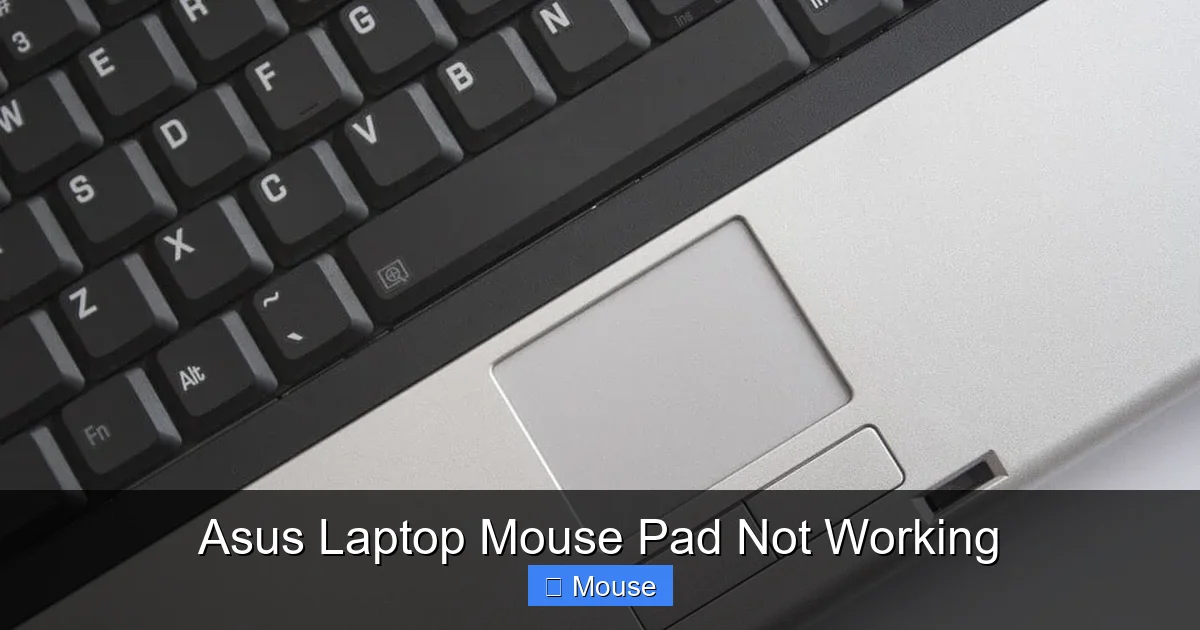
Asus laptops often come with Synaptics or Elan touchpad chips, each with its own driver suite. The touchpad interface is usually integrated into the laptop’s BIOS, allowing you to enable or disable it before the operating system loads. This dual‑layer approach means a problem can arise at the firmware level, the driver level, or the hardware level.
Visual guide about Asus Laptop Mouse Pad Not Working
Image source: images.drivereasy.com
Common Features to Watch
- Multi‑gesture support (pinch, zoom, two‑finger scroll)
- Tap‑to‑click and palm rejection
- Touchpad sensitivity settings
- Hardware shortcut keys (e.g., Fn + F7 to toggle the pad)
Knowing these features helps you pinpoint where the failure occurs.
2. Quick Checks Before You Dive In
Check the Physical Switch
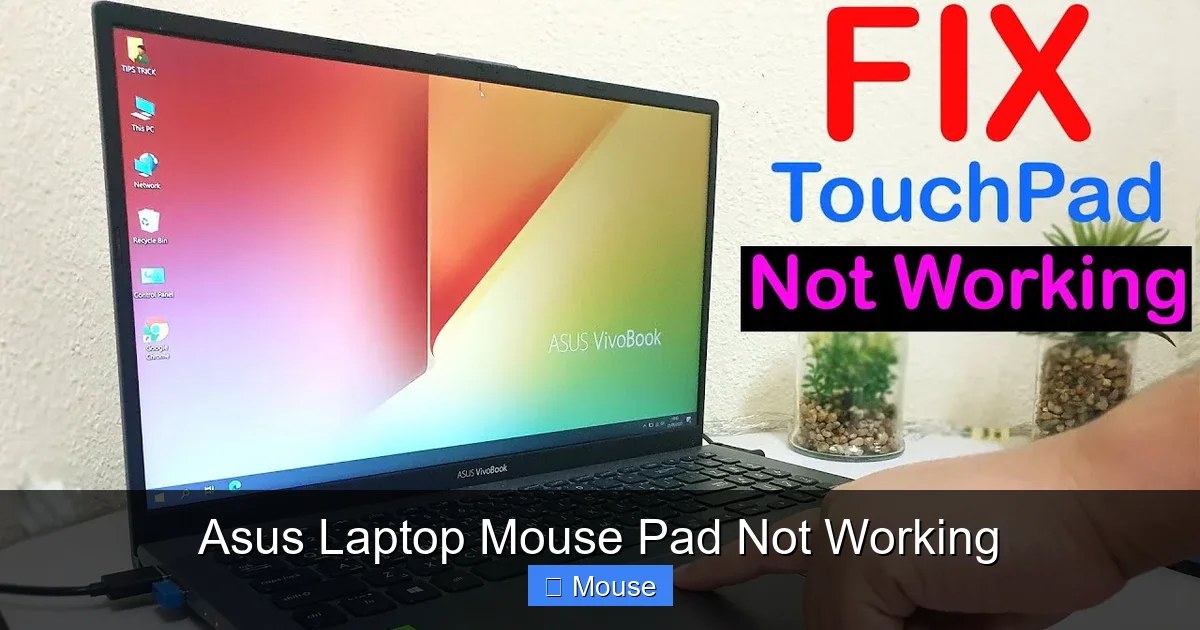
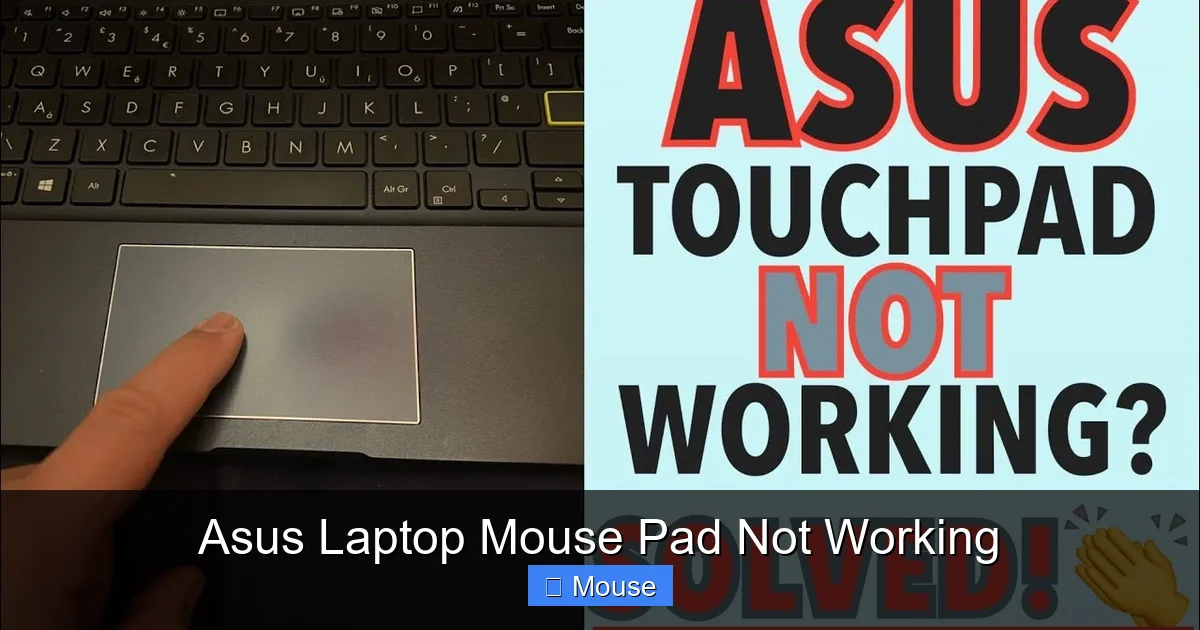
Many Asus models have a dedicated key combination (often Fn + a function key) that turns the touchpad on or off. Press the combo a few times and see if the cursor starts reacting.
Visual guide about Asus Laptop Mouse Pad Not Working
Image source: i.ytimg.com
Verify the Touchpad is Enabled in Windows
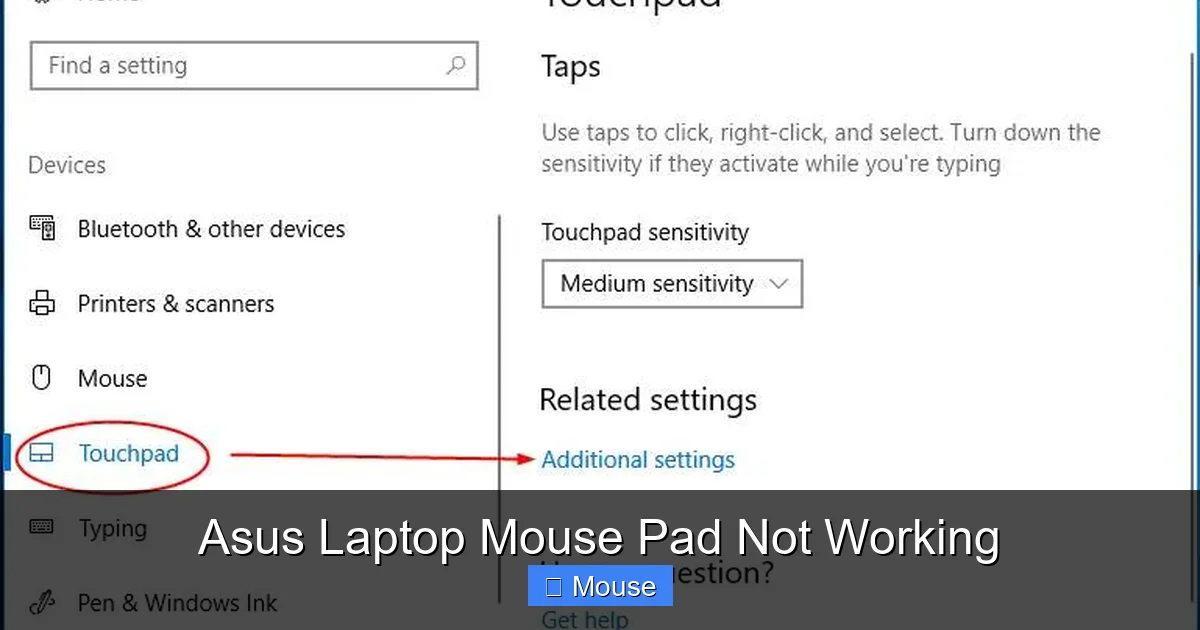
Go to Settings > Devices > Touchpad. Make sure the toggle is set to “On.” If it’s already on, toggle it off, wait a few seconds, then toggle it back on.
Look for External Mouse Interference
Plug in a USB mouse. If the external mouse works but the touchpad doesn’t, the problem is likely isolated to the touchpad hardware or driver.
3. Software Troubleshooting Steps
Update or Reinstall Touchpad Drivers
Driver mismatches are a common culprit. Follow these steps:
Visual guide about Asus Laptop Mouse Pad Not Working
Image source: i.ytimg.com
- Open Device Manager.
- Expand “Mice and other pointing devices.”
- Right‑click the touchpad entry (often “Synaptics TouchPad” or “Elan Touchpad”).
- Select “Update driver” and choose “Search automatically.”
- If no update is found, click “Uninstall device,” then reboot and let Windows reinstall.
Download the Latest Driver from Asus
Visit the Asus support page for your model. Download the latest touchpad driver and install it manually. This ensures you’re using a driver specifically tuned for your hardware.
Run Windows Troubleshooter
Windows offers a built‑in tool that can identify and fix common input issues. Search “Troubleshoot settings,” click “Additional troubleshooters,” then run the “Hardware and Devices” troubleshooter.
Check for BIOS/UEFI Touchpad Settings
Restart your laptop and enter the BIOS (usually by pressing F2 or Del during boot). Navigate to the “Advanced” or “Device Configuration” tab and look for a touchpad option. Make sure it’s set to “Enabled.” Save and exit.
4. Hardware‑Level Diagnostics
Inspect for Physical Damage
Look for cracks, loose components, or water damage on the touchpad surface. Even a small crack can disrupt sensor data.

Visual guide about Asus Laptop Mouse Pad Not Working
Image source: i.ytimg.com
Clean the Touchpad Surface
Use a microfiber cloth dampened with a 50/50 water‑isopropyl solution. Gently wipe the pad; dust and oils can impair the optical or capacitive sensor.
Test with an External Mouse Pad
Place a generic mouse pad on top of the laptop’s touchpad. If the cursor moves, the problem is likely with the touchpad hardware itself.
Consider a Touchpad Replacement
If all software checks fail and you notice physical damage, the pad may need replacing. Contact Asus support or a certified technician for a part number and installation guide.
5. Advanced Solutions for Persistent Issues
Reset Windows Settings
Sometimes, corrupted system files can affect input devices. Run DISM /Online /Cleanup-Image /RestoreHealth followed by sfc /scannow in an admin command prompt.
Visual guide about Asus Laptop Mouse Pad Not Working
Image source: i.ytimg.com
Use Third‑Party Touchpad Drivers
Software like Touchpad Blocker or AutoHotkey can help if the built‑in drivers are buggy. Install carefully and test afterward.
Check for Conflicting Software
Applications like gaming overlays or screen recorders can hijack input devices. Disable or uninstall recently added software to see if the touchpad returns.
6. Prevention and Maintenance Tips
- Keep the laptop’s firmware and OS updated.
- Avoid placing heavy objects on the laptop lid, which can flex the touchpad.
- Use a keyboard cover to protect the touchpad from spills.
- Reset touchpad settings to factory defaults after major software changes.
- Periodically run the touchpad driver update utility.
Conclusion
Your Asus laptop mouse pad not working can stem from simple software glitches or deeper hardware faults. By following the step‑by‑step troubleshooting flow—starting with physical checks, moving through driver updates, and finally addressing hardware—most users can restore functionality without professional help. If the issue persists after all these steps, it’s likely a hardware failure that requires a replacement part.
Visual guide about Asus Laptop Mouse Pad Not Working
Image source: zappedia.com
Visual guide about Asus Laptop Mouse Pad Not Working
Image source: techlasi.com
Remember, a responsive touchpad is essential for smooth navigation. Keep your drivers updated, clean the surface regularly, and handle your laptop with care to avoid future disruptions.
Frequently Asked Questions
Why is my Asus laptop mouse pad not working after a system update?
System updates can sometimes overwrite or disable touchpad drivers. Reinstall the latest driver from Asus’s website or use Windows Device Manager to restore the correct driver.
Can I use an external mouse when my Asus laptop touchpad is broken?
Absolutely. Connect a USB or wireless mouse to get back to work immediately while you troubleshoot the touchpad.
How can I tell if the problem is the touchpad or the driver?
Plug in an external mouse. If it works, the issue is likely with the touchpad or its driver. Try disabling and re‑enabling the touchpad in Device Manager to isolate the cause.
What should I do if cleaning the touchpad surface doesn’t help?
Clean the pad thoroughly and try a different cleaning solution. If the problem persists, the touchpad may be damaged internally and need replacement.
Is it safe to replace the touchpad myself?
Replacing a touchpad can be delicate. If you’re comfortable opening your laptop, refer to the service manual. Otherwise, seek professional repair to avoid voiding your warranty.
Can I disable the touchpad permanently on my Asus laptop?
Yes, you can disable it via Windows Settings, Device Manager, or the Fn key combination. This is useful if you prefer using an external mouse exclusively.