How Can I Connect My Wireless Mouse to My Laptop
Connecting a wireless mouse to a laptop is simpler than it sounds. In this guide, you’ll learn the quickest methods—whether you’re using Bluetooth, a USB dongle, or a rechargeable battery—along with troubleshooting tips that save time and frustration.
Key Takeaways
- Identify the mouse type: Bluetooth, USB receiver, or detachable battery.
- Check compatibility: Ensure your laptop’s ports or Bluetooth stack support the mouse.
- Power matters: Replace batteries or charge the mouse before pairing.
- Easy pairing steps: Follow the on‑screen wizard or use the Settings app.
- Fix common problems: Interference, driver updates, and syncing issues.
- Optimize settings: Adjust pointer speed, gestures, and power saving.
- Keep firmware up‑to‑date: Use the manufacturer’s app for best performance.
[FEATURED_IMAGE_PLACEHOLDER]
📑 Table of Contents
- Why a Wireless Mouse Might Be a Game‑Changer for Your Laptop
- Step 1: Know Your Mouse – Bluetooth vs. USB Receiver vs. Other Types
- Step 2: Prepare Your Laptop – Ports, Drivers, and Settings
- Step 3: Pairing Your Mouse – The Easy Way
- Step 4: Fine‑Tuning Your Mouse Settings
- Step 5: Common Problems and How to Fix Them
- Step 6: When All Else Fails – Factory Reset and Support
- Conclusion – Your Wireless Mouse is Ready!
Why a Wireless Mouse Might Be a Game‑Changer for Your Laptop
Ever sat at a desk and felt cramped by a wired mouse? A wireless mouse gives you freedom to move, a cleaner workspace, and often better ergonomics. For laptop users, especially those who travel or work in shared environments, the convenience of a wireless mouse can dramatically improve productivity. Yet many people still wonder, “How can I connect my wireless mouse to my laptop?” The answer depends on the mouse’s technology and your laptop’s hardware. Let’s walk through every scenario so you can choose the method that works best for you.
Step 1: Know Your Mouse – Bluetooth vs. USB Receiver vs. Other Types
Bluetooth‑Enabled Mice
Bluetooth mice are the most common today. They use the laptop’s built‑in Bluetooth module, which means no extra USB dongle is needed. Most modern laptops come with Bluetooth 4.0 or higher, which is more than enough for a mouse. The key steps are:
- Check the mouse’s battery level.
- Put the mouse into pairing mode (often a button press).
- Open your laptop’s Bluetooth settings and pair.
USB Receiver (Dongle) Mice
These mice come with a tiny USB stick that plugs into a free USB port. The receiver and mouse communicate over a dedicated 2.4 GHz channel. This method is reliable even if your laptop lacks Bluetooth. To connect:
- Insert the receiver into a USB port.
- Turn on the mouse (usually a power button).
- Follow the on‑screen prompt to pair or simply wait for the USB to be recognized.
Other Wireless Options
Some mice use proprietary wireless protocols (e.g., Logitech’s Unifying Receiver) or come with an optional Bluetooth adapter. If your mouse uses a non‑standard protocol, you might need the specific receiver that came with it. Always check the manual for compatibility notes.
What About the “How Do I Connect My Mouse To My Laptop” Articles?
If you’re still unsure, our detailed guides on How Do I Connect My Mouse To My Laptop and How To Connect Wireless Mouse To A Laptop walk through the exact steps for both Bluetooth and USB receivers.
Step 2: Prepare Your Laptop – Ports, Drivers, and Settings
Check Available Ports
Modern laptops often have limited USB ports. If you’re using a USB dongle, look for a free USB‑A or USB‑C port. If you only have USB‑C, you may need a dongle or a USB‑C to USB‑A adapter. Bluetooth mice don’t need a port, but make sure Bluetooth is enabled in the BIOS or UEFI if your laptop is very old.
Update Drivers and Firmware
Out‑of‑date drivers can cause pairing issues or low performance. For Windows, go to Device Manager → Bluetooth → Update driver. For macOS, updates come with system updates. Many manufacturers also offer firmware updates via a companion app (Logitech Options, Microsoft Mouse & Keyboard Center). Keeping firmware current ensures the best battery life and connection stability.
Enable “Discoverable” Mode
Some laptops have a hardware switch or BIOS setting that disables Bluetooth for power saving. Make sure it’s turned on. On Windows, check Settings → Devices → Bluetooth & other devices and toggle Bluetooth on.
Step 3: Pairing Your Mouse – The Easy Way
Bluetooth Mouse Pairing
- Power on the mouse.
- Press the pairing button (usually a small button on the bottom). Some mice use a long press; others use a short press.
- On Windows, click Add Bluetooth or other device → Bluetooth and select the mouse from the list.
- On macOS, open System Settings → Bluetooth, find the mouse, and click Connect.
- Once paired, the mouse should work immediately.
USB Receiver Pairing
- Insert the receiver into a USB port.
- Turn on the mouse; many will auto‑pair once powered.
- If prompted, press the mouse’s pairing button (often the same as the power button).
- Wait for the laptop to recognize the device. A notification should appear.
Troubleshooting Pairing Issues
- Make sure the mouse is within 10 cm of the receiver or laptop.
- Remove other interfering devices (Wi‑Fi routers, microwaves).
- Restart the laptop and try again.
- Check for a firmware update via the manufacturer’s app.
Step 4: Fine‑Tuning Your Mouse Settings
Pointer Speed and Acceleration
On Windows, go to Settings → Devices → Mouse → Additional mouse options → Pointer Options and adjust the speed slider. On macOS, use System Settings → Mouse and tweak tracking speed.
Button Customization
Many mice allow you to assign custom actions to buttons (e.g., back/forward, volume control). Use the manufacturer’s software: How To Pair Wireless Mouse With Laptop covers button mapping in detail.
Ergonomic Settings
Adjust the tilt, angle, or height of the mouse to reduce strain. Some mice come with adjustable thumb rests or wrist supports. For a laptop, you might consider a small mouse pad with a wrist rest.
Step 5: Common Problems and How to Fix Them
Interference & Signal Dropouts
Bluetooth and 2.4 GHz devices can suffer from interference. Keep your laptop away from Wi‑Fi routers, cordless phones, and microwaves. Adding a USB‑C extension cable can sometimes help if the receiver is too close to the laptop’s metal chassis.
Battery Not Charging or Low
Replace AA or AAA batteries quickly. For rechargeable mice, use the supplied USB cable and charge until the LED indicator shows full charge. Some mice have a dedicated charging dock.
Mouse Stops Working After Sleep
On Windows, go to Device Manager → Bluetooth → Properties → Power Management and uncheck “Allow the computer to turn off this device to save power.” On macOS, ensure “Allow Bluetooth devices to wake this computer” is checked.
Mouse Not Recognized by the Laptop
Remove the receiver or unpair the Bluetooth device, then restart the laptop. Re‑insert the receiver or re‑pair the mouse. If the issue persists, try a different USB port or use a USB‑C to USB‑A adapter.
Step 6: When All Else Fails – Factory Reset and Support
Factory Reset the Mouse
Many mice have a reset button or a specific button sequence to clear pairing history. Check the manual for your exact model. After resetting, repeat the pairing steps.
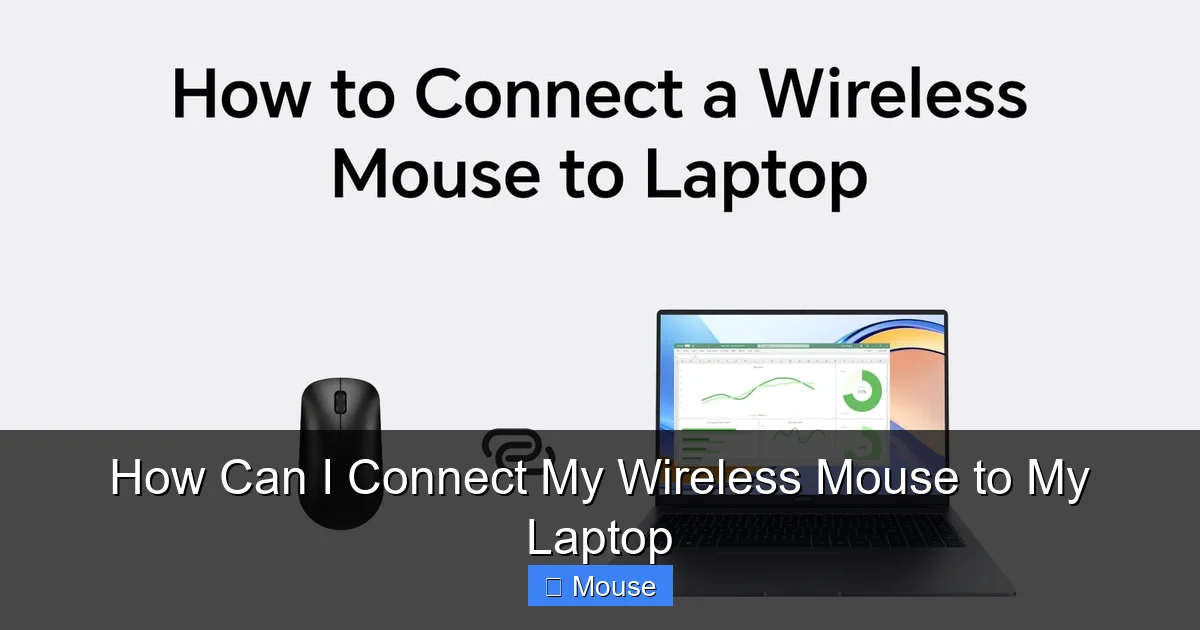
Visual guide about How Can I Connect My Wireless Mouse to My Laptop
Image source: honor.com
Contact Manufacturer Support
If you’ve tried everything and the mouse still won’t work, reach out to the manufacturer’s support. They can provide firmware updates or replacement if the product is under warranty.
Conclusion – Your Wireless Mouse is Ready!
Connecting a wireless mouse to your laptop doesn’t have to be a technical hurdle. By identifying your mouse type, preparing your laptop, and following simple pairing steps, you’ll enjoy a smoother, more ergonomic computing experience. Remember to keep batteries topped up, drivers updated, and to tweak settings for your personal comfort. If you run into trouble, our How To Activate Wireless Mouse On Laptop guide offers additional troubleshooting tips. Happy clicking!
Frequently Asked Questions
How do I connect a wireless mouse to my laptop?
First, identify if your mouse uses Bluetooth or a USB receiver. For Bluetooth, enable Bluetooth on your laptop, press the mouse’s pairing button, and select it in the Bluetooth settings. For a USB receiver, insert the dongle, turn on the mouse, and it should pair automatically.
My mouse won’t pair with my laptop. What should I do?
Check that the mouse is in pairing mode, batteries are fresh, and the laptop’s Bluetooth is enabled. Remove any other paired devices that might interfere, restart the laptop, and try pairing again. If it’s a USB receiver, try a different USB port.
Can I use a Bluetooth mouse on a laptop that only has USB‑C ports?
Yes, a Bluetooth mouse doesn’t need any USB ports. Just make sure Bluetooth is turned on. If you’re using a USB receiver, you’ll need a USB‑C to USB‑A adapter.
How often should I update my mouse’s firmware?
Whenever the manufacturer releases an update, especially if it adds features or fixes bugs. Use the companion app (Logitech Options, Microsoft Mouse & Keyboard Center) to check for and apply updates.
What should I do if my mouse stops working after my laptop wakes from sleep?
On Windows, disable the power‑saving option for the Bluetooth device in Device Manager. On macOS, ensure “Allow Bluetooth devices to wake this computer” is checked. This keeps the mouse active during sleep cycles.
Is it safe to use a wireless mouse with a laptop that has a weak battery?
Yes, but keep an eye on the mouse’s battery level. Wireless mice consume power from their own batteries, not the laptop’s. Using a rechargeable mouse can reduce the need for battery swaps and extend overall battery life of the laptop.