My Mouse Not Working on My Laptop
Dealing with a mouse that suddenly stops working on your laptop can be incredibly frustrating, especially when you’re in the middle of something important. The good news is that most mouse issues on laptops are caused by simple problems like loose connections, outdated drivers, or accidental settings changes. In this guide, we’ll walk you through every possible reason why your mouse is not working on your laptop and give you step-by-step solutions to fix it fast.
Key Takeaways
- Check physical connections first: A loose USB cable, dead batteries, or a faulty Bluetooth connection are the most common reasons a mouse stops working on a laptop.
- Update or reinstall drivers: Outdated or corrupted mouse drivers can cause your mouse to freeze, lag, or stop responding entirely.
- Accidental touchpad disabling: Many laptops have a keyboard shortcut that disables the touchpad, which can make it seem like your mouse is broken.
- Power management settings: Windows can sometimes turn off USB devices to save power, causing your mouse to disconnect randomly.
- Software conflicts and malware: Certain programs or viruses can interfere with mouse functionality and cause erratic behavior.
- Hardware failure: If none of the software fixes work, the mouse itself or the laptop’s USB port may be physically damaged.
- Try a different mouse: Testing with another mouse helps you quickly determine whether the problem is with the mouse or the laptop.
📑 Table of Contents
- My Mouse Not Working on My Laptop: A Complete Troubleshooting Guide
- Understanding Why Your Mouse Stops Working
- Step 1: Check the Physical Connection
- Step 2: Restart Your Laptop
- Step 3: Update or Reinstall Mouse Drivers
- Step 4: Check Your Touchpad and Mouse Settings
- Step 5: Disable USB Power Management
- Step 6: Check for Software Conflicts and Malware
- Step 7: Test with a Different Mouse
- Step 8: Try System Restore
- Brand-Specific Tips for Mouse Issues
- Preventing Future Mouse Problems
- When to Replace Your Mouse
- Conclusion
My Mouse Not Working on My Laptop: A Complete Troubleshooting Guide
There’s nothing quite like the panic you feel when your mouse suddenly stops responding. You’re clicking, moving, and waving it around — but the cursor just sits there, frozen on the screen. Whether you’re using a wireless mouse, a USB mouse, or even your laptop’s built-in touchpad, this problem can bring your productivity to a screeching halt.
The truth is, a mouse not working on a laptop is one of the most common tech issues people face. And while it might seem like a major problem at first, the solution is often surprisingly simple. In most cases, you won’t need to visit a repair shop or buy a new mouse. You just need to know where to look and what to check.
In this comprehensive guide, we’ll cover every possible reason your mouse might not be working on your laptop. We’ll also give you clear, easy-to-follow steps to fix each issue. By the end of this article, you’ll know exactly how to diagnose and solve the problem — no tech experience required.
Understanding Why Your Mouse Stops Working
Before we dive into the fixes, it helps to understand what’s actually going on when your mouse stops working. A mouse communicates with your laptop through a connection — either wired (USB) or wireless (Bluetooth or a USB receiver). When that communication breaks down for any reason, your mouse stops responding.

Visual guide about My Mouse Not Working on My Laptop
Image source: whiteorder.net
The breakdown can happen at several points. It could be a physical problem like a broken cable or dead battery. It could be a software issue like a driver that needs updating. Or it could be something as simple as a setting that got changed without you realizing it. Let’s explore each of these possibilities in detail.
The Most Common Causes at a Glance
- Loose or damaged USB cable or receiver
- Dead or low batteries in a wireless mouse
- Outdated or corrupted mouse drivers
- Accidentally disabled touchpad or mouse
- Windows power management turning off USB devices
- Software conflicts or malware infections
- Physical damage to the mouse or laptop port
Step 1: Check the Physical Connection
The first thing you should always do when your mouse stops working is check the physical connection. This is the most common cause of mouse problems, and it’s also the easiest to fix.

Visual guide about My Mouse Not Working on My Laptop
Image source: i.ytimg.com
For Wired USB Mice
If you’re using a wired mouse, start by unplugging the USB cable from your laptop. Look at the cable for any visible damage — frayed wires, bent connectors, or kinks can all cause connection problems. Then plug the cable back in firmly. You should feel it click into place.
If that doesn’t work, try a different USB port on your laptop. Sometimes a specific USB port can fail while the others work perfectly. This is especially common on older laptops where the ports have been used heavily over the years.
For Wireless Mice
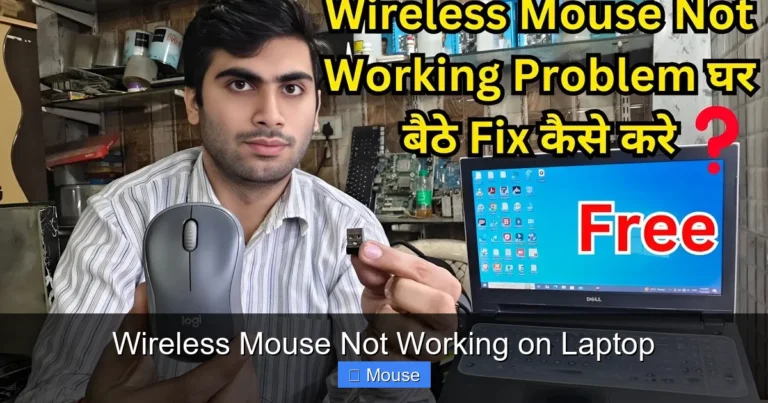
Wireless mice have their own set of connection issues. First, check the batteries. If your mouse uses replaceable batteries, swap them out with fresh ones. Even if the batteries seem fine, they might not have enough power to maintain a stable connection.
Next, check the USB receiver. Make sure it’s plugged in securely. If your mouse uses Bluetooth instead of a USB receiver, go to your laptop’s Bluetooth settings and make sure the mouse is still paired. Sometimes the pairing can get disrupted, especially after a Windows update.
If you’re still having trouble, try moving the USB receiver to a different port. Also, make sure there are no other wireless devices nearby that could be causing interference. Things like routers, cordless phones, and other Bluetooth devices can sometimes interfere with your mouse’s signal.
Step 2: Restart Your Laptop
This might sound too simple to be effective, but restarting your laptop fixes a surprising number of mouse issues. When you restart, your computer reloads all its drivers and clears out any temporary glitches that might be causing the problem.

Visual guide about My Mouse Not Working on My Laptop
Image source: imgs.mongabay.com
Before you restart, make sure to save any open work. Then click the Start menu, select Power, and choose Restart. Wait for your laptop to fully boot up, then test your mouse again.
If your mouse still isn’t working after a restart, don’t worry — we have plenty more steps to try. But if it does work, the problem was likely a temporary software glitch that the restart cleared up.
Step 3: Update or Reinstall Mouse Drivers
Drivers are small pieces of software that tell your laptop how to communicate with your mouse. When these drivers become outdated or corrupted, your mouse can stop working properly. This is one of the most common reasons for a mouse not working on a laptop, and it’s usually easy to fix.

Visual guide about My Mouse Not Working on My Laptop
Image source: img-mdpr.freetls.fastly.net
How to Update Your Mouse Drivers
To update your mouse drivers, follow these steps:
- Right-click the Start button and select Device Manager.
- Expand the “Mice and other pointing devices” section.
- Right-click your mouse and select “Update driver.”
- Choose “Search automatically for drivers.”
- Follow the on-screen instructions.
Windows will search for the latest driver and install it automatically. After the update is complete, restart your laptop and test your mouse.
How to Reinstall Your Mouse Drivers
If updating doesn’t work, try reinstalling the driver completely. In Device Manager, right-click your mouse and select “Uninstall device.” Then restart your laptop. Windows will automatically detect the mouse and reinstall the driver when it boots back up.
This process essentially gives your mouse a fresh start. It clears out any corrupted files and replaces them with clean, working versions. Many people find that this simple step fixes their mouse issues immediately.
Step 4: Check Your Touchpad and Mouse Settings
Sometimes the problem isn’t with your mouse at all — it’s with your laptop’s settings. There are several settings that can accidentally disable your mouse or touchpad without you realizing it.

Visual guide about My Mouse Not Working on My Laptop
Image source: static.vecteezy.com
The Touchpad Disable Shortcut
Most laptops have a keyboard shortcut that disables the touchpad. On many models, it’s Fn plus one of the function keys (usually F5, F7, or F9). If you accidentally press this combination, your touchpad will stop working.
To fix this, simply press the same key combination again. Look for a touchpad icon on your function keys to find the right one. If you’re not sure which key it is, check your laptop’s manual or search online for your specific model.
Windows Mouse Settings
Windows also has settings that can affect how your mouse works. Go to Settings > Devices > Mouse and make sure everything is configured correctly. Check that the mouse speed is set to a comfortable level and that the primary button is set to the correct side (left for most people).
While you’re there, also check the “Additional mouse options” link. This opens the classic Mouse Properties window where you can check settings like pointer speed, scroll wheel behavior, and hardware properties.
Step 5: Disable USB Power Management
Windows has a feature that turns off USB devices to save power. While this is great for battery life, it can sometimes cause your mouse to disconnect randomly. If your mouse works for a while and then stops, this could be the culprit.

Visual guide about My Mouse Not Working on My Laptop
Image source: hartz.com
How to Turn Off USB Power Saving
Here’s how to disable this feature:
- Open Device Manager by right-clicking the Start button.
- Expand “Universal Serial Bus controllers.”
- Right-click each USB Root Hub and select Properties.
- Go to the Power Management tab.
- Uncheck “Allow the computer to turn off this device to save power.”
- Click OK and repeat for all USB Root Hubs.
After making these changes, your mouse should stay connected consistently. This fix is especially helpful for people who use their laptop on battery power and notice their mouse disconnecting after a few minutes of inactivity.
Step 6: Check for Software Conflicts and Malware
Sometimes the problem isn’t with your mouse or your laptop’s hardware — it’s with the software running on your system. Certain programs can interfere with mouse functionality, and in rare cases, malware can cause your mouse to behave erratically.
Identifying Problematic Software
Think about any new programs you’ve installed recently. If your mouse problems started after installing a new application, that program might be the cause. Try uninstalling it and see if your mouse starts working again.
Some types of software are more likely to cause mouse issues than others. Screen recording software, remote desktop applications, and certain gaming overlays are known to sometimes interfere with mouse input.
Scanning for Malware
If you suspect malware might be the cause, run a full system scan with your antivirus software. Windows Defender, which is built into Windows, is a good option. You can also use a dedicated malware removal tool like Malwarebytes for a more thorough scan.
Malware can cause all sorts of strange behavior, including mouse problems. If your scan finds anything, remove it and restart your laptop. Your mouse should return to normal after the malware is gone.
Step 7: Test with a Different Mouse
If you’ve tried all the steps above and your mouse still isn’t working, it’s time to test with a different mouse. This will help you determine whether the problem is with the mouse itself or with your laptop.

Visual guide about My Mouse Not Working on My Laptop
Image source: cdn.idntimes.com
Borrow a mouse from a friend or use a spare if you have one. Plug it into your laptop and see if it works. If the new mouse works fine, then your original mouse is probably broken and needs to be replaced.
If the new mouse doesn’t work either, the problem is likely with your laptop. It could be a faulty USB port, a deeper software issue, or even a hardware problem with the laptop itself. In this case, you might need to contact the laptop manufacturer or visit a repair shop.
Step 8: Try System Restore
If your mouse was working fine recently and suddenly stopped, a System Restore might be the solution. System Restore takes your laptop back to a previous point in time when everything was working correctly.

Visual guide about My Mouse Not Working on My Laptop
Image source: yakk001.com
How to Use System Restore
- Type “Create a restore point” in the Windows search bar and open it.
- Click “System Restore” and then “Next.”
- Choose a restore point from before your mouse problems started.
- Click “Next” and then “Finish” to begin the restore process.
Your laptop will restart and restore itself to the selected point. This won’t delete your personal files, but it will remove any programs or drivers installed after the restore point. After the restore is complete, test your mouse again.
Brand-Specific Tips for Mouse Issues
Different laptop brands can have their own unique mouse issues. If you’re using a specific brand, there might be brand-specific solutions that can help.
HP Laptops
HP laptops sometimes have issues with their touchpad drivers. If you’re using an HP laptop and your touchpad isn’t working, try downloading the latest touchpad driver from HP’s support website. You can find more detailed help at our guide on HP laptop mouse not working.
Dell Laptops
Dell laptops often come with Dell-specific mouse and touchpad software. If your mouse isn’t working on a Dell laptop, check if the Dell Touchpad software is installed and up to date. You can also try resetting the touchpad settings to their defaults.
Lenovo Laptops
Lenovo laptops are known for having sensitive touchpads that can be accidentally disabled. Check the Lenovo Vantage software for touchpad settings, and make sure the touchpad is enabled. Some Lenovo models also have a physical switch on the side of the laptop that can disable the touchpad.
Preventing Future Mouse Problems
Once you’ve fixed your mouse issue, you’ll want to prevent it from happening again. Here are some tips to keep your mouse working smoothly:
- Keep your drivers updated: Set Windows to automatically update drivers, or check for updates regularly.
- Use a mouse pad: A good mouse pad can prevent tracking issues and extend the life of your mouse.
- Keep your mouse clean: Dust and debris can build up on the sensor and cause tracking problems.
- Carry spare batteries: If you use a wireless mouse, always have spare batteries on hand.
- Be careful with USB ports: Avoid forcing USB connectors into ports, and don’t yank cables out roughly.
- Install reputable antivirus software: This will help prevent malware from interfering with your mouse and other devices.
When to Replace Your Mouse
Sometimes, no amount of troubleshooting can fix a broken mouse. Here are some signs that it’s time to get a new one:
- The mouse doesn’t work on any computer you try it on
- The cable is visibly damaged or frayed
- The mouse buttons are physically broken or stuck
- The cursor jumps around erratically even after cleaning the sensor
- The mouse is more than 3-4 years old and has been heavily used
Modern mice are relatively affordable, and a new one can often solve problems that seem complicated. If you’ve tried everything in this guide and your mouse still isn’t working, it might be time to invest in a replacement.
Conclusion
Having your mouse stop working on your laptop is never fun, but as you can see, there are many possible causes — and most of them have simple solutions. Start with the basics: check your connections, restart your laptop, and update your drivers. These three steps alone fix the majority of mouse issues.
If those don’t work, work through the other steps in this guide. Check your settings, disable USB power management, scan for malware, and test with a different mouse. With a little patience and systematic troubleshooting, you can almost always get your mouse working again without spending a dime.
Remember, the key is to stay calm and work through the possibilities one at a time. Most mouse problems are temporary and fixable. And if all else fails, a new mouse is a small price to pay for getting back to work or play. Don’t let a stubborn mouse slow you down — use this guide to take control and fix the problem today.
Frequently Asked Questions
Why did my mouse suddenly stop working on my laptop?
Your mouse may have suddenly stopped working due to a loose connection, dead batteries, outdated drivers, or a Windows update that changed your settings. Start by checking the physical connection and restarting your laptop, as these simple steps fix most sudden mouse failures.
How do I fix an unresponsive mouse on my laptop?
To fix an unresponsive mouse, first unplug and reconnect it or replace the batteries. Then update your mouse drivers through Device Manager, check that your touchpad hasn’t been accidentally disabled, and disable USB power management settings in Windows.
Can a Windows update cause my mouse to stop working?
Yes, Windows updates can sometimes cause mouse issues by changing drivers, resetting settings, or introducing software conflicts. If your mouse stopped working after an update, try rolling back the driver in Device Manager or using System Restore to revert your system to a previous state.
How do I know if my mouse is broken or if my laptop has a problem?
The easiest way to tell is to test your mouse on another computer and test a different mouse on your laptop. If your mouse doesn’t work on any computer, the mouse is likely broken. If no mouse works on your laptop, the problem is with the laptop’s hardware or software.
What should I do if my wireless mouse keeps disconnecting?
If your wireless mouse keeps disconnecting, replace the batteries first. Then try moving the USB receiver to a different port, disable USB power management in Windows, and check for wireless interference from other devices like routers or Bluetooth gadgets.
Is it worth repairing a mouse or should I just buy a new one?
In most cases, it’s more cost-effective to buy a new mouse than to repair one. Basic mice are affordable, and unless you have a high-end gaming mouse or a specialized device, a replacement is usually the better option. If your mouse is under warranty, contact the manufacturer for a free replacement.