Mouse on Laptop Not Working Hp
Having trouble with a mouse on laptop not working HP? We break down the most common causes—from disabled touchpads to outdated drivers—and give you simple, step‑by‑step fixes. Follow our friendly guide and get your cursor back in action fast.
Key Takeaways
- Check hardware first: A simple restart or reseating the touchpad can solve many issues.
- Update or roll back drivers: Incorrect or outdated drivers are a top cause of mouse problems on HP laptops.
- Touchpad settings matter: Disabled or locked touchpads will make the mouse appear dead.
- BIOS & firmware updates: These can resolve compatibility glitches that affect the built‑in mouse.
- External mouse test: Plugging in a USB or Bluetooth mouse helps pinpoint whether the problem is hardware or software.
- System restore & reset options: When software fixes fail, a restore point or Windows reset can bring things back.
- Know when to seek professional help: Physical damage or persistent issues may require service from HP support.
📑 Table of Contents
Why Your HP Laptop’s Mouse Might Stop Working
It’s frustrating when the cursor freezes or disappears, especially when you’re in the middle of something important. On HP laptops, the built‑in mouse (also called the touchpad) can quit working for many reasons, and most of them are easy to diagnose.
Below we’ll walk through the most common culprits, explain how they affect the mouse on laptop not working HP, and give you clear actions you can take right now.
1. Disabled Touchpad Settings
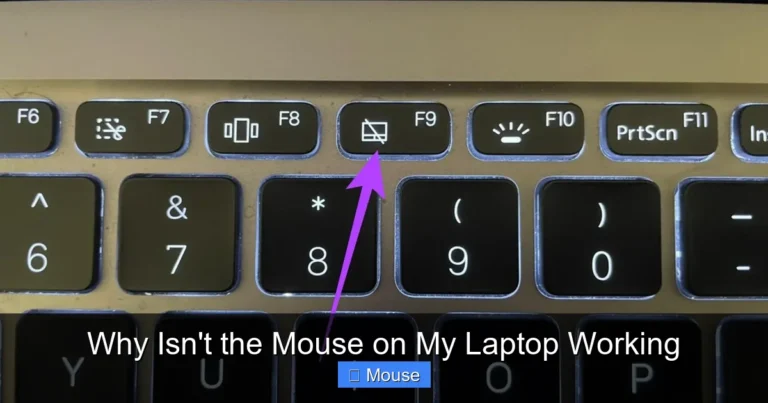
HP includes a shortcut (often Fn + F6 or a dedicated touchpad key) that can toggle the touchpad on and off. Accidentally pressing it will make the cursor vanish.
- Go to Settings → Devices → Touchpad and ensure the toggle is set to “On”.
- Check the function‑key indicator on the keyboard; a small touchpad icon usually shows the status.
2. Outdated or Corrupt Drivers
Drivers are the software bridge between Windows and your hardware. If the driver is old, corrupted, or mismatched after a Windows update, the mouse stops responding.
- Open Device Manager, expand “Mice and other pointing devices”, right‑click the HP touchpad entry, and choose “Update driver”.
- If updating doesn’t help, select “Uninstall device”, then reboot – Windows will reinstall a fresh driver automatically.
3. BIOS or Firmware Glitches
Sometimes the issue is deeper than Windows. A BIOS version that doesn’t fully support a newer touchpad can cause intermittent failures.
- Visit the HP Support site, enter your laptop model, and download the latest BIOS update.
- Follow HP’s instructions carefully; a failed BIOS flash can brick the machine.
4. Physical Damage or Dirt
Spilled coffee, dust, or a loose ribbon cable can interrupt the touchpad’s connection.
- Power off the laptop, remove the bottom panel (if you’re comfortable), and check the flat ribbon cable that connects the touchpad to the motherboard.
- Clean the touchpad surface with a soft, lint‑free cloth and a tiny amount of isopropyl alcohol.
5. Conflicting Software
Third‑party utilities (like mouse enhancers or gaming software) can override Windows settings and cause the cursor to disappear.
- Boot into Safe Mode to see if the mouse works there. If it does, a startup program is likely at fault.
- Use Task Manager → Startup to disable unnecessary items, then restart normally.
Step‑by‑Step Troubleshooting Guide
Follow these steps in order. Most users find that the issue is resolved by step three.
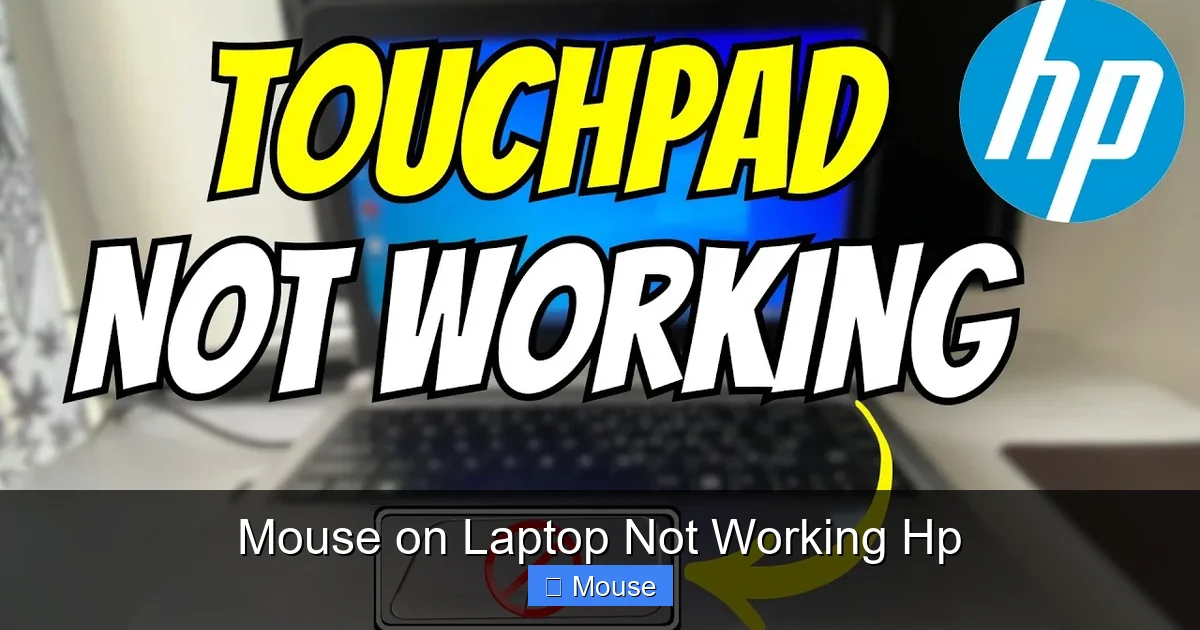
Visual guide about Mouse on Laptop Not Working Hp
Image source: i.ytimg.com
Step 1 – Quick Restart and External Test
1. Save any work and restart the laptop.
2. Plug in a USB mouse. If the external mouse works, the hardware is fine and the problem is with the touchpad settings or drivers.
Step 2 – Verify Touchpad Is Enabled
Open Settings → Devices → Touchpad. Make sure the toggle is on. Also, press the Fn + F6 key combination to ensure the touchpad isn’t locked.
Step 3 – Update or Roll Back Drivers
In Device Manager, locate the touchpad driver. Choose “Update driver” first. If the problem started after a recent update, select “Properties → Driver → Roll Back Driver”.
Step 4 – Run the HP Hardware Diagnostics
HP laptops come with built‑in diagnostics. Restart and press Esc repeatedly, then select F2 – System Diagnostics. Run the “Touchpad” test; any error code will point to a hardware issue.
Step 5 – Install BIOS/Firmware Update
Download the latest BIOS from HP’s support page for your exact model. Follow the on‑screen instructions; a stable BIOS often resolves obscure touchpad glitches.
Step 6 – Reset Windows Settings
If software fixes fail, consider a System Restore to a point before the issue began. As a last resort, use Settings → Update & Security → Recovery → Reset this PC (choose “Keep my files”).
When to Use an External Mouse
While you’re troubleshooting, an external mouse can keep you productive.
- USB mice are plug‑and‑play; no drivers required on most Windows versions.
- Bluetooth mice need pairing: Settings → Devices → Bluetooth & other devices → Add Bluetooth or other device.
- If the external mouse also fails, the issue is likely deeper than the touchpad—perhaps a motherboard problem.
Preventing Future Mouse Issues on HP Laptops
Prevention is easier than cure. Here are habits that keep your cursor happy.
Keep Drivers Updated
Set Windows to automatically download driver updates, or periodically visit the HP support page for your model.
Regular Cleaning
Dust and debris can affect the touchpad’s sensor. Wipe the surface weekly with a microfiber cloth.
Avoid Physical Impacts
Don’t press hard on the touchpad or drop the laptop. A gentle tap can damage the ribbon cable over time.
Backup System Images
Create a restore point before major Windows updates. This gives you a safety net if a new driver breaks the mouse.
Need More Help?
If you’ve tried everything and the mouse on laptop not working HP problem persists, it may be time to contact HP support or visit an authorized service center. Professional technicians can test the touchpad circuit and replace it if needed.
For related troubleshooting tips, see our article on HP Laptop Mouse Not Working. You might also find the guide on How To Fix Mouse On Laptop useful, especially for generic Windows issues. Lastly, our post about Why Is The Mouse Not Working On My Laptop covers many of the same steps in a broader context.
Conclusion
Dealing with a mouse on laptop not working HP can feel like a dead end, but most issues are either a simple setting, a driver hiccup, or a quick hardware fix. By following the steps above, you’ll likely have your cursor back in minutes. Remember to keep drivers current, protect the touchpad from physical damage, and keep a spare external mouse handy for emergencies. With a little patience, your HP laptop will be scrolling, clicking, and dragging again in no time.
Visual guide about Mouse on Laptop Not Working Hp
Image source: i.ytimg.com
Frequently Asked Questions
Why does my HP laptop’s touchpad stop responding after a Windows update?
Windows updates can install a newer generic driver that isn’t fully compatible with HP’s custom touchpad firmware. Updating the driver from HP’s website or rolling back to the previous version usually fixes the issue.
Can a disabled touchpad be re‑enabled without using the function key?
Yes. Open Settings → Devices → Touchpad and turn the toggle on. You can also enable it via Device Manager by right‑clicking the touchpad device and selecting “Enable”.
Is it safe to reinstall the touchpad driver myself?
Absolutely. Uninstalling the driver and letting Windows reinstall a fresh copy is a standard troubleshooting step and does not harm the hardware.
What should I do if both the built‑in touchpad and an external USB mouse stop working?
This points to a deeper software or BIOS issue. Run HP’s hardware diagnostics, update the BIOS, and consider a system restore or Windows reset if the problem persists.
My touchpad works intermittently. Could dust be the cause?
Yes. Dust or debris can interfere with the touchpad’s sensor. Clean the surface gently with a microfiber cloth and a tiny amount of isopropyl alcohol.
When is it time to contact HP support for mouse issues?
If none of the software fixes work, the diagnostics test reports a hardware failure, or the laptop is still under warranty, reaching out to HP support or an authorized service center is the best next step.