How Do I Unlock My Laptop Mouse Pad

Is your laptop mouse pad not responding? Don’t panic. This is a common issue, and it is usually an easy fix. Most of the time, the touchpad gets locked by accident. You can often unlock it with a simple keyboard shortcut or a quick settings change. This guide will show you exactly how to get your cursor moving again.
Key Takeaways
- Accidental Locking: The most common reason a mouse pad stops working is that it was accidentally disabled, often by a keyboard shortcut.
- Keyboard Shortcuts: Most laptops have a Function key (like F5, F7, or F9) with a touchpad icon that toggles the mouse pad on and off.
- Windows Settings: You can easily enable or disable the touchpad through the Windows Settings menu under “Touchpad” or “Mouse” options.
- Driver Issues: Outdated or corrupted drivers can cause the touchpad to malfunction. Updating them can often solve the problem.
- External Mouse Interference: Some laptops automatically disable the touchpad when an external mouse is connected. You can change this in settings.
- Hardware Problems: If software fixes don’t work, there might be a hardware issue requiring professional repair.
- Brand-Specific Steps: The process can vary slightly depending on your laptop’s brand, such as HP, Dell, Lenovo, or ASUS.
📑 Table of Contents
- Introduction: When Your Laptop Cursor Goes Silent
- The Most Common Culprit: The Accidental Keyboard Shortcut
- Unlocking the Mouse Pad Through Windows Settings
- Using the Control Panel for Older Systems
- When Software is the Problem: Driver Issues
- Brand-Specific Instructions for Unlocking Your Touchpad
- What to Do If Nothing Else Works
- Conclusion: Getting Back on Track
Introduction: When Your Laptop Cursor Goes Silent
You are in the middle of an important project. Your fingers are flying across the keyboard. Then, you go to move the cursor, and nothing happens. Your laptop mouse pad, also known as a touchpad, has stopped working. It feels like your computer has frozen, but the rest of the system is running fine. This is a frustrating experience, but it is also incredibly common.
Before you start worrying about expensive repairs or a broken laptop, take a deep breath. In the vast majority of cases, the touchpad is not broken. It has simply been disabled. This can happen for a variety of reasons, from an accidental keystroke to a recent software update. The good news is that learning how to unlock your laptop mouse pad is usually a quick and simple process.
This comprehensive guide will walk you through every possible solution. We will start with the easiest fixes and work our way up to more advanced troubleshooting. Whether you use a Windows laptop or a Mac, an HP or a Dell, you will find the steps you need to get your touchpad working again. Let’s dive in and solve this problem together.
The Most Common Culprit: The Accidental Keyboard Shortcut
Believe it or not, the number one reason for a locked touchpad is an accidental key press. Most modern laptops have a dedicated shortcut to disable the touchpad. This feature is designed to be helpful. It prevents your cursor from jumping around while you are typing. However, it is very easy to hit this key combo without realizing it.
Visual guide about How Do I Unlock My Laptop Mouse Pad
Image source: images.wondershare.com
How to Find the Touchpad Key
The key is almost always one of the Function keys at the top of your keyboard, labeled F1 through F12. You need to look for a small icon that looks like a touchpad. It might be a rectangle with a line through it, or a hand touching a pad. The specific key varies by manufacturer.
- HP laptops: Often use F5, F6, or F11. Sometimes you just tap the key, other times you need to press the Fn key at the same time.
- Dell laptops: Frequently use F3 or F5.
- Lenovo laptops: Commonly use F6 or F8.
- ASUS laptops: Often use F9.
- Acer laptops: Typically use F7.
To unlock the touchpad, simply press that Function key again. If that does not work, try holding down the Fn key (usually near the bottom-left of the keyboard) and then pressing the Function key. You should see a small notification on your screen confirming that the touchpad has been enabled.
Double-Tap to Toggle
Some laptops, especially HP models, have a clever feature built into the touchpad itself. Look at the top-left corner of your touchpad. Do you see a small, slightly indented dot or LED light? If so, you can double-tap that area to toggle the touchpad on and off. If the LED light is orange or red, the touchpad is off. Double-tap it to turn it back on.
Unlocking the Mouse Pad Through Windows Settings
If the keyboard shortcut does not work, the next step is to check your Windows settings. This is the central hub for all your device configurations. Sometimes, a setting might have been changed without your knowledge, or an update might have reset your preferences.
Step-by-Step Guide for Windows 10 and 11
Follow these simple steps to check your touchpad settings.
- Open Settings. Click the Start menu and then click the gear icon. You can also press the Windows Key + I on your keyboard.
- Go to Devices. In Windows 10, click on “Devices.” In Windows 11, click on “Bluetooth & devices.”
- Select Touchpad. On the left-hand menu, click on “Touchpad.”
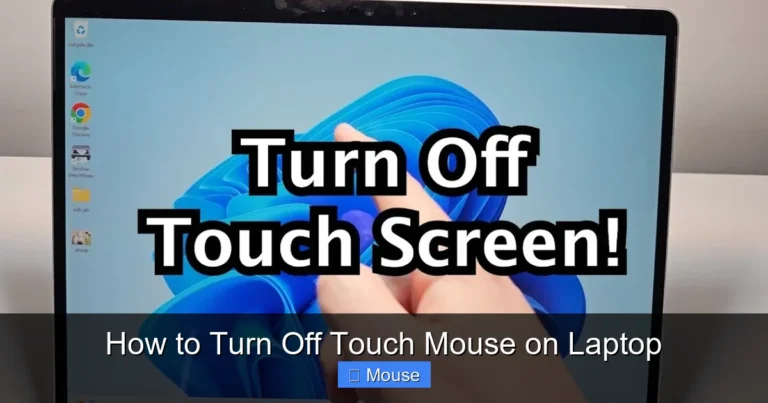
- Check the Toggle. At the top of the Touchpad settings page, you will see a toggle switch. Make sure it is set to On. If it is off, click it to turn your touchpad back on.
A Common Setting That Causes Problems
While you are in the Touchpad settings, look for an option that says something like “Leave touchpad on when a mouse is connected” or “Disable touchpad when an external mouse is plugged in.”
Many laptops have this feature enabled by default. It is designed to prevent accidental cursor movements when you are using a separate mouse. If you have a USB mouse or a wireless dongle plugged in, your laptop might be automatically disabling the touchpad. If you want to use both, make sure to uncheck this box. This is a very common reason why people think their touchpad is locked when it is actually just being overridden by another device.
Using the Control Panel for Older Systems
If you are using an older version of Windows, or if you simply prefer the classic interface, you can also unlock your touchpad through the Control Panel. This method gives you access to more detailed mouse properties.
Accessing Mouse Properties
Here is how to do it.
- Open the Control Panel. You can search for it in the Start menu.
- Make sure your view is set to Large icons or Small icons.
- Find and click on Mouse. This will open the Mouse Properties window.
Finding the Touchpad Settings Tab
Inside the Mouse Properties window, you will see several tabs at the top. Look for a tab that is specific to your touchpad. It might be labeled “Device Settings,” “TouchPad,” “ELAN,” or “Synaptics.” The name depends on the brand of your touchpad’s manufacturer.
Click on that tab. You should see a list of devices. Your touchpad will likely be listed here. Select it and look for a button that says Enable or Disable. If it is disabled, click “Enable” to turn it back on. Click “Apply” and then “OK” to save your changes.
When Software is the Problem: Driver Issues
Your operating system communicates with your hardware through small programs called drivers. If the driver for your touchpad is outdated, corrupted, or missing, the touchpad will not work correctly. This is a very common issue, especially after a major Windows update.
How to Update Your Touchpad Driver
Windows has a built-in tool called Device Manager that makes it easy to manage your drivers.
- Right-click on the Start button and select Device Manager.
- In the list, find and expand Mice and other pointing devices.
- You should see your touchpad listed here. It might have a name like “Synaptics TouchPad,” “ELAN TouchPad,” or “HID-compliant mouse.”
- Right-click on the touchpad device and select Update driver.
- Choose Search automatically for drivers. Windows will look online for the latest driver and install it.
What If Updating Doesn’t Work?
If Windows says you already have the best driver, or if updating does not fix the problem, try this. Go back to Device Manager, right-click on the touchpad device, and this time select Uninstall device. Do not worry, this will not break your laptop. After you uninstall it, simply restart your computer. When Windows boots back up, it will automatically detect the touchpad and reinstall the correct driver. This fresh install can often clear up any corruption that was causing the issue.
If you continue to have problems, you might want to look at our guide on why the mouse on your laptop won’t work, which covers other potential software conflicts.
Brand-Specific Instructions for Unlocking Your Touchpad
While the general principles are the same, some laptop brands have their own unique software and settings. Knowing the specifics for your brand can save you a lot of time.
How to Unlock the Mouse on an HP Laptop
HP laptops are notorious for the accidental touchpad lock. As mentioned, the double-tap feature on the top-left corner of the touchpad is the most common fix. If that does not work, look for the F5 or F6 key with the touchpad icon. You can also check the “HP Touchpad” settings in the Control Panel or the HP Support Assistant software that comes pre-installed on your laptop.
How to Unlock the Mouse on a Dell Laptop
Dell laptops often use the F3 key to toggle the touchpad. You can also access touchpad settings through the “Dell Touchpad” application in your system tray or the Control Panel. Make sure the “Enable Touchpad” checkbox is selected.
How to Unlock the Mouse on a Lenovo Laptop
On Lenovo ThinkPads, the F8 key is the usual suspect. For IdeaPad models, it might be F6. Lenovo also has its own settings app called “Lenovo Vantage,” where you can check the status of your touchpad and other hardware components.
How to Unlock the Mouse on an ASUS Laptop
ASUS laptops typically use the F9 key. Some models also have a setting in the “ASUS Smart Gesture” utility that allows you to disable the touchpad when an external mouse is connected. Check this utility if your touchpad stops working after plugging in another mouse.
What to Do If Nothing Else Works
If you have tried all the software fixes and your touchpad is still not working, it might be time to consider other possibilities. This is rare, but it does happen.
Check for Physical Damage
Take a close look at your touchpad. Is it cracked? Is there any visible damage to the laptop’s body around it? Even a small amount of liquid spillage can short-circuit the touchpad and cause it to stop working permanently. If you see physical damage, you will likely need to take your laptop to a professional repair shop.
Perform a System Restore
If the problem started recently, you can try using Windows’ System Restore feature. This will revert your computer’s state to a previous point in time, before the problem began. It is a useful tool for undoing changes that might have caused the issue.
Consider Using an External Mouse
While you figure out the touchpad issue, you can keep working by using an external mouse. A simple USB plug-and-play mouse is a great temporary solution. If you need help setting one up, our guide on how to connect a mouse to your laptop can walk you through the process. For a wireless option, a Bluetooth or RF mouse works just as well.
If you are comfortable with keyboard shortcuts, you can also enable the “Mouse Keys” feature in Windows. This allows you to use the numeric keypad on your keyboard to move the cursor. It is not as smooth as a real mouse, but it is a lifesaver in a pinch.
Conclusion: Getting Back on Track
Discovering that your laptop mouse pad is locked can be a moment of panic. But as you have seen, the solution is almost always straightforward. In most cases, a simple press of a Function key or a quick trip to the Windows Settings menu is all it takes to get your cursor moving again.

Visual guide about How Do I Unlock My Laptop Mouse Pad
Image source: cimg.kgl-systems.io
Remember the main culprits: the accidental keyboard shortcut, a setting that disables the touchpad when an external mouse is connected, or a driver that needs updating. By working through these possibilities one by one, you can diagnose and fix the problem yourself.
Hopefully, this guide has given you the confidence and knowledge to tackle this issue head-on. Now you know exactly what to do the next time your touchpad goes silent. And if you ever need more help with your laptop’s hardware or software, there are plenty of resources available to assist you. Happy computing!
Frequently Asked Questions
Why did my laptop touchpad get locked by itself?
It usually happens by accident. You might have pressed a keyboard shortcut (like Fn + F7) without realizing it. Some laptops also have a setting that automatically disables the touchpad when you plug in an external mouse.
What is the universal key to unlock a laptop touchpad?
There is no single universal key. It depends on your laptop’s brand. However, it is almost always one of the Function keys (F1-F12) at the top of your keyboard. Look for a key with a small touchpad icon on it.
How do I unlock my touchpad if the keyboard shortcut doesn’t work?
If the shortcut fails, go to your Windows Settings. Navigate to “Bluetooth & devices” and then “Touchpad.” Make sure the main toggle switch for the touchpad is turned to “On.”
Can a Windows update cause my touchpad to stop working?
Yes, it can. Sometimes a major update can cause driver conflicts or reset your settings. If your touchpad stopped working right after an update, try updating or reinstalling the touchpad driver through the Device Manager.
My touchpad is still not working after trying everything. What now?
If all software solutions fail, there might be a hardware problem. Check for any physical damage or liquid spills. As a temporary fix, you can use an external mouse. For a permanent solution, you may need to contact a professional repair service.
How do I keep my touchpad on when I have a mouse connected?
Go to your Windows Touchpad settings. Look for an option that says “Leave touchpad on when a mouse is connected” and make sure it is checked. This will allow you to use both the touchpad and an external mouse at the same time.