How to Reactivate Mouse on Laptop
Quickly restore your laptop’s mouse functionality by following simple steps like checking the touchpad toggle, updating drivers, and adjusting settings in Windows or macOS. These easy fixes will get your cursor moving again without the need for external devices or technical support.
How to Reactivate Mouse on Laptop
Ever been in the middle of a video call or a tight deadline, only to discover that your laptop’s mouse has suddenly gone silent? It’s a frustrating moment that can make even the simplest tasks feel impossible. I’ve been there more times than I’d like to admit, and the good news is that most mouse‑related issues have a quick fix. In this guide, I’ll walk you through the most common reasons why a laptop mouse stops working and, most importantly, how to reactivate mouse on laptop without breaking a sweat.
Whether you’re dealing with a built‑in touchpad, an external USB or Bluetooth mouse, or a combination of both, the steps are straightforward and safe. Grab a cup of coffee, follow along, and you’ll have that pointer moving again in no time.
Key Takeaways
- Check the touchpad toggle: Use Fn keys to enable the touchpad if disabled.
- Verify driver installation: Reinstall or update touchpad drivers via Device Manager.
- Adjust power settings: Disable “Turn off touchpad” in battery saver or power options.
- Inspect hardware connections: Re-seat the touchpad ribbon cable if you have access.
- Use Windows Troubleshooter: Run the built‑in troubleshooter for hardware and devices.
- Reset BIOS touchpad settings: Ensure touchpad is enabled in the BIOS configuration.
- Consider external mouse: Plug a USB mouse to confirm the laptop’s system works.
📑 Table of Contents
1. Check the Physical Connections and Power
USB and Wired Mice
The simplest reason a mouse stops responding is a loose or faulty connection. Unplug the mouse, inspect the cable for any visible damage, and plug it back into a different USB port. Sometimes a single port can be disabled in the BIOS or simply malfunction.
- Try a different port: Switch from a front‑panel USB to a rear‑panel one.
- Inspect the connector: Bent pins or dust can prevent proper contact.
- Test the mouse on another computer: This confirms whether the mouse itself is at fault.
Bluetooth and Wireless Mice
Wireless mice rely on power and a stable connection. Make sure the batteries are fresh or fully charged. Then, turn the mouse off and on again to force a reconnection.
- Press the power button for a few seconds to reset the device.
- Toggle the Bluetooth switch on your laptop off and on via Settings → Bluetooth & devices.
- If you’re using a USB receiver, unplug it, wait a few seconds, and plug it back in.
Internal Touchpad
Many laptops allow you to disable the built‑in touchpad with a function key (often Fn + one of the F keys). Accidentally hitting this combo can instantly hide the cursor.
Look for an icon that looks like a touchpad with a line through it. Press the same key combination again to re‑enable it, and you’ll have reactivated mouse on laptop instantly.
2. Verify Software Settings and Drivers
Device Manager Check
Outdated or corrupted drivers are a common culprit. Open Device Manager (right‑click the Start button > Device Manager) and expand the “Mice and other pointing devices” section.
Visual guide about How to Reactivate Mouse on Laptop
Image source: kaas.hpcloud.hp.com
- If you see a yellow warning triangle, right‑click the device and select Update driver.
- Choose “Search automatically for updated driver software.” Windows will fetch the latest version.
- If no update is found, click Uninstall device, then restart your laptop. Windows will reinstall the default driver on boot.
Touchpad Settings
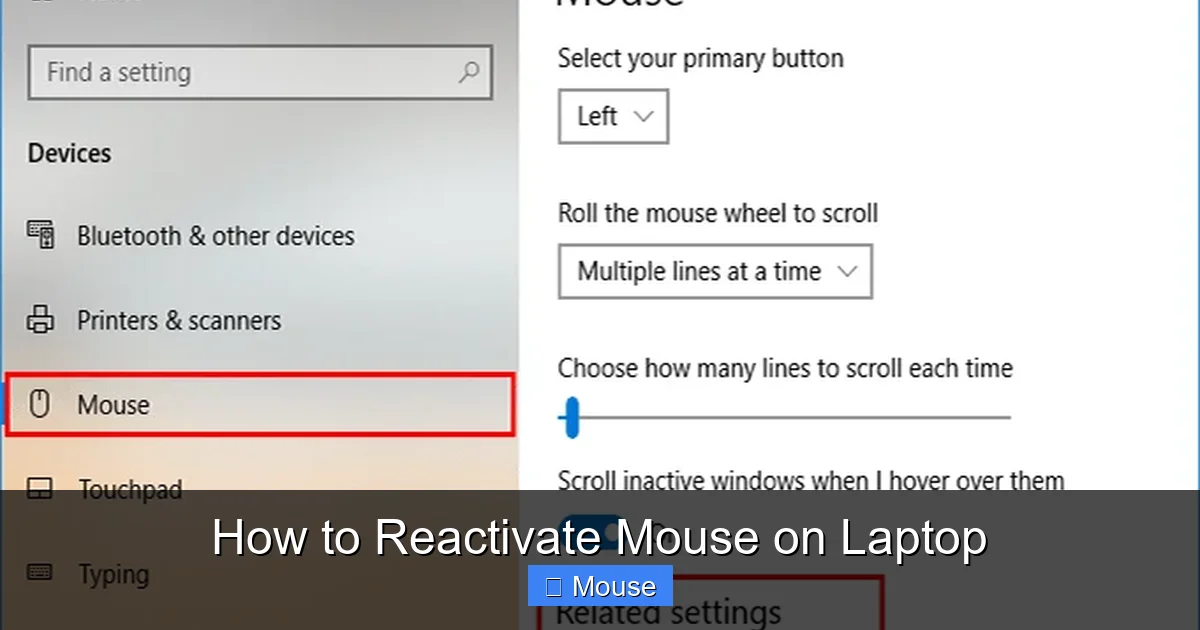
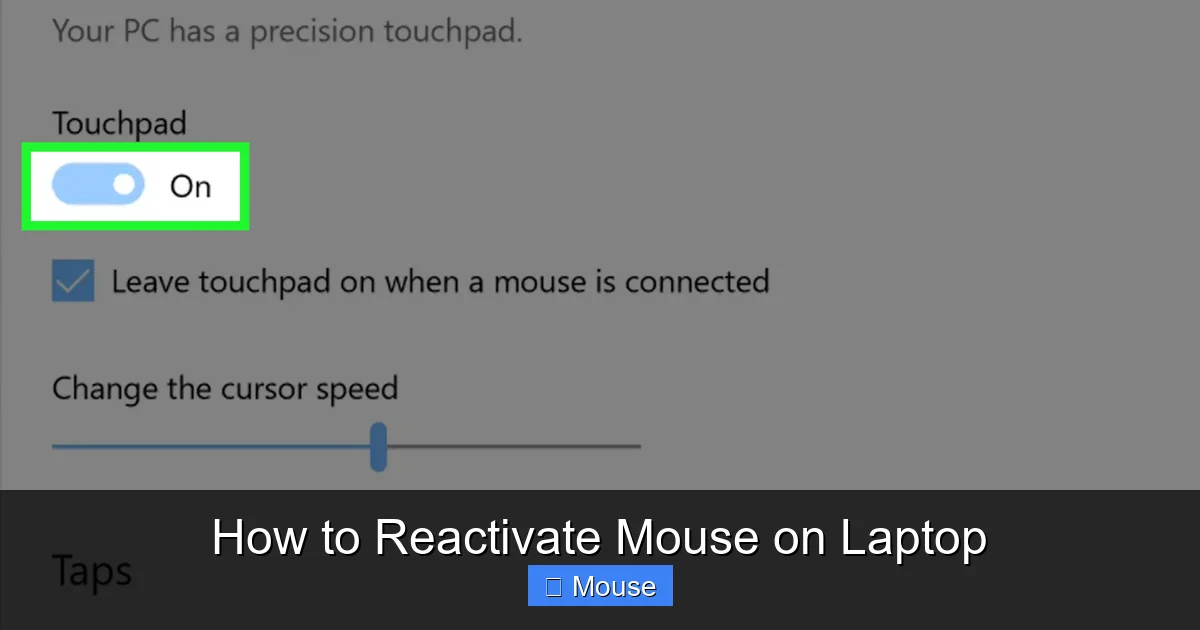
On Windows 10/11, go to Settings → Devices → Touchpad. Ensure the toggle is set to On. You can also adjust sensitivity and gestures here, which sometimes get reset after a Windows update.
Third‑Party Software Conflicts
Some utilities, like third‑party mouse enhancers or gaming software, can interfere with normal operation. Temporarily disable or uninstall these programs to see if the pointer returns.
Quick Fix: Run the Hardware Troubleshooter
Windows includes a built‑in troubleshooter that can automatically detect and fix common mouse problems.
- Open Settings and go to Update & Security → Troubleshoot.
- Click Additional troubleshooters, select Hardware and Devices, and run it.
3. Adjust Power Management Settings
Prevent Windows from Turning Off USB Devices
Power‑saving modes sometimes disable USB ports to conserve battery, which can make a wired mouse disappear.
Visual guide about How to Reactivate Mouse on Laptop
Image source: sm.pcmag.com
- Open Device Manager, expand “Universal Serial Bus controllers”.
- Right‑click each USB Root Hub > Properties > Power Management.
- Uncheck “Allow the computer to turn off this device to save power.”
Disable Selective Suspend for Bluetooth
If you use a Bluetooth mouse, the “Bluetooth Device (Personal Area Network)” entry in Device Manager may have a power‑saving option. Disable it to keep the connection alive.
Battery Saver Mode
When Battery Saver is active, Windows may limit background processes, including mouse drivers. Turn off Battery Saver from the Action Center if you notice the cursor lagging or disappearing.
4. Re‑Enable the Mouse Through System Settings
Turn On the Touchpad via Function Keys
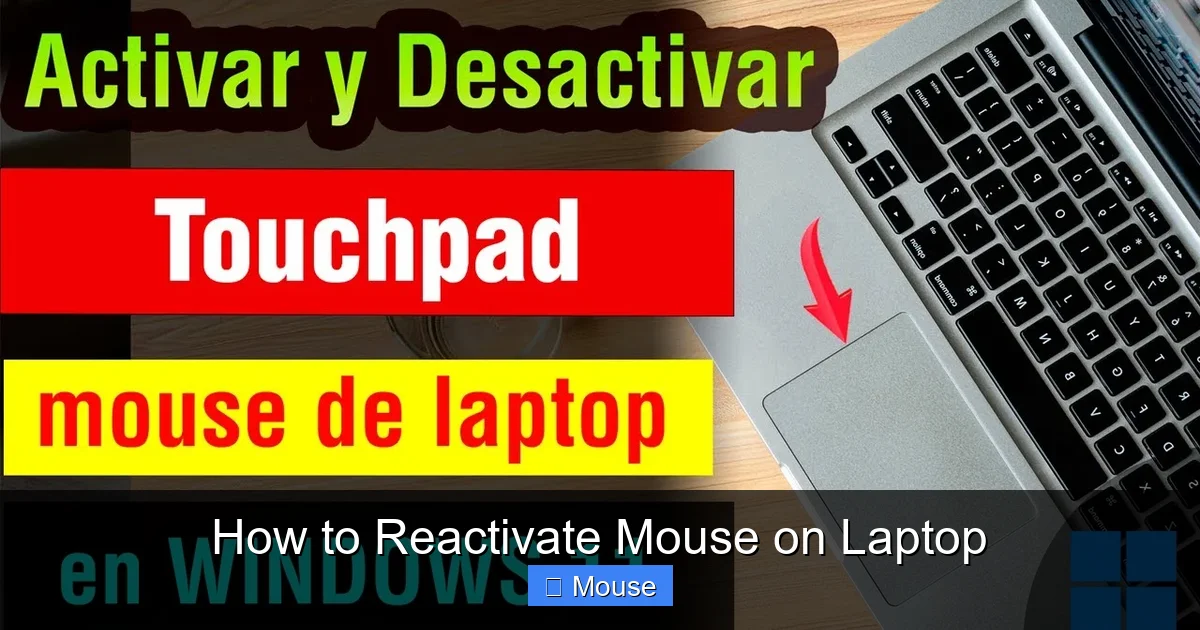
Some laptops have a dedicated Touchpad On/Off key. Look for a small pad icon on one of the F keys or near the keyboard. Press Fn + that key to toggle the touchpad.

Visual guide about How to Reactivate Mouse on Laptop
Image source: market.com
Use the “Turn On Laptop Mouse” Guide
If you need a step‑by‑step visual, check out our article on how to turn on laptop mouse. It walks you through the exact menu paths for Windows, macOS, and Chrome OS.
Enable the Mouse in BIOS/UEFI
In rare cases, the touchpad can be disabled at the firmware level. Restart your laptop and enter BIOS/UEFI (usually by pressing F2, Delete, or Esc during boot). Look for a setting called “Internal Pointing Device” or “Touchpad” and make sure it’s enabled.
Reset the Touchpad Driver
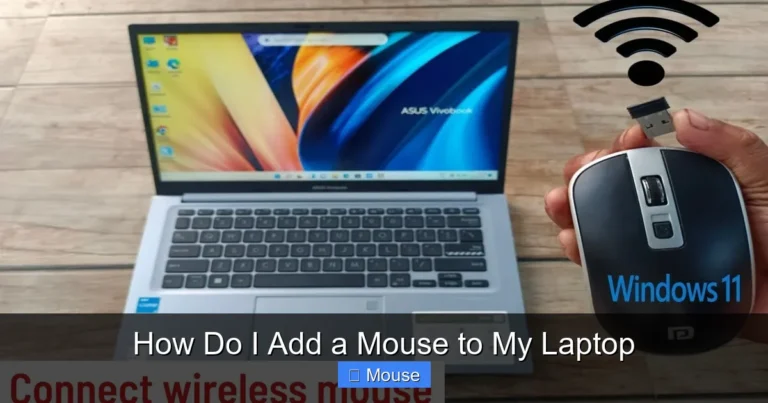
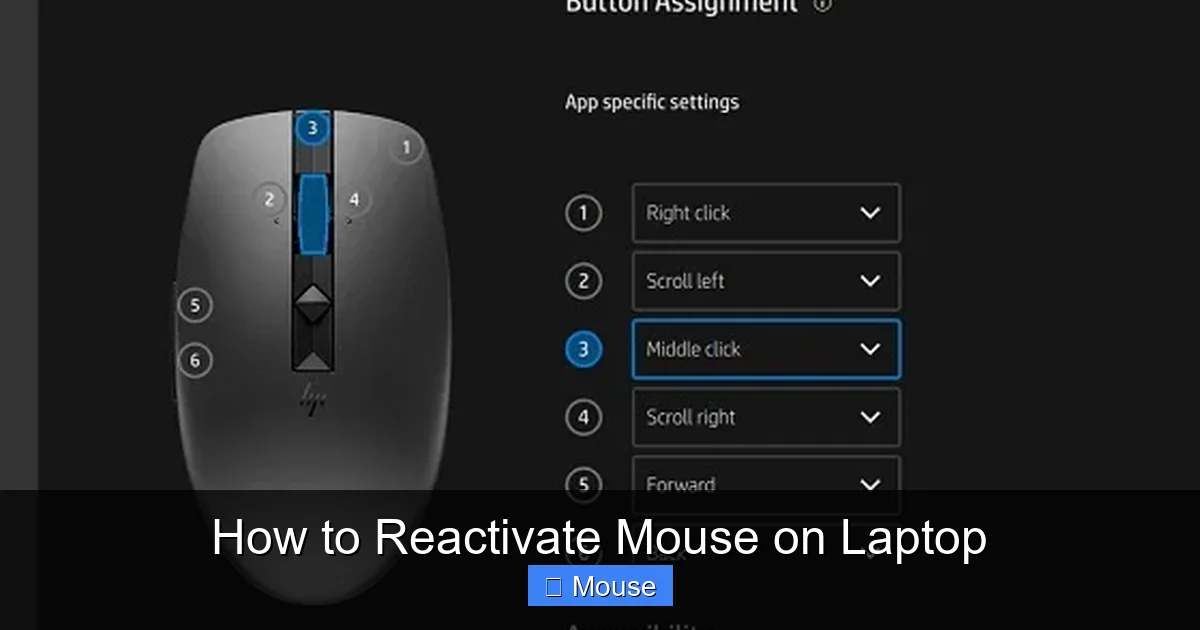
Some manufacturers provide a utility to reset the touchpad to default settings. For example, Dell’s “Touchpad Settings” app or HP’s “HP Mouse and Keyboard Settings” can restore functionality with a single click.
5. When All Else Fails – Advanced Solutions
System Restore Point
If the mouse stopped working after a Windows update or driver installation, rolling back to a previous restore point can solve the issue.
Visual guide about How to Reactivate Mouse on Laptop
Image source: i0.wp.com
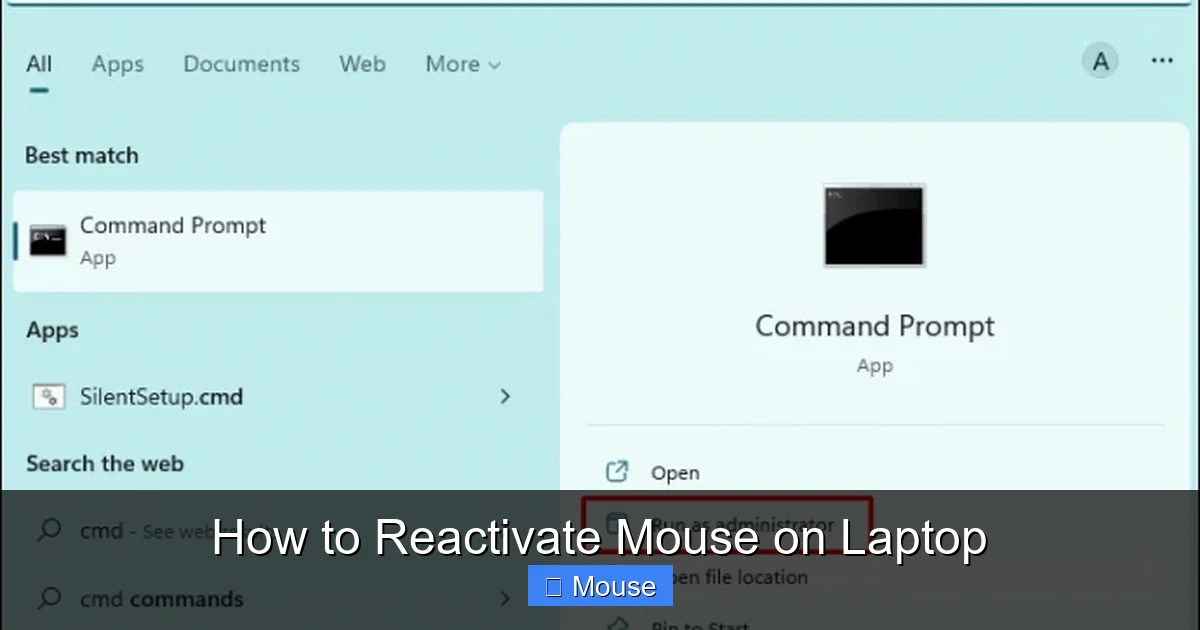
- Search “Create a restore point” in the Start menu.
- Click System Restore and choose a point dated before the problem began.
- Follow the prompts to revert your system.
Reinstall the Operating System (Last Resort)
Before you consider a clean install, back up all important files. A fresh OS installation removes any hidden software conflicts that could be preventing the mouse from reactivating.
Hardware Inspection
If none of the software tricks work, the touchpad or USB controller might be physically damaged. In that case, contact the manufacturer’s support or a trusted repair shop.
Helpful Resources
For more specific scenarios, such as unlocking a disabled touchpad on an HP device, see how to unlock touch mouse on HP laptop. If you’re trying to recover a missing cursor after a Windows update, our guide on how to get the mouse back on a laptop offers additional troubleshooting steps.
6. Quick Reference Table
| Issue | Possible Cause | Step to Reactivate Mouse on Laptop |
|---|---|---|
| No pointer movement | Loose USB connection | Reconnect to a different USB port |
| Cursor disappears after sleep | Power‑saving settings | Disable USB selective suspend in Device Manager |
| Touchpad not responding | Function key disabled | Press Fn + F‑key with touchpad icon |
| Bluetooth mouse not pairing | Out‑of‑date driver | Update Bluetooth driver via Device Manager |
| Mouse stops after Windows update | Driver conflict | Use System Restore to previous point |
Conclusion
Finding yourself without a working cursor can feel like a roadblock, but in most cases the solution is just a few clicks (or keystrokes) away. By checking physical connections, updating drivers, tweaking power settings, and knowing where to look in the system menus, you can easily learn how to reactivate mouse on laptop whenever it decides to take a break.
Visual guide about How to Reactivate Mouse on Laptop
Image source: i.ytimg.com
Visual guide about How to Reactivate Mouse on Laptop
Image source: wikihow.com
Remember, the first step is always the simplest: make sure the device is actually turned on and properly connected. From there, the troubleshooting path is clear and manageable. Keep this guide handy, and the next time your mouse goes dark, you’ll be ready to bring it back to life in minutes.
Frequently Asked Questions
Why is my laptop mouse not working and how can I reactivate mouse on laptop?
Often the touchpad or external mouse gets disabled after a function‑key shortcut or a driver issue. Try pressing the specific Fn key combination (e.g., Fn + F7) to enable the touchpad, and then reinstall or update the mouse drivers through Device Manager to reactivate the mouse on your laptop.
How do I enable the touchpad after it was accidentally turned off?
Open Settings > Devices > Touchpad and toggle the touchpad switch to “On.” If the option is greyed out, check the keyboard for a touchpad enable/disable key (usually marked with an icon) and press it.
Can I reactivate mouse on laptop using Windows Settings?
Yes. Go to Control Panel > Mouse or Settings > Devices > Mouse & touchpad and make sure the “Leave touchpad on when a mouse is connected” box is checked. Restart the laptop after adjusting the settings to ensure the changes take effect.
What should I do if an external USB mouse isn’t recognized?
First, unplug the mouse and try a different USB port. Then, open Device Manager, locate “Mice and other pointing devices,” and choose “Update driver” or “Uninstall device” followed by a reboot, which forces Windows to reinstall the driver and reactivate the mouse.
Is there a way to reactivate mouse on laptop after a Windows update?
Windows updates can sometimes revert driver settings. Open Device Manager, right‑click the touchpad or mouse entry, and select “Roll back driver” or “Update driver.” If that doesn’t work, download the latest driver from the laptop manufacturer’s website and install it.
Why does my laptop’s touchpad stop working when I connect a Bluetooth mouse?
Many laptops automatically disable the touchpad when a Bluetooth or USB mouse is detected to avoid accidental cursor movement. To keep both active, go to Settings > Devices > Touchpad and turn off the “Leave touchpad on when a mouse is connected” option.