How to Use Laptop Mouse
Mastering how to use a laptop mouse—whether it’s a built-in touchpad or an external device—can dramatically improve your productivity and computing comfort. This comprehensive guide walks you through everything from basic clicks to advanced gestures, connection methods, and common fixes. Whether you’re a beginner or just need a refresher, you’ll find clear, actionable steps to get the most out of your laptop mouse.
Key Takeaways
- Touchpad Basics: Your laptop’s built-in touchpad functions like a mouse—use one finger to move the cursor and tap or press to click.
- External Mouse Setup: Connecting a wireless or USB mouse is simple: plug in the receiver or pair via Bluetooth for instant use.
- Customization Options: Adjust sensitivity, scroll direction, and button functions in your laptop’s settings for a personalized experience.
- Advanced Gestures: Use multi-finger gestures (like two-finger scroll or three-finger swipe) to navigate faster and more efficiently.
- Troubleshooting Tips: If your mouse stops working, check connections, restart your laptop, or update drivers—most issues have quick fixes.
- Accessibility Features: Enable features like tap-to-click or mouse keys if traditional clicking is difficult.
- Maintenance Matters: Keep your touchpad clean and your external mouse charged or powered for consistent performance.
📑 Table of Contents
- Introduction: Why Knowing How to Use a Laptop Mouse Matters
- Understanding Your Laptop’s Built-In Touchpad
- Connecting an External Mouse to Your Laptop
- Customizing Your Mouse Settings for Better Control
- Mastering Advanced Touchpad Gestures
- Common Problems and Quick Fixes
- Tips for Maintaining Optimal Mouse Performance
- Conclusion: You’re Now a Laptop Mouse Pro!
Introduction: Why Knowing How to Use a Laptop Mouse Matters
Whether you’re working on a school project, managing spreadsheets, or browsing the web, your laptop mouse—be it a touchpad or an external device—is your primary tool for interaction. Yet many users never learn beyond basic clicking and dragging. That’s a missed opportunity! Understanding how to use a laptop mouse properly can save time, reduce frustration, and even prevent repetitive strain injuries.
This guide breaks down everything you need to know in simple, friendly terms. We’ll start with the fundamentals of your laptop’s built-in touchpad, then move on to connecting and optimizing external mice. You’ll also learn handy gestures, customization tricks, and what to do when things go wrong. No jargon, no fluff—just practical advice you can use right away.
By the end, you’ll feel confident navigating your laptop like a pro, regardless of your device or skill level. Let’s dive in!
Understanding Your Laptop’s Built-In Touchpad
What Is a Touchpad?
The touchpad—also called a trackpad—is the rectangular surface below your keyboard. It detects finger movement and translates it into cursor motion on screen. Most modern touchpads support multi-touch gestures, making them far more powerful than they appear.
Visual guide about How to Use Laptop Mouse
Image source: images-wixmp-ed30a86b8c4ca887773594c2.wixmp.com
Basic Touchpad Operations
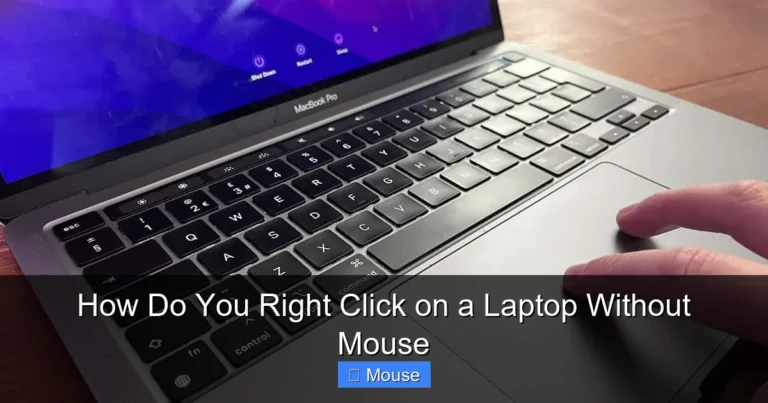
To move the cursor, gently drag one finger across the surface. A single tap usually acts as a left-click. For a right-click, either tap with two fingers or press the bottom-right corner of the pad (depending on your settings). To scroll, place two fingers on the pad and slide them up or down.
If your taps aren’t registering, make sure tap-to-click is enabled in your system settings. On Windows, go to Settings > Devices > Touchpad. On macOS, it’s under System Settings > Trackpad.
Enabling or Disabling the Touchpad
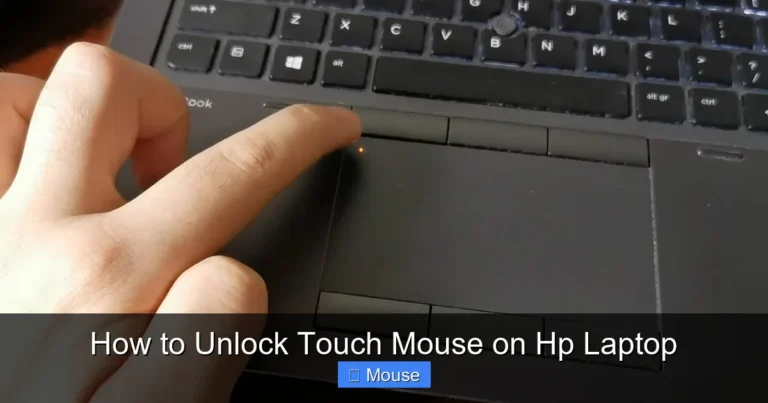
Sometimes you might accidentally disable your touchpad—especially when using an external mouse. If that happens, don’t panic. You can easily unlock your laptop mouse by pressing Fn + F3 (or a similar function key with a touchpad icon) or re-enabling it in your device settings.
Connecting an External Mouse to Your Laptop
Wired vs. Wireless Mice
External mice come in two main types: wired (USB) and wireless (Bluetooth or RF receiver). Wired mice plug directly into a USB port and work instantly—no setup needed. Wireless mice offer more freedom of movement but require pairing or a USB dongle.
Visual guide about How to Use Laptop Mouse
Image source: auctusmg.co.uk
Step-by-Step: How to Connect a Wireless Mouse
First, insert batteries or charge your mouse. Then, turn it on using the switch underneath. For Bluetooth models, go to your laptop’s Bluetooth settings and select the mouse from the list. For RF mice, plug the USB receiver into your laptop—it should connect automatically.
Need more detail? Our guide on how to connect a wireless mouse to a laptop walks you through every brand and scenario.
Troubleshooting Connection Issues
If your mouse isn’t responding, try these steps: replace the batteries, restart your laptop, reconnect the receiver, or remove and re-pair the device in Bluetooth settings. Also, ensure no other wireless devices are causing interference.
Customizing Your Mouse Settings for Better Control
Adjusting Pointer Speed and Sensitivity
A cursor that’s too fast or too slow can ruin your workflow. On Windows, navigate to Settings > Devices > Mouse > Additional mouse options to tweak pointer speed. On macOS, go to System Settings > Mouse and adjust the tracking speed slider.
Visual guide about How to Use Laptop Mouse
Image source: scandinavia20.com.au
Changing Scroll Direction and Button Functions
Prefer natural scrolling (like on a touchscreen)? You can flip the scroll direction in settings. You can also swap left and right buttons if you’re left-handed, or assign custom actions to side buttons (if your mouse has them).
Enabling Tap-to-Click and Other Accessibility Features
If pressing the touchpad is uncomfortable, enable tap-to-click. You can also turn on “mouse keys” to control the cursor using your numeric keypad—a great option for users with mobility challenges.
Mastering Advanced Touchpad Gestures
Two-Finger and Three-Finger Gestures
Modern touchpads support gestures that boost productivity. Try these:
- Two-finger scroll: Slide two fingers up/down or left/right to scroll pages.
- Two-finger tap: Often maps to right-click.
- Three-finger swipe up: Opens Task View (Windows) or Mission Control (macOS).
- Three-finger swipe left/right: Switch between open apps.
- Pinch-to-zoom: Zoom in or out on photos, maps, or documents.
Customizing Gestures
Not all gestures are enabled by default. Dive into your touchpad settings to activate or modify them. Some laptops (especially from Dell, HP, or Lenovo) offer proprietary software for even more control.
Common Problems and Quick Fixes
Mouse Cursor Freezing or Disappearing
If your cursor vanishes or freezes, try pressing Ctrl + Alt + Delete (Windows) or Command + Option + Esc (macOS) to force-quit unresponsive apps. If that fails, restart your laptop. Often, a simple reboot resolves temporary glitches.

Visual guide about How to Use Laptop Mouse
Image source: img-s-msn-com.akamaized.net
In some cases, the touchpad may be disabled accidentally. Learn how to get the mouse back on your laptop using keyboard shortcuts or system settings.
Unresponsive Clicks or Erratic Movement
Clean your touchpad with a soft, dry cloth—oil and dirt can interfere with sensitivity. For external mice, check the sensor on the bottom and ensure you’re using it on a flat, non-reflective surface.
Driver and Software Issues
Outdated drivers can cause mouse malfunctions. Update them via Device Manager (Windows) or System Settings > General > Software Update (macOS). If problems persist, uninstall and reinstall the mouse driver.
Tips for Maintaining Optimal Mouse Performance
Keep It Clean
Dust, crumbs, and fingerprints degrade touchpad accuracy. Wipe it gently weekly. For external mice, clean the scroll wheel and sensor area with a cotton swab.
Manage Battery Life (Wireless Mice)
Turn off your wireless mouse when not in use. Use rechargeable batteries or keep spares handy. Some mice have LED indicators for low battery—don’t ignore them!
Use a Mouse Pad
Even with a smooth desk, a mouse pad improves tracking and protects your surface. It’s a small investment for better control and comfort.
Conclusion: You’re Now a Laptop Mouse Pro!
Learning how to use a laptop mouse effectively isn’t just about clicking—it’s about working smarter. From mastering touchpad gestures to seamlessly connecting an external mouse, these skills add up to a smoother, faster, and more enjoyable computing experience.

Visual guide about How to Use Laptop Mouse
Image source: thumb.photo-ac.com
Remember: customization is key. Take five minutes to adjust your settings, and you’ll wonder why you didn’t do it sooner. And if something goes wrong, stay calm—most issues have straightforward solutions.
Now go forth and navigate with confidence. Your laptop mouse is ready when you are!
Frequently Asked Questions
How do I right-click on a laptop without a mouse?
Use a two-finger tap on the touchpad or press the bottom-right corner of the pad. On Windows, you can also press Shift + F10 to simulate a right-click.
Why is my laptop touchpad not working?
It might be disabled accidentally. Press Fn + the touchpad function key (often F3, F5, or F9) to re-enable it. If that doesn’t work, check your device settings or update drivers.
Can I use a wireless mouse and touchpad at the same time?
Yes! Most laptops allow both to function simultaneously. You can disable the touchpad in settings if you prefer using only the external mouse.
How do I make my mouse cursor faster?
Go to your mouse settings (Windows: Settings > Devices > Mouse; macOS: System Settings > Mouse) and increase the pointer or tracking speed slider.
What should I do if my wireless mouse keeps disconnecting?
Replace the batteries, move the USB receiver closer to the mouse (or use a USB extension), and ensure no other wireless devices are interfering. Re-pairing the device may also help.
Are touchpad gestures the same on all laptops?
While basic gestures (like two-finger scroll) are standard, advanced gestures vary by manufacturer and operating system. Check your laptop’s support site for model-specific gesture guides.