How to Repair Laptop Mouse
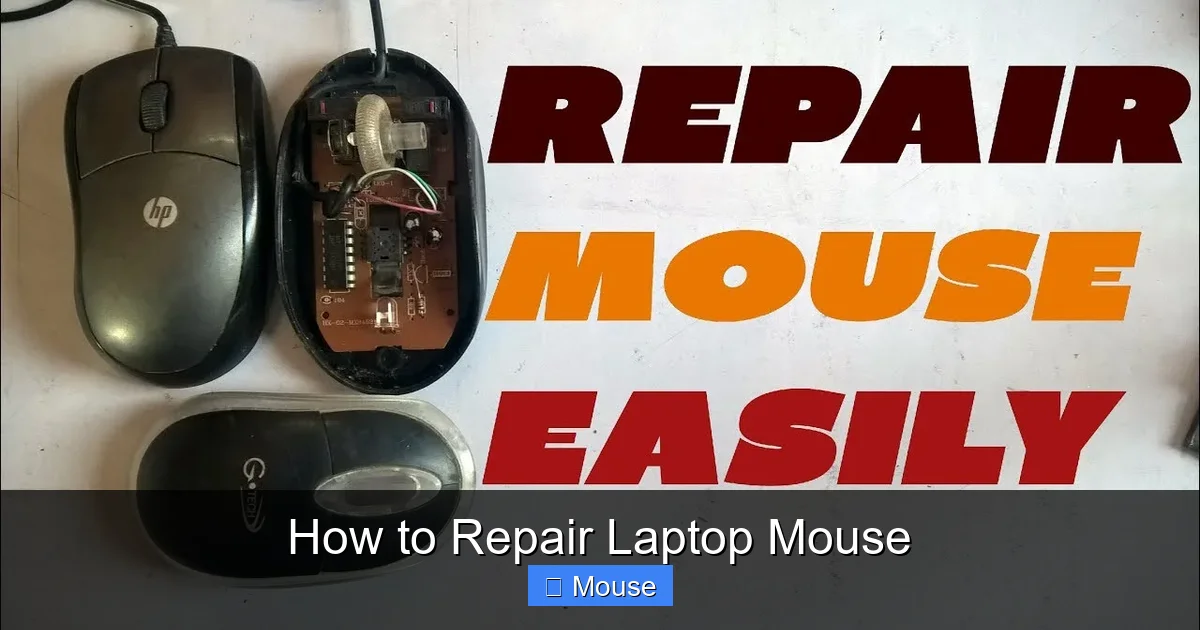
Having trouble with your laptop’s built‑in mouse? This guide walks you through common issues, from unresponsive touchpads to driver glitches. With clear, friendly instructions, you’ll be back to smooth scrolling in no time.
Key Takeaways
- Diagnosis first: Identify whether the problem is hardware, software, or settings before fixing.
- Clean with care: A quick wipe can restore touchpad responsiveness.
- Drivers matter: Updating or reinstalling touchpad drivers often solves many quirks.
- Hardware reset: Power‑cycle and unplugging can reset the touchpad controller.
- Workarounds: Use external mouse or keyboard shortcuts if repair isn’t immediate.
- Prevent damage: Keep the touchpad free of liquids and dust to avoid future problems.
- Know when to replace: Persistent failure usually means the touchpad hardware is dead.
📑 Table of Contents
Introduction
We’ve all been there: you’re halfway through a document, your cursor freezes, and the laptop’s mouse just won’t move. It’s frustrating, especially when you’re on a deadline. But before you rush to a repair shop, try a few simple steps. Laptop mice (or touchpads) are surprisingly easy to troubleshoot and often fix with a bit of patience.
In this guide, we’ll cover everything from the most common symptoms to detailed repair steps. Whether you’re dealing with a sticky touchpad, a completely dead mouse, or weird cursor behavior, you’ll find a solution that fits the situation. Let’s dive in!
1. Understanding Your Laptop Mouse
1.1 What Is a Laptop Mouse?
A laptop mouse is essentially a built‑in touchpad. It’s a small, pressure‑sensitive surface that tracks finger movement and converts it into cursor motion. Most modern laptops use capacitive touchpads, which are more responsive and durable than older mechanical ones.
Visual guide about How to Repair Laptop Mouse
Image source: i.ytimg.com
1.2 Common Issues
- Unresponsive or slow movement – the cursor barely moves or lags.
- Jittery or erratic motion – the pointer jumps around.
- Accidental double‑clicks – the system registers multiple clicks.
- Touchpad turns off unexpectedly – the pad stops working after a few minutes.
- Software conflicts – driver updates or new applications interfere with the touchpad.
2. Quick Diagnostics Checklist
2.1 Check Physical Conditions
Inspect the touchpad for visible damage, scratches, or debris. A simple wipe with a microfiber cloth can often reveal hidden grime.
Visual guide about How to Repair Laptop Mouse
Image source: i.ytimg.com
2.2 Test with an External Mouse
Plug in a USB or Bluetooth mouse. If the external mouse works fine, the issue is likely with the built‑in touchpad rather than the operating system.
2.3 Verify Touchpad Settings
On Windows: Settings → Devices → Touchpad. On macOS: System Settings → Trackpad. Ensure the touchpad is enabled and sensitivity is set appropriately.
2.4 Use “How To Unlock Laptop Mouse” Resources
If your touchpad has been locked after a recent update, follow a dedicated guide on How To Unlock Laptop Mouse to re‑enable it.
3. Cleaning the Touchpad
3.1 Why Clean?
Dust, oils from skin, and food particles can interfere with the capacitive sensors. A clean surface restores accuracy.
Visual guide about How to Repair Laptop Mouse
Image source: i.ytimg.com
3.2 Step‑by‑Step Cleaning
- Shut down the laptop and unplug it.
- Use a soft, lint‑free cloth slightly dampened with water or a 50/50 isopropyl solution.
- Gently wipe the touchpad in a circular motion.
- Let it dry completely before powering on.
3.3 Advanced Cleaning
If the touchpad is sticky, try a gentle abrasive pad (like a microfiber pad) or a specialized electronics cleaner. Avoid harsh chemicals.
4. Updating or Reinstalling Drivers
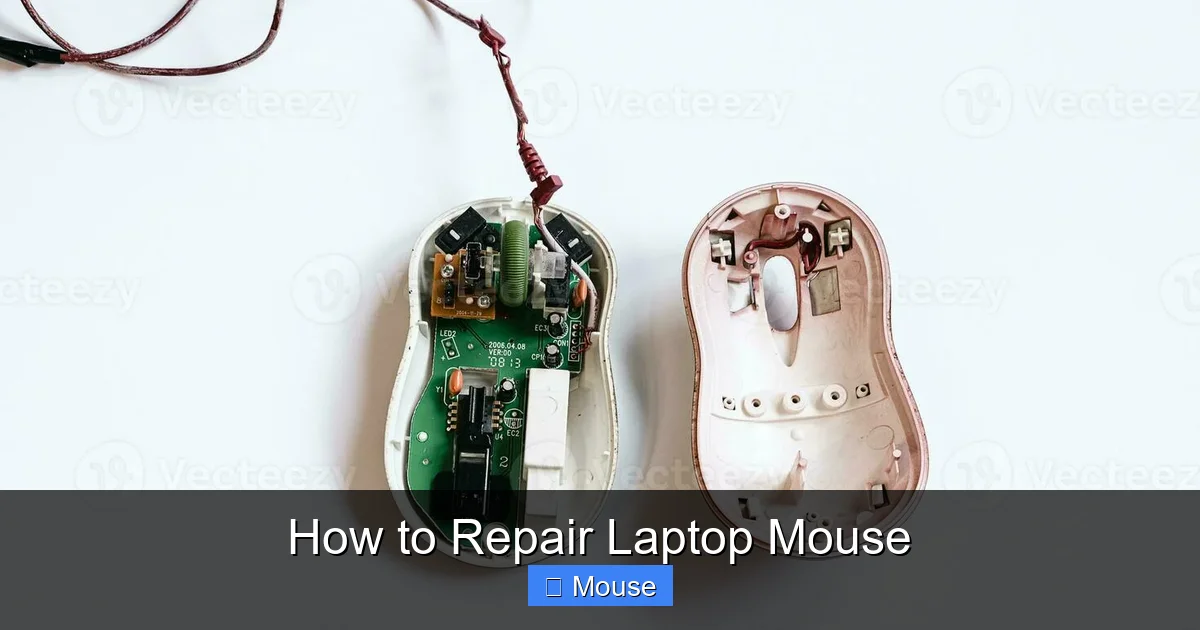
4.1 Why Drivers Matter
Drivers translate the touchpad’s signals into cursor movements. Corrupted or outdated drivers cause many of the symptoms described earlier.
Visual guide about How to Repair Laptop Mouse
Image source: static.vecteezy.com
4.2 Windows Driver Update
- Open Device Manager (Win + X, then M).
- Expand “Mice and other pointing devices.”
- Right‑click your touchpad and select “Update driver.”
- Choose “Search automatically for drivers.”
- If no update appears, download the latest driver from your laptop manufacturer’s website.
4.3 macOS Driver Update
macOS handles touchpad drivers automatically. However, ensure your system is up‑to‑date via System Settings → Software Update. If the touchpad still misbehaves, consider resetting the System Management Controller (SMC) and NVRAM.
5. Resetting the Touchpad Hardware
5.1 Power‑Cycle Reset
Sometimes a simple reboot solves the issue. For a deeper reset:
Visual guide about How to Repair Laptop Mouse
Image source: i.ytimg.com
- Shut down the laptop.
- Disconnect all power sources and remove the battery (if removable).
- Press and hold the power button for 30 seconds.
- Reconnect the battery and power, then start the laptop.
5.2 BIOS/UEFI Touchpad Toggle
Enter the BIOS/UEFI settings (usually by pressing F2, Del, or Esc during boot). Look for a setting labeled “Touchpad” or “Internal Pointing Device.” Toggle it off, save, reboot, then toggle back on.
5.3 Using “How To Get The Mouse Back On A Laptop” Resources
If the touchpad has disappeared from Windows Device Manager, a guide on How To Get The Mouse Back On A Laptop walks you through restoring the device manually.
6. Software Workarounds
6.1 Enable External Mouse Support
Install a lightweight external mouse driver or use Windows’ “Mouse without a mouse” accessibility feature to control the pointer with the keyboard.
Visual guide about How to Repair Laptop Mouse
Image source: apicms.thestar.com.my
6.2 Keyboard Shortcuts for Navigation
- Alt + Tab – switch between open applications.
- Win + D – show desktop.
- Win + Arrow keys – snap windows.
- Shift + Tab – move backward in menus.
6.3 Using “How To Turn On Laptop Mouse” Resources
Some laptops have a dedicated key (Fn + F5, for example) to toggle the touchpad. If you’ve accidentally turned it off, check the How To Turn On Laptop Mouse guide for your specific model.
7. When to Replace the Touchpad
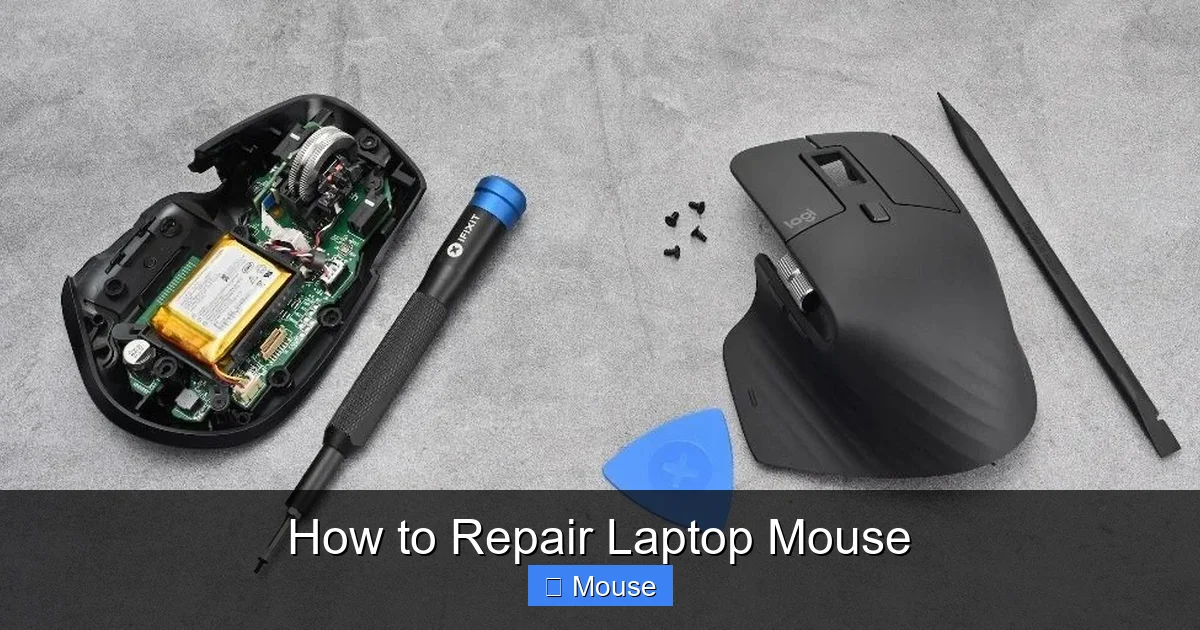
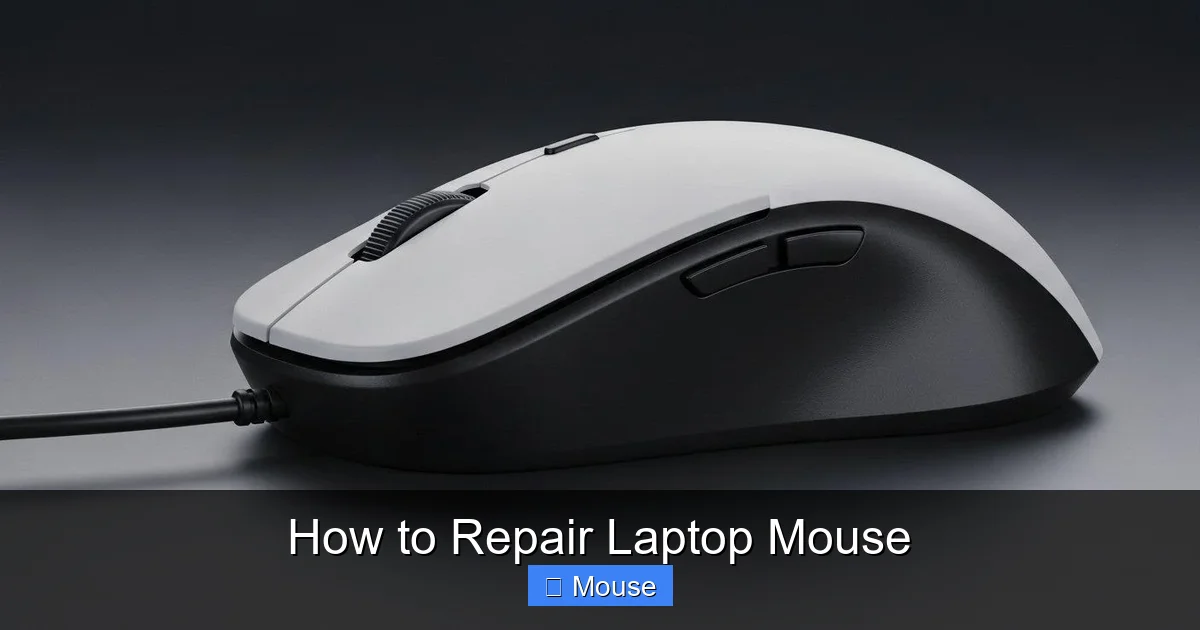
After exhausting all software fixes, if the touchpad still behaves erratically or is completely dead, the hardware may be damaged. Replacing a touchpad usually involves:
Visual guide about How to Repair Laptop Mouse
Image source: img-s-msn-com.akamaized.net
- Removing the bottom panel or keyboard assembly.
- Unscrewing the old touchpad.
- Connecting the new one via the ribbon cable.
- Reassembling and testing.
Most laptop manufacturers provide replacement kits or you can find compatible parts online. If you’re uncomfortable opening your laptop, seek professional service.
8. Preventive Maintenance Tips
- Keep the area clean: Use a microfiber cloth regularly.
- Use a laptop sleeve: Protects against accidental spills.
- Update drivers automatically: Enable automatic driver updates in Windows.
- Limit multitouch gestures: Some laptops misinterpret rapid gestures.
- Backup important data: Before opening hardware, ensure backups.
Conclusion
Repairing a laptop mouse doesn’t have to be a daunting task. By diagnosing the issue, cleaning the touchpad, updating drivers, and resetting hardware, you can often restore full functionality without a trip to the repair shop. If all else fails, a replacement touchpad is a relatively inexpensive fix that will get you back to work in no time. Keep these steps handy, and you’ll be able to tackle touchpad troubles with confidence.
Visual guide about How to Repair Laptop Mouse
Image source: i.ytimg.com
Visual guide about How to Repair Laptop Mouse
Image source: i.pinimg.com
Frequently Asked Questions
What should I do if my laptop touchpad is completely unresponsive?
First, try plugging in an external mouse to confirm the problem is with the touchpad. Then restart the laptop and check the touchpad settings. If it still doesn’t work, update or reinstall the touchpad drivers. If none of these steps help, the touchpad may need to be replaced.
Can I repair a broken touchpad on a MacBook?
MacBooks use a single integrated trackpad that is difficult to replace without professional help. If the trackpad is damaged, it’s best to take the MacBook to an Apple Store or authorized repair center.
Is it safe to clean my touchpad with a damp cloth?
Yes, as long as the laptop is powered off and unplugged. Use a microfiber cloth lightly dampened with water or a 50/50 isopropyl solution. Avoid spraying liquids directly onto the touchpad.
Why does my touchpad keep turning off after an update?
Some updates can disable the touchpad to prevent driver conflicts. Re-enable it in the touchpad settings or use a guide like How To Unlock Laptop Mouse to restore functionality.
Will reinstalling Windows fix a faulty touchpad?
Reinstalling the OS can resolve driver issues, but it won’t fix physical damage. If the touchpad is still unresponsive after a fresh install, the hardware is likely at fault.
How long does a touchpad replacement usually take?
For experienced users, a replacement can be done in under an hour. However, most people prefer professional service to avoid accidental damage, which can take a few hours.