My Mouse on Laptop Not Working
If your mouse on laptop is not working, you are not alone. This is a very common issue that can happen for many simple reasons. In this guide, you will learn the most likely causes and the easiest ways to fix them. Let’s get your mouse working again.
Key Takeaways
- Check the basics first: Loose cables, dead batteries, or a disabled touchpad are common reasons your mouse on laptop is not working.
- Restart your laptop: A simple restart can often fix temporary glitches that stop your mouse from responding.
- Update or reinstall drivers: Outdated or corrupted mouse drivers can cause your mouse to stop working suddenly.
- Look for software conflicts: Some apps or recent updates can interfere with your mouse and cause it to freeze or disappear.
- Try an external mouse: If the built-in touchpad fails, an external USB or wireless mouse can help you keep working while you troubleshoot.
- Check for hardware issues: Physical damage, dirt, or worn-out parts can also cause your mouse on laptop to stop working.
- Use built-in troubleshooters: Windows and macOS have tools that can automatically detect and fix mouse-related problems.
📑 Table of Contents
- Introduction: When Your Mouse on Laptop Stops Working
- 1. Common Reasons Your Mouse on Laptop Is Not Working
- 2. Quick Fixes You Can Try Right Now
- 3. Fixing Driver Issues That Cause Mouse Problems
- 4. Dealing with Software Conflicts and Settings
- 5. Hardware Troubleshooting: When It’s Not a Software Issue
- 6. Advanced Fixes and When to Get Help
- Conclusion: Getting Your Mouse Working Again
Introduction: When Your Mouse on Laptop Stops Working
You sit down to work, study, or browse the web, and suddenly your mouse on laptop is not working. The cursor won’t move. Clicks do nothing. Or maybe the pointer jumps around the screen like it has a mind of its own. It’s frustrating, especially when you have things to do.
The good news is that this problem is very common. Most of the time, it’s not a serious issue. It can be caused by something simple like a loose cable, a dead battery, a setting that got changed by accident, or a small software glitch. You don’t have to be a tech expert to fix it.
In this article, we will walk you through the most common reasons why your mouse on laptop is not working. We will also give you clear, step-by-step solutions. Whether you use a touchpad, a USB mouse, or a wireless mouse, you’ll find helpful tips here. Let’s start with the basics and work our way up to more advanced fixes.
1. Common Reasons Your Mouse on Laptop Is Not Working
Before you try any fixes, it helps to understand what might be causing the problem. Knowing the likely cause can save you time and effort. Here are the most common reasons your mouse on laptop is not working.

Visual guide about My Mouse on Laptop Not Working
Image source: i.ytimg.com
1.1 Loose or Damaged Connections
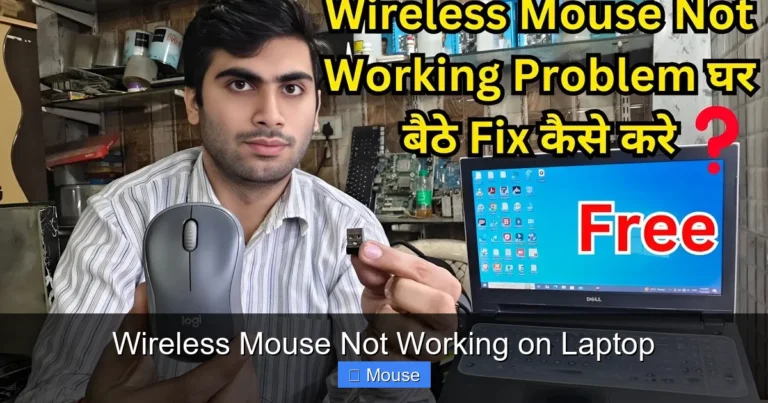
If you use an external mouse, the first thing to check is the connection. A loose USB plug or a damaged cable can stop your mouse from working. For wireless mice, the problem might be the USB receiver or the Bluetooth connection.
- Make sure the USB plug is fully inserted into the port.
- Try a different USB port if the current one seems loose or damaged.
- Check the cable for cuts, bends, or fraying.
- For wireless mice, make sure the USB receiver is properly plugged in.
1.2 Dead or Low Batteries
Wireless mice need power to work. If your mouse on laptop is not working, the batteries might be dead or very low. Some mice have a small light that turns on when they are powered. If you don’t see any light, try replacing the batteries.
- Replace the batteries with new ones.
- If your mouse uses a rechargeable battery, charge it fully and try again.
- Make sure the batteries are inserted in the correct direction.
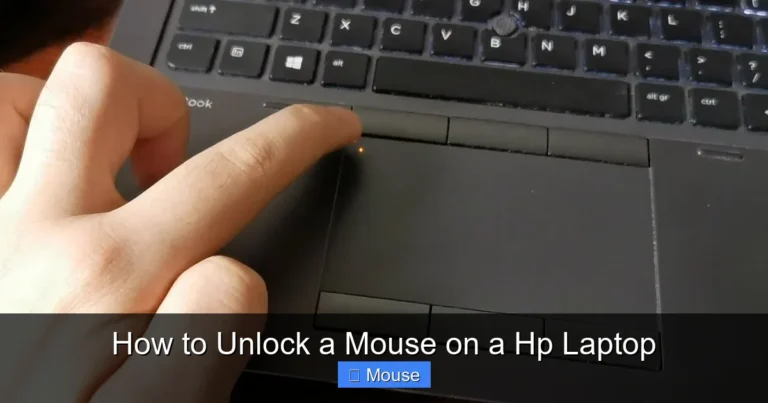
1.3 Touchpad Accidentally Disabled
Many laptops have a keyboard shortcut or a setting that can turn the touchpad on or off. You might have pressed it by accident. If your touchpad suddenly stops working, it could be disabled.
- Look for a touchpad icon on the function keys (F1–F12). It often looks like a small rectangle with a line under it.
- Press Fn + the touchpad key to toggle it on or off.
- Check your laptop’s settings to make sure the touchpad is enabled.
1.4 Outdated or Corrupted Drivers
Drivers are small programs that help your operating system communicate with your mouse. If these drivers are outdated, missing, or corrupted, your mouse on laptop may stop working.
- Windows and macOS usually update drivers automatically, but sometimes they fail.
- A recent update might have installed the wrong driver.
- Malware or system errors can also damage drivers.
1.5 Software Conflicts or Recent Updates
Sometimes, a new app, a system update, or a change in settings can interfere with your mouse. This can cause the cursor to freeze, disappear, or behave strangely.
- Did you install any new software before the problem started?
- Did your laptop recently install a major update?
- Some apps, like remote desktop tools or screen recorders, can affect mouse behavior.
1.6 Hardware Issues
In some cases, the problem is physical. The touchpad, USB port, or the mouse itself might be damaged. Dirt, dust, or spills can also cause issues.
- Check the touchpad for visible damage or dirt.
- Look at the USB ports for bent pins or debris.
- Try your mouse on another computer to see if it works there.
2. Quick Fixes You Can Try Right Now
When your mouse on laptop is not working, start with these simple steps. They are fast, safe, and often solve the problem.
2.1 Restart Your Laptop
This might sound too simple, but it works more often than you think. A restart can clear temporary glitches that are causing your mouse to stop responding.
- Save your work if possible.
- Click the Start menu (Windows) or Apple menu (Mac) and choose Restart.
- If you can’t use the mouse, press Ctrl + Alt + Delete on Windows, then use the arrow keys and Enter to restart.
- On a Mac, press Control + Command + Power button to restart.
2.2 Check the Physical Connections
If you use an external mouse, unplug it and plug it back in. Try a different USB port. If you use a wireless mouse, remove the USB receiver and reinsert it. Also, check the batteries.
- Unplug the mouse, wait 10 seconds, then plug it back in.
- Try another USB port on your laptop.
- For wireless mice, turn the mouse off and on again.
- Replace the batteries or charge the mouse.
2.3 Enable the Touchpad
If your touchpad is not working, it might be disabled. Here’s how to turn it back on.
On Windows:
- Press Windows key + I to open Settings.
- Go to Devices > Touchpad.
- Make sure the touchpad is turned on.
On macOS:
- Click the Apple menu and go to System Settings (or System Preferences).
- Go to Trackpad.
- Make sure the trackpad is enabled and adjust the settings as needed.
2.4 Use Keyboard Shortcuts to Navigate
If your mouse is not working, you can still use the keyboard to move around. This can help you troubleshoot and fix the issue.
- Use Tab to move between items on the screen.
- Use the arrow keys to navigate menus.
- Press Enter to select an item.
- Use Alt + Tab (Windows) or Command + Tab (Mac) to switch between open apps.
3. Fixing Driver Issues That Cause Mouse Problems
If the quick fixes don’t work, the problem might be with your mouse drivers. Here’s how to check and fix them.
Visual guide about My Mouse on Laptop Not Working
Image source: antikeo.com
3.1 Update Mouse Drivers on Windows
Outdated drivers are a common reason your mouse on laptop is not working. Updating them can often solve the problem.
- Press Windows key + X and select Device Manager.
- Expand the Mice and other pointing devices section.
- Right-click your mouse device and select Update driver.
- Choose Search automatically for drivers.
- Follow the on-screen instructions and restart your laptop.
3.2 Reinstall Mouse Drivers
If updating doesn’t help, try reinstalling the driver. This can fix corrupted or missing driver files.
- Open Device Manager again.
- Right-click your mouse device and select Uninstall device.
- Restart your laptop. Windows will automatically reinstall the driver.
- Test your mouse after the restart.
3.3 Check for System Updates
Sometimes, a system update can fix mouse issues. Make sure your operating system is up to date.
On Windows:
- Go to Settings > Update & Security > Windows Update.
- Click Check for updates and install any available updates.
On macOS:
- Go to System Settings > General > Software Update.
- Install any available updates.
4. Dealing with Software Conflicts and Settings
Sometimes, the issue is not with the mouse itself, but with the software on your laptop. Here’s how to check for conflicts and adjust settings.
Visual guide about My Mouse on Laptop Not Working
Image source: bouqs.com
4.1 Check for Problematic Apps
Some apps can interfere with your mouse. If your mouse on laptop stopped working after installing new software, that app might be the cause.
- Think about any apps you installed recently.
- Temporarily uninstall or disable them to see if the mouse starts working.
- Common culprits include remote desktop tools, screen recorders, and some antivirus programs.
4.2 Disable Fast Startup on Windows
Fast Startup is a feature in Windows that helps your laptop start faster. But it can sometimes cause hardware issues, including mouse problems.
- Open Control Panel > Power Options.
- Click Choose what the power buttons do.
- Click Change settings that are currently unavailable.
- Uncheck Turn on fast startup.
- Save changes and restart your laptop.
4.3 Adjust Mouse Settings
Sometimes, a setting might be causing the issue. For example, the pointer speed might be set too low, or some features might be turned off.
On Windows:
- Go to Settings > Devices > Mouse.
- Adjust the pointer speed and other settings.
- Make sure Scroll inactive windows when I hover over them is turned off if it causes issues.
On macOS:
- Go to System Settings > Mouse or Trackpad.
- Adjust the tracking speed, scrolling, and other options.
5. Hardware Troubleshooting: When It’s Not a Software Issue
If you’ve tried all the software fixes and your mouse on laptop is still not working, it might be a hardware problem. Here’s how to check.
5.1 Test with an External Mouse
Plug in an external USB mouse. If it works, the problem is likely with your touchpad or built-in mouse hardware.
- Connect a different mouse to your laptop.
- If the external mouse works, you can keep using it while you troubleshoot the touchpad.
- If the external mouse also doesn’t work, the issue might be with the USB ports or system settings.
5.2 Clean the Touchpad and Ports
Dirt, dust, and spills can interfere with your touchpad or USB ports. Cleaning them can sometimes fix the issue.
- Turn off your laptop and unplug it.
- Use a soft, lint-free cloth to gently clean the touchpad.
- Use compressed air to blow dust out of the USB ports.
- Make sure there is no moisture or debris.
5.3 Check for Physical Damage
Look at your touchpad, mouse, and cables for any signs of damage.
- Cracks, dents, or loose parts can cause problems.
- If the touchpad is raised or uneven, it might be damaged inside.
- If you see damage, you may need to contact a repair service.
5.4 Try Your Mouse on Another Computer
If you use an external mouse, test it on another computer. If it doesn’t work there either, the mouse itself might be broken.
- Plug the mouse into a different laptop or desktop.
- If it still doesn’t work, consider replacing the mouse.
- If it does work, the problem is likely with your laptop’s settings or hardware.
6. Advanced Fixes and When to Get Help
If none of the above steps work, there are a few more things you can try. These are a bit more advanced, but still safe to do at home.

Visual guide about My Mouse on Laptop Not Working
Image source: d138zd1ktt9iqe.cloudfront.net
6.1 Run the Built-in Troubleshooter
Windows and macOS have tools that can automatically detect and fix common problems.
On Windows:
- Go to Settings > Update & Security > Troubleshoot.
- Click Additional troubleshooters.
- Run the Hardware and Devices troubleshooter.
On macOS:
- Restart your Mac and hold Command + R to enter Recovery Mode.
- Use Disk Utility to check for disk errors.
- You can also try resetting the System Management Controller (SMC) if you have an Intel Mac.
6.2 Restore Your System to an Earlier Point
If your mouse on laptop stopped working after a recent change, you can try restoring your system to a time when it was working.
On Windows:
- Search for Create a restore point in the Start menu.
- Click System Restore and follow the prompts.
- Choose a restore point from before the problem started.
On macOS:
- If you use Time Machine, you can restore your system from a backup.
- Restart in Recovery Mode and choose Restore from Time Machine Backup.
6.3 Reset or Reinstall Your Operating System
This is a last resort. If nothing else works, resetting your laptop can fix deep software issues. Make sure to back up your files first.
On Windows:
- Go to Settings > Update & Security > Recovery.
- Click Reset this PC and follow the instructions.
On macOS:
- Restart in Recovery Mode and choose Reinstall macOS.
6.4 When to Contact Support or a Technician
If you’ve tried everything and your mouse on laptop is still not working, it might be time to get professional help.
- Contact your laptop’s manufacturer support (like Dell, HP, Lenovo, etc.).
- Visit a local computer repair shop.
- If your laptop is under warranty, check if the repair is covered.
Conclusion: Getting Your Mouse Working Again
Having your mouse on laptop not working can be very annoying. But in most cases, it’s a problem you can fix yourself. Start with the simple steps: check the connections, replace the batteries, and restart your laptop. If that doesn’t work, move on to updating drivers, checking settings, and looking for software conflicts.

Visual guide about My Mouse on Laptop Not Working
Image source: wallpapercave.com
If you suspect a hardware issue, test with an external mouse and clean your touchpad and ports. And if all else fails, don’t hesitate to ask for help from a professional.
Remember, you’re not alone in this. Many people face the same issue every day. With a little patience and the right steps, you can get your mouse working again and back to your normal routine.
Frequently Asked Questions
Why is my mouse on laptop not working after a Windows update?
Sometimes, a Windows update can install the wrong driver or change settings that affect your mouse. Try updating or reinstalling your mouse drivers in Device Manager. You can also run the Hardware and Devices troubleshooter to fix common issues.
How do I enable my touchpad if it’s disabled?
On most laptops, you can press Fn + the touchpad key (often F7 or F9) to toggle the touchpad on or off. You can also go to your laptop’s settings and make sure the touchpad is enabled under the mouse or touchpad section.
What should I do if my wireless mouse is not working?
First, check the batteries and replace them if needed. Make sure the USB receiver is properly plugged in and try a different port. Turn the mouse off and on again, and check if it’s connected via Bluetooth if applicable.
Can a virus or malware cause my mouse to stop working?
Yes, some malware can interfere with your mouse or touchpad. Run a full scan with your antivirus software. If you don’t have one, consider using a trusted antivirus program to check your system.
Why does my mouse work on another laptop but not mine?
If your mouse works on another computer, the problem is likely with your laptop’s settings, drivers, or hardware. Try updating your mouse drivers, checking your USB ports, and running a system troubleshooter.
Is it safe to reinstall my operating system to fix mouse issues?
Reinstalling your operating system can fix many software problems, but it should be a last resort. Make sure to back up all your important files first. If you’re not comfortable doing it yourself, ask a professional for help.