Wireless Mouse Does Not Work on Laptop

Dealing with a wireless mouse that does not work on your laptop can be incredibly frustrating, especially when you need to get things done quickly. The good news is that most issues are simple to fix with basic troubleshooting steps. In this guide, we will walk you through every possible reason your wireless mouse is not working on your laptop and show you exactly how to resolve each one.
Key Takeaways
- Check the basics first: Dead batteries, a disconnected USB receiver, and a turned-off power switch are the most common culprits when a wireless mouse does not work on a laptop.
- Driver issues are frequent: Outdated, corrupted, or missing drivers can prevent your laptop from recognizing the wireless mouse properly.
- USB port problems matter: A faulty or incompatible USB port can stop your wireless mouse receiver from communicating with your laptop.
- Bluetooth pairing can fail: If you use a Bluetooth wireless mouse, pairing issues or interference can cause connection drops.
- Software conflicts exist: Certain applications, power management settings, or Windows updates can interfere with wireless mouse functionality.
- Hardware failure is possible: Sometimes the mouse itself, the USB receiver, or the laptop’s internal hardware may be damaged and need replacement.
- Prevention helps: Regular maintenance, keeping drivers updated, and using quality peripherals can prevent most wireless mouse issues on laptops.
📑 Table of Contents
- Introduction: When Your Wireless Mouse Stops Working on Your Laptop
- Understanding How Wireless Mice Connect to Laptops
- Common Reasons Your Wireless Mouse Does Not Work on Your Laptop
- Step-by-Step Troubleshooting Guide
- Specific Brand-Related Issues
- Advanced Solutions When Basic Fixes Do Not Work
- Preventing Future Wireless Mouse Issues
- When to Replace Your Wireless Mouse
- Conclusion
Introduction: When Your Wireless Mouse Stops Working on Your Laptop
You sit down at your desk, ready to tackle your to-do list. You move your wireless mouse across the desk, and nothing happens. The cursor stays frozen on the screen. Your wireless mouse does not work on your laptop, and you have no idea why. Sound familiar? You are definitely not alone. This is one of the most common tech problems people face every single day.
The frustrating part is that wireless mice are supposed to make life easier. No tangled cords. No clutter on your desk. Just smooth, seamless control. But when your wireless mouse does not work on your laptop, it can bring your entire workflow to a grinding halt. Whether you are working from home, studying for exams, or just browsing the web, a non-responsive mouse is a real problem.
Here is the thing, though. Most of the time, the fix is simpler than you think. You do not need to be a tech expert to solve this. In this article, we will break down every possible reason your wireless mouse is not working on your laptop and give you step-by-step solutions for each one. Let us dive in and get your mouse working again.
Understanding How Wireless Mice Connect to Laptops
Two Main Types of Wireless Connections
Before we start troubleshooting, it helps to understand how wireless mice actually connect to laptops. There are two main types of wireless mice, and each one works a little differently.
The first type uses a USB receiver. This is a small dongle that plugs into one of your laptop’s USB ports. The mouse communicates with the laptop through this tiny receiver using radio frequency. Most budget and mid-range wireless mice use this method. You have probably seen these small USB sticks that come packaged with the mouse.
The second type uses Bluetooth. These mice connect directly to your laptop’s built-in Bluetooth module without needing any USB dongle. Many modern laptops come with Bluetooth capability, making this a popular choice. Apple Magic Mice and many Logitech models use Bluetooth to connect.
Why Connection Type Matters for Troubleshooting
Knowing which type of wireless mouse you have is important because the troubleshooting steps differ slightly. If your mouse uses a USB receiver, the problem could be with the USB port or the dongle itself. If it is a Bluetooth mouse, the issue might be with Bluetooth settings or interference from other devices.
When your wireless mouse does not work on your laptop, identifying the connection type is your first step toward finding the right solution. Check the bottom of your mouse or the original packaging to see whether it uses a USB receiver or Bluetooth technology.
Common Reasons Your Wireless Mouse Does Not Work on Your Laptop
Dead or Low Batteries
This is the number one reason a wireless mouse stops working. It sounds almost too simple, but you would be surprised how often this is the culprit. Wireless mice rely entirely on batteries for power. When those batteries run low or die completely, your mouse simply will not respond.

Visual guide about Wireless Mouse Does Not Work on Laptop
Image source: images.edrawsoft.com
What to do: Replace the batteries with fresh ones. Even if the batteries are relatively new, try swapping them out anyway. Sometimes batteries can lose charge faster than expected, especially if the mouse has been sitting unused for a while. If your mouse has a rechargeable battery, plug it in and let it charge for at least 30 minutes before trying again.
Pro tip: Always keep a spare set of batteries nearby. This simple habit can save you from unexpected downtime when your wireless mouse does not work on your laptop at the worst possible moment.
Disconnected or Loose USB Receiver
If your wireless mouse uses a USB receiver, make sure it is properly plugged into your laptop. These small dongles can easily become loose, especially if you move your laptop around frequently. A slightly dislodged receiver can cause the mouse to stop responding entirely.
What to do: Unplug the USB receiver and plug it back in firmly. Try wiggling it gently to make sure it is seated properly. If that does not work, try a different USB port on your laptop. Sometimes the issue is not the receiver but the USB port itself.
For more detailed help with USB-related mouse issues, check out our guide on how to connect a wireless mouse to your laptop.
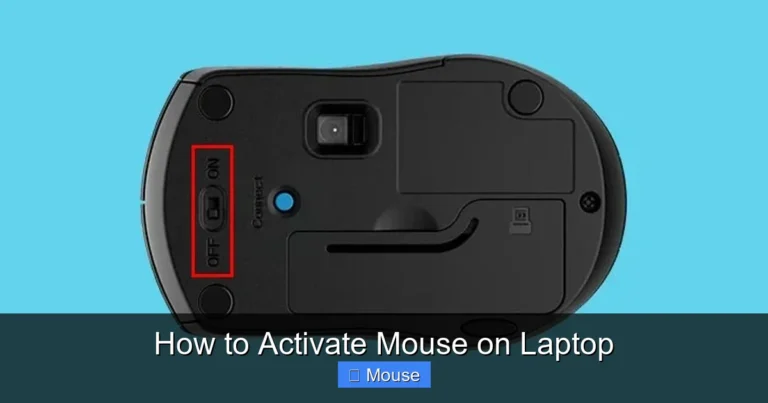
Mouse Power Switch Is Turned Off
Many wireless mice have a small power switch on the bottom. It is easy to accidentally flip this switch when picking up or moving the mouse. If the power switch is in the off position, no amount of battery replacing or receiver reseating will fix the problem.
What to do: Flip your mouse over and look for a small switch. Make sure it is in the “On” position. Some mice have an LED light that turns on when the power is active. If you see a light, the mouse has power. If not, check that switch.
Outdated or Corrupted Drivers
Drivers are small software programs that allow your laptop’s operating system to communicate with hardware devices like your wireless mouse. When these drivers become outdated, corrupted, or missing, your laptop may not recognize the mouse properly.
What to do: On Windows, open Device Manager by right-clicking the Start button. Look for “Mice and other pointing devices.” If you see a yellow warning triangle next to your mouse, there is a driver issue. Right-click the device and select “Update driver.” You can also try uninstalling the driver and restarting your laptop. Windows will automatically reinstall the correct driver on reboot.
If updating drivers does not solve the problem when your wireless mouse does not work on your laptop, visit the mouse manufacturer’s website and download the latest drivers directly from their support page.
Bluetooth Pairing Issues
Bluetooth mice can sometimes lose their pairing with your laptop. This can happen after a Windows update, after your laptop wakes from sleep mode, or simply due to interference from other Bluetooth devices nearby.
What to do: Go to your laptop’s Bluetooth settings and remove the mouse from the list of paired devices. Then, put your mouse into pairing mode (usually by holding down a button on the bottom of the mouse). Re-pair the mouse with your laptop as if it were a new device.
Make sure no other Bluetooth devices are causing interference. If you have multiple Bluetooth gadgets nearby, try turning them off temporarily to see if that resolves the connection issue.
USB Port Malfunction
Sometimes the problem is not the mouse or the receiver at all. It is the USB port on your laptop. USB ports can wear out over time, especially if you frequently plug and unplug devices. A damaged USB port may not provide enough power or data connectivity for the wireless mouse receiver.
What to do: Test the USB receiver in a different port. If the mouse works in another port, the original port may be damaged. You can also test other USB devices in the same port to confirm whether the port itself is the problem.
If you suspect a USB port issue, our article on mouse not working on laptop has additional troubleshooting steps that can help.
Step-by-Step Troubleshooting Guide
Step 1: Perform a Basic Reset
Start with the simplest fix. Turn your wireless mouse off, wait about 10 seconds, and turn it back on. Unplug the USB receiver, wait a few seconds, and plug it back in. Then restart your laptop. This basic reset resolves a surprising number of wireless mouse issues.

Visual guide about Wireless Mouse Does Not Work on Laptop
Image source: us.rule34.xxx
When your wireless mouse does not work on your laptop, a restart clears temporary glitches in both the operating system and the mouse’s internal firmware. Do not skip this step even if it seems too basic. It works more often than you would expect.
Step 2: Check Battery and Power
Open the battery compartment on your mouse and inspect the batteries. Make sure they are inserted correctly, with the positive and negative ends matching the markings inside the compartment. Replace the batteries with brand new ones, even if the current ones seem fine.
If your mouse uses a rechargeable battery, connect it to a charger and wait. Some mice have a small LED indicator that shows charging status. Let it charge fully before testing again.
Step 3: Test on Another Computer
This step helps you determine whether the problem is with the mouse or the laptop. Connect your wireless mouse to a different computer. If it works fine on another machine, the issue is likely with your laptop’s settings, drivers, or hardware. If it does not work on another computer either, the mouse itself may be defective.
Step 4: Update or Reinstall Drivers
As mentioned earlier, driver issues are a common cause when a wireless mouse does not work on a laptop. Here is a more detailed process:
- Press the Windows key and type “Device Manager.”
- Expand the “Mice and other pointing devices” section.
- Right-click your wireless mouse and select “Update driver.”
- Choose “Search automatically for drivers.”
- If Windows says the best driver is already installed, try “Uninstall device” instead.
- Restart your laptop to let Windows reinstall the driver automatically.
Step 5: Check for Windows Updates
Sometimes a recent Windows update can cause compatibility issues with your wireless mouse. Conversely, installing the latest updates can fix bugs that were causing the problem in the first place.
Go to Settings > Update & Security > Windows Update and click “Check for updates.” Install any available updates and restart your laptop. After the restart, test your wireless mouse again.
Step 6: Disable Power Management for USB
Windows has a power-saving feature that can turn off USB devices to save energy. Sometimes this feature is too aggressive and cuts power to your wireless mouse receiver, causing it to stop working.
To disable this, go to Device Manager, expand “Universal Serial Bus controllers,” right-click each USB Root Hub, select Properties, go to the Power Management tab, and uncheck “Allow the computer to turn off this device to save power.” Repeat for all USB Root Hubs.
Specific Brand-Related Issues
HP Laptop Wireless Mouse Problems
HP laptops sometimes have specific quirks that can affect wireless mouse connectivity. Some HP models have aggressive power management settings that interfere with USB devices. Others may have BIOS settings that need adjustment.

Visual guide about Wireless Mouse Does Not Work on Laptop
Image source: smapse.com
If you are using an HP laptop and your wireless mouse does not work, check HP’s support website for model-specific driver updates. You may also need to adjust settings in the HP Support Assistant software that came pre-installed on your laptop.
For HP-specific troubleshooting, visit our detailed guide on mouse on HP laptop not working.
Dell Laptop Wireless Mouse Problems
Dell laptops are generally reliable, but they can experience wireless mouse issues too. Dell’s proprietary software, including Dell SupportAssist and Dell Power Manager, can sometimes interfere with peripheral connectivity.
Try temporarily disabling Dell’s power management software to see if that resolves the issue. Also, make sure your Dell laptop’s BIOS is up to date, as outdated BIOS versions can cause USB and Bluetooth connectivity problems.
Lenovo Laptop Wireless Mouse Problems
Lenovo laptops, especially ThinkPad models, have a unique feature called the TrackPoint (the red nub in the middle of the keyboard). Sometimes the TrackPoint settings can interfere with external mouse functionality. Lenovo Vantage software also has settings that can affect peripheral devices.
Open Lenovo Vantage and check the input device settings. Make sure external mice are enabled and not being overridden by internal pointing device settings.
Advanced Solutions When Basic Fixes Do Not Work
Reset Bluetooth Stack
If you are using a Bluetooth wireless mouse and basic troubleshooting has not helped, try resetting your laptop’s Bluetooth stack. This clears all Bluetooth pairing data and resets the Bluetooth service to its default state.

Visual guide about Wireless Mouse Does Not Work on Laptop
Image source: netvisual.ca
Open Command Prompt as an administrator and type the following command: netsh winsock reset. Then restart your laptop. After the restart, re-pair your Bluetooth mouse from scratch.
Check for Software Conflicts
Some third-party software can interfere with wireless mouse functionality. Mouse customization software, gaming overlays, and even certain antivirus programs can cause conflicts.
Try booting your laptop in Safe Mode. If your wireless mouse works in Safe Mode, a software conflict is likely the cause. Disable recently installed programs one by one to identify the culprit.
Modify Registry Settings
This is an advanced step that should be approached with caution. Sometimes Windows registry entries related to mouse functionality can become corrupted. Before making any registry changes, create a backup by going to File > Export in the Registry Editor.
Navigate to HKEY_LOCAL_MACHINE\SYSTEM\CurrentControlSet\Services\mouclass and make sure the “Start” value is set to “1.” This ensures the mouse driver service starts automatically with Windows.
Try a Different Surface
This might sound odd, but some wireless mice, especially older optical models, do not work well on certain surfaces. Glass, highly reflective, or completely uniform surfaces can confuse the mouse’s sensor.
Try using your mouse on a different surface or a mousepad. If the mouse starts working on a different surface, the issue is with the tracking surface, not the mouse or laptop.
Preventing Future Wireless Mouse Issues
Keep Drivers Updated
Make it a habit to check for driver updates regularly. Set a reminder to visit the manufacturer’s website every few months or enable automatic driver updates in Windows. Updated drivers not only fix bugs but also improve performance and compatibility.

Visual guide about Wireless Mouse Does Not Work on Laptop
Image source: i.etsystatic.com
Maintain Your Mouse Properly
Clean your mouse regularly. Dust and debris can accumulate around the sensor on the bottom, affecting tracking accuracy. Use a soft cloth and a small amount of isopropyl alcohol to clean the sensor area. Also, keep the battery compartment clean and free of corrosion.
Use Quality Batteries
Cheap batteries can leak and damage your mouse’s internal components. Invest in quality alkaline or lithium batteries. If your mouse uses rechargeable batteries, replace them every one to two years, as rechargeable batteries lose their capacity over time.
Protect the USB Receiver
If your mouse uses a USB receiver, consider using a USB extension cable to keep the receiver away from the laptop. This reduces the risk of accidentally breaking the receiver or the USB port. It can also improve signal strength by positioning the receiver closer to your mouse.
Store Your Mouse Properly
When not in use, turn off your mouse to conserve battery life. Store it in a clean, dry place away from extreme temperatures. If you travel with your mouse, use a protective case to prevent damage to the sensor and buttons.
When to Replace Your Wireless Mouse
Sometimes, despite your best efforts, a wireless mouse simply reaches the end of its lifespan. Here are signs that it might be time for a replacement:

Visual guide about Wireless Mouse Does Not Work on Laptop
Image source: i0.wp.com
- The mouse frequently disconnects even after trying all troubleshooting steps.
- Buttons become unresponsive or register double clicks when you only click once.
- The cursor jumps around erratically even on suitable surfaces.
- The mouse physically shows signs of damage, such as cracks or a loose battery cover.
- The mouse is more than three to four years old and has seen heavy use.
If your wireless mouse does not work on your laptop and you have exhausted all the troubleshooting steps in this guide, investing in a new mouse is probably the most practical solution. Modern wireless mice are more reliable, have better battery life, and offer improved tracking technology compared to older models.
Conclusion
Having a wireless mouse that does not work on your laptop is annoying, but it is rarely a permanent problem. In most cases, the issue comes down to something simple like dead batteries, a loose USB receiver, or outdated drivers. By working through the troubleshooting steps in this guide, you can identify and fix the problem quickly.
Visual guide about Wireless Mouse Does Not Work on Laptop
Image source: brighterly.com
Remember to start with the basics before moving on to more advanced solutions. Check your batteries, make sure the receiver is properly connected, verify the power switch is on, and update your drivers. These simple steps resolve the vast majority of wireless mouse issues on laptops.
If you have tried everything and your wireless mouse still does not work on your laptop, it may be time to consider a replacement. Technology does not last forever, and sometimes a fresh start with a new mouse is the best solution. Keep this guide bookmarked so you can refer back to it whenever you encounter mouse issues in the future.
Frequently Asked Questions
Why does my wireless mouse not work on my laptop even with new batteries?
Even with new batteries, your wireless mouse may not work due to a disconnected USB receiver, outdated drivers, or a turned-off power switch. Try reseating the receiver, updating your mouse drivers through Device Manager, and checking the power switch on the bottom of the mouse.
How do I get my laptop to recognize my wireless mouse?
First, make sure the USB receiver is plugged in securely or that Bluetooth is enabled for Bluetooth mice. Then, restart your laptop and check Device Manager for any driver issues. If the mouse still is not recognized, try uninstalling and reinstalling the mouse driver.
Can a Windows update cause my wireless mouse to stop working?
Yes, Windows updates can sometimes change driver configurations or power management settings that affect wireless mouse functionality. If your mouse stopped working after an update, try rolling back the driver in Device Manager or checking for a newer driver version on the manufacturer’s website.
Why does my wireless mouse keep disconnecting from my laptop?
Frequent disconnections can be caused by low batteries, USB power management settings, Bluetooth interference, or a faulty receiver. Disable USB selective suspend settings in your power plan, replace the batteries, and make sure there are no other wireless devices causing interference nearby.
Is it worth repairing a wireless mouse that does not work?
In most cases, wireless mice are not worth repairing because the cost of repair often exceeds the price of a new mouse. If your mouse is under warranty, contact the manufacturer for a replacement. If it is out of warranty, purchasing a new wireless mouse is usually the most practical option.
How do I connect a wireless mouse to my laptop without a USB receiver?
If your laptop has built-in Bluetooth, you can connect a Bluetooth wireless mouse without a USB receiver. Enable Bluetooth on your laptop, put your mouse into pairing mode, and select the mouse from the list of available Bluetooth devices in your laptop’s Bluetooth settings.