How Can I Fix My Mouse on the Laptop

Is your laptop mouse acting up? Don’t panic. Most mouse problems are simple to fix. This guide shows you how to fix your mouse on the laptop using easy troubleshooting steps. You will learn quick solutions for both touchpad and external mouse issues.
Few things are more frustrating than a mouse that stops working. You are in the middle of an important task. Then suddenly, the cursor freezes. Or maybe it jumps around the screen on its own. You ask yourself, “How can I fix my mouse on the laptop?”
Take a deep breath. You are not alone. This is one of the most common laptop problems. The good news is that most fixes are simple. You do not need to be a tech expert. In this guide, we will walk you through every step. By the end, you will know exactly how to get your mouse working again.
Whether you use a touchpad or an external mouse, we have got you covered. Let us dive in and solve this problem together.
Key Takeaways
- Restart First: A simple restart fixes most mouse issues on your laptop instantly.
- Check Connections: Loose cables or dead batteries cause many external mouse problems.
- Update Drivers: Outdated drivers are a top reason your laptop mouse stops working.
- Enable the Touchpad: You may have accidentally disabled your touchpad with a keyboard shortcut.
- Use Device Manager: Windows Device Manager helps diagnose and fix driver-related mouse issues.
- Try an External Mouse: Testing with another mouse helps identify if the problem is hardware or software.
- Contact Support: If nothing works, your laptop may need professional repair or replacement.
📑 Table of Contents
- Understanding Common Mouse Problems on Laptops
- Quick Fixes You Can Try Right Now
- How to Enable a Disabled Touchpad
- Updating and Reinstalling Mouse Drivers
- Fixing External Mouse Connection Issues
- Advanced Troubleshooting Methods
- When to Seek Professional Help
- Preventing Future Mouse Problems
- Conclusion
Understanding Common Mouse Problems on Laptops
Before we fix the problem, let us understand what might be going wrong. Mouse issues on laptops fall into a few main categories. Knowing the type of problem helps you find the right solution faster.
Touchpad Not Responding
The touchpad is the built-in mouse on your laptop. Sometimes it just stops responding. You move your finger, and nothing happens. This is often caused by accidentally disabling it. Many laptops have a keyboard shortcut that turns the touchpad on and off. You might have pressed it without realizing.
Dirt and moisture on the touchpad can also cause problems. Your fingers leave oils on the surface. Over time, this buildup can make the touchpad less sensitive. A quick clean often helps.
External Mouse Not Working
If you use a USB or wireless mouse, different issues can arise. A wired mouse might have a loose connection. The USB port itself could be damaged. For wireless mice, dead batteries are the number one culprit. The USB receiver might also be loose or unplugged.
Sometimes the problem is not the mouse at all. It could be a software issue on your laptop. Outdated drivers or system conflicts can prevent the mouse from working properly.
Cursor Moving on Its Own
A cursor that moves by itself is incredibly annoying. This is often called “ghost cursor” or “cursor drift.” It happens when the touchpad detects input that you are not making. Wet fingers, a dirty surface, or a faulty touchpad can cause this.
In some cases, a software glitch makes the cursor jump around. Malware can also cause unusual cursor behavior. If your cursor moves on its own, it is important to troubleshoot quickly.
Quick Fixes You Can Try Right Now
Let us start with the easiest solutions. These quick fixes solve most mouse problems in minutes. Try them in order before moving to more advanced steps.
Restart Your Laptop
Yes, it sounds too simple. But restarting your laptop fixes a surprising number of mouse issues. When you restart, your system clears temporary glitches. It also reloads all the drivers your mouse needs to work.
To restart, click the Start menu and select Power, then Restart. If you cannot use your mouse, press Ctrl + Alt + Delete. Then use the arrow keys and Tab key to navigate to the power button. Select Restart with the Enter key.
Wait for your laptop to fully boot up. Then test your mouse. Many times, this is all you need to do.
Check Physical Connections
If you use an external mouse, check the physical connection first. Make sure the USB cable is plugged in firmly. Try a different USB port on your laptop. Sometimes a specific port stops working.
For wireless mice, check the batteries. Replace them with fresh ones even if they seem fine. Also, make sure the USB receiver is properly inserted. If your mouse uses Bluetooth, check that Bluetooth is turned on in your laptop settings.
Here is a quick checklist:
- Unplug and replug the mouse cable
- Try a different USB port
- Replace batteries in wireless mice
- Check that the USB receiver is secure
- Turn Bluetooth off and on again
Clean Your Touchpad
A dirty touchpad can cause all sorts of problems. Dirt, oil, and debris interfere with the touchpad’s sensors. Cleaning it is easy and often solves the issue.
Turn off your laptop first. Then dampen a soft cloth with water or isopropyl alcohol. Gently wipe the touchpad surface in circular motions. Do not use too much liquid. Make sure the touchpad is completely dry before turning your laptop back on.
How to Enable a Disabled Touchpad
One of the most common reasons for a non-working touchpad is that it got disabled. This happens more often than you think. Let us look at how to turn it back on.
Use the Keyboard Shortcut
Most laptops have a function key that toggles the touchpad. Look at the top row of your keyboard. You will see keys labeled F1 through F12. One of them has a touchpad icon. It usually looks like a rectangle with a finger or a line through it.
To use this shortcut, hold the Fn key and press the touchpad key. On some laptops, you can press the function key without holding Fn. Try both ways. You should see a notification on your screen confirming the touchpad is enabled.
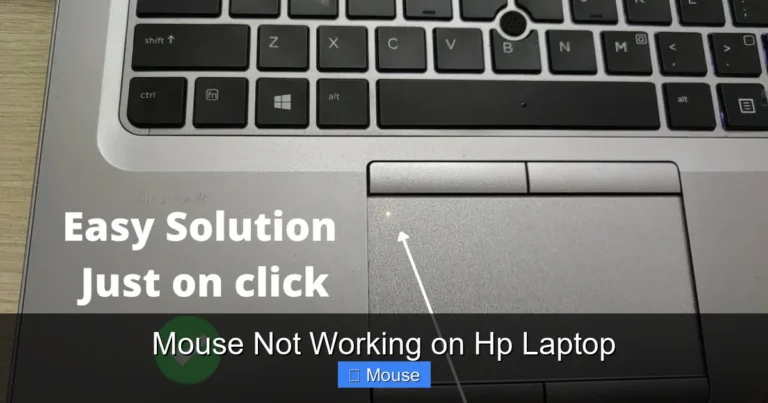
On HP laptops, you can often double-tap the top-left corner of the touchpad to toggle it. Look for a small LED light in that corner. If the light is orange or off, the touchpad is disabled.
If your touchpad is still not working after trying the shortcut, check out our guide on how to unlock the mouse on laptop for more detailed steps.
Enable Through Windows Settings
Windows also lets you enable or disable the touchpad through settings. Here is how to do it without using a mouse.
Press the Windows key to open the Start menu. Type “touchpad settings” and press Enter. This opens the touchpad settings page. Use the Tab key and arrow keys to navigate. Find the toggle switch that says “Touchpad” and make sure it is turned on.
On Windows 11, the path is Settings > Bluetooth & devices > Touchpad. Make sure the touchpad toggle is on. You can also check the option to leave the touchpad on when a mouse is connected.
Check Device Manager
Device Manager is a powerful tool in Windows. It shows all the hardware connected to your laptop. If your touchpad is disabled here, it will not work no matter what.
Press Windows + X and select Device Manager from the menu. Use the arrow keys to navigate to “Mice and other pointing devices.” Press the right arrow to expand the list. Look for your touchpad. It might be listed as “Synaptics TouchPad” or “ELAN TouchPad” or something similar.
If you see a down arrow icon on the device, it is disabled. Select it and press Enter. Then use the Tab key to find the “Enable device” button and select it. Your touchpad should start working immediately.
Updating and Reinstalling Mouse Drivers
Drivers are software that let your laptop communicate with hardware. When mouse drivers are outdated or corrupted, your mouse stops working. Let us fix that.
What Are Drivers and Why Do They Matter?
Think of drivers as translators. They help Windows understand how to talk to your mouse or touchpad. When drivers get old or break, communication fails. Your mouse might freeze, lag, or stop responding entirely.
Windows Update sometimes installs driver updates automatically. But it does not always get the latest version. That is why manually updating drivers is important.
How to Update Mouse Drivers
Open Device Manager by pressing Windows + X. Navigate to “Mice and other pointing devices.” Find your mouse or touchpad in the list. Press Enter to open its properties.
Use the Tab key to navigate to the “Driver” tab. Look for the “Update Driver” button and press Enter. Select “Search automatically for drivers.” Windows will search online and install any available updates.
Wait for the process to complete. Then restart your laptop. Test your mouse to see if the problem is fixed.
How to Reinstall Mouse Drivers
If updating does not work, try reinstalling the driver completely. This gives you a fresh start.
In Device Manager, find your mouse or touchpad. Press Enter to open properties. Go to the Driver tab and select “Uninstall device.” Confirm the uninstallation. Do not check the box that says “Delete the driver software.”
After uninstalling, restart your laptop. Windows will automatically detect the missing driver and reinstall it. This often fixes stubborn mouse issues.
For more detailed help with driver-related problems, check our article on why isn’t the mouse working on my laptop.
Fixing External Mouse Connection Issues
External mice have their own set of problems. Let us troubleshoot them step by step.
Wired Mouse Troubleshooting
If your wired mouse is not working, start with the basics. Unplug it and plug it back in. Try a different USB port. If you are using a USB hub, plug the mouse directly into the laptop instead.
Test the mouse on another computer if possible. If it does not work there either, the mouse itself might be broken. If it works on another computer, the issue is with your laptop.
Check the USB cable for damage. Frayed or bent cables can cause intermittent connections. If the cable is damaged, you will need a new mouse.
Wireless Mouse Troubleshooting
Wireless mice need power and a good connection. Start by replacing the batteries. Even if the mouse light is on, weak batteries can cause connection problems.
Next, check the USB receiver. Unplug it and plug it back in. Try a different USB port. If your mouse uses Bluetooth instead of a receiver, make sure Bluetooth is enabled on your laptop.
To re-pair a Bluetooth mouse, go to Settings > Bluetooth & devices. Remove the mouse from the list of paired devices. Then put the mouse in pairing mode and add it again.
Some wireless mice have a reset button on the bottom. Press it with a paperclip. Then try pairing the mouse again. This can resolve stubborn connection issues.
USB Port Problems
Sometimes the USB port itself is the problem. If no USB devices work in a specific port, it might be damaged. Try using a different port.
If none of your USB ports work, there could be a driver issue. In Device Manager, expand “Universal Serial Bus controllers.” Look for any devices with a yellow warning icon. Try updating or reinstalling those drivers.
Advanced Troubleshooting Methods
If the basic fixes did not work, it is time to try some advanced methods. These steps take a bit more effort but can solve tough problems.
Run the Hardware Troubleshooter
Windows has a built-in troubleshooter for hardware issues. It can automatically detect and fix some problems.
Open Settings by pressing Windows + I. Go to System > Troubleshoot > Other troubleshooters. Find “Hardware and Devices” and click Run. Follow the on-screen instructions. The troubleshooter will scan for issues and suggest fixes.
Check for Windows Updates
Outdated Windows can cause mouse problems. Make sure your system is up to date.
Go to Settings > Windows Update. Click “Check for updates.” Install any available updates. Some updates include important driver fixes that can resolve mouse issues.
After installing updates, restart your laptop. Test your mouse again.
Scan for Malware
Malware can interfere with your mouse. It might cause the cursor to move on its own or prevent clicks from registering.
Run a full scan with Windows Security. Press Windows + I and go to Privacy & security > Windows Security > Virus & threat protection. Click “Scan options” and select “Full scan.” Let the scan complete and remove any threats found.
Perform a System Restore
If your mouse was working fine before and suddenly stopped, a System Restore might help. This reverts your laptop to a previous state when everything was working.
Press Windows + R, type “rstrui,” and press Enter. Follow the prompts to choose a restore point from before the problem started. Your laptop will restart and roll back to that point.
Note that System Restore does not delete your personal files. But it might remove recently installed programs or drivers.
When to Seek Professional Help
Sometimes, despite your best efforts, the mouse still does not work. It might be time to get professional help.
Signs of Hardware Failure
Certain symptoms suggest a hardware problem that you cannot fix at home. If your touchpad has physical damage, like cracks or dents, it needs professional repair. If the mouse works on other computers but not yours, your laptop’s hardware might be failing.
Other signs of hardware failure include:
- The mouse works intermittently, even after all software fixes
- You see error messages about the device not being recognized
- The touchpad feels physically different, like it is raised or sunken
- Burning smells or unusual heat near the touchpad area
Contacting Manufacturer Support
If your laptop is still under warranty, contact the manufacturer. They can repair or replace it for free. Most major brands like Dell, HP, Lenovo, and Apple have support websites where you can start a repair request.
Have your laptop’s serial number ready. You can usually find it on a sticker on the bottom of the laptop. Describe the problem clearly and mention the troubleshooting steps you have already tried.
Visiting a Repair Shop
If your warranty has expired, a local repair shop can help. Look for shops with good reviews and certified technicians. Ask for a quote before agreeing to any repairs. Sometimes the cost of repair is close to the price of a new laptop.
Preventing Future Mouse Problems
Once you have fixed your mouse, take steps to prevent future issues. A little maintenance goes a long way.
Keep Your System Updated
Regularly update Windows and your drivers. Set Windows Update to automatic. Check for driver updates every few months. This prevents many problems before they start.
Handle Your Laptop with Care
Avoid eating or drinking near your laptop. Crumbs and spills are major causes of touchpad problems. Keep your laptop clean and store it in a protective case when traveling.
Do not press too hard on the touchpad. Gentle movements work best. Excessive pressure can damage the touchpad over time.
Use an External Mouse When Possible
If you do a lot of work on your laptop, consider using an external mouse. It reduces wear and tear on your touchpad. External mice are also more comfortable for extended use.
Keep a spare mouse handy. If your main mouse fails, you have a backup ready to go.
Conclusion
A broken mouse on your laptop is stressful. But as you have seen, most problems have simple solutions. Start with a quick restart. Check your connections. Enable the touchpad if it is disabled. Update your drivers. Work through the steps in this guide, and you will likely fix the issue.
Remember, knowing how to fix your mouse on the laptop saves you time and money. You do not always need to visit a repair shop. With the right knowledge, you can solve most problems yourself.
If nothing works, do not hesitate to seek professional help. Hardware issues sometimes need expert attention. The important thing is to stay calm and work through the troubleshooting steps logically.
Now you have the tools to tackle any mouse problem. Go ahead and get your laptop working smoothly again!
Frequently Asked Questions
Why did my laptop mouse stop working suddenly?
Your laptop mouse might stop working due to accidental disabling, outdated drivers, or a system glitch. Try restarting your laptop first. If that does not work, check if the touchpad was disabled using a keyboard shortcut.
How do I fix an unresponsive touchpad?
To fix an unresponsive touchpad, try pressing the Fn key plus the touchpad function key on your keyboard. You can also enable it through Windows Settings under Touchpad options. If that fails, update or reinstall the touchpad driver in Device Manager.
Can a virus cause my laptop mouse to stop working?
Yes, malware can interfere with your mouse functionality. It might cause the cursor to move on its own or prevent clicks from registering. Run a full scan with your antivirus software to check for and remove any threats.
How do I know if my mouse problem is hardware or software?
Test your mouse on another computer. If it works elsewhere, the problem is likely software-related on your laptop. If it does not work on any computer, the mouse hardware is probably faulty. You can also try a different mouse on your laptop to confirm.
What should I do if none of the fixes work?
If you have tried all troubleshooting steps and your mouse still does not work, it may be a hardware failure. Contact your laptop manufacturer’s support or visit a certified repair shop. If your laptop is still under warranty, repairs may be free.
How often should I update my mouse drivers?
Check for driver updates every two to three months. You can also set Windows to automatically download driver updates. Keeping drivers current helps prevent mouse issues and ensures the best performance from your hardware.