How Do I Unlock the Mouse on My Laptop

Finding your laptop mouse unresponsive can be incredibly frustrating, especially when you’re in the middle of important work. This comprehensive guide walks you through every method to unlock your laptop mouse, from simple keyboard shortcuts to advanced troubleshooting techniques. Whether you’re dealing with a frozen touchpad, a disabled external mouse, or a software glitch, you’ll find the solution you need right here.
- Keyboard shortcuts are the fastest fix: Most laptops have a function key combination (usually Fn + F3, F5, F7, or F9) that toggles the touchpad on and off instantly.
- Check your touchpad settings: Windows and macOS both have built-in settings that allow you to enable or disable the touchpad, especially when an external mouse is connected.
- External mouse issues are often connection-based: If your USB or wireless mouse isn’t working, the problem is usually a loose connection, dead batteries, or a driver issue.
- Driver updates solve many problems: Outdated or corrupted mouse drivers are a common cause of a locked or unresponsive mouse on any laptop.
- Restarting your laptop often helps: A simple reboot can resolve temporary software glitches that cause the mouse to freeze or become unresponsive.
- Hardware issues require professional help: If none of the software fixes work, your touchpad or USB port may have a physical problem that needs repair.
- Prevention is key: Regularly updating drivers and being mindful of keyboard shortcuts can help you avoid mouse lock issues in the future.
📑 Table of Contents
- Introduction: Why Is My Laptop Mouse Locked?
- Method 1: Use the Keyboard Shortcut to Unlock Your Touchpad
- Method 2: Enable the Touchpad Through Windows Settings
- Method 3: Unlock an External Mouse on Your Laptop
- Method 4: Update or Reinstall Mouse Drivers
- Method 5: Check for Software Conflicts and Malware
- Method 6: Restart or Reset Your Laptop
- Method 7: Hardware Troubleshooting
- Preventing Future Mouse Lock Issues
- Conclusion
Introduction: Why Is My Laptop Mouse Locked?
There’s nothing quite like the panic you feel when your laptop mouse suddenly stops working. You’re typing away, trying to click on something, and nothing happens. The cursor won’t move. The touchpad is completely unresponsive. Or maybe your external mouse has decided to take an unexpected vacation. Whatever the situation, a locked or frozen mouse can bring your productivity to a grinding halt.
The good news is that in most cases, figuring out how to unlock the mouse on your laptop is surprisingly simple. The issue is usually caused by something minor — an accidental keyboard press, a software glitch, or a setting that got changed without you realizing it. You don’t need to be a tech expert to fix it. In this guide, we’ll cover every possible reason your laptop mouse might be locked and give you clear, step-by-step instructions to get it working again.
We’ll start with the quickest and easiest fixes, then work our way through more advanced troubleshooting methods. By the end of this article, you’ll know exactly what to do the next time your mouse decides to stop cooperating. Let’s dive in!
Method 1: Use the Keyboard Shortcut to Unlock Your Touchpad
The Fastest Way to Unlock Your Mouse
The most common reason a laptop mouse gets locked is that someone accidentally pressed the touchpad toggle shortcut. Almost every laptop has a dedicated function key that turns the touchpad on and off with a single press. It’s incredibly easy to hit by mistake, especially if you’re typing quickly or resting your hands near the top row of keys.
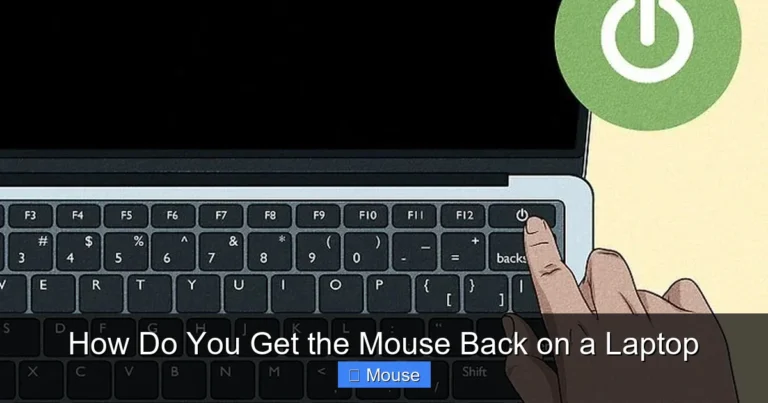
To unlock the mouse on your laptop using a keyboard shortcut, look at the top row of your keyboard (the F1 through F12 keys). One of these keys will have a small icon that looks like a touchpad or a mouse with a line through it. The exact key varies by manufacturer:
- HP laptops: Usually Fn + F5 or Fn + F11
- Dell laptops: Usually Fn + F3 or Fn + F5
- Lenovo laptops: Usually Fn + F6 or Fn + F8
- ASUS laptops: Usually Fn + F9
- Acer laptops: Usually Fn + F7
- MacBooks: No function key shortcut; use System Settings instead
Press the Fn key and the corresponding function key at the same time. You should see a small notification on your screen confirming that the touchpad has been enabled. Try moving your finger across the touchpad to see if the cursor responds. If it does, you’re all set! If not, move on to the next method.
What If the Shortcut Doesn’t Work?
If pressing the function key combination doesn’t unlock your touchpad, there are a few things to check. First, make sure you’re pressing the correct key for your specific laptop model. The icon can be small and easy to miss. Second, some laptops require you to hold the Fn key for a full second before pressing the function key. Third, if your Fn key itself is locked (some laptops have an Fn Lock feature), you may need to press Fn + Esc to unlock it first.
If you’re still having trouble, you might want to check out our detailed guide on how to unlock the mouse on a laptop for additional brand-specific instructions.
Method 2: Enable the Touchpad Through Windows Settings
Accessing Touchpad Settings in Windows 10 and 11
If the keyboard shortcut didn’t do the trick, the next step is to check your Windows settings. Sometimes the touchpad gets disabled through the operating system rather than through a hardware toggle. This can happen after a Windows update, a driver installation, or even accidentally through the settings menu.
Here’s how to check and enable your touchpad through Windows settings:
- Click the Start menu and select Settings (the gear icon).
- Go to Bluetooth & devices (Windows 11) or Devices (Windows 10).
- Click on Touchpad in the left sidebar.
- Make sure the toggle at the top says On. If it’s off, click it to turn it on.
- Also check the box that says Leave touchpad on when a mouse is connected if you want both to work simultaneously.
Once you’ve enabled the touchpad, test it by moving your finger across the surface. The cursor should respond immediately. If it doesn’t, there may be a deeper issue that requires additional troubleshooting.
Using Device Manager to Enable the Touchpad
Another way to unlock your mouse through Windows is by using the Device Manager. This method is particularly useful if your touchpad has been disabled at the driver level. Here’s what to do:
- Right-click the Start button and select Device Manager.
- Expand the section labeled Mice and other pointing devices.
- Look for your touchpad — it might be listed as “Synaptics TouchPad,” “ELAN TouchPad,” “HID-compliant mouse,” or something similar.
- If you see a small down arrow icon on the touchpad entry, it means the device is disabled. Right-click it and select Enable device.
- If there’s no down arrow but you see a yellow warning triangle, right-click and select Update driver.
After enabling or updating the driver, restart your laptop and test the touchpad again. This method resolves a surprising number of touchpad issues, especially after system updates.
Method 3: Unlock an External Mouse on Your Laptop
USB Mouse Not Working? Check the Basics
If you’re using an external USB mouse and it’s not working, the problem is usually straightforward. Start with the basics before diving into software troubleshooting. First, unplug the mouse and plug it back in. Sometimes the connection just needs to be re-established. Try a different USB port if the first one doesn’t work — the port itself might be the issue.
If you’re using a wireless mouse, check the batteries. Dead or low batteries are one of the most common reasons a wireless mouse stops responding. Replace the batteries and see if that fixes the problem. Also, make sure the USB receiver is properly inserted into the laptop. If your mouse uses Bluetooth instead of a USB receiver, go to your Bluetooth settings and make sure the mouse is paired and connected.
Reconnecting a Wireless Mouse
Wireless mice can sometimes lose their connection to the laptop, especially if you’ve been using the mouse with multiple devices or if there’s interference from other wireless signals. To reconnect a wireless mouse, follow these steps:
- Turn the mouse off and then back on using the power switch on the bottom.
- If it uses a USB receiver, unplug the receiver, wait 10 seconds, and plug it back in.
- For Bluetooth mice, go to Settings > Bluetooth & devices, find your mouse, and click Remove device. Then pair it again by putting the mouse in pairing mode.
- Test the mouse after reconnecting.
If you need more detailed instructions on setting up a wireless connection, our guide on how to connect a wireless mouse to a laptop covers everything you need to know.
Method 4: Update or Reinstall Mouse Drivers
Why Drivers Matter for Your Mouse
Drivers are the software that allows your operating system to communicate with your hardware. When mouse drivers become outdated, corrupted, or incompatible with a recent system update, your mouse can stop working entirely. This is one of the most common causes of a locked or unresponsive mouse on a laptop, and it’s often overlooked.
Updating your mouse drivers is a simple process that can resolve a wide range of issues. Here’s how to do it:
- Open Device Manager by right-clicking the Start button.
- Expand Mice and other pointing devices.
- Right-click your mouse or touchpad device and select Update driver.
- Choose Search automatically for drivers and let Windows find the latest version.
- Restart your laptop after the update is complete.
What If Updating Doesn’t Work?
If updating the driver doesn’t fix the problem, try uninstalling and reinstalling it. In Device Manager, right-click the mouse device and select Uninstall device. Don’t worry — this won’t permanently remove your mouse. After uninstalling, restart your laptop. Windows will automatically detect the mouse and reinstall the appropriate driver during startup.
For touchpad-specific drivers, you may need to visit your laptop manufacturer’s website. Companies like HP, Dell, Lenovo, and ASUS all have support pages where you can download the latest touchpad drivers for your specific model. Installing the manufacturer’s driver often works better than relying on the generic Windows driver.
If your mouse still isn’t working after trying these steps, you might be dealing with a deeper issue. Check out our article on why the mouse isn’t working on your laptop for more advanced troubleshooting tips.
Method 5: Check for Software Conflicts and Malware
Third-Party Software Can Interfere
Sometimes the reason your mouse is locked has nothing to do with the mouse itself. Third-party software — especially mouse customization tools, gaming software, or accessibility programs — can interfere with your mouse’s normal operation. If you recently installed new software and your mouse stopped working around the same time, that software might be the culprit.
To check for software conflicts, try booting your laptop in Safe Mode. Safe Mode loads Windows with only the essential drivers and programs, which can help you determine if third-party software is causing the problem. Here’s how:
- Press Windows + R to open the Run dialog.
- Type msconfig and press Enter.
- Go to the Boot tab and check Safe boot.
- Click OK and restart your laptop.
- Test your mouse in Safe Mode.
If your mouse works in Safe Mode but not in normal mode, a third-party program is likely causing the conflict. Uninstall any recently added software and see if that resolves the issue.
Run a Malware Scan
Malware and viruses can also cause your mouse to behave erratically or stop working entirely. Some types of malware specifically target input devices as a way to prevent users from removing the malicious software. If you suspect malware might be the issue, run a full system scan using Windows Defender or your preferred antivirus program.
Open Windows Security from the Start menu, go to Virus & threat protection, and click Full scan. Let the scan complete and follow any recommendations to remove detected threats. After cleaning your system, restart your laptop and test the mouse again.
Method 6: Restart or Reset Your Laptop
The Power of a Simple Restart
It might sound too simple to be true, but restarting your laptop fixes a surprising number of mouse issues. When your laptop runs for a long time without a restart, temporary files accumulate, memory gets cluttered, and small software glitches can build up. A fresh restart clears all of this out and gives your system a clean slate.
To restart your laptop properly, don’t just close the lid. Click the Start menu, select the Power button, and choose Restart. Wait for the laptop to fully shut down and boot back up before testing your mouse. This is often all it takes to unlock a frozen mouse.
When to Consider a System Restore
If your mouse stopped working after a specific event — like a Windows update, a new software installation, or a driver change — you might want to use System Restore to roll your computer back to a previous state. System Restore doesn’t affect your personal files, but it does undo system changes that might be causing the problem.
To use System Restore, type Create a restore point in the Windows search bar and open the System Properties window. Click System Restore, choose a restore point from before the mouse issue started, and follow the prompts. After the restore is complete, your mouse should work as it did before the problem began.
Method 7: Hardware Troubleshooting
When Software Fixes Aren’t Enough
If you’ve tried all the software methods above and your mouse is still locked, the problem might be hardware-related. This is less common, but it does happen. Physical damage to the touchpad, a loose internal connection, or a faulty USB port can all cause the mouse to stop working.
For touchpad issues, inspect the surface for any visible damage, cracks, or signs of liquid spills. Even a small amount of moisture can cause the touchpad to malfunction. If you recently spilled something on your laptop, turn it off immediately, let it dry completely for at least 24 hours, and then try again.
For external mouse issues, try the mouse on a different computer. If it doesn’t work on another computer either, the mouse itself is likely broken and needs to be replaced. If it works on another computer but not on your laptop, the problem is with your laptop’s USB ports or Bluetooth adapter.
When to Seek Professional Help
If you’ve exhausted all troubleshooting options and your mouse still won’t work, it might be time to consult a professional. A certified technician can diagnose hardware problems that aren’t visible to the naked eye, such as a damaged touchpad ribbon cable or a failing motherboard component. Most laptop repair shops can fix touchpad issues relatively quickly and affordably.
Before taking your laptop in for repair, make sure you’ve backed up all your important files. While hardware repairs are generally safe, it’s always better to be prepared for the unexpected.
Preventing Future Mouse Lock Issues
Keep Your System Updated
One of the best ways to prevent mouse issues is to keep your operating system and drivers up to date. Windows updates often include fixes for known hardware compatibility issues, and driver updates can resolve bugs that cause the mouse to freeze or become unresponsive. Enable automatic updates in Windows Settings to ensure you’re always running the latest version.
Be Mindful of Keyboard Shortcuts
Since accidentally pressing the touchpad toggle shortcut is the number one cause of a locked mouse, it helps to be aware of which key combination controls your touchpad. Consider placing a small sticker near the key as a reminder, or simply make a mental note of it. If you find yourself accidentally disabling the touchpad frequently, some laptops allow you to disable the toggle shortcut entirely through the BIOS settings.
Maintain Your Hardware
Keep your touchpad clean by wiping it with a soft, slightly damp cloth regularly. Dirt, oil, and debris can accumulate on the surface and interfere with its sensitivity. For external mice, keep the sensor on the bottom clean and replace batteries before they die completely. A little maintenance goes a long way in preventing mouse problems.
Conclusion
Learning how to unlock the mouse on your laptop is one of those essential tech skills that can save you a lot of frustration. In most cases, the fix is as simple as pressing a function key combination or toggling a setting in Windows. For more persistent issues, updating drivers, checking for software conflicts, or restarting your system usually does the trick.
The key is to start with the simplest solutions and work your way up to more advanced troubleshooting. Don’t panic when your mouse stops working — in the vast majority of cases, it’s a quick and easy fix. And if you do run into a hardware problem, professional repair services are always an option.
Now that you know all the methods for unlocking your laptop mouse, you’re prepared for whatever comes your way. Bookmark this page for future reference, and share it with friends and family who might need help with their own mouse issues. Happy computing!
Frequently Asked Questions
Why did my laptop mouse stop working suddenly?
Your laptop mouse may have stopped working due to an accidental keyboard shortcut press, a recent Windows update, outdated drivers, or a temporary software glitch. In most cases, pressing the touchpad toggle key (Fn + the appropriate function key) or restarting your laptop will resolve the issue quickly.
How do I unlock the touchpad on an HP laptop?
On most HP laptops, you can unlock the touchpad by pressing Fn + F5 or Fn + F11. Look for the touchpad icon on one of the function keys. If the keyboard shortcut doesn’t work, go to Settings > Bluetooth & devices > Touchpad and make sure the toggle is turned on.
Can a virus cause my laptop mouse to stop working?
Yes, certain types of malware can interfere with your mouse and other input devices. If you suspect malware, run a full system scan using Windows Defender or a trusted antivirus program. Removing the malicious software should restore your mouse’s functionality.
What should I do if my external USB mouse isn’t working?
First, try unplugging the mouse and plugging it back in, preferably into a different USB port. If that doesn’t work, check Device Manager to see if the mouse is listed and enabled. You can also try updating or reinstalling the mouse driver through Device Manager.
How do I know if my mouse problem is hardware or software related?
To determine if the issue is hardware or software related, try booting your laptop in Safe Mode. If the mouse works in Safe Mode, the problem is likely caused by third-party software or drivers. If it doesn’t work in Safe Mode, the issue is probably hardware-related and may require professional repair.
Will restarting my laptop fix a locked mouse?
In many cases, yes. Restarting your laptop clears temporary files, resets drivers, and resolves minor software glitches that can cause the mouse to freeze or become unresponsive. It’s always a good first step when troubleshooting mouse issues.