How to Get the Mouse Working on a Laptop

Is your laptop mouse not working? Don’t panic. Most mouse issues on laptops are easy to fix with a few simple steps. This guide covers everything from enabling your touchpad to connecting a wireless mouse. You’ll have your mouse working again in minutes.
Key Takeaways
- Check the basics first: Make sure your mouse is properly connected, charged, and turned on before diving into complex fixes.
- Touchpad shortcuts matter: Most laptops have a function key combination (like Fn + F7) that can accidentally disable your touchpad.
- Driver issues are common: Outdated or corrupted mouse drivers are one of the top reasons your mouse stops working on a laptop.
- Windows settings can disable your mouse: Your touchpad might be turned off in Windows Settings without you realizing it.
- Wireless mice need pairing: Bluetooth and USB receiver mice require proper pairing or connection to work correctly.
- Hardware problems happen: Sometimes the issue is physical damage, dirt, or a worn-out mouse that needs replacing.
- Safe Mode helps diagnose: Booting into Safe Mode can help you determine if a software conflict is causing your mouse problem.
📑 Table of Contents
- How to Get the Mouse Working on a Laptop: The Complete Guide
- Understanding the Types of Laptop Mice
- Quick Fixes to Try First
- How to Enable Your Touchpad on a Laptop
- Fixing Mouse Driver Issues
- Connecting and Troubleshooting External Mice
- Advanced Solutions for Stubborn Mouse Problems
- When to Consider Hardware Replacement
- Preventing Future Mouse Problems
- Conclusion
How to Get the Mouse Working on a Laptop: The Complete Guide
There’s nothing more frustrating than sitting down to work on your laptop and realizing the mouse isn’t working. Maybe your touchpad is frozen. Maybe your wireless mouse won’t connect. Or maybe you accidentally hit a key and now nothing moves on screen. Whatever the reason, you’re stuck.
The good news? Most mouse problems on laptops have simple solutions. You don’t need to be a tech expert to fix them. In this guide, we’ll walk you through every possible fix. From basic troubleshooting to advanced solutions, you’ll learn exactly how to get the mouse working on a laptop no matter what brand or model you own.
Let’s dive in and get your mouse back in action.
Understanding the Types of Laptop Mice
Before we start fixing things, it helps to understand what kind of mouse you’re dealing with. Laptops typically use one of three types of pointing devices. Each has its own set of common issues and solutions.
Touchpad (Built-in Mouse)
The touchpad is the flat rectangular surface below your keyboard. It’s the most common pointing device on laptops. You move your finger across it to control the cursor. Touchpads can stop working due to accidental disabling, driver issues, or dirt and debris on the surface.
Many modern touchpads also support multi-touch gestures. These include two-finger scrolling, pinch-to-zoom, and three-finger swipes. If these gestures stop working, it’s often a driver or settings issue rather than a hardware problem.
USB Wired Mouse
A USB wired mouse plugs directly into your laptop’s USB port. These are the simplest mice to set up. They don’t need batteries or pairing. If a USB mouse stops working, the issue is usually a loose connection, a bad USB port, or a driver problem.
Wired mice are popular for gaming and office work because they offer reliable, lag-free performance. If you’re using one and it suddenly stops, try plugging it into a different USB port first.
Wireless Mouse (Bluetooth or USB Receiver)
Wireless mice connect either through Bluetooth or a small USB receiver (called a dongle). They’re convenient and reduce cable clutter. But they come with their own set of challenges. Dead batteries, lost receivers, and Bluetooth pairing issues are the most common culprits.
If your wireless mouse isn’t working, the first thing to check is the battery. It sounds obvious, but you’d be surprised how often a simple battery swap fixes everything.
Quick Fixes to Try First
Before we get into detailed troubleshooting, let’s cover the quick fixes. These solve the majority of mouse problems on laptops. Try them in order.
Restart Your Laptop
Yes, it sounds too simple. But restarting your laptop fixes more mouse problems than you’d think. A restart clears temporary glitches, refreshes drivers, and resets hardware connections. If your mouse stopped working suddenly, a restart might be all you need.
To restart properly, click the Start menu, select Power, and choose Restart. Don’t just close the lid. A full restart is different from sleep mode and actually refreshes everything.
Check Physical Connections
If you’re using an external mouse, check the connection. Make sure the USB plug is fully inserted. If you’re using a wireless mouse with a receiver, make sure the dongle is plugged in securely. Try a different USB port if the current one seems loose or damaged.
For wireless mice, check the battery. Replace it with a fresh one even if you think the current battery still has charge. Weak batteries cause intermittent connectivity issues that are hard to diagnose.
Clean Your Touchpad
If your touchpad is unresponsive, it might just be dirty. Oil from your fingers, dust, and debris can build up on the surface. This interferes with the touchpad’s ability to detect your finger movements.
Turn off your laptop first. Then wipe the touchpad gently with a soft, slightly damp cloth. Don’t use harsh chemicals or soak the cloth. A little isopropyl alcohol on the cloth works well for removing stubborn grime.
How to Enable Your Touchpad on a Laptop
One of the most common reasons a laptop mouse stops working is that the touchpad got disabled. This happens more often than you’d think. Maybe you hit a keyboard shortcut by accident. Maybe a Windows update changed your settings. Either way, here’s how to turn it back on.
Use the Function Key Shortcut
Most laptops have a function key that toggles the touchpad on and off. Look at the top row of your keyboard (F1 through F12). One of these keys will have a small icon that looks like a touchpad or a hand touching a rectangle.
On most laptops, you need to hold the Fn key and press that function key. For example, on many HP laptops, it’s Fn + F7. On Dell laptops, it’s often Fn + F3. On Lenovo, it might be Fn + F8. The exact combination varies by brand and model.
If you’re not sure which key to press, look closely at your function keys. The touchpad icon is usually pretty clear. If you can’t find it, check your laptop’s user manual or search online for your specific model.
If you accidentally disabled your touchpad and need help with specific steps, check out our guide on how to unlock the mouse on a laptop for detailed instructions.
Enable Touchpad in Windows Settings
Windows has a built-in setting that controls your touchpad. Sometimes this gets turned off without you knowing. Here’s how to check it.
Open the Start menu and click on Settings (the gear icon). Go to Devices, then select Touchpad from the left menu. Make sure the toggle at the top says “On.” If it’s off, click it to turn your touchpad back on.
While you’re in this menu, check the other settings too. Make sure “Leave touchpad on when a mouse is connected” is enabled if you use an external mouse sometimes. This prevents your touchpad from disabling itself every time you plug in a USB mouse.
Enable Touchpad in Device Manager
If the touchpad isn’t showing up in Windows Settings, it might be disabled in Device Manager. Here’s how to check.
Right-click the Start button and select Device Manager. Look for “Mice and other pointing devices” and click the arrow to expand it. You should see your touchpad listed. If it has a small down arrow icon, that means it’s disabled.
Right-click on the touchpad device and select “Enable device.” If you don’t see your touchpad listed at all, look under “Human Interface Devices” or “Other devices.” It might be there with a yellow warning icon, which indicates a driver problem.
Fixing Mouse Driver Issues
Drivers are the software that lets your operating system communicate with your mouse hardware. When drivers are outdated, corrupted, or missing, your mouse won’t work properly. Driver issues are one of the top causes of mouse problems on laptops.
Update Your Mouse Driver
Open Device Manager by right-clicking the Start button. Expand “Mice and other pointing devices.” Right-click on your mouse or touchpad and select “Update driver.” Choose “Search automatically for drivers” and let Windows find the latest version.
If Windows says you already have the best driver, try the manufacturer’s website instead. Go to your laptop maker’s support page, enter your model number, and download the latest touchpad or mouse driver. Install it manually for the best results.
Reinstall the Mouse Driver
If updating doesn’t work, try reinstalling the driver completely. In Device Manager, right-click on your mouse device and select “Uninstall device.” Don’t worry, this won’t break anything. Restart your laptop after uninstalling.
When your laptop boots back up, Windows will automatically detect the mouse and reinstall the default driver. This fresh installation often fixes corruption issues that updating alone can’t resolve.
Roll Back a Problematic Driver
Did your mouse stop working right after a Windows update? The new driver might be the problem. You can roll back to the previous version.
In Device Manager, right-click your mouse device and select Properties. Go to the Driver tab and click “Roll Back Driver.” This option is only available if there’s a previous driver version to go back to. If the button is grayed out, there’s no previous version saved.
Connecting and Troubleshooting External Mice
If your built-in touchpad isn’t working, an external mouse is a great temporary or permanent solution. But external mice have their own set of issues. Here’s how to get them working properly.
How to Connect a Wireless Mouse to Your Laptop
Wireless mice come in two types: Bluetooth and USB receiver. Each connects differently.
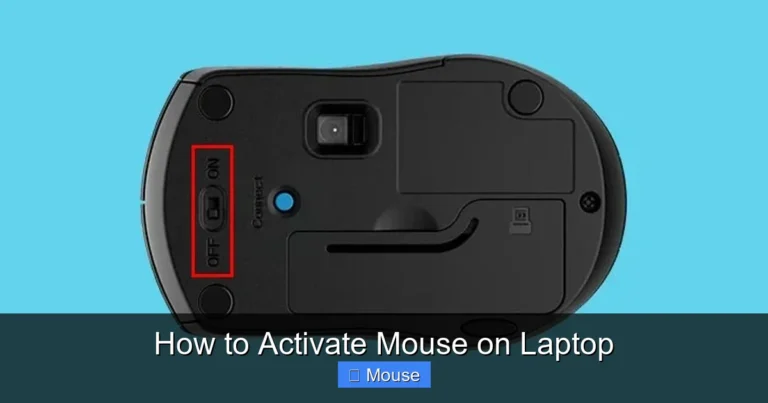
For USB receiver mice, simply plug the small dongle into an available USB port. Windows should recognize it automatically within a few seconds. If it doesn’t work right away, try a different USB port. Some USB ports provide more power than others, and a weak port can cause connection issues.
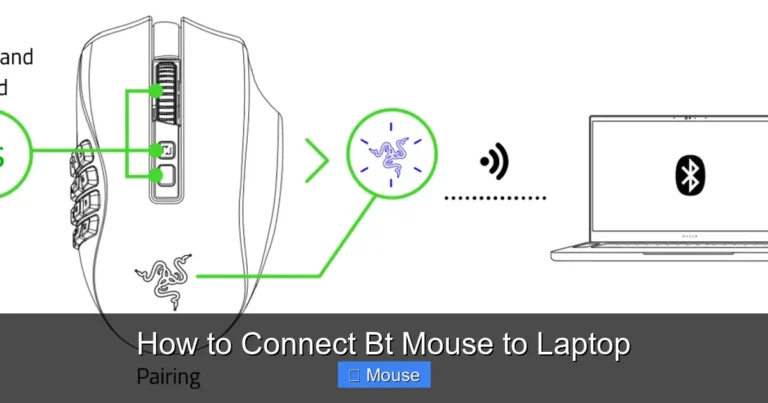
For Bluetooth mice, you need to put the mouse in pairing mode first. This usually involves holding down a button on the bottom of the mouse until a light starts blinking. Then go to Windows Settings, click Devices, and select “Add Bluetooth or other device.” Choose Bluetooth and select your mouse from the list.
If you’re having trouble with the pairing process, our detailed guide on how to connect a wireless mouse to a laptop walks you through every step.
Troubleshooting USB Mouse Problems
If your USB mouse isn’t working, try these steps. First, unplug the mouse and plug it into a different USB port. If it works in one port but not another, the original port might be damaged.
Try the mouse on a different computer. If it doesn’t work there either, the mouse itself might be broken. USB mice are generally reliable, but the cable can wear out over time, especially near the plug where it bends the most.
Check Device Manager for any error messages. If you see a yellow triangle next to your mouse device, there’s a driver or hardware conflict. Right-click and select Properties to see the error code. You can search this code online for specific solutions.
Fixing Bluetooth Mouse Connection Issues
Bluetooth mice can be finicky. If yours keeps disconnecting or won’t pair, try removing the device and pairing it again. Go to Settings > Devices, find your mouse, click it, and select “Remove device.” Then go through the pairing process from scratch.
Make sure your laptop’s Bluetooth is turned on. Some laptops have a physical switch or function key that toggles Bluetooth. Also, keep your mouse close to your laptop during pairing. Bluetooth has a limited range, and distance can interfere with the initial connection.
Interference from other wireless devices can also cause problems. If you have multiple Bluetooth devices, wireless routers, or USB 3.0 devices nearby, try moving them away temporarily during pairing.
Advanced Solutions for Stubborn Mouse Problems
If the basic fixes didn’t work, it’s time to try some advanced troubleshooting. These solutions take a bit more effort but can resolve issues that simpler methods can’t fix.
Run the Windows Hardware Troubleshooter
Windows has a built-in troubleshooter that can automatically detect and fix hardware problems. Go to Settings > Update & Security > Troubleshoot. Click “Additional troubleshooters” and find “Hardware and Devices.” Run the troubleshooter and follow the prompts.
The troubleshooter will scan your system for issues and attempt to fix them automatically. It’s not perfect, but it catches common problems that are easy to miss. Let it run completely before moving on to other solutions.
Check for Windows Updates
Sometimes a Windows update includes fixes for mouse and touchpad issues. Go to Settings > Update & Security > Windows Update and click “Check for updates.” Install any available updates and restart your laptop.
Microsoft regularly releases patches that fix hardware compatibility issues. If your mouse problem started recently, a pending update might be exactly what you need.
Boot into Safe Mode
Safe Mode starts Windows with only the essential drivers and services. If your mouse works in Safe Mode but not in normal mode, a third-party program or driver is causing the conflict.
To boot into Safe Mode, hold the Shift key while clicking Restart from the Start menu. Go to Troubleshoot > Advanced Options > Startup Settings > Restart. Press 4 or F4 to start in Safe Mode.
If your mouse works in Safe Mode, start disabling startup programs one by one. Go to Task Manager (Ctrl + Shift + Esc), click the Startup tab, and disable suspicious programs. Restart normally after each disable to test if the mouse works.
Check for Malware
Malware can interfere with your mouse and other hardware. Run a full scan with Windows Defender or your preferred antivirus software. Make sure your virus definitions are up to date before scanning.
If you don’t have antivirus software installed, Windows Defender is built into Windows 10 and 11. Open Windows Security from the Start menu, go to Virus & threat protection, and run a full scan. This can take an hour or more, but it’s worth it.
When to Consider Hardware Replacement
Sometimes the problem isn’t software at all. If you’ve tried everything above and your mouse still doesn’t work, you might be dealing with a hardware issue.
Signs of Hardware Failure
Here are signs that your mouse or touchpad might be physically damaged. The cursor moves erratically or jumps around on its own. The touchpad feels physically different, maybe it’s raised, loose, or makes clicking sounds. The mouse works on other computers but not on your laptop. Or the mouse doesn’t work at all, even in Safe Mode or the BIOS.
If your touchpad is physically damaged, it usually needs to be replaced by a professional. Touchpads are integrated into the laptop’s palm rest and aren’t easy to replace yourself unless you’re experienced with laptop repair.
Replacing an External Mouse
If your external mouse is the problem, replacement is simple and affordable. Basic USB mice cost as little as $10. Even good wireless mice are available for under $30. Before buying a new one, make sure the old mouse is actually broken by testing it on another computer.
When shopping for a replacement, consider how you use your mouse. Office workers might prefer an ergonomic design. Gamers need high DPI and fast response times. Travelers might want a compact, portable option.
Professional Repair Options
If your laptop’s built-in touchpad is broken and you’re not comfortable replacing it yourself, take it to a professional. Most computer repair shops can replace a touchpad for a reasonable price. If your laptop is still under warranty, contact the manufacturer first.
Before paying for repairs, get a quote. Sometimes the cost of repair approaches the cost of a new laptop, especially for older models. A repair shop can give you an honest assessment of whether it’s worth fixing.
Preventing Future Mouse Problems
Once you get your mouse working again, you’ll want to keep it that way. Here are some tips to prevent mouse problems from happening in the future.
Keep Your Drivers Updated
Set Windows to automatically download driver updates. Go to Device Manager, right-click your mouse device, select Properties, and check the Driver tab. You can also use your laptop manufacturer’s update utility to keep all drivers current.
Some manufacturers like Dell, HP, and Lenovo have their own update software that checks for driver and firmware updates automatically. Install this software and let it run in the background.
Be Careful with Keyboard Shortcuts
That function key shortcut that disables your touchpad? It’s easy to hit by accident. If you keep accidentally disabling your touchpad, you can often disable the shortcut in your laptop’s BIOS or settings utility.
Some laptops let you change the function key behavior in the BIOS. Look for an option called “Action Keys Mode” or “Function Key Behavior.” Changing this setting can prevent accidental touchpad disabling.
Keep Your Laptop Clean
Dust and debris can cause all sorts of problems, including mouse issues. Clean your touchpad regularly with a soft cloth. Use compressed air to blow dust out of USB ports and around the touchpad edges.
Avoid eating over your laptop. Crumbs can get under the touchpad and interfere with its operation. Liquid spills are even worse and can cause permanent damage.
Conclusion
Getting the mouse working on a laptop doesn’t have to be a headache. Most issues come down to a few common causes: accidental disabling, driver problems, connection issues, or hardware failure. By working through the fixes in this guide, you can solve the vast majority of mouse problems on your own.
Start with the basics. Restart your laptop, check your connections, and make sure your touchpad is enabled. If that doesn’t work, move on to driver updates and Windows settings. For external mice, verify the connection method and try different USB ports or re-pair Bluetooth devices.
Remember, patience is key. Work through each solution one at a time and test after each step. You’ll likely find that one of these fixes gets your mouse working again. And if all else fails, a professional repair or a new external mouse will get you back on track.
Now go get that mouse working and get back to being productive!
Frequently Asked Questions
Why is my laptop touchpad not working?
Your touchpad might be disabled by a keyboard shortcut, turned off in Windows settings, or affected by outdated drivers. Try pressing Fn + the touchpad function key (usually F7 or F9) to re-enable it. If that doesn’t work, check your touchpad settings in Windows under Settings > Devices > Touchpad.
How do I unlock my mouse on an HP laptop?
On most HP laptops, you can unlock the touchpad by double-tapping the small LED dot in the upper-left corner of the touchpad. Alternatively, press Fn + F7 (or the key with the touchpad icon) to toggle the touchpad on and off. You can also enable it through Windows Settings under Devices > Touchpad.
How do I connect a wireless mouse to my laptop?
For a USB receiver mouse, simply plug the dongle into a USB port and wait for Windows to recognize it. For Bluetooth mice, put the mouse in pairing mode, then go to Settings > Devices > Add Bluetooth or other device on your laptop. Select your mouse from the list to complete pairing.
Can I use an external mouse if my touchpad is broken?
Absolutely. You can connect a USB or wireless mouse to your laptop even if the touchpad isn’t working. Just plug in a USB mouse or pair a Bluetooth mouse, and it should work immediately. This is a great temporary or permanent solution for a broken touchpad.
How do I update my mouse driver in Windows?
Right-click the Start button and select Device Manager. Expand “Mice and other pointing devices,” right-click your mouse, and select “Update driver.” Choose “Search automatically for drivers” to let Windows find and install the latest version. Restart your laptop after the update completes.
What should I do if my mouse works in Safe Mode but not normally?
This usually means a third-party program or driver is conflicting with your mouse. Boot into Safe Mode, then disable startup programs one by one through Task Manager. Restart after each disable to identify the culprit. Common offenders include mouse customization software, gaming overlays, and antivirus programs.