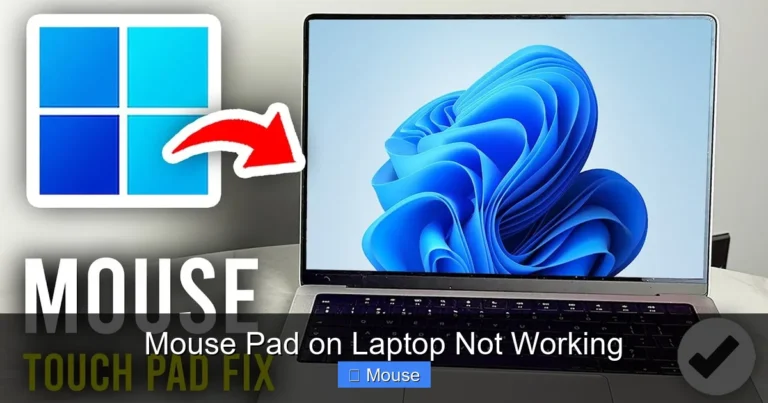
How to Turn on the Mouse on a Laptop
Struggling with a missing or unresponsive mouse on your laptop? This guide shows you exactly how to turn on the mouse on a laptop using simple keyboard shortcuts, settings menus, and device manager options. Whether your touchpad is disabled, your external mouse won’t connect, or your cursor has vanished, we’ve got you covered with step-by-step solutions for Windows, Mac, and Chromebook devices.
There’s nothing more frustrating than sitting down to work on your laptop and realizing the mouse isn’t working. Maybe the cursor disappeared. Maybe the touchpad stopped responding. Or maybe you just plugged in an external mouse and nothing happened. Whatever the situation, you’re not alone — this is one of the most common laptop problems people face.
The good news is that learning how to turn on the mouse on a laptop is usually quick and straightforward. In most cases, the touchpad was accidentally disabled, a driver needs updating, or a simple setting got toggled. This guide walks you through every method to get your mouse working again, whether you’re using a Windows laptop, a MacBook, or a Chromebook.
We’ll cover built-in touchpads, external USB mice, and wireless Bluetooth mice. By the end of this article, you’ll know exactly what to do the next time your laptop mouse stops cooperating.
Key Takeaways
- Keyboard shortcuts are the fastest fix: Most laptops have a function key combination (like Fn + F7 or Fn + F9) that instantly enables or disables the touchpad.
- Windows Settings is your control panel: You can turn on the mouse through Settings > Bluetooth & devices > Touchpad on Windows 10 and 11.
- Device Manager reveals hidden issues: If your mouse driver is disabled or corrupted, Device Manager lets you enable or reinstall it.
- Mac users have their own path: On macOS, go to System Settings > Trackpad to enable and customize your built-in mouse.
- External mice need proper pairing: Wireless mice require Bluetooth pairing or USB receiver connection before they work.
- BIOS settings can disable the touchpad: In rare cases, the mouse may be turned off at the hardware level in your laptop’s BIOS.
- Restarting often solves the problem: A simple reboot can resolve temporary glitches that cause the mouse to stop responding.
📑 Table of Contents
- Understanding Your Laptop Mouse Options
- How to Turn On the Touchpad Using Keyboard Shortcuts
- How to Enable the Mouse Through Windows Settings
- How to Turn On the Mouse Using Device Manager
- How to Connect and Turn On an External Mouse
- How to Turn On the Mouse on a MacBook
- How to Turn On the Mouse on a Chromebook
- Troubleshooting Common Mouse Problems
- Conclusion
Understanding Your Laptop Mouse Options
Before diving into solutions, it helps to understand the different types of mice you can use with a laptop. Each one has its own method for turning on and troubleshooting.
The Built-In Touchpad
Every laptop comes with a touchpad — that flat rectangular surface below the keyboard. It’s essentially a built-in mouse that responds to your finger movements. Most people use the touchpad as their primary pointing device, especially when they’re on the go and don’t want to carry an external mouse.
The touchpad can be disabled accidentally more often than you’d think. A stray keystroke, a software update, or even a setting change can turn it off without you realizing it. That’s why knowing how to turn on the mouse on a laptop is such a valuable skill.
External USB Mice
External mice connect to your laptop through a USB port. They’re popular because they’re ergonomic, precise, and often more comfortable than a touchpad for long work sessions. A USB mouse is usually plug-and-play, meaning it should work the moment you connect it.
However, sometimes the laptop doesn’t recognize the USB mouse right away. This can happen if the USB port is faulty, the mouse driver is missing, or the touchpad settings are interfering with external devices.
Wireless and Bluetooth Mice
Wireless mice offer the most freedom of movement. They connect either through a small USB receiver (called a dongle) or via Bluetooth. Bluetooth mice are especially popular with modern laptops because they don’t require a USB port at all.
Turning on a wireless mouse involves more steps than a USB mouse. You need to power on the mouse, pair it with your laptop, and sometimes install drivers. We’ll cover all of this in detail below.
How to Turn On the Touchpad Using Keyboard Shortcuts
The fastest way to turn on the mouse on a laptop is by using a keyboard shortcut. Most laptop manufacturers assign a function key to toggle the touchpad on and off. This is also the most common way people accidentally disable their touchpad in the first place.

Visual guide about How to Turn on the Mouse on a Laptop
Image source: img.ltn.com.tw
Finding the Right Function Key
Look at the top row of your keyboard — the F1 through F12 keys. One of them will have a small icon that looks like a touchpad or a mouse. Common keys include F5, F7, F9, or F11, depending on your laptop brand.
To activate the shortcut, hold down the Fn key (usually located near the bottom-left corner of the keyboard) and press the function key with the touchpad icon. You should see a notification on your screen confirming that the touchpad has been enabled.
Common Shortcuts by Brand
Different laptop brands use different function keys for the touchpad toggle. Here’s a quick reference:
- HP laptops: Fn + F5 or Fn + F11 (look for a touchpad icon)
- Dell laptops: Fn + F3 or Fn + F5
- Lenovo laptops: Fn + F6 or Fn + F8
- ASUS laptops: Fn + F9
- Acer laptops: Fn + F7
- MacBooks: No function key shortcut — use System Settings instead
If you’re not sure which key to press, check your laptop’s user manual or look for the touchpad icon on the function keys. Some newer laptops also have a dedicated touchpad button near the touchpad itself that you can double-tap to toggle it.
What If the Shortcut Doesn’t Work?
If pressing the function key combination doesn’t bring your touchpad back, don’t worry. There are several other methods you can try. The shortcut might not work if your Fn key is locked, if the keyboard driver is outdated, or if the touchpad is disabled at a deeper system level. Move on to the next sections for alternative solutions.
If your touchpad is completely unresponsive and you can’t navigate at all, you can use the Tab key and arrow keys to move through menus, and the Enter key to select options. This keyboard-only navigation will help you access the settings you need.
How to Enable the Mouse Through Windows Settings
If the keyboard shortcut didn’t work, the next best method is to enable the mouse through Windows Settings. This gives you more control and lets you see the current status of your touchpad.
Windows 10 Method
Here’s how to turn on the touchpad in Windows 10:
- Press Windows + I to open Settings.
- Click on Devices.
- Select Touchpad from the left sidebar.
- Toggle the Touchpad switch to On.
While you’re in this menu, you can also adjust touchpad sensitivity, enable or disable tap-to-click, and configure multi-finger gestures. These settings can make a big difference in how your touchpad feels to use.
Windows 11 Method
Windows 11 has a slightly different layout, but the process is just as simple:
- Press Windows + I to open Settings.
- Click on Bluetooth & devices.
- Select Touchpad.
- Toggle the Touchpad switch to On.
You’ll also find additional options here, such as adjusting the cursor speed, configuring three-finger and four-finger gestures, and choosing what happens when you tap the touchpad.
Additional Touchpad Settings to Check
While you’re in the touchpad settings, there are a few important options to review:
- Leave touchpad on when a mouse is connected: If this is turned off, your touchpad will automatically disable whenever you plug in an external mouse. Turn it on if you want both to work simultaneously.
- Tap with a single finger to single-click: This enables tap-to-click, which many people find more convenient than pressing down on the touchpad.
- Touchpad sensitivity: If your cursor feels too jumpy or too sluggish, adjust the sensitivity setting to your preference.
For more detailed help with touchpad issues, check out our guide on how to fix touchpad mouse on laptop, which covers advanced troubleshooting steps.
How to Turn On the Mouse Using Device Manager
Device Manager is a powerful Windows tool that lets you manage all the hardware connected to your laptop. If your mouse or touchpad is disabled at the driver level, Device Manager is where you’ll fix it.
Opening Device Manager
Here’s how to access Device Manager:
- Press Windows + X and select Device Manager from the menu.
- Alternatively, press Windows + R, type devmgmt.msc, and press Enter.
Enabling a Disabled Mouse or Touchpad
Once Device Manager is open, follow these steps:
- Expand the Mice and other pointing devices category by clicking the arrow next to it.
- Look for your touchpad or mouse in the list. It might be listed as “HID-compliant mouse,” “Synaptics TouchPad,” “ELAN TouchPad,” or something similar.
- If you see a down arrow icon on the device, it means the device is disabled.
- Right-click on the device and select Enable device.
After enabling the device, your mouse or touchpad should start working immediately. If it doesn’t, try restarting your laptop.
Updating or Reinstalling Mouse Drivers
If enabling the device doesn’t solve the problem, the driver might be outdated or corrupted. Here’s what to do:
- Right-click on the mouse or touchpad device in Device Manager.
- Select Update driver.
- Choose Search automatically for drivers.
- Windows will search for and install the latest driver.
If updating doesn’t work, try uninstalling the driver and restarting your laptop. Windows will automatically reinstall the driver when it boots back up. To do this, right-click the device, select Uninstall device, check the box to delete the driver software, and then restart.
If you’re still having trouble after trying these steps, our article on how to fix mouse on laptop provides additional solutions for stubborn mouse problems.
How to Connect and Turn On an External Mouse
Sometimes the built-in touchpad isn’t enough, and you need an external mouse. Here’s how to get different types of external mice working with your laptop.
Visual guide about How to Turn on the Mouse on a Laptop
Image source: gaadiwaadi.com
Connecting a USB Mouse
A wired USB mouse is the simplest external mouse to set up. Just plug it into any available USB port on your laptop. Windows should automatically detect it and install the necessary drivers within a few seconds.
If the USB mouse isn’t working after plugging it in, try these steps:
- Unplug the mouse and plug it into a different USB port.
- Restart your laptop with the mouse connected.
- Check Device Manager to see if the mouse is listed under “Mice and other pointing devices.”
- Try the mouse on another computer to rule out a hardware problem.
Connecting a Wireless Mouse with a USB Receiver
Many wireless mice come with a small USB receiver (dongle). To set one up:
- Insert the USB receiver into an available USB port on your laptop.
- Turn on the wireless mouse using the power switch on the bottom.
- Wait a few seconds for Windows to recognize the mouse.
- The mouse should start working automatically.
If it doesn’t work, check the batteries in the mouse and make sure the USB receiver is fully inserted. Some mice also have a connect button on the bottom that you need to press to pair with the receiver.
Connecting a Bluetooth Mouse
Bluetooth mice don’t need a USB receiver, which makes them great for laptops with limited ports. Here’s how to pair one:
- Turn on the Bluetooth mouse and put it in pairing mode (usually by holding the power button or a dedicated pairing button).
- On your laptop, go to Settings > Bluetooth & devices.
- Make sure Bluetooth is turned on.
- Click Add device and select Bluetooth.
- Your laptop will search for nearby devices. Select your mouse from the list.
- Follow any on-screen prompts to complete the pairing.
Once paired, your Bluetooth mouse should connect automatically whenever it’s turned on and within range of your laptop. For more help with wireless connections, see our guide on how to connect a wireless mouse to my laptop.
How to Turn On the Mouse on a MacBook
MacBooks handle mouse settings differently than Windows laptops. If you’re using a MacBook and the trackpad isn’t working, here’s what to do.

Visual guide about How to Turn on the Mouse on a Laptop
Image source: cdn.wallpapersafari.com
Enabling the Trackpad in System Settings
On macOS Ventura and later:
- Click the Apple menu and select System Settings.
- Scroll down and click Trackpad in the sidebar.
- Make sure Trackpad is enabled.
- Adjust settings like tracking speed, click pressure, and gesture controls.
On older versions of macOS, the process is similar but the menu is called System Preferences instead of System Settings.
Using an External Mouse with a Mac
Connecting an external mouse to a MacBook is just as easy as with a Windows laptop. USB mice work plug-and-play. For Bluetooth mice:
- Open System Settings > Bluetooth.
- Turn on the mouse and put it in pairing mode.
- Select the mouse from the list of available devices.
- Click Connect.
MacBooks also support Apple’s Magic Mouse and Magic Trackpad, which offer seamless integration with macOS and additional gesture controls.
How to Turn On the Mouse on a Chromebook
Chromebooks have their own approach to mouse and touchpad settings. If you’re using a Chromebook, here’s how to get your mouse working.
Visual guide about How to Turn on the Mouse on a Laptop
Image source: anycustombox.com
Enabling the Touchpad
On most Chromebooks, the touchpad should work by default. If it’s not responding:
- Click on the clock in the bottom-right corner to open the quick settings panel.
- Click the gear icon to open Settings.
- Scroll down to Device and click Touchpad.
- Make sure the touchpad is enabled and adjust the speed and sensitivity as needed.
Chromebooks also support a keyboard shortcut to disable the touchpad: press Search + Shift + P. If you accidentally pressed this combination, press it again to re-enable the touchpad.
Connecting an External Mouse to a Chromebook
USB and Bluetooth mice both work with Chromebooks. For USB mice, simply plug them in. For Bluetooth mice:
- Open Settings > Bluetooth.
- Turn on Bluetooth if it’s not already enabled.
- Put your mouse in pairing mode.
- Select the mouse from the list of available devices.
Troubleshooting Common Mouse Problems
Even after following the steps above, you might still encounter issues. Here are solutions to the most common mouse problems on laptops.

Visual guide about How to Turn on the Mouse on a Laptop
Image source: recmiennam.com
The Cursor Is Frozen or Not Moving
If your cursor is stuck in one place, try these fixes:
- Press Ctrl + Alt + Delete and then press Escape to unfreeze the system.
- Disconnect any external mice and see if the touchpad works.
- Restart your laptop — this solves the majority of temporary glitches.
- Boot into Safe Mode to check if a third-party app is causing the problem.
The Mouse Is Enabled but Still Not Working
If the settings show the mouse is on but it’s still unresponsive, the issue might be hardware-related. Check for physical damage to the touchpad, try an external mouse to isolate the problem, and consider updating your laptop’s BIOS. In some cases, the touchpad cable inside the laptop may have come loose, which would require professional repair.
Accidental Touchpad Taps While Typing
Many people find that their cursor jumps around while they’re typing because their palms are brushing against the touchpad. To fix this, look for a setting called Palm rejection or Disable touchpad while typing in your touchpad settings. Enabling this feature will prevent accidental inputs while you type.
Conclusion
Knowing how to turn on the mouse on a laptop is an essential skill that can save you a lot of frustration. Whether you accidentally disabled your touchpad with a keyboard shortcut, need to connect a new external mouse, or are dealing with a driver issue, the solutions in this guide should get you back on track quickly.
Start with the simplest fix — the keyboard shortcut — and work your way through the settings menus and Device Manager if needed. For external mice, make sure they’re properly connected and paired. And remember, when in doubt, a restart can work wonders.
If you’ve tried everything and your mouse still isn’t working, it might be time to consult a professional or check if your laptop is still under warranty. But in the vast majority of cases, one of the methods in this guide will solve your problem in just a few minutes.
Frequently Asked Questions
What is how to turn on the mouse on a laptop?
how to turn on the mouse on a laptop is an important topic with many practical applications.