Why Won’t the Mouse Work on My Laptop
Having trouble moving the cursor on your laptop? From simple driver updates to hardware checks, this guide walks you through the most common reasons the mouse won’t work on your laptop and shows how to fix them quickly. Follow the step‑by‑step tips and get back to browsing in minutes.
Key Takeaways
- Check hardware first: Loose USB ports, dead batteries, or a broken touchpad are the most frequent culprits.
- Update or reinstall drivers: Out‑of‑date or corrupted mouse drivers cause cursor loss on many Windows and macOS laptops.
- Adjust settings: Disabled touchpad, incorrect pointer speed, or hidden cursor settings can make the mouse appear dead.
- Look for software conflicts: Recent Windows updates, antivirus programs, or third‑party utilities may block mouse input.
- Try safe mode or another OS: Booting into safe mode helps isolate whether the issue is hardware or software.
- Consider external devices: A wired or Bluetooth mouse can be a quick workaround while you troubleshoot the built‑in trackpad.
- When all else fails, seek professional help: Persistent problems may indicate a failing motherboard or a damaged internal connector.
📑 Table of Contents
Introduction
There’s nothing more frustrating than staring at a frozen screen, trying to click “OK” on an update, and realizing the mouse simply won’t work on your laptop. Whether you’re using the built‑in touchpad, a wired USB mouse, or a sleek Bluetooth device, the problem can feel like a roadblock to productivity.
Good news: most mouse‑related issues are fixable at home. In this article we’ll walk through the most common reasons why the mouse won’t work on your laptop, give you clear step‑by‑step instructions, and share a few shortcuts you might not have tried yet. By the end, you’ll know exactly where to look and how to get that cursor moving again.
1. Hardware Checks – The First Line of Defense
1.1 Verify the connection
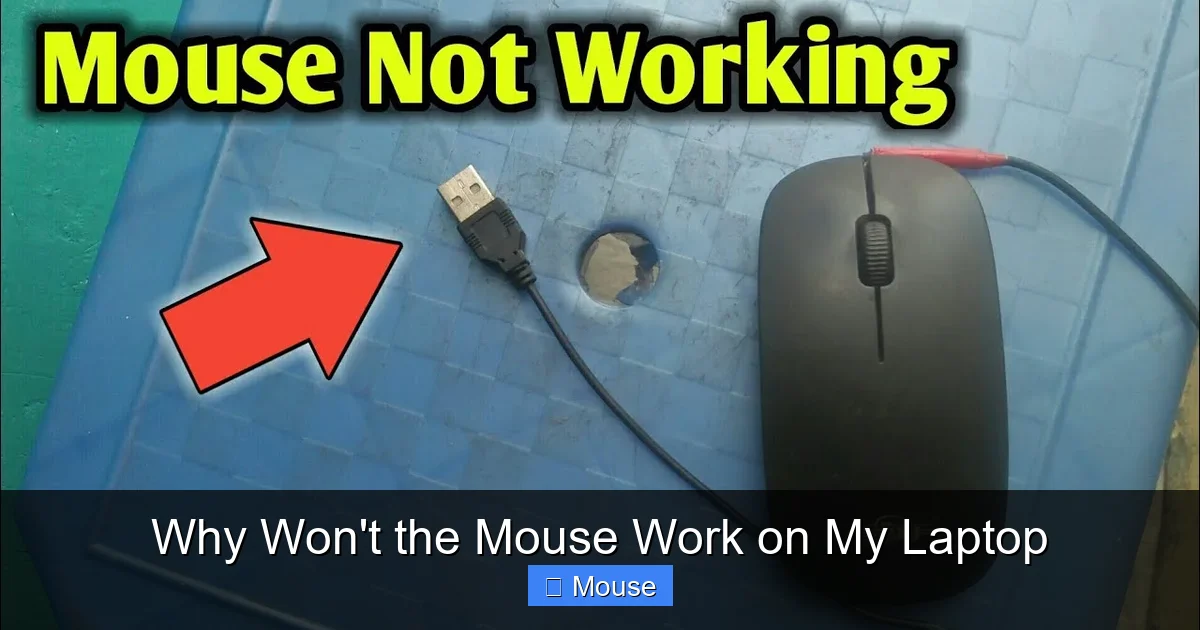
For wired mice, unplug the USB connector and plug it back into a different port. Dust or a loose pin can prevent the laptop from recognizing the device. If you’re using a USB‑C mouse, try an adapter or a direct USB‑C port.
Visual guide about Why Won’t the Mouse Work on My Laptop
Image source: images.techadvisor.com
1.2 Test the mouse on another computer
Plug the same mouse into a friend’s laptop or a desktop. If it works there, the problem is likely on your laptop rather than the mouse itself.
1.3 Check batteries and power for wireless mice
Dead or low‑power batteries are a classic cause. Replace AA/AAA cells or recharge the built‑in battery. Also, make sure the wireless receiver is firmly seated in a USB slot.
1.4 Inspect the touchpad
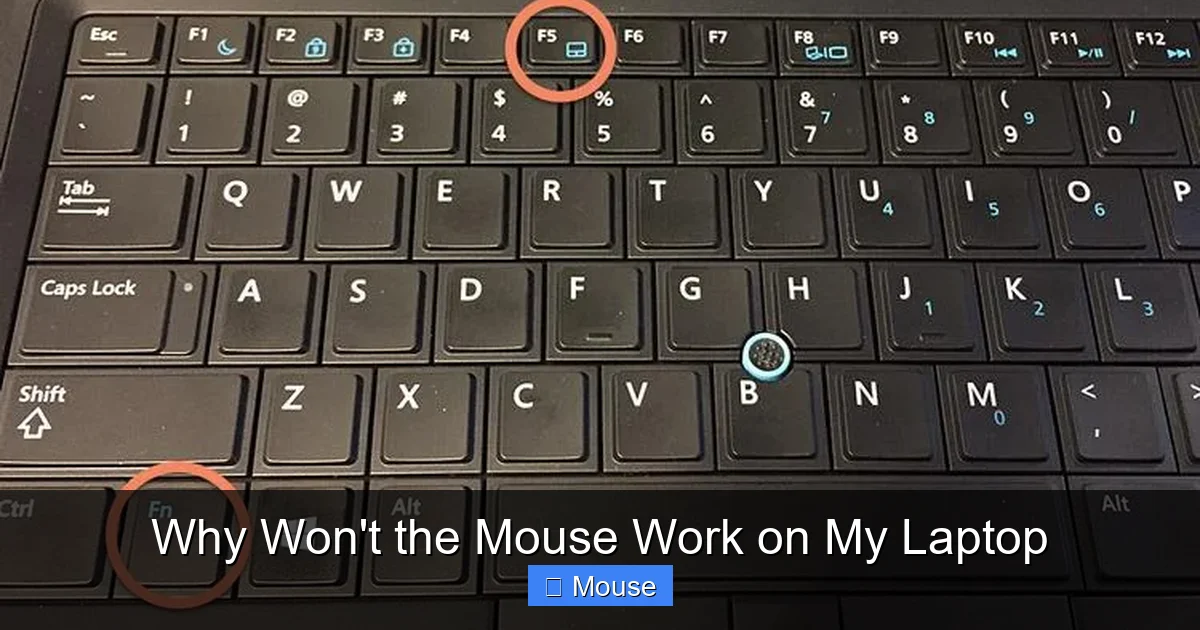
Many laptops have a physical switch or a function key (often Fn + F7 or similar) that disables the touchpad. Look for a small icon on the key row and press it to re‑enable the pad.
If the touchpad feels loose, rattles, or shows visible damage, it may need professional repair.
2. Software and Driver Troubleshooting
2.1 Update mouse drivers
Out‑of‑date drivers are a top reason why the mouse won’t work on a laptop. Open Device Manager (right‑click the Start button → Device Manager), expand “Mice and other pointing devices,” right‑click your mouse, and select “Update driver.” Choose “Search automatically for updated driver software.”
Visual guide about Why Won’t the Mouse Work on My Laptop
Image source: i.ytimg.com
2.2 Reinstall the driver
If updating doesn’t help, uninstall the driver and let Windows reinstall it. Right‑click the mouse entry in Device Manager, choose “Uninstall device,” then restart the laptop. Windows will detect the hardware and install a fresh driver.
2.3 Roll back a recent Windows update
Sometimes a new Windows build introduces compatibility issues. Go to Settings → Update & Security → Windows Update → View update history → Uninstall updates and remove the most recent update if the problem started right after installing it.
2.4 macOS specific steps
On a Mac, open System Settings → Trackpad and ensure “Tap to click” and “Secondary click” are enabled. Reset the PRAM/NVRAM (restart and hold Option + Command + P + R for 20 seconds) and the SMC (shut down, then press Shift + Control + Option + Power for 10 seconds).
3. Touchpad Settings and Accessibility Options
3.1 Enable the touchpad in Windows Settings
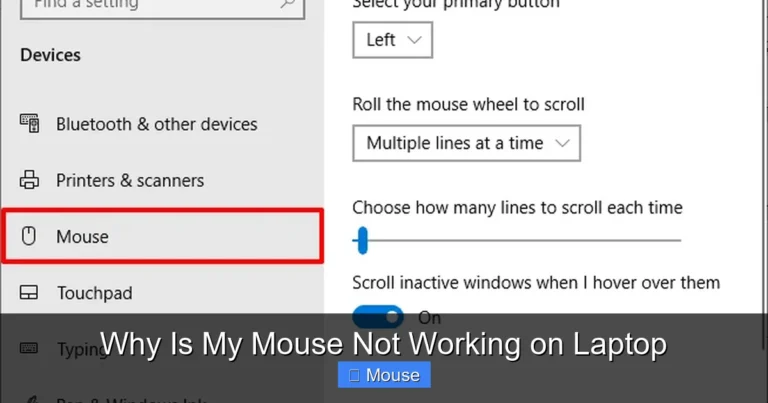
Navigate to Settings → Devices → Touchpad. Make sure the toggle is turned on. Also, check “Leave touchpad on when a mouse is connected” if you’re using an external mouse.
3.2 Disable “Touchpad delay”
Some laptops have a delay setting that waits for a certain amount of time before activating the touchpad. Set it to “No delay” to eliminate any lag.
3.3 Accessibility cursor settings
Windows’ “Mouse Keys” feature lets you move the cursor with the numeric keypad. If this is turned on inadvertently, the regular mouse may appear unresponsive. Turn it off under Ease of Access → Mouse.
4. Dealing with Software Conflicts
4.1 Antivirus and security suites
Some security programs block new hardware as a precaution. Temporarily disable your antivirus and see if the mouse works. If it does, add an exception for the mouse driver.
4.2 Third‑party utilities
Programs like Logitech Options, Razer Synapse, or custom macro tools can interfere with standard driver operation. Close or uninstall these utilities and test the mouse again.
4.3 Check for hidden background processes
Open Task Manager (Ctrl + Shift + Esc) and look for processes named “explorer.exe” or “hidserv.exe.” Restarting Explorer can sometimes revive a dead cursor. Right‑click “Windows Explorer” and select “Restart.”
5. Advanced Diagnostics
5.1 Boot into Safe Mode
Safe Mode loads only essential drivers. If the mouse works there, a third‑party driver or service is the culprit. To enter Safe Mode, hold Shift while clicking “Restart” on the login screen, then navigate to Troubleshoot → Advanced options → Startup Settings → Restart → 4 (Enable Safe Mode).

Visual guide about Why Won’t the Mouse Work on My Laptop
Image source: i.ytimg.com
5.2 Use a Linux live USB
Creating a bootable Ubuntu USB and running it without installing can confirm whether the hardware is functional. If the mouse works in Linux, the issue is definitely software‑related in Windows or macOS.
5.3 Check the BIOS/UEFI
Restart the laptop and press the BIOS entry key (often F2, Del, or Esc**). Look for a “Pointing Device” or “Internal Mouse” option and make sure it’s enabled. Some laptops allow you to disable the touchpad entirely from the BIOS.
6. When to Replace or Seek Professional Help
6.1 Signs of hardware failure
If the touchpad is unresponsive even after BIOS checks, driver reinstalls, and external mouse testing, the internal cable or the touchpad module may be damaged. A cracked flex cable is a common issue in older laptops.
Visual guide about Why Won’t the Mouse Work on My Laptop
Image source: i.ytimg.com
6.2 Warranty and service centers
Check your laptop’s warranty status. If it’s still covered, contact the manufacturer’s support line. For out‑of‑warranty devices, reputable repair shops can replace the touchpad for a modest fee.
6.3 Using an external mouse as a permanent solution
Sometimes the simplest answer is to keep a reliable USB or Bluetooth mouse handy. It bypasses the built‑in hardware and gives you a consistent experience, especially if you work on a desk most of the day.
Conclusion
Finding out why the mouse won’t work on your laptop can feel like a detective mission, but most cases boil down to a few easy checks: confirm the hardware connection, update or reinstall drivers, and verify that software settings haven’t disabled the device. By following the steps above, you’ll likely solve the problem in under ten minutes.
If you’ve tried every suggestion and the cursor is still missing, it’s time to consider a hardware repair or to rely on an external mouse until the built‑in component can be replaced. Remember, a frozen cursor is rarely a sign of a dying laptop—more often it’s a simple fix waiting to be discovered.
For more detailed troubleshooting, you might also find these articles helpful: Why Won T The Mouse On My Laptop Work, How To Get The Mouse Back On A Laptop, and Mouse Does Not Work On My Laptop.
Frequently Asked Questions
Why does my touchpad stop working after I plug in a USB mouse?
Many laptops automatically disable the built‑in touchpad when an external mouse is detected. Check the touchpad settings in Windows or macOS and turn off the “disable when external mouse is connected” option.
Can a Windows update really break my mouse?
Yes. Occasionally a new update includes a generic driver that conflicts with the manufacturer’s specific driver, causing the cursor to disappear. Rolling back the update or reinstalling the original driver usually resolves the issue.
My Bluetooth mouse pairs but the cursor still doesn’t move. What should I do?
First, make sure the mouse batteries are fresh. Then, remove the device in Bluetooth settings, restart the laptop, and pair it again. Also, verify that the Bluetooth driver is up to date.
Is it safe to disable “Mouse Keys” in the accessibility options?
Absolutely. “Mouse Keys” is meant for users who need to control the cursor with the numeric keypad. Turning it off restores normal mouse behavior and eliminates accidental cursor movement.
What if the cursor appears but I can’t click anything?
This often points to a software conflict. Try booting into Safe Mode; if clicking works there, disable recently installed programs or extensions one by one until the culprit is found.
When should I consider replacing the touchpad?
If the touchpad fails to respond after BIOS checks, driver reinstalls, and external mouse tests, the internal hardware is likely damaged. At that point, replacement or professional repair is the best option.