How to Use a Mouse on Laptop

Using a mouse on your laptop can transform your productivity and comfort. Whether you prefer a wireless mouse, a traditional wired connection, or mastering the built-in touchpad, this guide covers every method. Learn how to connect, configure, and troubleshoot your mouse so you can navigate your laptop with ease and precision.
Key Takeaways
- Multiple Connection Types: You can use a wired USB mouse, a wireless Bluetooth mouse, or rely on your laptop’s built-in touchpad as a mouse alternative.
- Simple Setup Process: Connecting a mouse is usually plug-and-play for wired and most wireless models, requiring minimal technical knowledge.
- Touchpad Customization: You can adjust sensitivity, enable gestures, and modify click behavior in your laptop’s settings to mimic your preferred mouse actions.
- Right-Click Alternatives: You can perform a right-click using a two-finger tap on the touchpad, the bottom-right corner click, or keyboard shortcuts.
- Troubleshooting Common Issues: If your mouse isn’t working, checking the connection, battery level, or device manager can often resolve the problem quickly.
- When to Use an External Mouse: For extended work sessions, gaming, or detailed design tasks, an external mouse offers superior ergonomics and control.
- Accessibility Features: Laptops offer various tools like Mouse Keys that let you control the pointer using the numeric keypad, providing another alternative.
📑 Table of Contents
- Introduction: Why Using a Mouse on Your Laptop Makes a Difference
- Understanding Your Laptop’s Built-In Mouse: The Touchpad
- How to Connect an External Mouse to Your Laptop
- Essential Mouse Operations and Settings
- Troubleshooting Common Mouse Problems
- Advanced Tips for Power Users
- Choosing the Right Mouse for Your Laptop
- Conclusion: Finding Your Perfect Setup
Introduction: Why Using a Mouse on Your Laptop Makes a Difference
Let’s be honest. You can use a laptop just with the touchpad. Millions of people do it every day. But once you start using a mouse, everything feels smoother. It feels faster. It feels more comfortable, especially when you are working for hours. A mouse gives you precision that a touchpad often struggles to match. Think about editing a photo, selecting tiny cells in a spreadsheet, or playing your favorite game. A real mouse just does it better.
This guide is here to help you understand all your options. Maybe you just bought your first mouse and need help setting it up. Maybe your touchpad is acting weird, and you want to know how to fix it. Or perhaps you want to learn secret touchpad tricks that will make you faster. We will cover everything. We will talk about wired mice, Bluetooth mice, and how to master the touchpad you already have. By the end, you will know exactly how to use a mouse on a laptop like a pro.
Understanding Your Laptop’s Built-In Mouse: The Touchpad
Visual guide about How to Use a Mouse on Laptop
Image source: boredpanda.com
Before we talk about external mice, we need to talk about the one built right into your laptop. The touchpad is a brilliant piece of technology. It sits right below your keyboard and acts just like an external mouse. You move your finger across the flat surface, and the cursor moves on the screen. It is simple, effective, and always there when you need it.
Basic Touchpad Operations
Using the touchpad for basic tasks is straightforward. To move the cursor, simply glide one finger across the pad’s surface. To click something, press down on the pad until you feel a physical click. Most touchpads also have physical buttons at the top or integrated buttons at the bottom. The left button is for standard left-clicks. The right button is for right-clicks, which open context menus. If you need to drag a file, you can press and hold the left button while sliding your finger to move the file.
Mastering Multi-Touch Gestures
The real power of a modern touchpad comes from gestures. These are special movements using two or more fingers. A two-finger tap usually acts as a right-click. This is a lifesaver if the physical buttons feel awkward. You can also scroll through web pages by sliding two fingers up or down the right edge of the pad. To zoom in on a photo, place two fingers on the pad and spread them apart. Pinch them together to zoom out. These gestures make navigating your laptop feel intuitive and fast.
Customizing Your Touchpad Settings
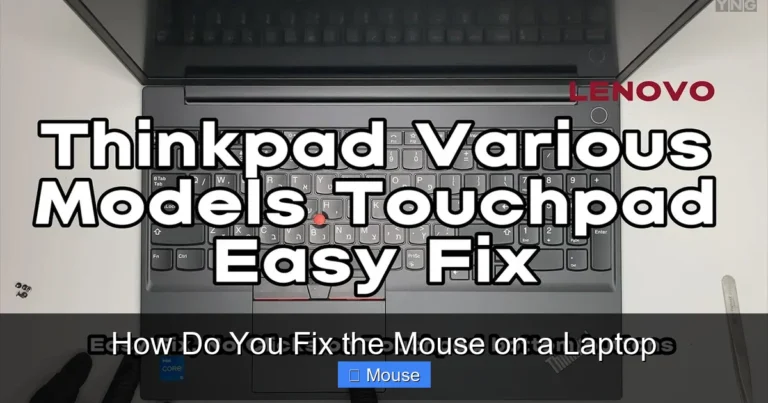
You don’t have to live with the default touchpad settings. You can change them to match your style. On Windows, go to Settings > Bluetooth & devices > Touchpad. Here, you can adjust the cursor speed. You can change what a three-finger or four-finger tap does. You can even turn off the touchpad completely if you only want to use an external mouse. For a deeper dive into fixing common touchpad problems, check out our guide on how to fix touchpad mouse on a laptop. This is especially useful if your cursor is jumping around or not responding at all.
How to Connect an External Mouse to Your Laptop

Visual guide about How to Use a Mouse on Laptop
Image source: i.ytimg.com
Sometimes, the touchpad just isn’t enough. An external mouse can reduce hand strain and improve accuracy. Connecting one is usually a very simple process. The method depends on the type of mouse you have. Let’s break down the two main types: wired and wireless.
Connecting a Wired USB Mouse
This is the easiest method. A wired mouse has a USB connector on the end of its cable. Your laptop has USB ports on its sides. Simply take the mouse’s USB plug and insert it into an available USB port. Your laptop should recognize it instantly. You might see a notification on the screen. Within seconds, your cursor should be ready to move. There is no software to install. It is a true plug-and-play experience. If your laptop lacks a standard USB-A port, you will need a USB-C adapter or hub.
Connecting a Wireless Mouse
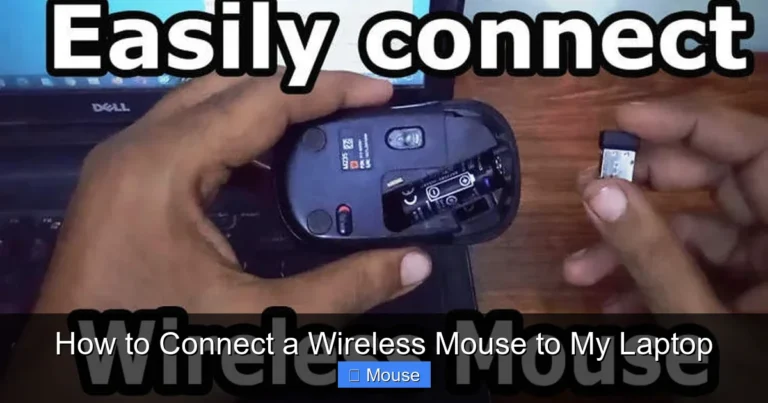
Wireless mice come in two main varieties. Some use a tiny USB receiver, often called a nano receiver. Others connect via Bluetooth. For the USB receiver type, the process is almost as simple as a wired mouse. Plug the small receiver into a USB port. Turn on the mouse using the switch on the bottom. The mouse and receiver are usually pre-paired. They will connect automatically. If you need detailed steps on this, our article on how to connect a wireless mouse to a laptop offers a complete walkthrough.
For a Bluetooth mouse, the process involves your laptop’s settings. First, make sure your Bluetooth mouse is in pairing mode. This often involves pressing and holding a button on the bottom. Then, on your laptop, go to Settings > Bluetooth & devices. Turn on Bluetooth if it is off. Click “Add device” and select “Bluetooth.” Your laptop will search for nearby devices. When you see your mouse’s name in the list, click on it. Your laptop will pair with it. The mouse will be ready to use.
Essential Mouse Operations and Settings
Once your mouse is connected, it is time to learn the basics and tweak it to your liking. Knowing how to perform core actions will make you more efficient. Adjusting the settings will make the experience more comfortable for you.
Mastering Left-Click, Right-Click, and the Scroll Wheel
The left mouse button is your primary action button. You use it to select items, open files, and click on links. A single click selects something. A double-click opens it. The right mouse button is your context menu button. Clicking the right button on a file, for example, gives you a menu with options like Copy, Delete, or Properties. The scroll wheel in the middle is for moving up and down on a page. You can also press down on the wheel to click it. This often opens links in a new tab in your web browser.
Adjusting Mouse Sensitivity and Speed
If the cursor feels too fast or too slow, you can change its speed. On Windows, go to Settings > Bluetooth & devices > Mouse. Here, you will find a slider for “Mouse pointer speed.” Move it left to slow down the cursor or right to speed it up. You can also go to “Additional mouse settings” to find more options. One useful setting is “Enhance pointer precision.” This helps with fine control. For gaming or design work, you might want to turn this off for more predictable movement.
Customizing Button Functions and Scroll Lines
You can also change what the buttons do. In the same mouse settings area, you can swap the left and right buttons if you are left-handed. You can also adjust how many lines the scroll wheel moves with each click. If you find yourself scrolling too far, you can reduce the number. Some advanced mice come with extra buttons on the side. You can often program these buttons to perform specific actions, like going back a page in your browser or launching a favorite program.
Troubleshooting Common Mouse Problems
Technology is great until it stops working. Mouse issues are common, but they are usually easy to fix. Do not panic if your cursor freezes or your mouse is not responding. Work through these common solutions step by step.
Mouse Not Detected or Not Working
This is the most common problem. First, check the physical connection. Is the USB plug fully inserted? Is the wireless receiver plugged in? If it is a wireless mouse, check the battery. A dead battery is a very common culprit. Try turning the mouse off and on again. If that does not work, try plugging the mouse into a different USB port. Sometimes, a simple restart of your laptop can fix the issue. If your cursor has disappeared entirely, you might find our article on how to get the mouse back on a laptop very helpful.
Cursor Moving Erratically or Jumping Around
A jumping cursor is often a problem with the touchpad, not an external mouse. This can happen if your palm accidentally brushes the touchpad while typing. Many laptops have a setting to disable the touchpad while typing. You can also simply turn off the touchpad when you are using an external mouse. For a wireless mouse, interference from other devices can cause erratic movement. Try moving other electronic devices away from your mouse and receiver. Also, make sure you are using the mouse on a clean, flat surface.
Mouse Buttons or Scroll Wheel Not Responding
If the buttons or scroll wheel stop working, the issue could be software-related. Open your Device Manager. Find “Mice and other pointing devices.” Right-click on your mouse and select “Update driver.” If that does not work, try “Uninstall device.” Then, restart your laptop. Windows will automatically reinstall the driver. This often fixes glitchy behavior. If you are using a Bluetooth mouse, try removing the device from your Bluetooth settings and pairing it again from scratch.
Advanced Tips for Power Users
Ready to take your mouse skills to the next level? These tips and tricks will help you work faster and more efficiently. They can turn you into a true power user.
Using Keyboard Shortcuts as a Mouse Alternative
You can do almost anything with the keyboard that you can do with a mouse. Learning a few key shortcuts will save you time. Press Ctrl+C to copy and Ctrl+V to paste. Use Alt+Tab to switch between open windows. Press the Windows key to open the Start menu. You can even navigate menus by pressing the Alt key and the underlined letter in a menu item. For situations where your mouse completely fails, knowing these shortcuts is a lifesaver. Our guide on how to copy and paste on a laptop without a mouse covers these essential keyboard commands in detail.
Setting Up Mouse Gestures
Some mouse software allows you to set up gestures. For example, you could hold down a side button and move the mouse left to switch desktops. You could hold the button and move it up to show all open windows. This is a very fast way to navigate your operating system. Check the software that came with your mouse to see if it supports custom gestures.
Optimizing Your Mouse for Gaming
Gamers need precision. If you game with a mouse, you should adjust the DPI (Dots Per Inch) setting. A higher DPI means the cursor moves faster with less physical movement. A lower DPI gives you more control for precise aiming. Many gaming mice have a button to switch DPI on the fly. You should also turn off “Enhance pointer precision” in Windows. This feature adds acceleration, which can make aiming feel inconsistent. For the best experience, use a mouse pad designed for gaming.
Choosing the Right Mouse for Your Laptop
Not all mice are created equal. The right mouse for you depends on how you use your laptop. A traveler might want a small, portable mouse. A graphic designer might want a mouse with high precision. A gamer wants a mouse with fast response times.
Portable Wireless Mice
These mice are small and light. They are perfect for throwing in a bag. Many have a nano receiver that can be stored inside the mouse when not in use. Some are Bluetooth-only, which saves a USB port. Battery life is usually very good. Look for one that feels comfortable in your hand, even if it is small.
Ergonomic Mice
If you use a mouse for many hours a day, an ergonomic mouse is a smart choice. These mice are shaped to fit your hand in a natural, handshake-like position. They can reduce strain on your wrist and forearm. Some are vertical. Others have a sculpted shape. They might look strange, but they can prevent discomfort and repetitive strain injuries.
Gaming Mice
Gaming mice are all about speed and accuracy. They have high-DPI sensors. They have extra buttons for you to program. They are often designed for a specific grip style, like palm, claw, or fingertip. They might have customizable weights. If you are a serious gamer, a good gaming mouse is an essential tool.
Conclusion: Finding Your Perfect Setup
Visual guide about How to Use a Mouse on Laptop
Image source: getdrawings.com
Using a mouse on a laptop is a simple upgrade that makes a huge difference. You have many options. You can stick with the built-in touchpad and master its gestures. You can connect a simple wired mouse for basic control. You can go for a wireless mouse for a clean desk. You can even choose a specialized mouse for gaming or ergonomic comfort.
The best setup is the one that feels right for you. Experiment with different mice. Adjust the settings to your liking. Learn a few keyboard shortcuts as a backup. With the knowledge from this guide, you are now equipped to handle any mouse situation. You can connect, customize, and troubleshoot with confidence. Go ahead, plug in that mouse, and enjoy a smoother, more comfortable computing experience.
Frequently Asked Questions
How do I right-click on a laptop without a mouse?
You can right-click without a mouse by tapping the touchpad with two fingers at the same time. Alternatively, you can click the bottom-right area of the touchpad if it has integrated buttons. You can also hold the Control key on your keyboard and click the touchpad.
Why is my wireless mouse not connecting to my laptop?
First, check if the mouse has fresh batteries and is turned on. Ensure the USB receiver is plugged in securely. If it is a Bluetooth mouse, make sure it is in pairing mode and your laptop’s Bluetooth is turned on. Try restarting your laptop.
How can I make my laptop’s touchpad faster?
You can adjust the touchpad speed in your laptop’s settings. On Windows, go to Settings > Bluetooth & devices > Touchpad. Look for the “Cursor speed” slider and move it to the right to make the cursor move faster.
Can I use a gaming mouse for regular office work?
Yes, absolutely. A gaming mouse works just like any other mouse. It will be very accurate and responsive. The extra buttons can be programmed for productivity tasks, like launching your email or calculator, making it a great all-around mouse.
How do I turn off my laptop’s touchpad when using an external mouse?
You can usually turn off the touchpad in your laptop’s settings. Go to Settings > Bluetooth & devices > Touchpad and toggle it off. Some laptops also have a dedicated function key (like Fn + F9) that can disable the touchpad with a single press.
What should I do if my mouse cursor is frozen?
First, try pressing the Escape key. Check if your mouse is still connected. For a wireless mouse, turn it off and on again or check the batteries. If the problem persists, restart your laptop. You can also try unplugging and replugging the mouse or its receiver.