How to Use Mouse with Laptop
Using a mouse with your laptop can transform your productivity and comfort. Whether you prefer a wired USB mouse, a wireless option, or the built-in touchpad, knowing how to set it up properly makes all the difference. This guide walks you through every step—from connecting your mouse to troubleshooting common problems—so you can work smarter and faster.
Key Takeaways
- Multiple connection options exist: You can connect a mouse to your laptop via USB, Bluetooth, or a wireless dongle, depending on the mouse type you own.
- Setup is usually plug-and-play: Most modern mice require zero additional software—just connect and start using them right away.
- Touchpad conflicts are common: When you plug in an external mouse, you may want to disable the built-in touchpad to avoid accidental cursor movements.
- Bluetooth pairing requires settings access: Wireless mice without a USB dongle need you to navigate your laptop’s Bluetooth settings for pairing.
- Troubleshooting is straightforward: Most mouse issues on laptops can be resolved by checking batteries, USB ports, or driver settings.
- Customization enhances your experience: Adjusting pointer speed, button functions, and scroll settings makes your mouse feel personalized and efficient.
- External mice reduce strain: Ergonomically designed mice can prevent wrist fatigue during long working sessions compared to using a touchpad.
📑 Table of Contents
- Why Use a Mouse with Your Laptop?
- Types of Mice You Can Use with a Laptop
- How to Connect a Wired Mouse to Your Laptop
- How to Connect a Wireless Mouse to Your Laptop
- How to Use the Built-in Touchpad as a Mouse
- Customizing Your Mouse Settings
- Common Problems and How to Fix Them
- Tips for Getting the Most Out of Your Mouse
- Conclusion
Why Use a Mouse with Your Laptop?
Let’s be honest—laptop touchpads are convenient when you’re on the go. But if you’re sitting at a desk for hours, a touchpad can feel cramped and frustrating. That’s where an external mouse comes in. Learning how to use a mouse with your laptop is one of the simplest upgrades you can make to your daily workflow.
A mouse gives you precision that a touchpad simply can’t match. Whether you’re editing photos, working on spreadsheets, or gaming, the accuracy of a real mouse makes everything smoother. Plus, it’s way more comfortable for your hands and wrists over long periods. No more awkward finger gestures or accidental clicks.
The good news? Setting up a mouse with your laptop is incredibly easy. You don’t need to be a tech expert or install complicated software. In most cases, it’s literally a plug-and-play situation. Let’s dive into everything you need to know so you can get started today.
Types of Mice You Can Use with a Laptop
Before we get into the how-to part, it helps to understand the types of mice available. Each one connects a little differently, and knowing the difference will help you choose the right setup for your needs.
Visual guide about How to Use Mouse with Laptop
Image source: happywall-img-gallery.imgix.net
Wired USB Mice
Wired mice are the most straightforward option. They connect through a USB-A or USB-C port on your laptop. You plug them in, wait a second, and they’re ready to go. There’s no battery to worry about, no Bluetooth pairing, and no USB receiver to lose. If you want something reliable and simple, a wired mouse is hard to beat.
Many wired mice also come with extra buttons and customizable features. Gamers and professionals often prefer wired options because there’s zero lag. The only downside? That cable can sometimes feel restrictive on a cluttered desk.
Wireless USB Mice
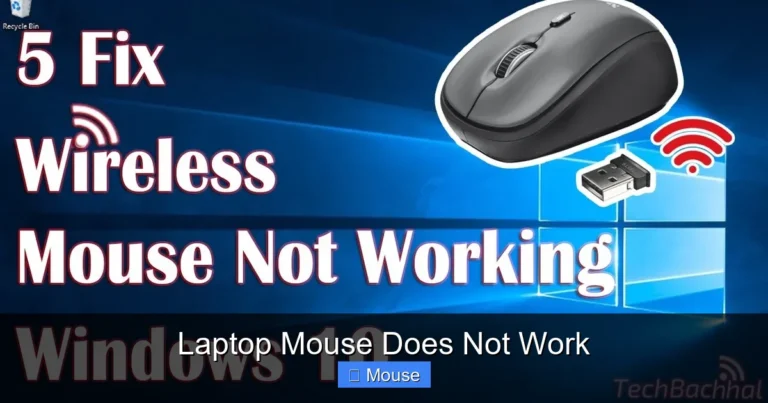
Wireless mice use a small USB receiver—often called a dongle—that plugs into your laptop. The mouse communicates with the laptop through radio frequency (RF). These mice are incredibly popular because they give you freedom of movement without a tangled cable.
Setting up a wireless USB mouse is almost as easy as a wired one. You plug in the receiver, turn on the mouse, and they usually connect automatically. The catch is that you need to keep that tiny receiver somewhere safe. Losing it means your mouse becomes useless until you get a replacement.
Bluetooth Mice
Bluetooth mice skip the USB receiver entirely. They connect directly to your laptop’s built-in Bluetooth. This is great if your laptop is low on USB ports or if you want a cleaner desk setup. Most modern laptops come with Bluetooth built in, so there’s no extra hardware needed.
The pairing process takes a few more steps than plugging in a USB mouse, but it’s still very manageable. Once paired, your mouse will automatically reconnect every time you turn it on. Bluetooth mice are also easy to switch between devices, which is handy if you use multiple computers.
How to Connect a Wired Mouse to Your Laptop
Connecting a wired mouse is the easiest method. Here’s a step-by-step breakdown of the entire process.
Step 1: Check Your Laptop’s USB Ports
Take a look at the sides of your laptop. You’ll see one or more USB ports. Most wired mice use a USB-A port—the rectangular one. If your laptop only has USB-C ports (the smaller, oval ones), you’ll need a USB-C mouse or a simple adapter. These adapters are cheap and widely available.
Step 2: Plug In the Mouse
Take the USB connector from your mouse and insert it into an available USB port. Push it in gently but firmly. You should feel it click into place. Your laptop will usually make a sound to recognize the new device, and a notification may appear on screen.
Step 3: Wait for Driver Installation
Your operating system will automatically detect the mouse and install the necessary drivers. This usually takes just a few seconds on Windows and macOS. On Linux, it’s typically instant. Once the drivers are installed, your mouse cursor should respond to movement immediately.
Step 4: Test It Out
Move the mouse around and make sure the cursor follows smoothly. Try clicking on a folder or opening a browser to confirm both left and right clicks work. If everything responds correctly, you’re all set. For a detailed walkthrough on this process, check out our guide on how to connect a mouse with a laptop.
How to Connect a Wireless Mouse to Your Laptop
Wireless mice add a tiny bit more complexity, but the process is still very simple. Let’s go through the steps for both RF wireless mice and Bluetooth mice.
Connecting a Wireless USB (RF) Mouse
First, insert batteries into your mouse or make sure it’s fully charged if it has a built-in battery. Look for the power switch—usually on the bottom of the mouse—and turn it on. Next, plug the USB receiver into an available port on your laptop.
The mouse and receiver should pair automatically within a few seconds. Move the mouse to check if the cursor responds. If it doesn’t work right away, try pressing the connect button on the bottom of the mouse (if it has one) or unplugging and reinserting the receiver. For more detailed instructions, visit our article on how to connect a wireless mouse to a laptop.
Connecting a Bluetooth Mouse
To connect a Bluetooth mouse, start by turning on the mouse and putting it in pairing mode. This usually involves holding down a button on the bottom of the mouse until a light starts blinking. Check your mouse’s manual for the exact pairing instructions.
On Windows, go to Settings > Bluetooth & Devices > Add Device. Select Bluetooth from the list, and your mouse should appear. Click on it to pair. On macOS, go to System Settings > Bluetooth, find your mouse in the list, and click Connect. The whole process takes less than a minute. If you run into any snags, our guide on how to pair a wireless mouse with a laptop can help.
How to Use the Built-in Touchpad as a Mouse
Your laptop’s touchpad is essentially a built-in mouse. Understanding how to use it effectively is important, especially when you don’t have an external mouse handy.
Basic Touchpad Gestures
To click, tap the touchpad with one finger. For a right-click, either tap with two fingers or press the bottom-right area of the touchpad. To scroll, place two fingers on the touchpad and slide them up or down. You can also swipe left and right to scroll horizontally in some applications.
Modern touchpads support a variety of multi-finger gestures. Swiping three fingers up shows all open windows on Windows (or Mission Control on Mac). Swiping three fingers left or right switches between open apps. Pinching with two fingers zooms in and out on photos and web pages.
When Your Touchpad Stops Working
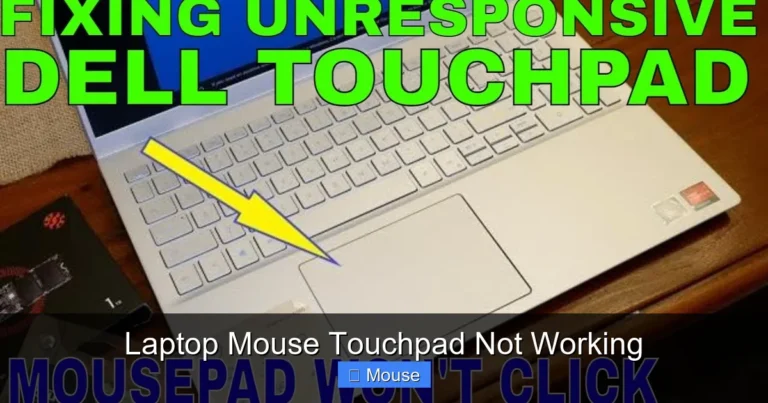
Sometimes the touchpad might stop responding. This can happen after an update, after accidentally disabling it, or due to a hardware issue. The first thing to check is whether it’s turned off. Many laptops have a function key (like Fn + F6 or Fn + F7) that toggles the touchpad on and off.
If that doesn’t work, go to your device settings and make sure the touchpad is enabled. On Windows, navigate to Settings > Bluetooth & Devices > Touchpad. On macOS, it’s under System Settings > Trackpad. If you’re still having trouble, our article on how to fix a touchpad mouse on a laptop covers all the troubleshooting steps in detail.
Customizing Your Mouse Settings
Once your mouse is connected, you’ll probably want to tweak a few settings to make it feel just right. Every operating system gives you control over how your mouse behaves.
Adjusting Pointer Speed
If the cursor feels too fast or too slow, you can adjust the pointer speed in your system settings. On Windows, go to Settings > Bluetooth & Devices > Mouse, and use the slider to change the cursor speed. On macOS, head to System Settings > Mouse or Trackpad and adjust the tracking speed slider.
Finding the right speed is personal. Some people prefer lightning-fast cursor movement for large monitors, while others like a slower, more controlled pace. Experiment until it feels natural.
Changing Scroll Direction and Speed
You can also customize how scrolling behaves. On macOS, there’s a “Natural Scrolling” toggle that reverses the scroll direction. On Windows, you can adjust how many lines scroll per notch of the mouse wheel in the Mouse settings. Some mice come with their own software that offers even more granular control.
Remapping Buttons
Many mice have extra buttons beyond the left, right, and middle click. These can be remapped to perform specific actions like opening a browser, adjusting volume, or launching an app. If your mouse came with manufacturer software (like Logitech Options or Razer Synapse), use that to set up custom button assignments.
Even without manufacturer software, Windows allows some button remapping through third-party tools. This is especially useful if you want the side buttons on your mouse to perform keyboard shortcuts or other functions.
Common Problems and How to Fix Them
Sometimes things don’t go as smoothly as expected. Here are the most common issues people face when learning how to use a mouse with a laptop and how to resolve them.
Mouse Not Detected
If your laptop doesn’t recognize the mouse, try a different USB port first. Sometimes a particular port might be faulty. For wireless mice, make sure the batteries are charged and the mouse is turned on. For Bluetooth mice, ensure Bluetooth is enabled on your laptop and the mouse is in pairing mode.
Restarting your laptop can also resolve detection issues. If the problem persists, check Device Manager (Windows) or System Report (macOS) to see if the mouse appears in the hardware list. A missing or corrupted driver might be the culprit.
Cursor Jumping or Lagging
A jittery or lagging cursor can be incredibly annoying. For wireless mice, this often happens due to interference from other wireless devices. Try moving the USB receiver closer to the mouse or away from other electronics. For Bluetooth mice, make sure your laptop’s Bluetooth drivers are up to date.
If you’re using a wired mouse and experiencing lag, check the USB cable for damage. Also, make sure your laptop isn’t running too many background processes, which can cause system-wide sluggishness that affects mouse performance.
Mouse Works but Touchpad Causes Interference
One of the most frustrating things is when your palm accidentally brushes the touchpad while typing or using an external mouse. This causes the cursor to jump around unexpectedly. The solution is to disable the touchpad when an external mouse is connected.
On Windows, you can find this option in Settings > Bluetooth & Devices > Touchpad. Look for a setting that says “Leave touchpad on when a mouse is connected” and toggle it off. Many laptop manufacturers also include their own touchpad management software with more options.
Mouse Battery Draining Quickly
If your wireless mouse battery doesn’t last as long as it should, there are a few things to check. First, make sure you’re using quality batteries or fully charge the built-in battery. Turn off the mouse when you’re not using it—most wireless mice don’t have auto-off features.
Also, check if your mouse has a high polling rate setting. Gaming mice often have adjustable polling rates, and a higher rate uses more power. Lowering it to 125Hz or 250Hz instead of 1000Hz can significantly extend battery life for everyday use.
Tips for Getting the Most Out of Your Mouse
Now that you know the basics, here are some tips to level up your mouse game and make your laptop experience even better.

Visual guide about How to Use Mouse with Laptop
Image source: wimg.rule34.xxx
Choose the Right Mouse for Your Needs
Not all mice are created equal. If you travel frequently, a compact wireless mouse is ideal. If you work with design or video editing, look for a mouse with high DPI (dots per inch) sensitivity. Gamers should prioritize low latency and customizable buttons. Ergonomic mice with a vertical design can also reduce wrist strain during long sessions.
Use a Mouse Pad
A good mouse pad makes a surprising difference. It provides a consistent surface for the sensor to track on, which improves accuracy. It also protects your desk from scratches and gives your wrist a comfortable place to rest. Even optical and laser mice perform better on a proper pad compared to glossy or uneven surfaces.
Keep Your Mouse Clean
Dust and debris can accumulate on the sensor and affect tracking. Turn your mouse upside down and gently clean the sensor area with a soft, dry cloth. For wired mice, make sure the cable isn’t kinked or frayed. A well-maintained mouse will last for years.
Learn Keyboard Shortcuts to Complement Your Mouse
Using a mouse alongside keyboard shortcuts is the ultimate productivity combo. Learn shortcuts like Ctrl+C for copy, Ctrl+V for paste, Alt+Tab to switch windows, and Win+D to show the desktop. These reduce your reliance on the mouse for repetitive tasks and speed up your workflow dramatically.
Conclusion
Learning how to use a mouse with a laptop is one of the easiest and most impactful changes you can make to your computing experience. Whether you choose a wired USB mouse for its simplicity, a wireless mouse for freedom of movement, or a Bluetooth mouse for a clean desk, the setup process is straightforward and takes just minutes.
From connecting and customizing to troubleshooting common issues, you now have all the knowledge you need to make the most of your mouse. Your wrists will thank you, your productivity will soar, and you’ll wonder why you didn’t make the switch sooner. So go ahead—grab a mouse, plug it in or pair it up, and enjoy a smoother, more comfortable laptop experience today.
Frequently Asked Questions
Can I use any mouse with my laptop?
Almost any mouse will work with a modern laptop. Wired USB mice, wireless mice with USB receivers, and Bluetooth mice are all compatible with Windows, macOS, and Linux laptops. Just make sure your laptop has the right ports or Bluetooth capability.
Why is my mouse cursor not moving after I plug it in?
First, try a different USB port to rule out a faulty connection. If that doesn’t help, restart your laptop and check Device Manager for driver issues. For wireless mice, make sure the batteries are charged and the power switch is turned on.
How do I disable my laptop touchpad when using an external mouse?
On Windows, go to Settings > Bluetooth & Devices > Touchpad and toggle off the option to leave the touchpad connected when a mouse is plugged in. On macOS, you can use third-party tools or simply adjust your touchpad settings to reduce sensitivity.
Do I need to install drivers for my mouse?
Most mice are plug-and-play, meaning your operating system will automatically install the necessary drivers. However, gaming mice and mice with extra features may benefit from installing the manufacturer’s software for full customization of buttons, DPI, and lighting.
How long do wireless mouse batteries typically last?
Standard AA or AAA batteries in a wireless mouse can last anywhere from three months to over a year, depending on usage. Rechargeable mice usually need charging every one to two weeks with regular daily use. Turning off the mouse when not in use extends battery life significantly.
Can I connect multiple mice to my laptop at the same time?
Yes, you can connect multiple mice to a laptop simultaneously. Each mouse will control the same cursor, which can be useful for presentations or collaborative work. However, the inputs from both mice will overlap, so it’s not typically practical for everyday use.