How to Get More Ram on a Laptop
Want to know how to get more RAM on a laptop? This guide covers everything from checking your current memory to upgrading it yourself. You will learn simple methods to boost your laptop’s speed and performance without spending a fortune.
Is your laptop running slow? Do apps take forever to open, and your system freezes when you have too many tabs open? The answer might be how to get more RAM on your laptop. Random Access Memory, or RAM, is the short-term memory your computer uses to handle tasks. More RAM means smoother multitasking, faster app launches, and a much better overall experience.
In this guide, we walk you through every way to increase your laptop’s memory. Whether you want to upgrade physical RAM or use software tricks to squeeze more performance, we have you covered. The process is simpler than most people think, and the results can be dramatic.
Let us dive in and explore how you can make your laptop faster today. No technical degree required — just clear, practical steps anyone can follow.
Key Takeaways
- Check Your Current RAM First: Before buying anything, find out how much memory your laptop has and what it supports.
- Upgrade Physical RAM for Real Gains: Adding more RAM sticks is the fastest way to improve laptop speed.
- Use Virtual Memory as a Quick Fix: Adjusting your swap file can help when you cannot add more physical memory.
- Close Unused Programs to Free Memory: Simple habits can make a big difference in how your laptop runs.
- Know Your Laptop’s Limits: Every laptop has a max RAM capacity. Check yours before purchasing new modules.
- Upgrade Costs Vary: RAM upgrades are affordable and one of the best value improvements you can make.
📑 Table of Contents
- Why More RAM Makes Your Laptop Faster
- How to Check Your Current RAM
- How to Get More RAM by Upgrading Physical Memory
- Use Virtual Memory to Boost Performance
- Free Up Existing RAM Without Buying New Memory
- How Much RAM Do You Really Need?
- Common Mistakes to Avoid When Upgrading RAM
- Expert Tips for Maximum Performance
- Final Thoughts
Why More RAM Makes Your Laptop Faster
RAM acts like your laptop’s short-term workspace. When you open a browser, a game, or a video editor, your computer loads data into RAM. The more RAM you have, the more apps you can run at the same time without slowdowns.
Think of it like a desk. A small desk gets cluttered fast. A bigger desk lets you spread out and work on many things at once. More RAM gives your laptop a bigger desk, and everything runs smoother.
Here are some signs your laptop needs more memory:
- Apps take a long time to open
- Your laptop freezes when you switch between programs
- You get “out of memory” error messages
- Your fan runs loudly even during simple tasks
- Web browsers crash when you have many tabs open
If you notice any of these, it is time to learn how to get more RAM on your laptop. The good news is that most laptops allow memory upgrades, and the process is easier than you might expect.
How to Check Your Current RAM
Before you buy anything, you need to know what you already have. Checking your current RAM takes just a few seconds and helps you figure out what kind of upgrade you need.
Check RAM on Windows
On Windows, press Ctrl + Shift + Esc to open Task Manager. Click the Performance tab and look at Memory. You will see how much RAM is installed and how much is being used. You can also search for “About” in the Start menu to see your total installed memory.
Another great option is to check your RAM on your laptop using built-in tools. This gives you detailed information about your memory type, speed, and available slots.
Check RAM on macOS
On a Mac, click the Apple logo and select About This Mac. You will see your total memory right there. For more details, open the Activity Monitor app and go to the Memory tab.
What to Look For
When checking your RAM, pay attention to three things:
- Total RAM installed: How much memory do you currently have?
- RAM type: Is it DDR4 or DDR5? You need to match the type when upgrading.
- Available slots: How many empty slots do you have for adding more memory?
How to Get More RAM by Upgrading Physical Memory
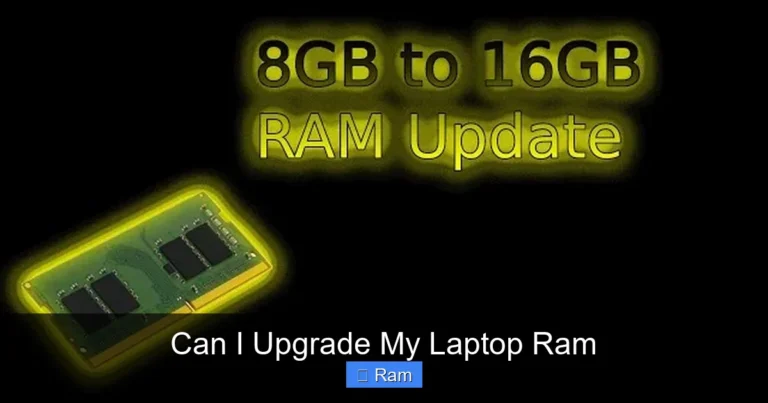
The best way to get more RAM on a laptop is to add physical memory modules. This gives you the biggest performance boost and the most noticeable improvement in speed.
Step 1: Find Out What Your Laptop Supports
Not every laptop can hold unlimited RAM. Check your laptop’s manual or the manufacturer’s website to find the maximum RAM capacity. Some older laptops only support 8 GB or 16 GB total. Newer models can handle 32 GB or even 64 GB.
Also check what RAM type your laptop uses. Most modern laptops use DDR4 SODIMM modules. Newer laptops may use DDR5 SODIMM. Using the wrong type will not work.
Step 2: Buy Compatible RAM
Once you know your laptop’s specs, buy the right memory. Look for RAM that matches your type, speed, and capacity needs. Brands like Crucial, Kingston, and Corsair make reliable laptop RAM. A single 8 GB or 16 GB SODIMM stick usually costs between $20 and $50.
If you are unsure which RAM to buy, try searching for your laptop model plus “compatible RAM.” Many online tools can help you find the exact module you need.
Step 3: Install the New RAM
Installing RAM is one of the easiest laptop upgrades you can do. Here is a simple step-by-step process:
- Turn off your laptop and unplug it from power
- Remove the battery if it is removable
- Find the RAM access panel on the bottom of your laptop
- Use a screwdriver to remove the panel screws
- Carefully remove the old RAM module by pushing the side clips outward
- Align the new module with the slot at a 45-degree angle
- Press the module down firmly until the clips click into place
- Replace the access panel and screw it back in
- Reconnect the battery and power on your laptop
If you want a more detailed walkthrough, check out our guide on how to install more RAM on your laptop for brand-specific instructions and troubleshooting tips.
Step 4: Verify the Upgrade
After installation, restart your laptop and check if the new RAM is recognized. Go back to Task Manager or System Information to confirm the total memory has increased. If it does not show up, try reseating the module or testing it in a different slot.
Use Virtual Memory to Boost Performance
If your laptop has soldered RAM that cannot be upgraded, do not worry. You can still improve performance by adjusting your virtual memory settings. Virtual memory uses a portion of your hard drive as extra RAM when your physical memory runs low.
How Virtual Memory Works
When your physical RAM fills up, your laptop moves less-used data to the hard drive. This is called a swap file or page file. It is slower than real RAM, but it prevents crashes and gives you more breathing room.
How to Adjust Virtual Memory on Windows
Here is how to increase your virtual memory:
- Right-click on This PC and select Properties
- Click Advanced system settings
- Under Performance, click Settings
- Go to the Advanced tab and click Change under Virtual Memory
- Uncheck “Automatically manage paging file size”
- Set a custom size (typically 1.5x your current RAM)
- Click Set and restart your laptop
Keep in mind that virtual memory is not a replacement for real RAM. It helps in a pinch, but a physical upgrade will always be faster and more effective.
Free Up Existing RAM Without Buying New Memory
Sometimes you do not need to buy anything. A few simple habits can help you get more usable RAM right now without spending a dime.
Close Unused Programs and Tabs
Every open browser tab and running app uses RAM. Close anything you are not actively using. If you have 30 Chrome tabs open, your laptop is burning through memory even if you are not looking at them.
Disable Startup Programs
Many programs launch automatically when you turn on your laptop. These consume RAM in the background even when you are not using them. To manage startup programs:
- Open Task Manager (Ctrl + Shift + Esc)
- Click the Startup tab
- Disable any programs you do not need right away
Restart Your Laptop Regularly
Restarting clears your RAM and stops background processes from piling up. Make it a habit to restart your laptop at least once a week. This simple step can make a noticeable difference in performance.
Use a Lightweight Operating System
If your laptop is older and has very little RAM, consider using a lighter operating system. Linux distributions like Lubuntu or Linux Mint use far less memory than Windows 10 or 11. This can breathe new life into an older machine.
How Much RAM Do You Really Need?
The right amount of RAM depends on what you use your laptop for. Here is a quick breakdown:
| Usage Type | Recommended RAM |
|---|---|
| Web browsing and office tasks | 8 GB |
| Photo editing and light gaming | 16 GB |
| Video editing and heavy multitasking | 32 GB |
| Professional workstations and 3D rendering | 64 GB |
Most everyday users do great with 16 GB of RAM. If you are a casual browser and email user, 8 GB is enough. Power users and creatives should aim for 32 GB or more.
For more details on how much memory your specific needs require, read our article on how much RAM you really need on a laptop. It covers different use cases in detail.
Common Mistakes to Avoid When Upgrading RAM
Upgrading RAM is straightforward, but mistakes can happen. Here are some common pitfalls to avoid:
- Buying the wrong RAM type: DDR4 will not work in a DDR5 slot, and vice versa. Always double-check compatibility before purchasing.
- Ignoring speed matching: Mixing RAM sticks with different speeds can cause instability. Try to match the speed of your existing modules.
- Overfilling slots: Some laptops have only two RAM slots. Make sure you are using them correctly for dual-channel performance.
- Forgetting to ground yourself: Static electricity can damage components. Touch a metal surface before handling RAM modules.
- Not testing after installation: Always verify that the new RAM is recognized by your system before closing everything up.
Avoiding these mistakes will save you time, money, and frustration. Take your time, follow the steps carefully, and your upgrade will go smoothly.
Expert Tips for Maximum Performance
Want to squeeze every bit of performance out of your upgraded memory? Here are some expert tips:
- Enable XMP profiles in BIOS: If your RAM supports faster speeds, you can unlock them through your BIOS settings.
- Keep RAM modules clean: Dust can build up on contacts over time. Use a soft cloth to gently clean the gold contacts on your RAM sticks.
- Monitor RAM usage regularly: Use Task Manager to keep an eye on memory usage. This helps you spot problems early.
- Pair RAM with an SSD: Combining extra RAM with a solid-state drive gives you the biggest overall performance boost.
These small steps can make a big difference in how your laptop feels every day. Getting more RAM is just the beginning — optimizing your system makes the upgrade even more worthwhile.
Final Thoughts
Learning how to get more RAM on a laptop is one of the most rewarding upgrades you can make. Whether you add physical memory, adjust virtual memory, or simply clean up your current usage, the results are immediate and noticeable.
A faster laptop means less frustration, better productivity, and a more enjoyable computing experience. The steps in this guide are simple enough for anyone to follow, and the cost of a RAM upgrade is surprisingly low compared to buying a new laptop.
Start by checking your current memory, decide what upgrade path works best for you, and take action today. Your laptop will thank you for it.
Frequently Asked Questions
Can I add more RAM to any laptop?
Not all laptops allow RAM upgrades. Some models have soldered memory that cannot be replaced or expanded. Check your laptop’s specifications or manual to confirm whether your model has upgradeable RAM slots before purchasing anything.
How much does a RAM upgrade cost?
A single 8 GB or 16 GB laptop RAM stick typically costs between $20 and $50. The exact price depends on the brand, type (DDR4 or DDR5), and speed of the module. Overall, RAM upgrades are one of the most affordable ways to boost laptop performance.
Will adding more RAM make my laptop faster?
Yes, adding more RAM can significantly improve laptop speed, especially during multitasking and running memory-intensive applications. However, if your laptop is slow for other reasons, such as an old hard drive, RAM alone may not solve all performance issues.
How do I know if my laptop needs more RAM?
If your laptop slows down when you open multiple apps or browser tabs, crashes with out-of-memory errors, or uses over 80% of its RAM during normal use, it likely needs more memory. You can check RAM usage through Task Manager on Windows or Activity Monitor on macOS.
Can I mix different RAM brands or sizes?
Yes, you can mix RAM brands and sizes, but it is best to match the type, speed, and latency for optimal stability. Mixing different speeds may cause the faster module to run at the slower speed. For the best results, use identical RAM sticks when possible.
What is the difference between DDR4 and DDR5 RAM?
DDR5 is the newer generation of RAM that offers faster speeds and better efficiency compared to DDR4. DDR5 modules typically run at higher clock speeds and consume less power. However, DDR5 is not backward compatible with DDR4 slots, so you must confirm which type your laptop supports before buying.