How to Find Out How Much Ram My Laptop Has

Finding out how much RAM your laptop has is quick and easy. Whether you use Windows or a Mac, you can check your laptop memory in seconds using built-in tools. This guide walks you through every method so you can see your RAM size and decide if an upgrade is worth it.
Have you ever wondered how much memory your laptop is actually using? Maybe your computer feels slow, and you suspect it needs more RAM. Or perhaps you just want to know what you are working with before buying a new program. Either way, finding out how much RAM your laptop has is simpler than you think.
RAM, short for Random Access Memory, is the short-term memory your laptop uses to handle tasks. The more RAM you have, the smoother your computer runs when you open multiple apps. In this guide, we will show you exactly how to check your laptop memory on any device. We will also cover when you should consider an upgrade and what to watch out for.
By the end of this article, you will know your RAM size, understand what it means for your daily use, and feel confident about next steps. Let us get started.
Key Takeaways
- Check RAM on Windows: Use Task Manager or System Information to see your installed memory in seconds.
- Check RAM on Mac: Click the Apple menu and go to About This Mac to view your laptop memory.
- Know your RAM size: Understanding your current RAM helps you decide if an upgrade will improve performance.
- Upgrade with confidence: Learn when and how to add more RAM to boost your laptop speed.
- Avoid common mistakes: Don’t confuse RAM with storage — they are two different things that affect your laptop in different ways.
📑 Table of Contents
- What Is RAM and Why Does It Matter?
- How to Check RAM on a Windows Laptop
- How to Check RAM on a Mac Laptop
- Why You Should Know Your RAM Size
- How Much RAM Do You Actually Need?
- How to Upgrade Your Laptop RAM
- Common Mistakes People Make When Checking RAM
- Quick Tips to Maximize Your Current RAM
- Final Thoughts
What Is RAM and Why Does It Matter?
Think of RAM as your laptop’s workspace. When you open a browser, a game, or a video editor, your laptop pulls data from storage and places it into RAM for quick access. The more system memory you have, the more tasks your laptop can handle at once without slowing down.
Here is a simple way to think about it:
- 4GB of RAM: Enough for basic tasks like browsing and word processing.
- 8GB of RAM: Good for most everyday users and light multitasking.
- 16GB of RAM: Great for gaming, video editing, and heavy workloads.
- 32GB or more: Ideal for professionals running demanding software.
Knowing your RAM capacity helps you understand whether your laptop can keep up with your needs. If you find that your computer struggles, checking your installed RAM is the first step toward a solution.
How to Check RAM on a Windows Laptop
Windows makes it easy to check your laptop RAM using several built-in tools. You do not need to download anything. Here are the three fastest methods.
Method 1: Use Task Manager
This is the quickest way to see your memory usage and total RAM on a Windows laptop.
- Press Ctrl + Shift + Esc to open Task Manager.
- Click on the Performance tab at the top.
- Select Memory from the left sidebar.
- Look at the top-right corner. You will see your total RAM listed there.
You will also see how much memory is currently in use and how much is available. This gives you a real-time view of your laptop performance.
Method 2: Use System Information
If you want a more detailed look at your laptop specs, this method works well.
- Press the Windows key and type System Information.
- Open the app from the search results.
- Look for the Installed Physical Memory (RAM) section.
- You will see the total amount of memory your laptop has.
This method shows you the exact RAM size in gigabytes. It is especially useful if you want to see other hardware details too.
Method 3: Use Settings
Windows 10 and 11 also let you check RAM through the Settings app.
- Go to Settings > System > About.
- Look for the Device Specifications section.
- Find the line that says Installed RAM.
This is the simplest method for beginners. It gives you a clean, easy-to-read number for your computer memory.
How to Check RAM on a Mac Laptop
Apple laptops work a bit differently, but checking your Mac laptop memory is just as simple.
Method 1: About This Mac
This is the most common way to find your RAM size on a Mac.
- Click the Apple logo in the top-left corner of your screen.
- Select About This Mac from the dropdown menu.
- A window will pop up showing your Memory section.
- You will see the total RAM and the type of memory installed.
Macs make it very easy to see your installed RAM at a glance. The information is displayed clearly and in plain language.
Method 2: System Information
For a deeper look, you can use the built-in System Information tool.
- Hold down the Option key and click the Apple logo.
- Select System Information.
- Click on Memory in the left sidebar.
- You will see detailed info about your RAM type, speed, and total capacity.
This method is great if you are planning to upgrade your laptop RAM and need to know what type of memory your Mac uses.
Why You Should Know Your RAM Size
Understanding your RAM size is more than just a numbers game. It directly affects how you use your laptop every day. Here are some key reasons why it matters.
It Helps You Diagnose Slow Performance
If your laptop takes forever to open apps or freezes when you switch between tabs, low RAM could be the culprit. Checking your memory usage helps you confirm whether your laptop is running out of space for active tasks.
It Guides Your Upgrade Decisions
Before you spend money on more memory, you need to know what you currently have. If your laptop already has 16GB, adding more might not make a big difference. But if you are running on 4GB, an upgrade could feel like a brand-new computer.
It Helps You Buy the Right Software
Many apps list minimum RAM requirements. Knowing your laptop memory helps you make sure a program will run properly before you buy or download it.
How Much RAM Do You Actually Need?
The right amount of RAM depends on how you use your laptop. Here is a quick breakdown of what different users need.
| User Type | Recommended RAM | Examples |
|---|---|---|
| Basic User | 4GB – 8GB | Web browsing, email, documents |
| Student | 8GB – 16GB | Research, presentations, light multitasking |
| Professional | 16GB – 32GB | Photo editing, coding, video calls |
| Gamer or Creator | 32GB+ | Gaming, 4K video editing, 3D rendering |
If you are unsure whether your current setup is enough, consider how often your laptop slows down. Frequent lag is a strong sign that you need more system memory. You can also read our guide on how much RAM you need for more detailed recommendations.
How to Upgrade Your Laptop RAM
If you discover that your RAM size is too small for your needs, upgrading is often a great option. Here is what you need to know before you start.
Step 1: Check If Your Laptop Allows Upgrades
Not all laptops let you add more memory. Some have soldered RAM that cannot be changed. Check your laptop’s manual or search online for your specific model to see if it is upgradeable.
Step 2: Buy Compatible RAM
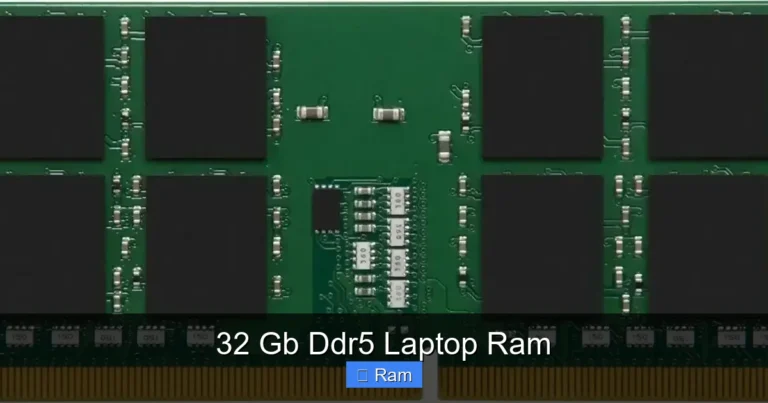
Make sure you buy the right type of memory for your laptop. DDR4 and DDR5 are the most common types today. Check your laptop’s specifications to confirm what it supports.
Step 3: Install the New RAM
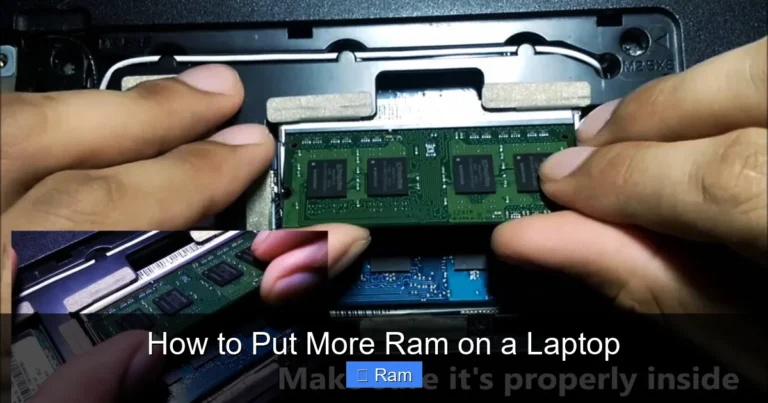
Installing RAM yourself is easier than most people think. You typically just need a small screwdriver, a clean workspace, and a few minutes. If you are not comfortable doing it yourself, a local repair shop can help.
For HP laptop users, we have a detailed guide on how to upgrade your HP laptop RAM that walks you through the process step by step.
Common Mistakes People Make When Checking RAM
Even though checking your RAM is straightforward, some common mistakes can cause confusion. Here are a few to watch out for.
- Confusing RAM with storage: RAM and hard drive space are not the same thing. Storage holds your files, while RAM handles active tasks.
- Ignoring available memory: Total RAM and available RAM are different. Your laptop might have 16GB but only 2GB free at any given moment.
- Not checking RAM speed: Faster RAM can improve performance, especially for gaming and creative work.
- Assuming more RAM always means better speed: If your laptop’s processor or storage is the bottleneck, adding more RAM might not help much.
Avoiding these mistakes will help you get an accurate picture of your laptop’s true memory capacity and make smarter decisions about upgrades.
Quick Tips to Maximize Your Current RAM
Before you rush to buy new memory, try these tips to get the most out of your current RAM.
- Close apps you are not using. Every open app uses memory, even in the background.
- Restart your laptop regularly. This clears out temporary files and frees up system memory.
- Disable startup programs. Many apps launch automatically and eat up your available RAM.
- Use lightweight apps. Switch to lighter alternatives for browsing and editing when possible.
- Check for malware. Malicious software can secretly use up your computer memory in the background.
These simple habits can make a noticeable difference in how smoothly your laptop runs, even without adding new hardware.
Final Thoughts
Now you know exactly how to find out how much RAM your laptop has, whether you are on Windows or a Mac. Checking your laptop memory takes just a few minutes, and the information you gain is incredibly valuable. It helps you understand your laptop’s limits, decide if an upgrade makes sense, and choose software that will run well on your machine.
Remember, RAM is one of the easiest and most affordable ways to breathe new life into an older laptop. If your current memory is holding you back, a simple upgrade could make a world of difference. For more tips on checking and managing your laptop’s hardware, explore our other guides on finding RAM on your laptop and checking your laptop RAM for additional methods and insights.
Take a few minutes today to check your RAM size. You might be surprised at what you find — and what you can do about it.
Frequently Asked Questions
How do I check my laptop RAM on Windows 11?
Open Task Manager by pressing Ctrl + Shift + Esc, then click on the Performance tab and select Memory. You will see your total RAM displayed clearly at the top of the panel.
Can I check my laptop RAM without opening any apps?
Yes. On Windows, you can go to Settings > System > About, and look for the Installed RAM line. On a Mac, click the Apple logo and select About This Mac to see your memory instantly.
Is 8GB of RAM enough for everyday use?
For most everyday tasks like browsing, streaming, and office work, 8GB of RAM is more than sufficient. However, if you multitask heavily or use demanding apps, you may benefit from 16GB or more.
How do I know if my laptop RAM is upgradeable?
Check your laptop’s model number online and look up its specifications. Many laptops have a small access panel on the bottom that lets you swap out RAM modules easily.
Does more RAM make your laptop faster?
More RAM helps your laptop handle more tasks at once without slowing down. However, if your processor or storage is the bottleneck, adding RAM alone may not solve all performance issues.
What is the difference between RAM and storage?
RAM is temporary working memory your laptop uses for active tasks, while storage (like an SSD or hard drive) permanently holds your files, apps, and operating system. They serve completely different purposes.