How Can I Upgrade My Laptop Ram
Upgrading your laptop RAM is one of the easiest and most affordable ways to breathe new life into a slow computer. This guide walks you through everything you need to know, from checking your current memory to installing new modules. You will learn how to choose the right RAM, avoid common mistakes, and enjoy a noticeable laptop performance boost in minutes.
If your laptop feels slow when you open multiple tabs or run heavy apps, the answer might be simpler than you think. How can I upgrade my laptop RAM? It is easier than most people expect, and it does not require expensive tech skills. A RAM upgrade can transform a sluggish machine into a responsive powerhouse.
Many users assume their laptop is outdated when really it just needs more memory. Whether you use your computer for work, gaming, or casual browsing, adding RAM can make a huge difference. This guide covers every step from start to finish so you can do it yourself with confidence.
Before you buy anything, you need to understand what your laptop currently has and what it can support. Let us dive into the process step by step.
Key Takeaways
- Check Compatibility First: Always verify your laptop supports RAM upgrades and matches the correct type (DDR4 or DDR5).
- Gather the Right Tools: A small screwdriver and an anti-static wrist strap are all you need to get started.
- Know Your Maximum Capacity: Every laptop has a limit on how much RAM it can hold, so check yours before buying.
- Installation Is Simple: Most laptops require only removing a back panel and clicking new RAM into place.
- Verify After Installation: Always confirm your new RAM is recognized by the system before closing everything up.
- Performance Gains Are Real: Upgrading RAM can dramatically improve multitasking, speed, and overall responsiveness.
📑 Table of Contents
Understanding Your Current RAM Setup
The first step in any laptop RAM upgrade is figuring out what you already have. Every laptop comes with a base amount of memory, and some allow you to add more while others do not. Knowing this saves you time and money.
How to Check Your Existing RAM
You can check your current RAM in just a few clicks. On Windows, open the Task Manager by pressing Ctrl + Shift + Esc and click the Performance tab. Then select Memory to see your total RAM, speed, and how many slots are in use.
On a Mac, click the Apple menu, choose About This Mac, and look at the Memory section. This tells you the type and amount of RAM installed.
For a deeper look, you can also use a free tool like CPU-Z or check your laptop manufacturer’s support page. If you are unsure about your setup, you can visit our guide on how to check the RAM on my laptop for more details.
Types of Laptop RAM You Will Encounter
Laptops use a special form of RAM called SO-DIMM, which is smaller than desktop RAM. The two main types you will see are DDR4 and DDR5. DDR4 has been the standard for years, but DDR5 is becoming more common in newer models.
Here is a quick comparison:
- DDR4 RAM: Reliable, widely available, and affordable. Most laptops from 2018 onward use this type.
- DDR5 RAM: Faster and more efficient, found in newer high-performance laptops.
- Speed Ratings: Measured in MHz, higher numbers mean faster data transfer. Common speeds are 2400 MHz, 3200 MHz, and 4800 MHz.
Make sure you match the RAM type to your laptop. Buying the wrong kind will not work, even if the physical size looks right.
Can Your Laptop Be Upgraded?
Not every laptop allows RAM upgrades. Some manufacturers solder memory directly to the motherboard, which means you cannot add or replace it. Before purchasing any RAM, confirm your laptop supports upgrades.
Laptops With Upgradeable RAM
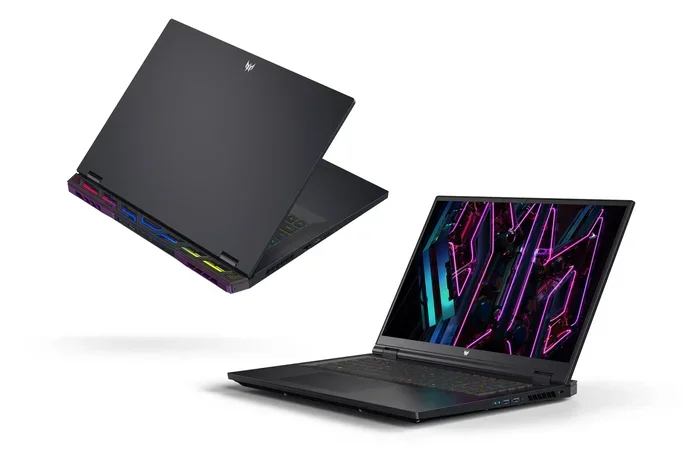
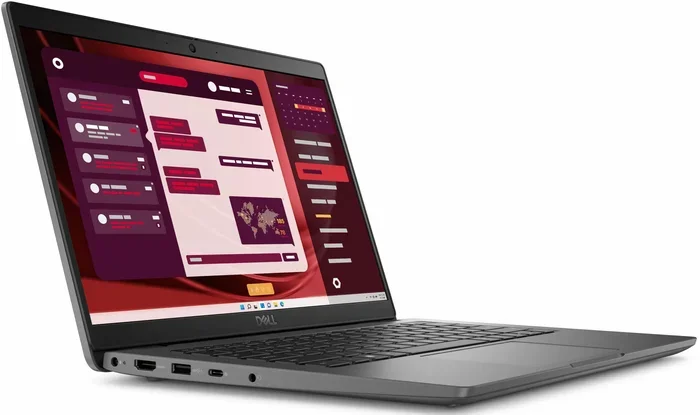
Most business laptops and gaming laptops come with accessible RAM slots. Brands like Dell, HP, Lenovo, and Asus often design their machines with user-upgradeable memory. If your laptop has a removable back panel, there is a good chance you can upgrade it.
If you are not sure whether your specific model supports upgrades, you can check our article on can I upgrade RAM in my laptop for guidance across many popular models.
Laptops With Soldered RAM
Some ultrabooks and thin laptops have memory soldered to the board. Apple MacBook Air and MacBook Pro models from recent years are common examples. In these cases, you must choose the right amount of RAM at the time of purchase.
This is why checking before you buy a laptop matters. If future upgrades matter to you, always look for models with accessible RAM slots.
How to Choose the Right RAM for Your Laptop
Picking the right RAM can feel confusing with so many options available. But it does not have to be. A few key factors will guide your decision.
Check Maximum Capacity
Every laptop has a maximum RAM limit. This is usually 16 GB, 32 GB, or sometimes 64 GB for high-end models. You can find this information in your laptop’s manual or on the manufacturer’s website.
For most users, 16 GB is the sweet spot. It handles everyday tasks, light creative work, and moderate multitasking with ease. If you want to know how much RAM you actually need, check out our guide on how much RAM do I need on my laptop.
Match the RAM Specifications
You need to match three things when buying new RAM:
- Type: DDR4 or DDR5, depending on your laptop.
- Speed: Match the MHz rating of your existing RAM for best results.
- Form Factor: SO-DIMM is the standard for all laptops.
If your laptop has two empty slots, you can either fill both with matching sticks or add a second stick to an existing one. Running RAM in dual channel mode improves performance noticeably.
Where to Buy Laptop RAM
You can purchase RAM from Amazon, Best Buy, Newegg, or directly from manufacturers like Crucial, Kingston, and Corsair. Crucial offers a free scanner tool on their website that checks your laptop model and recommends compatible RAM. This is a great shortcut if you do not want to research specs manually.
Step-by-Step Guide to Upgrading Your Laptop RAM
Now for the fun part. Installing RAM in a laptop is straightforward and usually takes less than 15 minutes. Follow these steps carefully for a smooth process.
Step 1: Gather Your Tools
You will need very little to complete this upgrade:
- A small Phillips-head screwdriver
- An anti-static wrist strap (optional but recommended)
- A clean, flat workspace
- Your new RAM modules
An anti-static strap prevents static electricity from damaging sensitive components. If you do not have one, simply touch a metal surface before handling the RAM.
Step 2: Power Down and Unplug
Turn off your laptop completely. Unplug the power cable and remove any connected peripherals. If your laptop has a removable battery, take it out. This ensures safety while you work inside the machine.
Step 3: Open the Back Panel
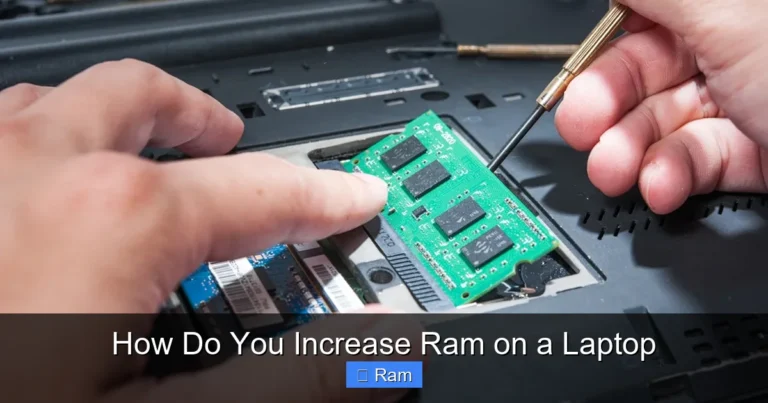
Flip your laptop over and locate the screws holding the back panel. Use your screwdriver to remove them carefully. Keep the screws in a small bowl so they do not get lost. Gently pry the panel off using a plastic spudger or your fingernail.
Step 4: Locate the RAM Slots
Once the panel is off, you will see the RAM slots. They are long, thin slots with metal clips on each end. If there is existing RAM installed, you will see it seated in one or more slots.
Step 5: Remove Old RAM (If Necessary)
To remove existing RAM, gently push the metal clips outward. The stick will pop up at an angle. Then pull it straight out. Handle the new RAM by the edges only, never touching the gold connectors.
Step 6: Install the New RAM
Align the notch on the new RAM stick with the ridge in the slot. Insert it at a 30-degree angle and press down firmly until the metal clips snap into place. You should hear a click. This means the RAM is securely seated.
If you are adding a second stick, repeat the process for the other slot. Make sure both sticks are fully clicked in before moving on.
Step 7: Close Up and Test
Replace the back panel and screw it back in. Reconnect the battery if you removed it. Power on your laptop and check if the system recognizes the new RAM. On Windows, open Task Manager and go to the Performance tab. Your total memory should now reflect the upgrade.
If you want a deeper verification, you can visit our article on how to upgrade RAM on laptop for additional troubleshooting tips and visual guides.
Common Mistakes to Avoid When Upgrading RAM
Even though this is a simple process, mistakes can happen. Here are the most common ones and how to avoid them.
Buying the Wrong RAM Type
The most frequent error is purchasing DDR4 RAM for a laptop that needs DDR5, or vice versa. They look similar but are not interchangeable. Always double-check your laptop’s specifications before ordering.
Forcing the RAM Into the Slot
RAM should slide in smoothly with gentle pressure. If it does not fit, stop and recheck the alignment. Forcing it can bend the pins and ruin the module.
Skipping the Anti-Static Precaution
Static electricity can damage RAM and other components. Always ground yourself before touching internal parts. Touching a metal part of the laptop chassis works in a pinch.
Not Testing Before Closing the Laptop
Always power on and verify the new RAM is recognized before reassembling the laptop. If something is wrong, it is much easier to fix with the back panel open.
Benefits of Upgrading Your Laptop RAM
So what happens after you upgrade? The improvements are immediate and noticeable.
Faster Multitasking: You can run more applications at once without slowdowns. Browsers with many tabs, video editing software, and virtual machines all benefit greatly.
Smoother Performance: Programs launch faster and switch more quickly. Your laptop feels snappier in everyday use.
Longer Lifespan: Instead of buying a new laptop, a RAM upgrade extends the useful life of your current machine. This saves you hundreds of dollars.
Better Gaming and Creative Work: Games and creative apps like Photoshop or Premiere Pro use a lot of memory. More RAM means fewer stutters and faster rendering.
If you are still on the fence, consider that most RAM upgrades cost between $20 and $60. The return on investment is outstanding compared to buying a new computer.
When to Consider a Professional
While most users can handle a RAM upgrade themselves, some situations call for professional help. If your laptop has a sealed battery or a design that is difficult to open, a technician can do it safely. Some manufacturers also void the warranty if you open the laptop yourself.
In these cases, check with your laptop manufacturer or a local repair shop. Many offer affordable RAM upgrade services. You can also visit how to upgrade RAM in a laptop for more insights on when DIY makes sense versus seeking help.
Final Thoughts
How can I upgrade my laptop RAM? Now you know the answer. It starts with checking compatibility, choosing the right memory, and following a simple installation process. The entire upgrade takes less than half an hour and costs very little compared to the performance gains you will enjoy.
Do not let a slow laptop hold you back. A RAM upgrade is one of the best investments you can make for your computer. Whether you use your laptop for work, school, or entertainment, the difference will be clear from the moment you restart your machine.
Take a few minutes today to check your current memory, find compatible RAM, and give your laptop the boost it deserves. Your future self will thank you every time you open a new tab without a second of lag.
Frequently Asked Questions
Can I upgrade my laptop RAM myself?
Yes, in most cases you can. The process requires only a small screwdriver and about 15 minutes. Just make sure you buy compatible RAM and follow the steps carefully. If your laptop is under warranty, check whether opening it voids the coverage.
How do I know if my laptop RAM is upgradeable?
Check your laptop’s manual or visit the manufacturer’s website and look up your model’s specifications. If your laptop has a removable back panel and visible RAM slots, it is likely upgradeable. You can also search online for your specific model to confirm.
What happens if I install the wrong type of RAM?
The wrong RAM will not work and your laptop may not boot. DDR4 and DDR5 are physically different and not interchangeable. Always match the RAM type, speed, and form factor to your laptop’s requirements before purchasing.
How much RAM do most laptops support?
Most laptops support up to 16 GB or 32 GB of RAM. Some high-end models can handle 64 GB. Check your laptop’s maximum capacity before buying new memory to avoid wasting money.
Will upgrading RAM make my laptop faster?
Yes, upgrading RAM can significantly improve speed, especially when multitasking or running memory-heavy applications. If your laptop currently has 4 GB or 8 GB, adding more will make a noticeable difference in everyday performance.
Do I need any special tools to upgrade laptop RAM?
You only need a small Phillips-head screwdriver and optionally an anti-static wrist strap. No special equipment is required. The entire process is designed to be simple enough for beginners to handle at home.