Upgrade Ram on Hp Laptop
Upgrading the RAM on your HP laptop is one of the easiest and most affordable ways to breathe new life into your machine. Whether you own an HP Pavilion, HP Omen, or any other HP model, this guide walks you through everything you need to know. You will learn how to check your current RAM, choose the right memory, and install it yourself in minutes.
Key Takeaways
- Easy Performance Boost: Adding RAM to your HP laptop can dramatically improve multitasking, speed, and overall responsiveness.
- Simple Process: Most HP laptops allow RAM upgrades with just a screwdriver and a few minutes of your time.
- Check Compatibility First: Always verify your laptop model, RAM type, and maximum supported memory before purchasing new modules.
- Cost-Effective Upgrade: A RAM upgrade is far cheaper than buying a new laptop and delivers noticeable results.
- DIY-Friendly: You do not need professional help to upgrade RAM on most HP laptop models.
- Right Tools Matter: Using the correct screwdriver and anti-static precautions ensures a safe and successful upgrade.
📑 Table of Contents
- Upgrade RAM on HP Laptop: The Complete Guide
- Why Upgrade RAM on Your HP Laptop?
- Check Your Current RAM and Compatibility
- How to Upgrade RAM on HP Laptop: Step-by-Step
- Choosing the Right RAM for Your HP Laptop
- Common Mistakes to Avoid When Upgrading HP Laptop RAM
- When to Consider Professional Help
- Conclusion
Upgrade RAM on HP Laptop: The Complete Guide
Is your HP laptop feeling slow? Are apps taking forever to open, and your browser keeps freezing with too many tabs? The answer might be simpler than you think. Upgrading the RAM on your HP laptop can transform a sluggish machine into a fast, responsive powerhouse. RAM, or Random Access Memory, is the short-term memory your laptop uses to handle tasks. More RAM means your laptop can juggle more things at once without breaking a sweat.
Many people throw away their old laptops when they start to slow down. But often, a simple HP laptop RAM upgrade is all you need. This guide will show you exactly how to do it. We will cover everything from checking your current memory to picking the right modules and installing them step by step. Whether you have an HP Pavilion, an HP Omen, or any other HP model, you will find useful information here.
The best part? You do not need to be a tech expert. With a basic screwdriver and a little patience, you can complete this upgrade in under 30 minutes. Let us get started.
Why Upgrade RAM on Your HP Laptop?
Before we dive into the how-to, let us talk about why upgrading your RAM matters so much. Your laptop’s processor does the heavy thinking, but the RAM is where it keeps all the data it is actively working with. When your RAM fills up, your laptop starts swapping data to the hard drive, which is much slower. This causes lag, freezes, and frustration.
Here are the main benefits of upgrading your HP laptop memory:
- Faster Multitasking: Run multiple apps, browser tabs, and programs without slowdowns.
- Smoother Performance: Videos, games, and heavy applications run more fluidly.
- Better Productivity: Switch between tasks instantly instead of waiting for your laptop to catch up.
- Extended Laptop Life: Instead of buying a new laptop, a RAM upgrade gives your current machine new life.
- Cost Savings: A RAM upgrade costs a fraction of what a new laptop costs.
If you have been considering whether upgrading RAM on an HP laptop is worth it, the answer is almost always yes. It is one of the highest-impact upgrades you can make.
Check Your Current RAM and Compatibility
Before buying any new memory, you need to know what your laptop currently has and what it can support. This step is critical because not all RAM works with all laptops. Using the wrong type will not help and could even prevent your laptop from booting.
How to Check Your Current RAM
Checking your current RAM is quick and easy. On Windows, right-click the taskbar and select Task Manager. Click the Performance tab, then select Memory. You will see how much RAM you have installed, what type it is, and how many slots are in use.
You can also open the Command Prompt and type wmic memorychip get capacity, speed, memorytype to get detailed information about each RAM stick. Another great option is to use a free tool like CPU-Z, which gives you comprehensive details about your system memory.
For a deeper look at your HP laptop specs, you can also visit the HP Support website and enter your laptop model number. This will show you the maximum RAM supported, the number of slots, and the recommended RAM type.
Understanding RAM Types and Compatibility
HP laptops use different types of RAM depending on the model and age. The most common types you will encounter are DDR4 and DDR5. Older HP laptops might still use DDR3. Each type is physically different and will not fit in a slot designed for another type. Always double-check which type your laptop requires.
Here are the key compatibility factors to check:
- RAM Type: DDR3, DDR4, or DDR5. This must match exactly.
- Speed (MHz): Your laptop supports a specific speed range. Higher speed RAM will still work but will run at the supported speed.
- Maximum Capacity: Each HP laptop model has a maximum RAM limit. Do not exceed this.
- Slot Count: Some HP laptops have one RAM slot, while others have two. This determines whether you need to replace existing RAM or add to it.
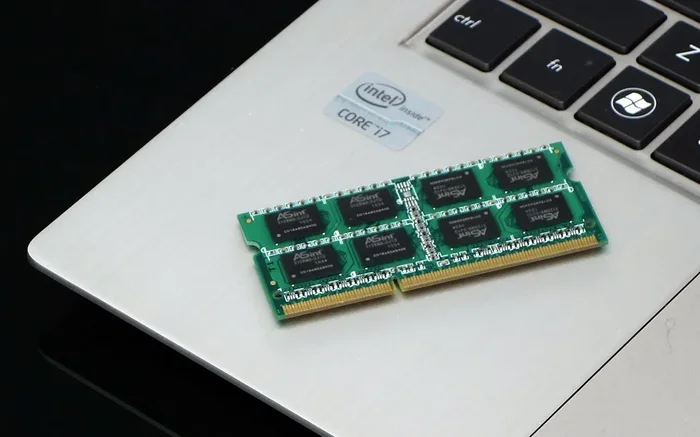
- Form Factor: Most HP laptops use SO-DIMM (small outline dual in-line memory module) RAM, which is smaller than desktop RAM.
Take the time to research your specific HP model before purchasing any RAM. A quick search for your model number plus RAM specifications will save you from buying the wrong module.
How to Upgrade RAM on HP Laptop: Step-by-Step
Now for the fun part. Installing RAM on an HP laptop is straightforward, even if you have never opened your computer before. Follow these steps carefully, and you will have your new memory up and running in no time.
Step 1: Gather Your Tools
You will need very few tools for this job. Here is what to have ready:
- A small Phillips-head screwdriver (usually size #1)
- The new RAM module(s) you purchased
- An anti-static wrist strap (optional but recommended)
- A clean, flat workspace with good lighting
- A small container for screws
Working on a non-carpeted surface is a good idea. Static electricity can damage sensitive components, so touch a metal surface before handling any parts.
Step 2: Power Down and Disconnect
Shut down your HP laptop completely. Unplug the power adapter and disconnect any external devices like USB drives, printers, or monitors. If your laptop has a removable battery, take it out. For laptops with built-in batteries, hold down the power button for 15 seconds after unplugging to drain any remaining charge.
Step 3: Open the Back Panel
Flip your laptop over and locate the screws holding the bottom panel in place. Use your screwdriver to carefully remove each screw. Keep track of which screw goes where, as some laptops use different screw sizes. Gently pry off the panel using a plastic spudger or your fingernail. Start at a corner and work your way around.
Once the panel is off, you will see the internal components. Locate the RAM slots. They are long, thin slots with clips on each end. If you are unsure where they are, consult your laptop’s service manual or search online for a visual guide specific to your model.
Step 4: Remove Old RAM (If Necessary)
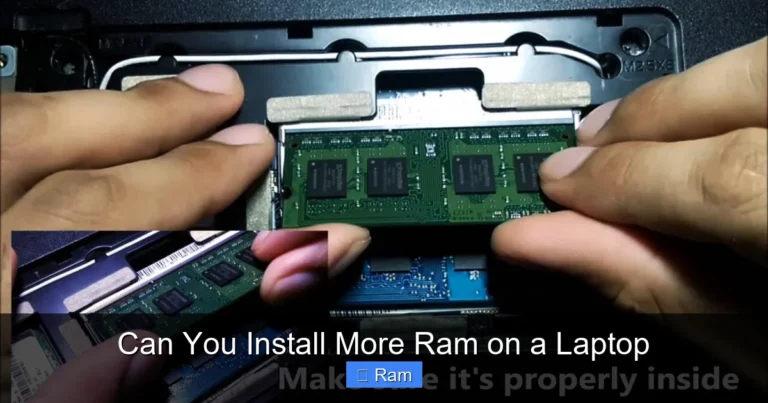
If you are replacing existing RAM, you need to remove it first. Push the clips on either side of the RAM stick outward. The module will pop up at an angle. Gently pull it out at that angle. Do not force it. If your laptop has two slots and you are adding RAM to an empty slot, you can skip this step.
For detailed instructions specific to HP models, you might want to check our guide on how to upgrade RAM on HP laptop for model-specific tips and visual references.
Step 5: Install the New RAM
Take your new RAM module out of its anti-static bag. Hold it by the edges to avoid touching the gold connectors. Align the notch on the RAM stick with the ridge inside the slot. Insert the module at a 30-45 degree angle and press it down firmly until the clips on both sides snap into place with a click.
Make sure the RAM is fully seated. You should not be able to wiggle it. If it feels loose, remove it and try again. A properly installed RAM stick will sit flush with the slot and be held firmly by the clips.
Step 6: Close Up and Test
Replace the bottom panel and screw it back in. Reconnect the power adapter and any external devices you removed. Power on your laptop. During the boot process, your HP laptop should automatically detect the new RAM.
To confirm the upgrade worked, right-click the taskbar, open Task Manager, and go to the Performance tab. You should see the new total RAM amount displayed. If the amount matches what you installed, congratulations. Your upgrade was successful.
For additional verification, you can also check your RAM using the methods described in our article on how to check the RAM on my laptop. This will give you detailed information about speed, type, and slot usage.
Choosing the Right RAM for Your HP Laptop
Not all RAM is created equal, and choosing the right module for your HP laptop makes a big difference. Here are the key factors to consider when shopping for new memory.
How Much RAM Do You Need?
The right amount of RAM depends on how you use your laptop. Here is a quick breakdown:
- 4GB: Basic tasks like web browsing and document editing. This is the bare minimum for Windows 11.
- 8GB: The sweet spot for everyday use. Handles multitasking, light photo editing, and casual gaming well.
- 16GB: Ideal for heavy multitasking, video editing, programming, and modern gaming.
- 32GB: For professionals who run demanding applications like 3D rendering, large databases, or virtual machines.
If you are unsure about your needs, our guide on how much RAM do I need on my laptop can help you decide based on your specific usage patterns.
Speed and Latency Considerations
RAM speed is measured in megahertz (MHz). Higher MHz numbers generally mean faster data transfer rates. However, the speed at which your laptop can actually run RAM is limited by the processor and motherboard. Buying RAM that is faster than your laptop supports will not give you a performance boost. It will simply run at the supported speed.
Latency, measured in CAS latency (CL), also matters but is less impactful than speed for most users. For most HP laptop users, focusing on getting the right type and capacity is more important than chasing the highest speed numbers.
Single Channel vs. Dual Channel
If your HP laptop has two RAM slots, installing matching pairs of RAM modules enables dual-channel mode. Dual-channel memory can improve performance by up to 15-20% because it allows the memory controller to access two modules simultaneously. For the best results, buy RAM kits that come as a matched pair with the same capacity, speed, and brand.
If you only have one slot, a single high-capacity module is your best option. Check your laptop specifications to determine whether it has one or two slots before making a purchase.
Common Mistakes to Avoid When Upgrading HP Laptop RAM
Even a simple RAM upgrade can go wrong if you are not careful. Here are common mistakes to avoid:
- Buying the Wrong RAM Type: DDR3 will not fit in a DDR4 slot. Always verify the RAM type before purchasing.
- Ignoring Maximum Capacity: Some HP laptops only support up to 16GB or 32GB total. Exceeding this will not work.
- Not Seating RAM Properly: If the RAM is not fully clicked in, your laptop may not boot or may show reduced memory.
- Skipping Anti-Static Precautions: Static discharge can damage RAM and other components. Always ground yourself before handling modules.
- Mixing Different RAM Brands: While it usually works, mixing brands can sometimes cause compatibility issues. Matching kits are always safer.
- Forgetting to Remove the Battery: Working on a powered laptop can lead to electrical damage. Always disconnect power completely.
Avoiding these simple mistakes will save you time, money, and frustration. Take your time, double-check everything, and the process will go smoothly.
When to Consider Professional Help
Most HP laptop RAM upgrades are simple and safe to do yourself. However, there are situations where professional help makes sense. If your laptop is still under warranty, opening it yourself might void the coverage. Check your warranty terms before proceeding. Some HP models have sealed or glued panels that make opening them difficult without the right tools. In these cases, visiting an authorized HP service center is a wise choice.
Also, if you feel uncomfortable opening your laptop or are unsure about any step, there is no shame in asking for help. A local computer repair shop can often install RAM for a small fee. The HP laptop RAM upgrade cost for professional installation is usually between $20 and $50, which is still much cheaper than a new laptop.
For HP Omen gaming laptops specifically, the upgrade process can vary slightly due to their unique chassis designs. If you own an HP Omen, you may want to check our detailed guide on HP Omen laptop RAM upgrade for model-specific instructions and tips.
Conclusion
Upgrading the RAM on your HP laptop is one of the most rewarding upgrades you can perform. It is fast, affordable, and delivers immediate improvements in speed and responsiveness. Whether you are a student, a professional, or a casual user, more RAM will make your daily computing experience better.
By following the steps in this guide, you can confidently check your current memory, choose the right modules, and install them yourself. Remember to verify compatibility before purchasing, handle components with care, and test your laptop after the upgrade. The satisfaction of speeding up your own laptop with your own hands is unbeatable.
Do not let a slow laptop hold you back any longer. Upgrade your HP laptop RAM today and experience the difference for yourself. Your laptop will thank you.
Frequently Asked Questions
Can I upgrade RAM on any HP laptop?
Most HP laptops allow RAM upgrades, but some slim and ultrabook models have soldered memory that cannot be upgraded. Check your specific model’s specifications before purchasing RAM. You can find this information on the HP Support website by entering your laptop model number.
How much does it cost to upgrade RAM on an HP laptop?
A RAM upgrade typically costs between $20 and $60 for the memory modules themselves. If you pay for professional installation, add another $20 to $50. Overall, it is one of the most budget-friendly upgrades you can make to extend your laptop’s life.
How do I know if my HP laptop RAM upgrade was successful?
After installation, restart your laptop and open Task Manager. Go to the Performance tab and select Memory. The total RAM shown should reflect your new capacity. If the amount is correct and your laptop runs faster, the upgrade was successful.
Can I mix old and new RAM in my HP laptop?
Yes, you can mix RAM modules, but it is best to use matching pairs for optimal performance. Mixing different speeds or sizes may cause the system to run all modules at the slowest speed. For the best results, install identical modules in each slot.
What happens if I install too much RAM in my HP laptop?
If you install RAM beyond your laptop’s maximum supported capacity, the system will either not boot or will only recognize up to the maximum supported amount. Always check your laptop’s specifications for the maximum RAM limit before purchasing new modules.
How long does a RAM upgrade take?
A RAM upgrade on an HP laptop typically takes 10 to 30 minutes. The process is straightforward once you have the right RAM and tools. Most of the time is spent opening the panel and carefully seating the new modules.