Upgrading Ram on a Laptop
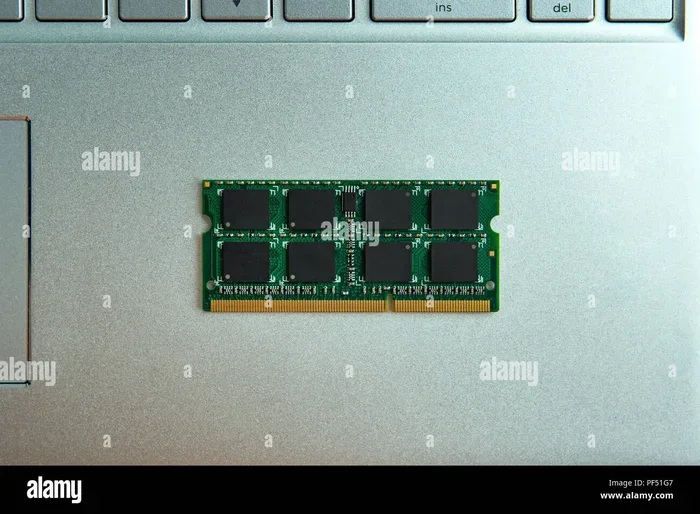
Upgrading ram on a laptop is one of the fastest and most affordable ways to breathe new life into a slow computer. More memory means smoother multitasking, faster app switching, and noticeably better performance whether you work, study, or game. This guide walks you through everything you need to know, from checking compatibility to installing your new laptop ram in just a few simple steps.
Upgrading ram on a laptop is one of the simplest yet most powerful ways to breathe new life into a sluggish computer. Whether your laptop struggles to handle multiple browser tabs, freezes during video calls, or takes forever to switch between apps, a RAM upgrade can deliver a noticeable performance boost. In this guide, we will walk you through everything you need to know about upgrading ram on a laptop, from figuring out how much you need to actually installing it yourself. You will learn about compatible RAM types, step-by-step installation tips, and common mistakes that can save you time and money.
Most people overlook their laptop’s system memory when looking for ways to improve speed. They chase faster processors or bigger storage drives, but laptop RAM often delivers the best bang for your buck. A memory upgrade costs far less than replacing your entire machine and takes just minutes to complete. This article will show you exactly how to make the most of this easy upgrade.
Key Takeaways
- Check your laptop’s maximum RAM capacity before buying new memory.
- Verify your laptop’s RAM type (DDR4, DDR5) and maximum supported speed.
- Back up your data before opening the laptop to prevent loss.
- Ground yourself to avoid static damage when handling RAM modules.
- Match RAM kits for dual-channel performance if your laptop supports it.
- Test stability after installation using built-in tools or stress tests.
📑 Table of Contents
- Why Upgrading Ram on a Laptop Can Transform Your Experience
- How to Know If Your Laptop Needs More Ram
- Step-by-Step Guide to Upgrading Ram on a Laptop
- Types of Ram Modules: Choosing the Right One
- Common Mistakes to Avoid When Upgrading Ram
- Expert Tips for Maximizing Your Ram Upgrade
- Conclusion: Is Upgrading Ram on a Laptop Worth It?
Why Upgrading Ram on a Laptop Can Transform Your Experience
Your laptop’s RAM acts as short-term memory for everything you do. Every app you open, every file you edit, and every website you visit loads into this computer memory. When your available RAM capacity runs low, your laptop starts using your storage drive as temporary memory instead. This process, called swapping, is incredibly slow and makes your entire system feel bogged down.
Upgrading ram on a laptop gives your machine more workspace to handle daily tasks. Here are some clear signs that a RAM upgrade would help you:
- Your laptop takes more than a few seconds to switch between apps.
- You constantly hear the fan spinning loudly during light tasks.
- Your browser freezes when you have many tabs open.
- Video calls stutter or drop frames during meetings.
- Your system shows “out of memory” errors frequently.
Once you upgrade, you will notice faster multitasking, smoother app performance, and fewer frustrating freezes. Even something as simple as having a dozen browser tabs open alongside a music player and a Word document becomes effortless. The difference is night and day, especially if you have been running on 4GB or 8GB of system memory.
How to Know If Your Laptop Needs More Ram
Before you rush out to buy new laptop RAM, you should confirm that memory is actually the bottleneck. Not every slow laptop needs a memory upgrade. Sometimes the problem lies elsewhere, like an aging hard drive or an overheated processor.
Checking Your Current RAM Usage
On Windows, open Task Manager by pressing Ctrl + Shift + Esc. Click the “Performance” tab and look at Memory. If your usage consistently stays above 80% during normal work, your laptop clearly needs more RAM. On a Mac, open Activity Monitor and check the Memory Pressure tab. A red or orange pressure graph signals that you are maxing out your RAM capacity.
Knowing Your Max RAM Capacity
Every laptop has a max RAM capacity set by its manufacturer. You can check this by looking up your laptop model online or using tools like Crucial’s System Scanner. A RAM upgrade won’t help if you are already at the maximum. That is why checking first matters. You can also read our detailed guide on how much RAM you really need on a laptop to find the sweet spot for your usage.
Quick Performance Check
Try this simple test. Restart your laptop and open only a few lightweight apps. Time how long it takes to launch them. Then open the same apps after running a few heavy programs. If the second round feels dramatically slower, your laptop RAM is likely the limiting factor.
Step-by-Step Guide to Upgrading Ram on a Laptop
Once you have confirmed that your laptop needs more memory, the next step is the actual upgrade. Upgrading ram on a laptop is a hands-on process, but it does not require advanced technical skills. If you can use a screwdriver, you can do this. For a more detailed walkthrough, check out our article on how to upgrade RAM on a laptop.
Gather Your Tools and Materials
Before you start, make sure you have everything ready:
- A Phillips-head screwdriver (most laptops use this size).
- Your new compatible RAM module (DDR4 or DDR5, depending on your laptop).
- A clean, flat workspace with good lighting.
- An anti-static wrist strap (optional but recommended).
- Your laptop’s user manual or a quick online search for the disassembly steps.
Step 1: Back Up Your Data
This is a non-negotiable first step. While upgrading laptop RAM rarely causes data loss, it is always smart to back up your important files. Use an external drive or cloud storage. Take five minutes to copy your critical documents before touching any hardware.
Step 2: Power Down and Disconnect
Shut down your laptop completely. Unplug the charger and remove the battery if your model allows it. Hold the power button for about 10 seconds to discharge any remaining electricity. This step protects your components from static shock during RAM installation.
Step 3: Access the RAM Slots
Flip your laptop over and locate the RAM access panel. Many laptops have a dedicated panel with one or two small screws. Remove the screws and gently pry off the panel using a plastic spudger or your fingernail. If your laptop does not have a dedicated panel, you may need to remove the entire back cover. In that case, search for a video tutorial specific to your model. You can also refer to our guide on how to check RAM on a laptop for helpful tips on identifying your memory slots.
Step 4: Install the New RAM
You will see one or two RAM slots on the motherboard. If a slot is already occupied, you can either replace the existing module or add a new one in an empty slot. Here is how to install:
- Gently spread the metal clips on both sides of the slot. The old module will pop up at an angle.
- Carefully remove the old module by pulling it toward you.
- Take your new RAM module and align the notch on the bottom edge with the key in the slot.
- Insert the module at a 30-degree angle and press it down firmly until it clicks.
- Fold the module down and push it flat. The metal clips on both sides should snap into place automatically.
Step 5: Reassemble and Test
Replace the access panel and screw it back in. Reconnect the battery and charger. Power on your laptop and immediately check that the new RAM is recognized. On Windows, open Task Manager and confirm the total memory reflects your upgrade. On a Mac, go to Apple Menu > About This Mac and check the memory count. If everything looks correct, you are all set!
Types of Ram Modules: Choosing the Right One
Not all laptop RAM is created equal. Choosing the wrong type can lead to compatibility issues or wasted money. Understanding the basics of computer memory will help you make the right purchase.
DDR4 vs DDR5
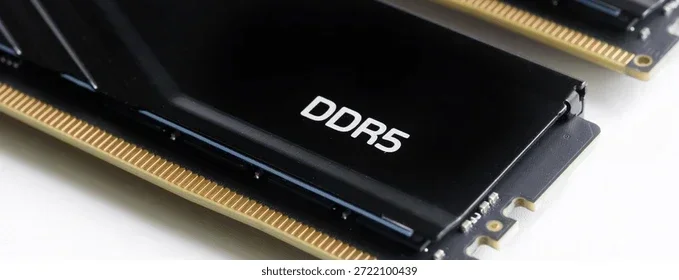
Most modern laptops use DDR4 RAM, which runs at speeds between 2400MHz and 3200MHz. Newer models are starting to support DDR5 RAM, which offers faster RAM frequency and better power efficiency. However, DDR5 modules are still more expensive and not yet universal. Always verify which type your laptop supports before buying.
SODIMM Modules
Laptops use a smaller form factor called SODIMM (Small Outline Dual In-line Memory Module). These are roughly half the size of desktop RAM sticks. Never buy desktop DIMMs for a laptop, as they will not physically fit. Our guide on what is good RAM on a laptop provides more details on choosing the right specifications for your needs.
Single vs Dual Channel
If your laptop has two RAM slots, using two identical modules (dual channel) performs better than a single stick. Dual channel memory doubles the data throughput between your RAM and processor. For best results, buy a matched pair of modules with the same brand, speed, and capacity.
RAM Speed and Latency
RAM speed (measured in MHz) and latency (measured in CL) affect how quickly your memory responds. Higher MHz means faster data transfer, while lower CL means quicker response times. For most users, a balance of moderate speed and low latency works best. You do not need the fastest RAM frequency available unless you do heavy video editing or gaming.
Comparison Table: RAM Types at a Glance
| Feature | DDR4 | DDR5 |
|---|---|---|
| Typical Speed | 2400-3200 MHz | 4800-5600 MHz |
| Power Usage | 1.2V | 1.1V |
| Form Factor | SODIMM | SODIMM |
| Availability | Widely Available | Growing |
| Best For | Most Laptops | Newer High-End Models |
Common Mistakes to Avoid When Upgrading Ram
Upgrading ram on a laptop is straightforward, but a few common pitfalls trip up even experienced users. Avoiding these mistakes will save you frustration and protect your investment.
Buying Incompatible RAM
This is the number one mistake. Not every laptop RAM module works with every laptop. Always double-check your laptop model, supported memory type, and maximum RAM capacity before purchasing. A DDR5 stick will not work in a DDR4 slot, even if the physical size looks similar. Use the manufacturer’s specifications or a reliable scanner tool to confirm compatibility.
Ignoring the Existing RAM
If your laptop has one 8GB stick and you add another 8GB stick, you should ideally match the specifications exactly. Mixing different brands, speeds, or latencies can cause instability or force the system to run at the slower speed. When mixing is unavoidable, at least match the capacity and try to align the RAM frequency as closely as possible.
Skipping the Grounding Step
Static electricity can destroy sensitive components instantly. Never handle RAM modules on a carpet or in dry conditions without grounding yourself. Touch a metal part of your laptop chassis before handling the sticks. Better yet, use an anti-static wrist strap. This small step can prevent costly damage during RAM installation.
Forgetting to Check the Back Panel
Some laptops have their RAM slots hidden under the keyboard or beneath the motherboard. Not every model has easy bottom access. If you cannot find the RAM panel after searching online, your laptop may require a more involved disassembly. In that case, consider watching a full teardown video for your specific model before proceeding. Alternatively, you can consult our resource on whether you can upgrade RAM on your laptop for model-specific guidance.
Assuming More RAM Always Fixes Slow Performance
A memory upgrade helps when RAM is the bottleneck. It does not fix a slow hard drive, an outdated processor, or overheating issues. If your laptop is old and has other hardware limitations, adding more system memory might not deliver the dramatic improvement you expect. Evaluate the whole system before investing.
Expert Tips for Maximizing Your Ram Upgrade
Once your upgrading ram on a laptop project is complete, a few extra steps will help you get the most out of your new laptop performance.
Enable XMP or DOCP Profiles
Some laptops support XMP (Intel) or DOCP (AMD) profiles, which automatically run your RAM at its rated speed instead of the default base speed. Check your BIOS settings after installation. Enabling these profiles can give you a free performance boost without any extra cost. Look for memory overclocking options under the advanced BIOS menu.
Keep Your Drivers and BIOS Updated
After installing new laptop RAM, update your BIOS and chipset drivers. Manufacturers occasionally release updates that improve memory compatibility and stability. A simple update can resolve rare recognition issues and ensure your system runs the new RAM optimally.
Run a Memory Test
After rebooting, run a quick memory test to verify that your new modules are error-free. Windows Memory Diagnostic or a tool like MemTest86 can scan for problems. This step gives you peace of mind that your upgrade is stable and your data is safe. If errors appear, try reseating the modules or testing them individually to isolate the issue.
Optimize Your Software Alongside Hardware
Hardware upgrades work best when paired with good software habits. Disable unnecessary startup programs, clear browser extensions you do not use, and keep your storage drive at least 15% free. A clean software environment combined with a RAM upgrade creates the best possible laptop performance for everyday use.
Monitor Your Performance Over Time
After your memory upgrade, keep an eye on how your laptop performs over the next few weeks. Use Task Manager or a lightweight monitoring tool to track RAM usage during different tasks. This data helps you understand whether you added enough RAM capacity or whether future upgrades might be needed down the road.
Conclusion: Is Upgrading Ram on a Laptop Worth It?
Upgrading ram on a laptop is, without a doubt, one of the best upgrades you can make. It is affordable, quick to perform, and delivers tangible improvements in laptop performance. Whether you are a student juggling multiple apps, a professional handling video calls and spreadsheets, or a casual user who wants smoother browsing, more system memory makes a real difference.
The process is simpler than most people think. You do not need a degree in computer science or expensive tools. A screwdriver, a compatible RAM module, and a few minutes of your time are all it takes. Just follow the steps carefully, avoid common mistakes, and you will be enjoying a faster, more responsive laptop in no time.
Remember to check compatibility first, buy the right SODIMM type, and match your modules for best results. Once installed, take advantage of BIOS memory profiles and keep your system optimized. A thoughtful memory upgrade can extend your laptop’s useful life by several more years. If you have been on the fence about upgrading ram on a laptop, now is the perfect time to take the leap. Your future self will thank you every time your apps open instantly and your multitasking flows without a hitch.
Frequently Asked Questions
Is it possible to upgrade RAM on a laptop?
Yes, most laptops allow RAM upgrades, but it depends on your model. Some ultrabooks and thin laptops have soldered memory that cannot be replaced. Check your laptop’s manual or use a tool like Crucial’s System Scanner to confirm compatibility before purchasing new RAM.
How much RAM do I need for everyday tasks?
For basic browsing, office work, and streaming, 8 GB of RAM is usually enough. If you multitask with many apps open or use creative software, 16 GB will provide a much smoother experience. Most users find that 16 GB strikes the best balance between performance and value in 2024.
Can I mix different RAM brands or sizes in my laptop?
You can mix RAM sticks, but matching the brand, speed, and size helps avoid compatibility issues. Using mismatched RAM may cause your system to run at the slowest stick’s speed. For best results, try to install identical modules in both slots.
What tools do I need to upgrade RAM on a laptop?
You typically only need a small Phillips-head screwdriver and an anti-static wrist strap. A clean, flat workspace and a soft cloth to place your laptop on will also help prevent damage. Some laptops use special screw types, so checking your model’s requirements beforehand is a smart move.
Will upgrading my laptop RAM improve gaming performance?
Yes, adding more RAM can boost gaming performance, especially if your current setup has 4 GB or 8 GB. Modern games often recommend 16 GB for smooth gameplay at higher settings. However, RAM alone won’t fix a weak processor or outdated graphics card.
How do I know if my laptop needs more RAM?
Common signs include slow performance when switching tabs, frequent freezing, or your system using the hard drive as memory. You can check your RAM usage by opening Task Manager on Windows or Activity Monitor on macOS. If your usage regularly exceeds 80 percent, an upgrade will likely help.