Laptop 8gb Ram Windows 11
A laptop with 8gb ram and Windows 11 is a solid combo for everyday tasks, office work, and light multitasking. Windows 11 runs smoothly on 8gb of memory, but heavy users may notice limits when running multiple apps at once. This guide covers everything you need to know about laptop 8gb ram windows 11, from performance expectations to upgrade options and optimization tips.
A laptop with 8gb ram windows 11 is one of the most popular setups for everyday users. Whether you are a student, a remote worker, or someone who just wants a reliable machine, this combination delivers solid performance without breaking the bank.
Windows 11 is Microsoft’s latest operating system, and it brings a fresh look, better security, and improved multitasking features. But how well does it run on 8gb of memory? The short answer is: pretty well for most people. However, there are some things you should know before you buy or use a laptop with 8gb ram and Windows 11.
In this guide, we will walk you through everything. We will talk about what to expect performance-wise, when 8gb might not be enough, how to check your current setup, and what you can do to get the best experience. Let us dive right in.
Key Takeaways
- 8gb RAM works well with Windows 11 for browsing, office tasks, and media consumption.
- Heavy multitasking or creative work may push 8gb to its limits on a laptop.
- You can upgrade RAM on many laptops to improve Windows 11 performance.
- Windows 11 has specific system requirements that 8gb of RAM meets comfortably.
- Optimizing settings like startup apps and visual effects can boost speed on 8gb systems.
- Checking your current RAM is easy and helps you plan for upgrades.
- 8gb is a sweet spot for budget-friendly laptops running Windows 11 in 2024.
📑 Table of Contents
- What Does 8gb RAM Mean for Windows 11?
- When 8gb RAM Is Not Enough
- Windows 11 System Requirements and Why 8gb Matters
- How to Check Your Current RAM on Windows 11
- Can You Upgrade RAM on a Windows 11 Laptop?
- Tips to Optimize Windows 11 on 8gb RAM
- Is 8gb RAM Enough for the Future?
- Best Laptops with 8gb RAM and Windows 11 in 2024
- Common Mistakes People Make with 8gb RAM Laptops
- Expert Insight: How Professionals Use 8gb RAM Laptops
- Final Thoughts
What Does 8gb RAM Mean for Windows 11?
RAM, or random access memory, is the short-term memory your laptop uses to run programs. When you open a browser, a Word document, or a video, it all lives in RAM while you work. 8gb of RAM gives Windows 11 enough space to handle most daily tasks without slowing down.
Windows 11 itself uses about 3.5 to 4gb of RAM just to run the operating system. That leaves roughly 4 to 4.5gb available for your apps and browser tabs. For basic use, this is more than enough.
What Can You Do With 8gb RAM on Windows 11?
Here is a quick look at what a laptop 8gb ram windows 11 setup handles easily:
- Web browsing with 10 to 15 open tabs
- Microsoft Office apps like Word, Excel, and PowerPoint
- Video streaming on Netflix, YouTube, or Spotify
- Email and video calls on Zoom or Teams
- Light photo editing and social media use
- Running two or three apps side by side
For these tasks, you will not experience lag or slowdowns. The system feels responsive and fast. But if you start pushing the limits, you may notice some slowdowns, which brings us to the next section.
When 8gb RAM Is Not Enough
Not everyone uses a laptop the same way. If your work or hobbies demand more from your machine, 8gb might feel tight. Understanding these limits helps you decide if you need more memory.
Tasks That Push 8gb to the Limit
Here are some activities that can strain a laptop with 8gb of RAM running Windows 11:
- Running 20 or more browser tabs at once
- Editing 4K video files
- Using heavy design software like Adobe Premiere or AutoCAD
- Playing modern AAA games at high settings
- Running virtual machines or multiple operating systems
- Using resource-heavy apps like Photoshop with large files
When your laptop runs out of RAM, it starts using your storage drive as temporary memory. This is called paging or swapping. It is much slower than real RAM, and your laptop will feel sluggish. If you find yourself in this situation often, you might want to consider a 16gb ram windows laptop instead.
Windows 11 System Requirements and Why 8gb Matters
Microsoft lists the minimum RAM requirement for Windows 11 as 4gb. So technically, you can install Windows 11 on a laptop with 4gb of RAM. But 8gb is the recommended amount for a smooth experience. Here is why it matters.
Windows 11 uses more memory than Windows 10 in some areas. The new features, animations, and security tools take up space. With only 4gb, you will feel the squeeze quickly. With 8gb, you have a comfortable buffer.
How Much RAM Does Windows 11 Really Use?
Here is a simple breakdown of RAM usage on a fresh Windows 11 install:
- Windows 11 OS: 3.5 to 4gb
- Background processes: 1 to 1.5gb
- Browser (10 tabs): 1.5 to 2gb
- Office apps: 500mb to 1gb
- Remaining free: 1 to 2gb
As you can see, 8gb gives you enough headroom to work comfortably. You will not hit the wall quickly, and your laptop performance stays smooth throughout the day.
How to Check Your Current RAM on Windows 11
Before you decide to upgrade or buy a new laptop, it helps to know what you already have. Checking your RAM on Windows 11 is simple and takes just a few seconds.
Method 1: Task Manager
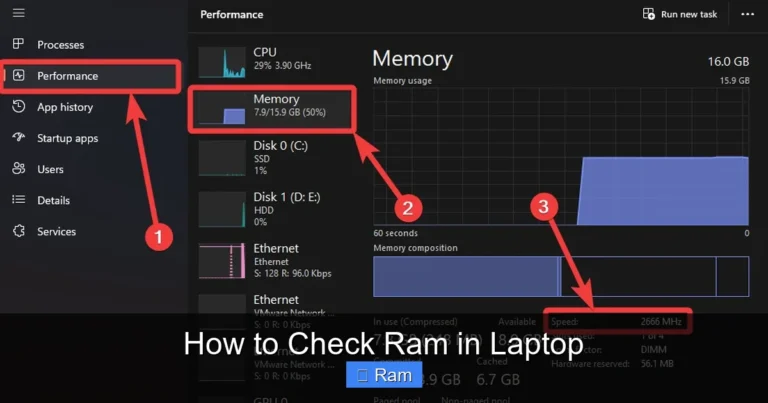
Right-click on your taskbar and select Task Manager. Click on the Performance tab, then click on Memory. You will see your total RAM, how much is in use, and how many slots are available.
Method 2: Settings App
Go to Settings, then System, and click on About. Scroll down to Device Specifications. You will see the installed RAM listed there. This is the easiest way to check without opening any extra tools.
If you are unsure about your laptop’s RAM configuration or want to learn more about what your machine can handle, check out our guide on how to check the ram on my laptop for detailed steps.
Can You Upgrade RAM on a Windows 11 Laptop?
One of the best things about many laptops is that you can upgrade the RAM yourself. This can save you a lot of money compared to buying a whole new machine. But not all laptops allow upgrades, so you need to check first.
How to Know if Your Laptop RAM Is Upgradeable
Here are a few ways to find out if your laptop supports RAM upgrades:
- Check the manufacturer’s website for your specific model
- Use a free tool like Crucial System Scanner
- Open the laptop and physically inspect the RAM slots
- Look up your laptop model number online
Some slim laptops come with soldered RAM, which means you cannot upgrade them. But many standard-sized laptops still have removable RAM modules. If your laptop supports upgrades, adding another 8gb stick can double your memory to 16gb. This makes a huge difference for Windows 11 performance.
How to Upgrade RAM on Your Laptop
If you have decided to upgrade, here are the general steps:
- Buy compatible RAM for your laptop model
- Power off the laptop and unplug it
- Open the back panel using the right screwdriver
- Locate the RAM slots
- Remove the old RAM by pushing the side clips outward
- Insert the new RAM at a 45-degree angle and press it down
- Close the panel and power on
If you want a step-by-step walkthrough for HP laptops specifically, we have a detailed guide on how to upgrade ram on hp laptop that covers the process in detail.
Tips to Optimize Windows 11 on 8gb RAM
Even with 8gb of RAM, you can make your laptop run faster and smoother with a few simple tweaks. These optimizations help you squeeze every bit of performance out of your machine.
1. Disable Unnecessary Startup Apps
Many apps launch automatically when you turn on your laptop. They eat up RAM in the background without you even noticing. To fix this, open Task Manager, go to the Startup tab, and disable apps you do not need right away.
2. Turn Off Visual Effects
Windows 11 looks beautiful with animations and transparency effects. But these features use RAM and processing power. Go to Settings, then Accessibility, then Visual Effects, and turn off effects you do not need.
3. Use Lightweight Apps
Some apps are much lighter than others. For example, using Microsoft Edge instead of Chrome can save significant memory. Similarly, using a lightweight PDF reader instead of a heavy one can help keep your system nimble.
4. Close Unused Tabs and Apps
This might sound obvious, but many of us leave dozens of browser tabs open all day. Each tab uses memory. Get in the habit of closing tabs and apps you are not actively using.
5. Keep Windows 11 Updated
Microsoft regularly releases updates that improve memory management and overall performance. Keeping your system up to date ensures you get the best experience from your 8gb ram laptop.
Is 8gb RAM Enough for the Future?
This is a common question, and the honest answer depends on your needs. For most everyday users, 8gb will remain sufficient for the next few years. Microsoft continues to optimize Windows 11 for better memory management with each update.
However, software keeps getting heavier. Apps are using more RAM than they did five years ago. If you plan to keep your laptop for five or more years, you might want to consider 16gb instead. It gives you more breathing room as demands grow.
For now, a laptop with 8gb ram and Windows 11 is a smart choice for the majority of users. It balances cost and performance perfectly. You get a fast, capable machine without paying a premium for extra RAM you might not need.
Best Laptops with 8gb RAM and Windows 11 in 2024
If you are shopping for a new laptop, here are some popular options that come with 8gb of RAM and Windows 11 preinstalled:
- HP Pavilion 15: Great for students and home users
- Lenovo IdeaPad 3: Affordable and reliable for everyday tasks
- Acer Aspire 5: Solid performance at a budget-friendly price
- Dell Inspiron 14: Compact and good for office work
- ASUS VivoBook 15: Lightweight with good battery life
Each of these laptops handles Windows 11 smoothly with 8gb of RAM. They are perfect for browsing, working, streaming, and light creative tasks. If you want more power, you can always upgrade the RAM later on models that support it.
Common Mistakes People Make with 8gb RAM Laptops
Avoiding these mistakes can help you get the most out of your 8gb ram windows 11 laptop:
- Leaving too many apps open: This eats up RAM fast and slows everything down.
- Ignoring background processes: Some apps run silently and consume memory. Check Task Manager regularly.
- Not upgrading when needed: If you consistently hit 90% RAM usage, it is time to upgrade.
- Using heavy antivirus software: Some security suites are very resource-heavy. Choose a lightweight option.
- Skipping Windows updates: Updates often include performance improvements for memory management.
By being mindful of these habits, your laptop will stay fast and responsive for years.
Expert Insight: How Professionals Use 8gb RAM Laptops
Many professionals work perfectly fine on 8gb of RAM. Writers, accountants, customer service agents, and teachers all rely on this amount of memory daily. The key is knowing your workflow and managing your apps wisely.
For example, an accountant using Excel with multiple sheets might find 8gb limiting during heavy calculations. But for email, invoicing, and light spreadsheet work, it works great. If you fall into a specialized field, consider your daily tasks honestly before deciding if 8gb is right for you.
Our article on best hp laptop for accounting 8gb ram dives deeper into this topic if you are looking for a machine tailored to financial work.
Final Thoughts
A laptop 8gb ram windows 11 setup is a reliable, affordable, and practical choice for the vast majority of users. It handles everyday tasks with ease, supports Windows 11 features fully, and gives you room to work without constant slowdowns.
If you are on a budget or buying a laptop for basic use, do not hesitate to choose 8gb of RAM. It is the sweet spot where cost and performance meet. And if you ever need more, many laptops allow you to upgrade down the road.
Remember to optimize your settings, manage your apps, and keep your system updated. These small habits make a big difference. With the right setup, your 8gb ram laptop running Windows 11 will serve you well for many years to come.
For more information on RAM and laptop performance, check out our guides on is 8gb ram enough for laptop and what does ram do on a laptop to deepen your understanding.
Frequently Asked Questions
Is 8gb RAM enough for Windows 11 in 2024?
Yes, 8gb of RAM is enough for Windows 11 in 2024 for most everyday tasks. It handles browsing, office work, streaming, and light multitasking without issues. Heavy users like video editors or gamers may want 16gb for a smoother experience.
Can I upgrade from 8gb to 16gb RAM on my laptop?
Many laptops allow RAM upgrades, but it depends on your model. Check if your laptop has a free RAM slot or if you can replace the existing 8gb stick with a 16gb one. Some slim laptops have soldered RAM that cannot be upgraded.
Does Windows 11 run slower on 8gb RAM compared to 16gb?
Windows 11 runs fine on 8gb RAM for normal use. You may notice slowdowns only when running many apps at once or using resource-heavy software. Upgrading to 16gb helps with heavy multitasking and creative workloads.
How do I check how much RAM my laptop has on Windows 11?
You can check your RAM by opening Task Manager and clicking on the Performance tab, then Memory. Alternatively, go to Settings, then System, and click About to see your installed RAM. For a detailed walkthrough, read our guide on how to check the ram on my laptop.
What is the difference between 8gb and 4gb RAM on a Windows 11 laptop?
The main difference is how much multitasking you can handle. With 4gb, Windows 11 will feel slow when you open several apps. With 8gb, you get comfortable headroom for daily tasks. 4gb is the minimum requirement, but 8gb is the recommended amount for a smooth experience.
Should I buy a laptop with 8gb RAM and Windows 11 preinstalled?
Yes, buying a laptop with 8gb RAM and Windows 11 preinstalled is a great value. You save money and get a machine ready to use right out of the box. Just make sure the laptop also has a decent processor and storage to match the RAM for the best overall experience.