What Does Ram Do on a Laptop

RAM (Random Access Memory) is your laptop’s short-term memory that temporarily stores data your computer is actively using. The more RAM your laptop has, the more tasks it can handle simultaneously without slowing down. Understanding what RAM does on a laptop helps you make smarter buying decisions and optimize your device’s performance.
Key Takeaways
- RAM is temporary memory: It stores data your laptop is actively using, but clears when you shut down your device.
- More RAM means better multitasking: Higher RAM capacity allows you to run more programs simultaneously without lag.
- RAM affects overall speed: Insufficient RAM causes slowdowns, freezing, and poor performance even with a fast processor.
- Different tasks need different amounts: Basic browsing needs 4-8GB, while gaming and video editing require 16GB or more.
- RAM is different from storage: Storage (SSD/HDD) holds files permanently, while RAM only holds active data temporarily.
- Upgrading RAM is often possible: Many laptops allow RAM upgrades, which can significantly improve performance at a low cost.
- RAM speed matters too: Beyond capacity, RAM speed (measured in MHz) also impacts how quickly your laptop processes data.
📑 Table of Contents
- What Does RAM Do on a Laptop? The Complete Guide
- How RAM Works on a Laptop
- How Much RAM Does Your Laptop Need?
- Signs Your Laptop Needs More RAM
- Types of RAM Used in Laptops
- How to Check Your Laptop’s RAM
- Upgrading Your Laptop’s RAM
- RAM and Laptop Performance: Real-World Impact
- Common Myths About Laptop RAM
- Conclusion
What Does RAM Do on a Laptop? The Complete Guide
If you have ever wondered why your laptop feels slow or sluggish, the answer might come down to one small but mighty component: RAM. Understanding what RAM does on a laptop is one of the most important things you can learn as a computer user. Whether you are buying a new laptop, trying to speed up your current one, or just curious about how computers work, this guide will explain everything you need to know.
RAM stands for Random Access Memory. Think of it as your laptop’s short-term memory. Just like your brain holds information you are currently thinking about, RAM holds data your laptop is actively using right now. Every time you open a web browser, load a document, or play a game, that data gets pulled from your storage drive and placed into RAM so your processor can access it quickly.
Without enough RAM, your laptop struggles to keep up with everything you ask it to do. Programs take forever to open, your system freezes, and multitasking becomes a nightmare. On the flip side, having plenty of RAM means your laptop can handle multiple tasks smoothly and respond to your commands almost instantly. Let us dive deeper into how RAM works and why it matters so much for your laptop’s performance.
How RAM Works on a Laptop
The Basics of Random Access Memory
To truly understand what RAM does on a laptop, it helps to know how it functions at a basic level. RAM is a type of volatile memory, which means it only holds data while your laptop is turned on. The moment you shut down or restart your computer, everything stored in RAM gets wiped clean. This is different from your hard drive or SSD, which stores files permanently even when the power is off.

Visual guide about What Does Ram Do on a Laptop
Image source: games4esl.com
When you open a program like Microsoft Word or Google Chrome, your laptop copies the necessary files from your storage drive into RAM. This happens because RAM is significantly faster than even the fastest SSD. Your processor can read and write data from RAM at incredible speeds, which is why having active data in RAM makes everything feel snappy and responsive.
RAM vs Storage: Understanding the Difference
One of the most common confusions people have is mixing up RAM with storage. They are completely different things, even though both are measured in gigabytes. Your storage drive (whether it is an SSD or HDD) is like a filing cabinet where you keep all your documents, photos, videos, and programs permanently. RAM is like your desk space where you spread out the files you are currently working on.
The bigger your desk (RAM), the more files you can have spread out and work on at the same time. If your desk is too small, you constantly have to put files back in the cabinet and pull out new ones, which slows everything down. This is exactly what happens when your laptop does not have enough RAM. It has to constantly swap data between RAM and your storage drive, a process that creates noticeable lag and slowdowns.
The Role of RAM in Processing Speed
Your laptop’s processor (CPU) is the brain of the operation, but it needs quick access to data to do its job efficiently. RAM serves as the middleman between your processor and your storage drive. When the CPU needs to perform a calculation or execute a command, it grabs the necessary data from RAM rather than going all the way to the slower storage drive.
This is why RAM speed, measured in megahertz (MHz), also matters. Faster RAM can deliver data to your processor more quickly, which translates to better overall performance. Modern DDR4 RAM typically runs between 2133MHz and 3200MHz, while newer DDR5 RAM can reach speeds of 4800MHz and beyond. The combination of RAM capacity and speed determines how well your laptop handles demanding tasks.
How Much RAM Does Your Laptop Need?
Minimum RAM for Basic Tasks
If you primarily use your laptop for simple tasks like web browsing, checking email, and working with basic documents, you can get by with 4GB of RAM. However, 4GB is really the bare minimum in today’s computing world. Modern web browsers alone can consume 2-3GB of RAM with just a few tabs open, so 4GB leaves very little room for anything else.

Visual guide about What Does Ram Do on a Laptop
Image source: c8.alamy.com
For a smoother experience with basic tasks, 8GB of RAM is the sweet spot. This amount gives you enough headroom to browse the web with multiple tabs open, stream music, work on documents, and run background applications without constantly running into memory issues. Most budget laptops today come with 8GB of RAM, and for many users, this is perfectly sufficient.
RAM for Moderate Use and Multitasking
If you are someone who likes to multitask heavily, 16GB of RAM is the recommended amount. This includes people who regularly have dozens of browser tabs open, work with large spreadsheets, edit photos, or run multiple applications simultaneously. With 16GB, your laptop can handle all of these tasks without breaking a sweat.
Students, office workers, and general power users will find that 16GB provides the best balance between cost and performance. It gives you plenty of room to work efficiently without paying a premium for capacity you might never use. Many mid-range and business laptops now come standard with 16GB of RAM, reflecting how common multitasking has become.
RAM for Gaming and Creative Work
Gamers, video editors, 3D artists, and other creative professionals need even more RAM. Modern games can use 8-16GB of RAM on their own, and video editing software like Adobe Premiere Pro or DaVinci Resolve benefits enormously from having 32GB or more. When you are rendering video, working with large image files, or running virtual machines, RAM becomes absolutely critical.
For serious gaming, 16GB is the current standard, but 32GB is becoming increasingly popular as games become more demanding. If you are a professional content creator working with 4K or 8K video, 32GB to 64GB of RAM can make the difference between a smooth workflow and constant frustration. The investment in more RAM pays for itself in time saved and productivity gained.
Signs Your Laptop Needs More RAM
Slow Performance and Frequent Freezing
One of the most obvious signs that your laptop needs more RAM is sluggish performance. If your laptop takes a long time to open programs, frequently freezes or becomes unresponsive, or feels generally slow even when you are not doing anything demanding, insufficient RAM could be the culprit. When RAM fills up, your laptop starts using your storage drive as virtual memory, which is dramatically slower.

Visual guide about What Does Ram Do on a Laptop
Image source: i.pinimg.com
You might notice that your hard drive light stays on constantly, or you hear your SSD working overtime even when you are not actively saving or loading files. This is a telltale sign that your system is swapping data between RAM and storage because it has run out of available memory. Upgrading your RAM can eliminate these issues almost entirely.
Programs Crashing or Refusing to Open
Another common symptom of low RAM is programs crashing unexpectedly or refusing to open altogether. When your laptop does not have enough memory to load a new application, it may simply fail to launch or crash shortly after opening. You might also see error messages about low memory or insufficient system resources.
This is especially common with memory-intensive applications like photo editors, video games, and web browsers with many tabs. If you find yourself closing programs just to open new ones, or if your laptop struggles with tasks it used to handle fine, it is probably time to consider a RAM upgrade.
High Memory Usage in Task Manager
The easiest way to check if your laptop needs more RAM is to open the Task Manager (press Ctrl+Shift+Esc on Windows) and look at the Memory section. If your RAM usage is consistently above 80-90% during normal use, you are running out of memory. You can also see which programs are using the most RAM and decide if you need to close some or upgrade your hardware.
On Mac users can check memory usage through the Activity Monitor. Look at the Memory Pressure graph at the bottom. If it is consistently yellow or red, your Mac is struggling with the amount of RAM it has. This is a clear indicator that adding more RAM would improve your experience significantly.
Types of RAM Used in Laptops
DDR4 RAM
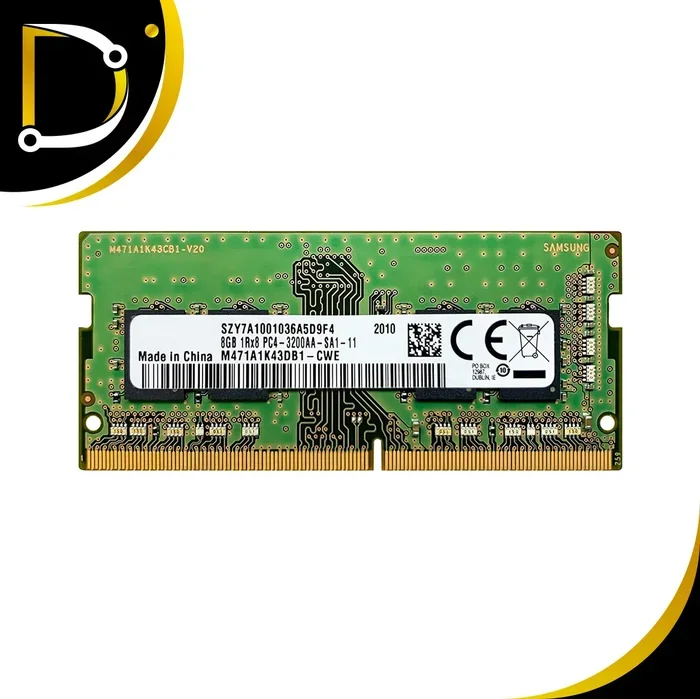
DDR4 is the most common type of RAM found in laptops today. It offers a great balance of speed, power efficiency, and affordability. DDR4 RAM typically runs at speeds between 2133MHz and 3200MHz, with most laptops using 2666MHz or 3200MHz modules. It has been the standard for several years and is widely available at reasonable prices.

Visual guide about What Does Ram Do on a Laptop
Image source: liverpool.ac.uk
One important thing to know about DDR4 is that it comes in different form factors. Laptops use SO-DIMM (Small Outline Dual Inline Memory) modules, which are smaller than the DIMM modules used in desktop computers. When upgrading your laptop’s RAM, make sure you buy SO-DIMM modules specifically designed for laptops.
DDR5 RAM
DDR5 is the newest generation of RAM and is starting to appear in high-end laptops. It offers significantly higher speeds, starting at 4800MHz and going up to 8400MHz or more. DDR5 also provides better power efficiency and higher density, meaning more RAM can be packed into a smaller space.
While DDR5 is faster than DDR4, the real-world performance difference for most users is not dramatic yet. DDR5 is most beneficial for demanding tasks like video editing, 3D rendering, and scientific computing. As DDR5 becomes more common and affordable, it will eventually replace DDR4 as the standard for all laptops.
Soldered vs Upgradeable RAM
Not all laptop RAM can be upgraded. Many modern ultrabooks and thin laptops have RAM soldered directly to the motherboard, meaning it cannot be removed or replaced. This is done to save space and reduce thickness, but it means you are stuck with whatever amount of RAM the laptop came with.
Before attempting to upgrade, check if your laptop’s RAM is upgradeable. You can find this information in your laptop’s manual, on the manufacturer’s website, or by searching online for your specific model. If the RAM is soldered, your only option for more memory is to buy a new laptop. For more details on upgrading, check out our guide on how to upgrade RAM on a laptop.
How to Check Your Laptop’s RAM
Checking RAM on Windows
Finding out how much RAM your laptop has is simple on Windows. Right-click on the Start button and select “System.” In the System window, you will see the installed RAM listed under Device specifications. You can also open Task Manager (Ctrl+Shift+Esc), go to the Performance tab, and click on Memory to see detailed information about your RAM, including speed, slots used, and form factor.
For even more detailed information, you can use the Command Prompt. Type “wmic memorychip get capacity, speed, manufacturer” to see the size, speed, and brand of each RAM module installed in your laptop. This information is helpful when you want to buy matching RAM for an upgrade.
Checking RAM on Mac
On a Mac, click the Apple menu in the top-left corner and select “About This Mac.” The Overview tab will show you the total amount of RAM installed. For more detailed information, click “System Report” and then select “Hardware” and “Memory” to see the size, type, and speed of each RAM module.
Mac users can also check memory usage in real-time by opening Activity Monitor from the Applications > Utilities folder. The Memory tab shows how much RAM is being used and which applications are consuming the most memory. This helps you determine if you need more RAM or if certain apps are being too greedy.
Upgrading Your Laptop’s RAM
Is Upgrading RAM Worth It?
Upgrading your laptop’s RAM is one of the most cost-effective ways to improve performance. Unlike buying a new laptop, which can cost hundreds or thousands of dollars, a RAM upgrade typically costs between $20 and $100 depending on the capacity and type. If your laptop feels slow and you have confirmed that RAM is the bottleneck, an upgrade can make it feel like a brand new machine.

Visual guide about What Does Ram Do on a Laptop
Image source: steelfabinc.com
However, upgrading RAM will not fix every performance problem. If your laptop has a very old processor, a failing hard drive, or other hardware issues, more RAM might not help much. It is also important to note that if your laptop already has enough RAM for your needs, adding more will not make things faster. RAM only helps when you are running out of it.
How to Choose the Right RAM for Your Laptop
When buying RAM for your laptop, you need to consider several factors. First, check what type of RAM your laptop supports (DDR4 or DDR5). Second, check the maximum capacity your laptop can handle. Third, look at the speed of your existing RAM and try to match it or go higher. Finally, make sure you buy SO-DIMM modules, not desktop DIMM modules.
It is also a good idea to install RAM in pairs when possible. Most laptops have two RAM slots, and running two identical modules in dual-channel mode provides better performance than a single module. For example, two 8GB sticks will generally perform better than one 16GB stick because the memory controller can access both modules simultaneously.
Installation Tips and Precautions
Installing RAM in a laptop is usually straightforward, but it requires some care. Always power off your laptop completely and unplug it before opening the back panel. Ground yourself by touching a metal object to discharge static electricity, which can damage sensitive components. Locate the RAM slots, remove the existing modules if necessary, and insert the new ones at a slight angle before pressing them down until they click into place.
If you are unsure about the installation process, there are many video tutorials available online for specific laptop models. You can also refer to our detailed guide on how to install RAM on a laptop for step-by-step instructions. Take your time and be gentle, and you should have no problems completing the upgrade.
RAM and Laptop Performance: Real-World Impact
Web Browsing and Productivity
For everyday tasks like web browsing, email, and office work, RAM plays a crucial role in keeping things smooth. Modern web browsers are notorious memory hogs. A single Chrome tab can use 100-300MB of RAM, and if you have 20 or 30 tabs open, that adds up quickly. With 8GB of RAM, you can comfortably browse with multiple tabs while running other applications in the background.

Visual guide about What Does Ram Do on a Laptop
Image source: i.pinimg.com
Productivity applications like Microsoft Office, Google Workspace, and project management tools also benefit from adequate RAM. Large spreadsheets, presentations with embedded media, and documents with many images all require memory to load and process efficiently. Having enough RAM ensures these applications respond quickly and do not cause your system to slow down.
Gaming Performance
RAM is a critical component for gaming performance on laptops. Games load textures, maps, and other assets into RAM for quick access during gameplay. If you do not have enough RAM, games may stutter, take longer to load, or fail to run at acceptable frame rates. Most modern games recommend at least 16GB of RAM for the best experience.
It is not just about capacity either. RAM speed also affects gaming performance, particularly in CPU-intensive games. Faster RAM can improve frame rates by 5-15% in some titles, which can be the difference between smooth gameplay and noticeable stuttering. If you are a serious laptop gamer, investing in fast RAM is just as important as having a good graphics card.
Content Creation and Professional Work
For content creators, RAM is arguably the most important component after the processor. Video editing, 3D modeling, graphic design, and music production all require large amounts of memory to handle complex projects. When you are editing a 4K video timeline with multiple layers, effects, and color grading, your software needs to keep all of that data readily accessible in RAM.
Running out of RAM while working on creative projects can lead to dropped frames during preview, extremely slow export times, and even crashes that cause you to lose unsaved work. Professionals in these fields should aim for at least 32GB of RAM, with 64GB being ideal for heavy workloads. The investment in more RAM directly translates to faster workflows and fewer frustrations.
Common Myths About Laptop RAM
More RAM Always Means Faster Performance
This is one of the most persistent myths about RAM. While having enough RAM is essential, having more than you need will not make your laptop faster. If your laptop only uses 8GB of RAM during your typical workload, upgrading to 16GB or 32GB will not provide any noticeable speed improvement. RAM only helps when you are actually running out of it.
The key is to have enough RAM for your specific needs. A casual web browser does not need 32GB, and a professional video editor will not be satisfied with 4GB. Match your RAM capacity to your actual usage patterns, and you will get the best value for your money.
Closing Programs Frees Up RAM Automatically
While closing programs does free up some RAM, modern operating systems are designed to manage memory efficiently. Windows and macOS both use techniques like memory compression and intelligent caching to make the most of available RAM. Having some RAM in use is actually a good thing because unused RAM is wasted RAM.
Instead of obsessively closing programs to free up memory, focus on whether your system feels responsive. If everything is running smoothly, your RAM management is working fine. Only worry about memory usage if you are experiencing slowdowns, crashes, or other performance issues.
You Cannot Mix Different RAM Brands or Speeds
While it is ideal to use identical RAM modules, you can often mix different brands or speeds without issues. When you mix RAM modules, your system will run all of them at the speed of the slowest module. So if you pair a 3200MHz stick with a 2666MHz stick, both will run at 2666MHz. This is not ideal, but it works.
That said, mixing RAM can sometimes cause stability issues, especially with certain motherboard and processor combinations. For the best results, use matching modules from the same manufacturer with the same speed, capacity, and timings. If you are buying new RAM, it is worth getting a matched kit to ensure compatibility and optimal performance.
Conclusion
Understanding what RAM does on a laptop is essential for anyone who wants to get the most out of their computer. RAM serves as your laptop’s short-term memory, holding data that your processor needs quick access to. The right amount of RAM ensures smooth multitasking, fast program loading, and an overall responsive computing experience.
Whether you are a casual user who needs 8GB for browsing and productivity, a power user who benefits from 16GB for multitasking, or a professional who requires 32GB or more for demanding creative work, choosing the right amount of RAM makes a real difference. And if your current laptop is feeling sluggish, a RAM upgrade might be the most affordable and effective solution.
Remember that RAM is just one piece of the performance puzzle. A fast processor, a solid-state drive, and good software optimization all work together with RAM to deliver a great computing experience. But without enough RAM, even the fastest processor will struggle. So take the time to understand your needs, check your current RAM usage, and make informed decisions about upgrades. Your laptop will thank you for it.
Frequently Asked Questions
What does RAM do on a laptop in simple terms?
RAM is your laptop’s temporary memory that stores data for programs you are currently using. It allows your processor to quickly access information, which makes your laptop faster and more responsive. When you turn off your laptop, everything in RAM is erased.
How much RAM do I need for a laptop?
For basic tasks like web browsing and email, 8GB is sufficient. For multitasking and moderate use, 16GB is recommended. Gamers and creative professionals should consider 32GB or more for the best performance with demanding applications.
Can I add more RAM to my laptop?
Many laptops allow RAM upgrades, but some ultrabooks have soldered memory that cannot be changed. Check your laptop’s specifications or manual to see if the RAM is upgradeable before purchasing new memory modules.
What happens if my laptop does not have enough RAM?
Insufficient RAM causes slow performance, program crashes, and difficulty multitasking. Your laptop may freeze frequently or take a long time to open applications because it has to use slower storage as temporary memory.
Is it better to have more RAM or a faster processor?
Both are important, but it depends on your needs. If you multitask heavily or run memory-intensive programs, more RAM helps. For tasks that require heavy calculations, a faster processor matters more. Ideally, you want a good balance of both.
Does RAM affect gaming performance on a laptop?
Yes, RAM significantly affects gaming. Most modern games need at least 16GB for smooth gameplay. Insufficient RAM causes stuttering, long loading times, and lower frame rates, even with a powerful graphics card.