Does My Motherboard Support Overclocking
Does your motherboard support overclocking? The answer depends on your chipset, BIOS options, and hardware compatibility. Overclocking can unlock extra performance from your CPU and memory, but not every board is built for it. This guide walks you through how to check if your motherboard supports overclocking, what to look for, and how to get started safely.
If you have been wondering whether your motherboard supports overclocking, you are not alone. Many PC users want to squeeze more performance out of their hardware without spending extra money. Overclocking can give your system a noticeable speed boost, but it is not something every motherboard can handle. In this guide, we will walk you through everything you need to know about checking your motherboard for overclocking support. We will also cover what to do if things go wrong, like when your peripherals start acting up after you tweak settings.
Overclocking is the process of pushing your hardware beyond its factory-set limits. This means running your CPU, GPU, or memory at speeds higher than what the manufacturer intended. The result is more performance, but it also comes with risks like overheating and instability. Before you dive in, you need to know one key question: does your motherboard even support overclocking? Let us find out together.
Key Takeaways
- Chipset matters most: Your motherboard’s chipset determines whether overclocking is even possible.
- Check your BIOS: If your BIOS has overclocking options, your board likely supports it.
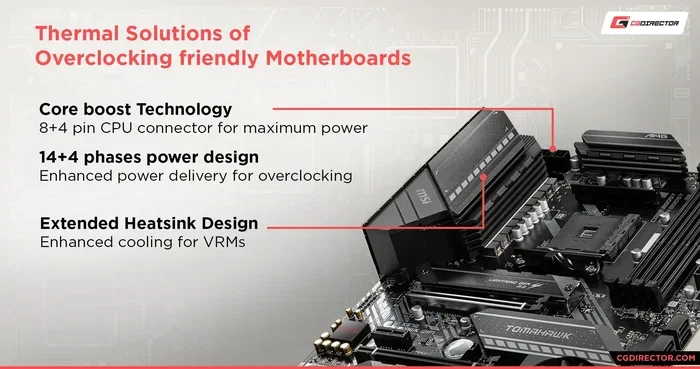
- Cooling and power matter: Overclocking demands good cooling and a solid power delivery system.
- Not all CPUs can overclock: You also need a CPU that supports overclocking, like Intel K-series or AMD Ryzen.
- Start slow and test: Always stress-test after making changes to ensure stability.
- Warranty risks exist: Overclocking may void your motherboard’s warranty.
📑 Table of Contents
- What Is Overclocking and Why Does It Matter?
- How to Check if Your Motherboard Supports Overclocking
- What to Do if Your Motherboard Does Not Support Overclocking
- Risks of Overclocking Your Motherboard
- Tips for Safe and Successful Overclocking
- Common Mistakes to Avoid When Overclocking
- Can You Overclock Without a Supported Motherboard?
- Conclusion
What Is Overclocking and Why Does It Matter?
Overclocking is like turning up the volume on your favorite song. You are pushing the limits to get more out of it. Your motherboard plays a big role in this process because it connects all your components and controls how they communicate. If your motherboard does not support overclocking, you simply cannot push your CPU or memory past their stock speeds.
People overclock for many reasons. Some want better gaming performance. Others need more power for video editing or 3D rendering. Whatever your reason, understanding overclocking starts with knowing your hardware. You also need to understand that overclocking is not just about the motherboard. Your CPU, cooler, and power supply all play a role in whether overclocking will work well for you.
How to Check if Your Motherboard Supports Overclocking
The first step in overclocking is figuring out if your motherboard even allows it. There are a few simple ways to check this without opening your PC case. Let us go through them one by one.
Check Your Chipset
Your motherboard’s chipset is the biggest factor in overclocking support. Intel and AMD both use different chipsets, and not all of them allow overclocking. For Intel, boards with the Z-series chipset, like the Z690 or Z790, support overclocking. Boards with B-series or H-series chipsets usually do not. On the AMD side, most Ryzen-compatible boards with the X-series chipset, like the X570 or X670, support overclocking. B-series boards may have limited support depending on the CPU you use.
You can find your chipset by checking your motherboard model number. Look at the board itself or check your PC specs in Windows. Simply type “System Information” in the Windows search bar and look for the motherboard name. Once you have the model, search online for its chipset details.
Look at Your BIOS Settings
Another way to check is by looking at your BIOS. Restart your PC and press the delete key or F2 during boot to enter the BIOS. Look for an “Overclocking” or “OC” tab. If you see options for adjusting the CPU multiplier, base clock, or voltage, your motherboard likely supports overclocking. If those options are missing, your board probably does not support it.
Some motherboards lock certain settings even if the chipset supports overclocking. This is common with boards that use lower-quality power delivery. Always check the manufacturer’s website for a full list of features before buying a board for overclocking.
Verify Your CPU Compatibility
Even if your motherboard supports overclocking, your CPU might not. Intel CPUs with a “K” or “KF” suffix, like the i7-13700K, support overclocking. Non-K Intel CPUs are usually locked. On the AMD side, most Ryzen CPUs support overclocking, including Ryzen 5, 7, and 9 series. Always double-check your CPU’s specifications before assuming you can overclock it.
What to Do if Your Motherboard Does Not Support Overclocking
Finding out your motherboard does not support overclocking can feel disappointing. But do not worry. There are still ways to get better performance from your system. You can focus on optimizing your current settings or upgrading specific components.
If you have been tweaking settings and your mouse or keyboard suddenly stops responding, that could be a sign of instability. In that case, you might want to reset your BIOS to default settings. If you are dealing with a cursor or pointer issue after making changes, check out this guide on why the mouse on your laptop might not work for some helpful troubleshooting tips. Sometimes a simple reset fixes everything.
You can also improve performance without overclocking by updating your drivers, enabling XMP profiles for faster memory, or optimizing your Windows settings. These steps are safe and do not carry the risks that come with overclocking.
Risks of Overclocking Your Motherboard
Overclocking is not without its dangers. Pushing your hardware beyond its limits can cause a variety of problems. It is important to understand these risks before you start.
Heat and Thermal Throttling
When you overclock, your CPU or GPU generates more heat. If your cooling solution cannot handle the extra heat, your system will throttle itself to prevent damage. This means your performance drops instead of improving. A good air cooler or liquid cooler is essential for any overclocking setup.
System Instability
Overclocking can make your system unstable. You might experience crashes, blue screens, or random reboots. If your system becomes unstable after overclocking, you should reduce the clock speeds or revert to stock settings. Some users also report that their mouse stops working after a crash or BIOS change. If that happens, you can find help in this article on why the mouse not working on your laptop to get things back on track.
Voiding Your Warranty
Many motherboard manufacturers consider overclocking to be outside the scope of their warranty. If your board fails after overclocking, you might not be covered for repairs. Always read the warranty terms before making any changes to your BIOS settings.
Reduced Component Lifespan
Running your hardware at higher speeds and voltages can shorten its lifespan over time. The extra heat and electrical stress wear down components faster. If you plan to keep your PC for many years, you should think carefully about whether overclocking is worth the trade-off.
Tips for Safe and Successful Overclocking
If you have decided to go ahead with overclocking, here are some tips to help you do it safely and effectively. Follow these steps to get the best results without damaging your hardware.
- Start with a good cooling solution. Make sure your CPU cooler can handle the extra heat before you begin.
- Update your BIOS. Always use the latest BIOS version from the manufacturer’s website for the best stability.
- Make small changes. Do not jump to extreme clock speeds right away. Increase the multiplier or base clock in small increments.
- Stress test after every change. Use tools like Prime95 or Cinebench to test your system’s stability after each adjustment.
- Monitor your temperatures. Keep an eye on your CPU and GPU temperatures using software like HWMonitor or MSI Afterburner.
- Keep your settings balanced. Adjust voltage carefully. Too much voltage can damage your CPU, while too little can cause instability.
- Save your stable settings. Once you find a stable overclock, save it in your BIOS profile so you can easily return to it if needed.
If you run into issues during the overclocking process, do not panic. Sometimes a simple fix like updating drivers or resetting your BIOS is all it takes. For help with peripheral issues that might pop up, you can check out how to fix your laptop mouse for some easy troubleshooting steps. Keeping your system stable is the key to a successful overclock.
Common Mistakes to Avoid When Overclocking
Even experienced users make mistakes when overclocking. Here are some common errors you should avoid to keep your system safe and stable.
- Skipping stress tests. Always test your system after making changes. Skipping this step can lead to data loss or hardware damage.
- Increasing voltage too much. More voltage is not always better. Too much can fry your CPU or damage your motherboard.
- Ignoring temperatures. High temperatures are a clear sign that something is wrong. Do not ignore them.
- Overclocking without a proper cooler. A stock cooler might not be enough for an overclocked system. Invest in a better cooler first.
- Copying someone else’s settings. Every system is different. What works for one PC might not work for yours. Always adjust settings based on your own hardware.
Sometimes after making changes, you might notice that your peripherals are not responding correctly. If your mouse on your laptop is not working after adjusting overclocking settings, try reverting to default BIOS settings first. This simple step can often resolve the issue without further troubleshooting.
Can You Overclock Without a Supported Motherboard?
The short answer is no. If your motherboard does not support overclocking, you cannot overclock your CPU through the motherboard. However, there are a few exceptions. Some GPUs can be overclocked regardless of the motherboard, as long as you have the right software. Memory overclocking is also possible on some systems even if the CPU cannot be overclocked. But for CPU overclocking, your motherboard must support it.
If you are stuck with a non-overclockable motherboard, you can still improve performance in other ways. Upgrading your RAM to faster modules, using an SSD instead of an HDD, or optimizing your software can all help. And if you ever run into trouble with your input devices after trying any of these changes, you can always refer to how to get your mouse working on your laptop for quick fixes.
Conclusion
So, does your motherboard support overclocking? The answer depends on your chipset, BIOS, and CPU compatibility. Checking these three things will tell you everything you need to know before you start. Overclocking can be a great way to boost performance, but it comes with risks. Always take it slow, monitor your temperatures, and stress-test your system after every change.
Remember, overclocking is not for everyone. If you are not comfortable with the risks, there are plenty of safe ways to improve your PC’s performance. Whether you decide to overclock or not, the most important thing is to keep your system stable and well-maintained. With the right knowledge and a careful approach, you can get the most out of your hardware without any headaches.
Frequently Asked Questions
How do I know if my motherboard supports overclocking?
Check your motherboard’s chipset. Intel Z-series and AMD X-series chipsets generally support overclocking. You can also look in your BIOS for overclocking options like CPU multiplier or base clock adjustments. If those options are present, your board likely supports it.
Can I overclock any CPU?
No. Only certain CPUs support overclocking. Intel CPUs with a “K” or “KF” suffix and most AMD Ryzen CPUs are overclockable. Standard Intel CPUs without the K suffix are usually locked and cannot be overclocked.
Is overclocking safe for my motherboard?
Overclocking is generally safe if you do it carefully. Keep your temperatures in check, make small changes, and stress-test your system. However, pushing your hardware too far can cause instability or even permanent damage.
Will overclocking void my motherboard warranty?
Many manufacturers consider overclocking to be outside the warranty scope. If your motherboard fails after overclocking, you might not be eligible for a free repair. Always check the warranty terms before making any changes.
What should I do if my system crashes after overclocking?
Reset your BIOS to default settings. This will revert all overclocking changes and restore stability. If you are still having issues with peripherals like your mouse, you can check guides on fixing common input device problems to troubleshoot further.
Do I need special software to overclock?
For CPU overclocking, you use your motherboard BIOS. For GPU overclocking, software like MSI Afterburner works well. For memory overclocking, XMP profiles in the BIOS can help you get faster speeds without manual tuning.