Does Ssd Improve Cpu Performance
Yes, an SSD can significantly improve how your CPU performs by cutting down load times and removing storage bottlenecks. Switching from a hard drive to a solid state drive makes your computer faster, more responsive, and better at handling demanding tasks. Whether you are gaming, editing videos, or just browsing the web, upgrading your storage device is one of the best upgrades you can make.
Have you ever wondered whether swapping out your old hard drive for a solid state drive actually makes your CPU work better? It is a question many people ask when their computer starts feeling slow. The short answer is yes, an SSD improves CPU performance in real and noticeable ways. But the full story is a bit more interesting than that.
Your processor and your storage drive work as a team. The CPU crunches numbers and runs programs, but it needs data to work with. That data comes from your storage device. If your storage is slow, your CPU has to wait. This waiting is called a bottleneck. An SSD removes that bottleneck and lets your processor do what it does best. In this article, we will walk through exactly how this works, what kinds of SSDs you should pick, and whether the upgrade is worth it for your setup.
Key Takeaways
- SSDs reduce CPU bottlenecks: A fast storage drive keeps your processor fed with data so it does not sit idle.
- Boot and load times drop dramatically: Your system starts up and opens apps much faster with an SSD.
- Not all SSDs are equal: NVMe drives are faster than SATA SSDs, which are faster than HDDs.
- RAM and SSD work together: Both components affect overall performance, so upgrading one without the other may not give you the full benefit.
- Older systems benefit the most: If you are still using a hard drive, the performance jump from an SSD will feel huge.
- SSD lifespan is reliable: Modern SSDs last many years under normal use.
📑 Table of Contents
- What Is an SSD and How Does It Work?
- How Does an SSD Directly Impact CPU Performance?
- SSD vs HDD: Head-to-Head Comparison
- Types of SSDs You Should Know About
- Does an SSD Help Gaming Performance?
- How Much of a Speed Boost Can You Expect?
- Common Mistakes When Upgrading to an SSD
- Expert Insights: When Should You Upgrade?
- Key Takeaways
- Conclusion
What Is an SSD and How Does It Work?
An SSD stands for solid state drive. Unlike a traditional hard disk drive (HDD), it has no moving parts. An HDD uses spinning metal disks and a read/write arm. An SSD uses flash memory chips. This difference is huge when it comes to speed.
Think of it this way. An HDD is like a record player. It has to spin a disk and move a needle to find the right track. An SSD is like a USB flash drive. It pulls data almost instantly from memory chips. This means your CPU gets the data it needs much faster.
Here are some key differences between the two types of storage:
- Speed: SSDs read and write data many times faster than HDDs.
- Durability: No moving parts means SSDs are less likely to break from drops or bumps.
- Power use: SSDs use less electricity, which can help laptop battery life.
- Noise: SSDs make zero noise. HDDs can be loud when spinning up.
- Price: HDDs are still cheaper per gigabyte, but SSD prices have dropped a lot in recent years.
When your CPU can pull data from an SSD in microseconds instead of milliseconds, the whole system feels faster. Pages load quicker. Apps open without lag. And your processor spends more time working and less time waiting.
How Does an SSD Directly Impact CPU Performance?
The relationship between your storage drive and your processor is closer than most people realize. Here is how an SSD directly boosts CPU performance.
Reducing Data Wait Times
Your CPU is incredibly fast. It can process billions of operations per second. But if your storage drive is slow, the CPU sits around doing nothing while it waits for data. This is one of the biggest reasons computers feel sluggish. An SSD delivers data to the CPU much faster, which means your processor stays busy and productive.
Improving Boot and Load Times
When you turn on your computer, the CPU has to load the operating system from your storage drive. On an HDD, this can take one to three minutes. On an SSD, it often takes under 20 seconds. The same goes for loading games, opening large files, and launching heavy applications. The CPU does not have to wait around, so everything feels snappier.
Helping with Multitasking
If you like to have many programs open at once, an SSD makes a big difference. Switching between apps, loading new tabs in your browser, and running background tasks all depend on how fast your storage can deliver data. With an SSD, your CPU can juggle multiple tasks without breaking a sweat.
Speeding Up Virtual Memory
When your RAM fills up, your system uses your storage drive as temporary memory. This is called virtual memory or a swap file. If your drive is slow, this process drags everything down. An SSD makes virtual memory much faster, so your CPU can keep working smoothly even when RAM is full.
SSD vs HDD: Head-to-Head Comparison
Not sure whether to stick with your old hard drive or make the switch? Here is a direct comparison of SSDs and HDDs when it comes to CPU performance.
| Feature | HDD | SATA SSD | NVMe SSD |
|---|---|---|---|
| Read Speed | 80-160 MB/s | 500-550 MB/s | 3,500-7,000 MB/s |
| Write Speed | 80-160 MB/s | 450-520 MB/s | 3,000-5,000 MB/s |
| Boot Time (Windows) | 60-120 seconds | 15-30 seconds | 10-20 seconds |
| CPU Bottleneck Risk | High | Low | Very Low |
| Price per TB | $30-$50 | $50-$80 | $60-$100 |
| Durability | Low (moving parts) | High (no moving parts) | High (no moving parts) |
As you can see, NVMe SSDs are the fastest option by a wide margin. But even a basic SATA SSD is miles ahead of an HDD. The type of SSD you choose matters, but any SSD is better than no SSD when it comes to CPU performance.
Types of SSDs You Should Know About
Not all SSDs are created equal. Understanding the different types helps you pick the right one for your needs and budget.
SATA SSDs
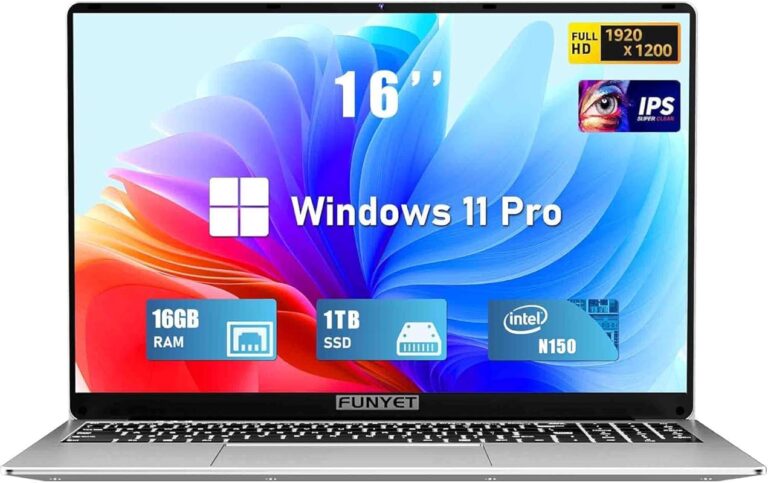
SATA SSDs use the same connection as older hard drives. They are the most affordable SSD option and offer a big speed boost over HDDs. If you have an older laptop or desktop, a SATA SSD is a great way to breathe new life into your system. Many laptop i7 32gb ram 1tb ssd setups use SATA SSDs, and they deliver excellent everyday performance.
NVMe SSDs
NVMe stands for Non-Volatile Memory Express. These SSDs connect directly to the motherboard through a PCIe slot. They are much faster than SATA SSDs. If you want the best possible performance for gaming, video editing, or heavy workloads, an NVMe drive is the way to go. A laptop i9 32gb ram 1tb ssd setup with an NVMe drive can handle almost anything you throw at it.
M.2 SSDs
M.2 is a form factor, not a type of connection. M.2 drives can be SATA or NVMe. They are small, flat sticks that plug directly into the motherboard. Many modern laptops and desktops use M.2 SSDs because they save space and offer great speeds.
2.5-Inch SSDs
These SSDs look like small laptop hard drives. They connect through a SATA cable and are easy to install in older computers that do not have M.2 slots. They are a solid choice for upgrades on older machines.
Does an SSD Help Gaming Performance?
Gamers often ask whether an SSD improves CPU performance during gameplay. The answer is yes, but in specific ways. An SSD does not directly increase your frame rate in most games. However, it does reduce load times, cuts down on texture pop-in, and makes the game world feel more seamless.
When you launch a game, your CPU has to load assets from your storage drive. On an HDD, this can cause stuttering and long wait times. On an SSD, assets load quickly and your CPU can focus on rendering the game world. Some modern games even require an SSD to run properly because they stream data so quickly.
For the best gaming setup, pair a fast SSD with enough RAM. Many high-performance gaming laptops come with laptop 32 gb ram 1tb ssd configurations that balance storage speed with memory capacity. This combination keeps your CPU fed with data and your games running smoothly.
How Much of a Speed Boost Can You Expect?
The speed boost you get from an SSD depends on what you are currently using and what you do with your computer.
If you are coming from an HDD, the difference will feel dramatic. Your computer will boot faster, apps will open quicker, and file transfers will take a fraction of the time. Many users say their computer feels brand new after an SSD upgrade.
If you are already on a SATA SSD, upgrading to an NVMe SSD will give you a smaller but still noticeable improvement. The biggest gains are in large file transfers and heavy workloads like video editing or 3D rendering.
Here are some real-world speed improvements you can expect:
- Boot time: 60-120 seconds on HDD down to 10-30 seconds on SSD
- App launch time: 2-5 seconds faster on average
- File copy speed: Up to 10x faster on NVMe SSD vs HDD
- Game load time: 30-50% reduction on SSD vs HDD
Keep in mind that an SSD will not make your CPU faster on its own. If your processor is old and slow, an SSD will not turn it into a gaming beast. But it will remove the storage bottleneck and let your CPU work at its full potential.
Common Mistakes When Upgrading to an SSD
Upgrading to an SSD is straightforward, but there are a few mistakes people make that can cause problems.
Skipping the clone process. If you are replacing your old drive, make sure you clone your operating system and files properly. Do not just copy and paste. Use a dedicated cloning tool to make sure everything transfers correctly.
Ignoring TRIM support. TRIM is a command that helps your SSD maintain performance over time. Make sure your operating system has TRIM enabled. On Windows, you can check this by running the command fsutil behavior query DisableDeleteNotify in the Command Prompt.
Not leaving free space. SSDs perform best when they have about 10-20% free space. If your drive is completely full, write speeds can drop significantly.
Mixing up SATA and NVMe slots. Not all motherboard slots support NVMe drives. Check your motherboard manual before buying an NVMe SSD to make sure you have the right slot available.
Forgetting about RAM. Storage speed is only one piece of the puzzle. If your RAM is low, your CPU will still struggle with heavy tasks. To get the most out of your SSD, make sure you have enough memory. Learn more about what does RAM do on a laptop to understand how memory and storage work together.
Expert Insights: When Should You Upgrade?
So, when is the right time to upgrade to an SSD? Here are some signs that your storage drive is holding back your CPU:
- Your computer takes more than a minute to boot up.
- Apps take several seconds to open, even simple ones like your web browser.
- You hear your hard drive spinning constantly when you are working.
- Your system stutters or freezes when you open multiple programs.
- You are still using an HDD in a computer that is less than five years old.
If any of these sound familiar, an SSD upgrade is probably the single best thing you can do for your computer. It is also one of the most affordable upgrades. A 1TB SATA SSD costs around $50-$80, and an NVMe SSD is only slightly more. For the price, the performance gain is unbeatable.
If you are building a new system or buying a new laptop, make sure SSD storage is part of the plan. Many modern laptops come with SSDs already installed, but some budget models still use HDDs. Always check the storage type before you buy.
Key Takeaways
- An SSD removes storage bottlenecks: Your CPU gets data faster and stays busy instead of waiting around.
- Boot and load times improve dramatically: Your system starts up and opens apps in seconds instead of minutes.
- NVMe SSDs are the fastest option: They offer read speeds up to 7,000 MB/s compared to 550 MB/s for SATA SSDs.
- SSDs and RAM work together: Both are important for overall system performance, so consider upgrading both if needed.
- Older systems benefit the most: The jump from HDD to SSD is the most noticeable upgrade you can make.
- SSD prices are very reasonable now: A 1TB drive costs less than $100 in most cases.
- An SSD does not replace a fast CPU: It works alongside your processor to remove bottlenecks and maximize performance.
Conclusion
So, does SSD improve CPU performance? Absolutely. An SSD does not make your processor magically faster, but it removes the biggest bottleneck that slows your CPU down. When your storage drive can deliver data quickly, your processor spends less time waiting and more time doing real work. The result is a faster, more responsive computer that feels like new.
Whether you are using your computer for work, gaming, or everyday tasks, upgrading to an SSD is one of the best investments you can make. Pair it with enough RAM and a decent processor, and you will have a system that handles anything you throw at it. The upgrade is affordable, easy to install, and the performance difference is something you will notice every single day.
If you are still running an old hard drive, now is the perfect time to make the switch. Your CPU will thank you.
Frequently Asked Questions
Does an SSD make your CPU run faster?
An SSD does not increase your CPU’s clock speed or core count. However, it removes the storage bottleneck that forces your CPU to wait for data. This means your processor can work more efficiently and spend less time idle. The result feels like a faster computer even though the CPU itself has not changed.
Is an SSD better than an HDD for CPU performance?
Yes, an SSD is significantly better than an HDD for overall system performance. SSDs deliver data to the CPU much faster, which reduces wait times and improves responsiveness. The difference is especially noticeable during booting, app launching, and multitasking.
Will upgrading to an SSD help with gaming?
An SSD will not directly increase your frame rate in most games. But it will reduce load times, minimize texture pop-in, and make your game world feel smoother. Some modern games require an SSD to run properly. Pairing an SSD with enough RAM, like in a laptop i9 32gb ram 1tb ssd setup, gives you the best gaming experience.
How much RAM do I need to pair with an SSD?
For most users, 16GB of RAM is a good baseline. If you do heavy multitasking, video editing, or gaming, 32GB is ideal. Your RAM and SSD work together to keep your CPU fed with data. Having enough of both ensures smooth performance across all tasks.
Can an old CPU benefit from an SSD upgrade?
Yes, older CPUs benefit a lot from SSD upgrades. If your old computer uses a hard drive, switching to an SSD will make it feel much faster. The storage bottleneck is often the main reason older systems feel slow, and an SSD fixes that problem directly.
What is the lifespan of an SSD?
Modern SSDs are very reliable and can last 5 to 10 years or more under normal use. They use wear-leveling technology to spread writes evenly across the memory cells. For most users, an SSD will outlast the useful life of the computer it is installed in.