Windows Users Hate the New Copilot Feature
Windows users are overwhelmingly frustrated with the new Copilot feature, citing it as an intrusive, poorly implemented addition that degrades system performance and invades privacy. Many feel it’s a forced, unwanted AI companion that offers little practical value while consuming valuable resources. The core complaint is a fundamental mismatch between Microsoft’s vision and the actual needs of its professional and power-user base.
Let’s be honest. When Microsoft first announced Copilot for Windows, the pitch sounded cool. A helpful AI assistant, built right into the OS, ready to summarize documents, change settings, and answer questions. It was the future! But for a huge segment of Windows users—the professionals, the gamers, the privacy-conscious, the folks who just want their computer to work—that future has arrived with a thud. The sentiment isn’t just mild annoyance; it’s active, vocal hatred. The phrase “Windows users hate the new Copilot feature” isn’t clickbait; it’s an accurate reflection of community forums, support threads, and social media diatribes. This isn’t about resisting change. It’s about resisting a specific, poorly executed change that feels imposed, intrusive, and counterproductive.
So, why the intense backlash? It’s a perfect storm of technical overreach, privacy paranoia, and corporate tone-deafness. Copilot isn’t just another app you can uninstall. It’s woven into the fabric of Windows 11, a persistent, chatty ghost in the machine that wakes up with your system, lurks in your taskbar, and demands a slice of your computer’s brainpower whether you ask for it or not. For a user base that values control, efficiency, and transparency, this is the ultimate trifecta of irritation. We didn’t ask for this. We can’t easily get rid of it. And it’s making our computers feel slower and more nosy. Let’s break down exactly why Windows users are so furious.
Key Takeaways
- Forced Integration: Copilot is deeply embedded in Windows 11, making it difficult to fully disable or ignore, which alienates users who prefer a clean, controllable desktop.
- Privacy Concerns: The feature requires extensive data access to function, triggering alarms for users and organizations worried about sensitive data being sent to Microsoft’s servers.
- Performance Drain: Numerous reports link Copilot to increased RAM/CPU usage, system slowdowns, and reduced battery life, especially on hardware not designed for constant AI workloads.
- Questionable Utility: For many power users and professionals, Copilot’s assistance is superficial, often generating generic or incorrect responses that interrupt workflow rather than enhance it.
- Lack of Opt-Out: Microsoft provides no straightforward, permanent way to completely remove Copilot, fostering resentment towards what feels like spyware or bloatware.
- Tone-Deaf Corporate Push: The aggressive rollout ignores clear user feedback, creating a perception that Microsoft prioritizes its AI agenda over user experience and choice.
- Workarounds Exist but Are Technical: Disabling Copilot often requires navigating group policies, registry edits, or third-party tools, placing the burden on the user to fix a problem they didn’t ask for.
📑 Table of Contents
- The Forced Integration: It’s Everywhere, and You Can’t Escape It
- The Privacy Panic: Who’s Seeing My Data?
- The Performance Penalty: Your Slower PC, Courtesy of Microsoft
- The “Helpful” Assistant That Isn’t: Questionable Utility and Bad UX
- Microsoft’s Tone-Deaf Push: Ignoring the Backlash
- What Can Windows Users Actually Do? (The Practical Guide)
- Conclusion: A Lesson in User Trust
The Forced Integration: It’s Everywhere, and You Can’t Escape It
The first and most fundamental frustration is the sheer, unavoidable presence of Copilot. Unlike previous “helpful” Microsoft add-ons that could be politely declined during setup or uninstalled later, Copilot is a core system component. It’s there in the taskbar, a bright, circular icon begging for a click. It’s triggered by a dedicated key on new keyboards. It pops up in the Start menu. It’s integrated into File Explorer, Edge, and even the Settings app. This isn’t integration; it’s an invasion.
No Meaningful Off Switch
The most infuriating detail? There is no simple, global “Off” switch. You can hide the taskbar icon, which is a temporary cosmetic fix. You can tweak some settings to limit its scope. But you cannot tell Windows, “Do not load Copilot. Do not run its background processes. Do not phone home. Just leave me alone.” For an operating system that has historically allowed users to disable telemetry and background services (however buried those settings are), this represents a hard line crossed. Microsoft has decided that Copilot is essential software, on par with the kernel or the shell. Users who disagree are treated like misconfigured systems, not paying customers with valid preferences.
Consider the practical impact. A graphic designer using a $3,000 workstation for Adobe Suite doesn’t want a background AI service consuming 500MB of RAM and periodically checking for updates. A accountant in a regulated firm cannot have an AI assistant with broad filesystem access running on a machine processing sensitive financial data. Yet, Copilot is there, a constant, uninvited guest. The forced nature of it transforms the feature from a potential tool into an active nuisance. It signals to users that their consent and their control over their own property are secondary to Microsoft’s strategic goals.
The Privacy Panic: Who’s Seeing My Data?
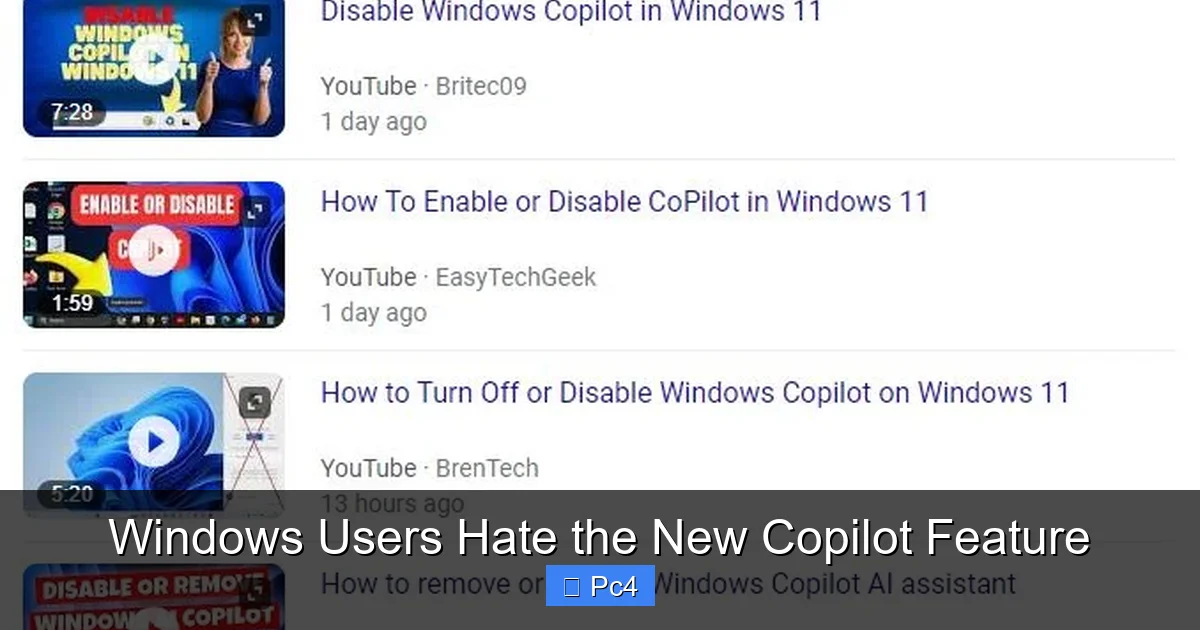
For any feature that sends your queries and potentially your documents to the cloud, privacy is the paramount concern. And Copilot, by its very nature as a large language model (LLM) assistant, must process your requests on Microsoft’s servers. This immediately sets off alarms for anyone handling confidential information—legal documents, source code, personal health records, business strategies. The official documentation is clear: Copilot sends your prompts and, in many contexts, the content you ask it to process, to Microsoft.
Visual guide about Windows Users Hate the New Copilot Feature
Image source: pcmecca.com
The “Connected” vs. “Local” Lie
Microsoft talks about “Windows Copilot” and “Copilot+ PC” features with on-device AI (like Recall). This creates dangerous confusion. The standard Copilot pane in Windows 11 is not primarily a local AI. It’s a gateway to the cloud-based GPT-4-powered service. When you ask it to “summarize this open Word document,” it’s not doing it secretly on your CPU; it’s sending that document’s text to Microsoft’s servers. While Microsoft states this data isn’t used to train their models and is encrypted, the mere act of transmission is a deal-breaker for many. Organizations with data sovereignty laws (like GDPR, HIPAA) or strict client confidentiality agreements face an impossible dilemma: disable a core OS feature or risk a compliance violation.
The anxiety is compounded by a lack of granular control. You can’t say, “Copilot can see my public web searches but not my local project files.” The permission model is all-or-nothing. To use its file-related features, you grant it broad access. For a user who simply wants to ask, “What’s the weather?” but has a “Projects” folder full of client work, this blunt instrument approach is unacceptable. The privacy panic isn’t just hypothetical; it’s a rational response to a tool that demands visibility into your digital life without offering the transparency or compartmentalization that professionals require. It feels less like an assistant and more like a surveillance tool packaged as help.
The Performance Penalty: Your Slower PC, Courtesy of Microsoft
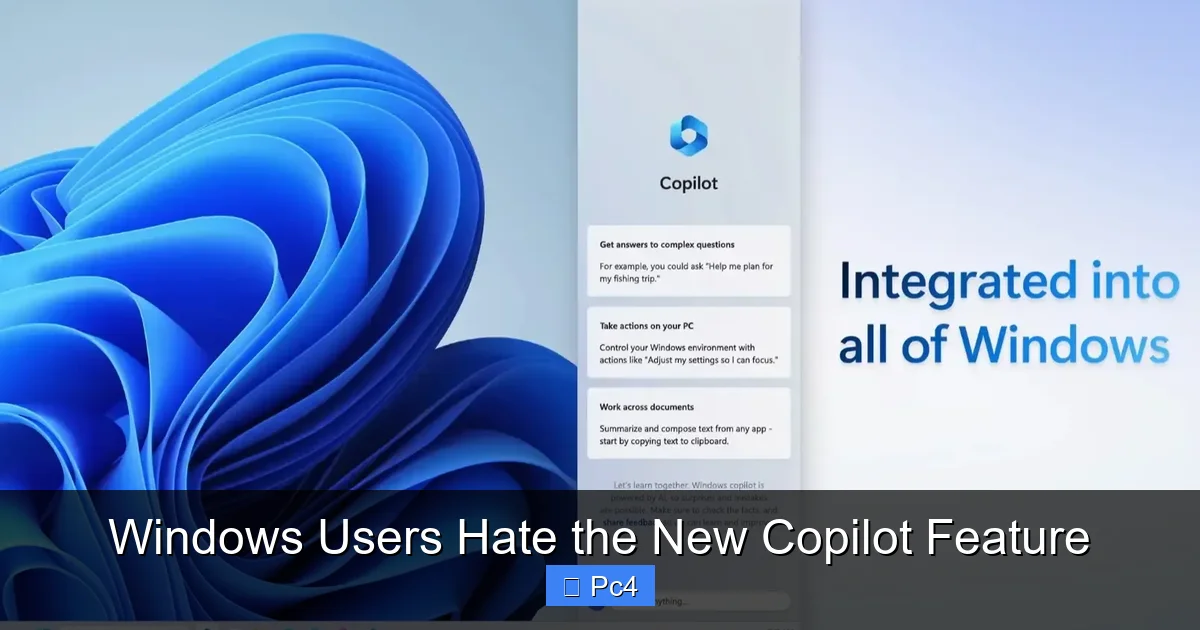
Remember when bloatware meant a few trial antivirus icons and a cluttered Start menu? Welcome to the AI era of bloatware. Copilot is a resource-intensive background service. Even when you’re not actively chatting with it, components of the Copilot infrastructure are running. And users have the benchmarks and the lag to prove it. The performance hit is the most tangible, daily-annoying proof that this feature is not “free.” You are paying for it with your computer’s speed and your battery’s lifespan.
Visual guide about Windows Users Hate the New Copilot Feature
Image source: pureinfotech.com
The RAM and CPU Vampire
On a clean Windows 11 install, you might see 1-2GB of RAM used by Copilot-related processes (like “Copilot.exe” and various “Windows AI” services). For a system with 8GB of RAM, that’s a 25% hit before you even open a browser. On 16GB systems, it’s a noticeable chunk. More critically, these processes aren’t idle. They periodically wake up, check for updates, pre-load models, and maintain connectivity. This causes micro-stutters, brief UI freezes, and inconsistent performance. Gamers report frame drops during loading screens. Video editors see their previews stutter. The culprit is often a spike from a Copilot process in Task Manager.
The battery impact on laptops is equally severe. Keeping an NPU (Neural Processing Unit) or GPU primed for potential AI tasks, alongside constant network polling for cloud fallbacks, drains power at a significantly higher rate. Users report 1-2 hours less battery life on identical tasks compared to a Windows install without Copilot. This turns a “helpful” feature into an active detriment to the core mobile computing experience. Microsoft’s response—that Copilot is optimized—rings hollow against thousands of user reports. The performance penalty is the most objective, measurable reason for the hatred: it makes your objectively worse at the thing you bought it to do.
The “Helpful” Assistant That Isn’t: Questionable Utility and Bad UX
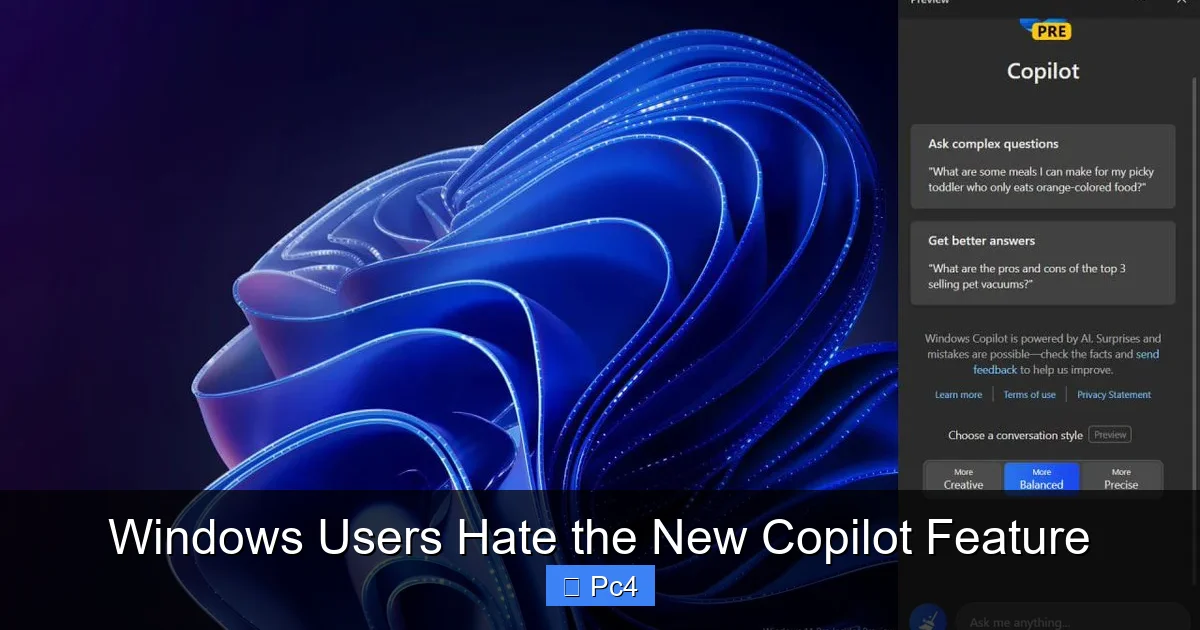
Setting aside the forced nature and the resource cost, what does Copilot actually do for the average power user? The answer, frustratingly, is “not much.” The utility is shallow, the context awareness is poor, and the integration is often clunky. It’s a solution in search of a problem for people who already know how to use their computers.
Visual guide about Windows Users Hate the New Copilot Feature
Image source: winaero.com
Superficial Commands and Broken Context
Copilot shines at very simple, surface-level tasks: “Turn on dark mode,” “Take a screenshot,” “Open Notepad.” These are things any competent user can do in seconds without an AI middleman. Where it fails is in complex, contextual work. Ask it to “Organize the files from my Q3 marketing project into a folder named Q3_Marketing_Final,” and it might misinterpret “organize” or fail to find the right files because it has no true understanding of your personal file structure and naming conventions. It’s a stranger looking over your shoulder, guessing.
The integration into apps like Word or Excel is equally underwhelming. “Help me write a cover letter” produces generic, AI-flavored text that requires heavy editing. “Make this data into a chart” often misreads the selected data range. The promised “agentic” capabilities—where Copilot can perform multi-step tasks—are largely vaporware or so restricted as to be useless. For professionals, time is money. The cognitive load of verifying Copilot’s output, correcting its mistakes, and dealing with its interruptions often makes it slower than doing the task manually. It’s not an assistant; it’s an intern who needs constant supervision and still gets things wrong. This lack of real, reliable utility is a profound insult to the intelligence of the user base it claims to serve.
Microsoft’s Tone-Deaf Push: Ignoring the Backlash
Perhaps the deepest source of anger is Microsoft’s response, or lack thereof, to the widespread criticism. The company is pushing Copilot with the relentless force of a Silicon Valley startup trying to achieve viral adoption, not a mature platform vendor serving billions. The message is clear: Copilot is the future, whether you like it or not. This paternalistic, “we know best” attitude grates against the independent spirit of the Windows power user.
Prioritizing Hype Over Health
Every Windows 11 update seems to add more Copilot hooks, more prompts, more default integrations. The “Copilot key” on new keyboards is the ultimate physical manifestation of this push. It’s a dedicated button for a feature many consider bloat, taking the place of a useful key like “Menu” or a programmable macro key. This isn’t innovation; it’s marketing. It’s about branding Windows as an “AI-first” OS for shareholders and tech headlines, not about creating a stable, efficient, and controllable environment for users.
The disregard for enterprise and professional feedback is especially galling. IT administrators are tearing their hair out trying to manage Copilot via Intune or Group Policy, only to find the settings incomplete or broken. The feature is being rolled out to unsuspecting users in sensitive industries. Where is the opt-out for regulated environments? Where is the clear, documented data handling policy that satisfies compliance officers? Microsoft’s silence on these issues speaks volumes. It suggests that the strategic imperative to embed AI everywhere outweighs the operational and compliance realities of its user base. This corporate hubris turns a feature complaint into a breach of trust. Users feel like test subjects in a grand AI experiment, and they hate being lab rats.
What Can Windows Users Actually Do? (The Practical Guide)
Fuming at the monitor won’t fix it. While the ideal solution—a clean, permanent uninstall—doesn’t exist, there are concrete steps users can take to mitigate the Copilot intrusion, reclaim resources, and reduce privacy exposure. These solutions range from simple to advanced, but all require a bit of effort because Microsoft hasn’t made it easy.
Level 1: Surface-Level Disabling (The Easy Stuff)
Start with the visible annoyances. Right-click the taskbar and uncheck “Show Copilot button.” This removes the icon, but the service is still running. Go to Settings > Personalization > Taskbar and toggle off “Copilot (Preview).” In Settings > Privacy & security > Copilot, you can turn off “Let Copilot see and use your Microsoft 365 apps and services content” and “Let Copilot use your location.” This limits some of its deepest access. Also, in Settings > Accessibility > Keyboard, you can disable the “Copilot key” if your keyboard has one. These are cosmetic and permission-based tweaks, not a cure, but they reduce the daily visual and functional prompts.
Level 2: Service and Process Management (The Intermediate)
You can stop the core Copilot services from running. Press Win + R, type services.msc, and look for services with “Copilot” or “Windows AI” in the name, such as “Copilot Service” or “Windows Search Experience Host.” Right-click each, select Properties, set the Startup type to Disabled, and click Stop. Caution: Disabling core Windows services can cause instability. Research each service name before disabling. A safer, more reversible method is using the Registry. Create a new DWORD (32-bit) Value named DisableCopilot under HKEY_LOCAL_MACHINE\SOFTWARE\Policies\Microsoft\Windows\WindowsCopilot and set its value to 1. A reboot is required. This is a policy-based kill-switch that often survives updates.
Level 3: The Nuclear Option (Advanced/Enterprise)
For the truly determined, Group Policy (on Pro/Enterprise editions) or a specialized third-party tool like “Copilot Disabler” from a trusted source like GitHub (verify signatures!) can apply the registry change system-wide and prevent updates from re-enabling it. Some users have found success with a clean Windows 11 installation and immediately applying the registry tweak before connecting to the internet, preventing the initial Copilot component download. The most extreme measure is moving to a less aggressive Windows SKU like Windows 11 Pro for Workstations, or even considering a shift to a Linux distribution for complete control, though that’s a bridge too far for most. The key takeaway: you must be proactive. Microsoft will keep trying to enable it. Your settings are not permanent.
Conclusion: A Lesson in User Trust
The hatred for the new Copilot feature is more than just a feature complaint. It’s a symptom of a growing chasm between Microsoft’s strategic ambitions and the practical realities of its user base. It represents the collision of three non-negotiables for professional Windows users: control over their system, confidence in their privacy, and confidence in their performance. Copilot violates all three. It is forced, not optional. It is data-hungry, not transparent. It is a resource drain, not an efficiency tool.
The backlash is a loud, clear signal. Users are not Luddites afraid of AI. They are pragmatists rejecting a specific, poorly implemented tool that solves no problem they have while creating new ones. Microsoft’s best path forward is to listen. Provide a true, enterprise-grade off switch. Offer clear, granular data controls. Optimize the background footprint to zero when disabled. Make Copilot a truly optional app, not a mandatory OS component. Until then, the vitriol is deserved and will persist. The Windows user has always tolerated a certain amount of corporate bloat. But when that bloat actively harms their workflow, their privacy, and their trust, the hate isn’t just noise—it’s a verdict.
Frequently Asked Questions
How can I completely disable Copilot in Windows 11?
You cannot fully uninstall it, but you can disable its core functionality. The most effective method is using the Registry Editor: navigate to HKEY_LOCAL_MACHINE\SOFTWARE\Policies\Microsoft\Windows\WindowsCopilot, create a DWORD (32-bit) Value named DisableCopilot, and set it to 1. A system reboot is required. You should also hide the taskbar button in Settings and disable the Copilot key in Accessibility settings.
Is Windows Copilot spyware that sends all my files to Microsoft?
It is not traditional spyware, but it does have significant data access. When you use file-related commands, Copilot sends the content of those specific files to Microsoft’s servers to process your request. Microsoft states this data isn’t used for model training and is encrypted, but the transmission itself is a major privacy concern for sensitive data. You can limit this access in Settings > Privacy & security > Copilot.
Will disabling Copilot improve my PC’s performance and battery life?
Yes, almost certainly. Copilot and its associated services consume significant RAM (often 500MB-1.5GB) and cause periodic CPU/GPU spikes. Disabling it frees these resources, leading to smoother performance, especially on systems with 8GB-16GB of RAM. On laptops, you should see a noticeable improvement in battery life as the background AI services and network polling cease.
Why is Microsoft so insistent on pushing Copilot if users hate it?
Microsoft is making a massive, strategic bet on AI as the future of computing. Copilot is the flagship of that strategy, designed to position Windows as an “AI-first” OS. The push is driven by competitive pressure (from Google, Apple, OpenAI), shareholder expectations, and a desire to own the AI assistant layer. They appear to believe the long-term strategic gain outweighs short-term user backlash.
Will future Windows updates re-enable Copilot after I’ve disabled it?
Yes, they often do. Major feature updates have been known to reset Copilot settings or remove the registry key. This is why using the Group Policy/registry method is recommended, as it’s more persistent. However, you should routinely check your Copilot settings after major Windows updates, as Microsoft may change the disable mechanism.
Are there any good alternatives to Windows Copilot that don’t cause these problems?
For cloud-based AI chat, you can use a dedicated browser-based service like ChatGPT, Claude, or Copilot in a browser (copilot.microsoft.com). These run in your browser and don’t have deep OS integration or constant background processes. For local, privacy-focused AI, tools like LM Studio or Ollama can run open-source models on your own hardware, but they require technical setup and powerful hardware. There is currently no perfect, seamless, and privacy-respecting system-wide assistant alternative for Windows.