1 Tb M.2 Pcie Nvme Ssd
A 1 TB M.2 PCIe NVMe SSD delivers blazing-fast storage speeds in a tiny form factor. It uses the PCIe bus and NVMe protocol to outperform traditional hard drives and SATA SSDs by a huge margin. Whether you are upgrading a laptop or building a new PC, this drive offers massive capacity and incredible read and write performance. In this guide, we break down everything you need to know about choosing, installing, and getting the most out of your 1 TB M.2 NVMe SSD.
A 1 TB M.2 PCIe NVMe SSD is one of the best upgrades you can make to any computer. Whether you are tired of slow boot times or need faster file transfers, this type of drive changes everything. It is small, fast, and packed with modern technology that makes everyday computing feel instant.
If you have been shopping for internal storage, you have probably seen the term M.2 NVMe SSD everywhere. That is because this format has become the gold standard for fast storage. Unlike older hard drives or even SATA SSDs, a 1 TB NVMe M.2 SSD uses the PCIe interface to move data at incredible speeds. In this article, we will walk you through exactly what makes these drives so good, how to choose the right one, and what to expect during installation.
The demand for faster storage continues to grow. Games are larger than ever, video files take up huge amounts of space, and professionals need reliable drives that keep up with heavy workloads. A 1 TB M.2 PCIe NVMe SSD checks every box. It gives you plenty of room for your operating system, applications, games, and media files while delivering the speed you need. Let us dive into the details.
Key Takeaways
- Speed Boost: A 1 TB M.2 PCIe NVMe SSD offers sequential read speeds up to 7,000 MB/s, making it one of the fastest storage options available.
- Compact Form Factor: The M.2 2280 design fits directly onto your motherboard, saving space and eliminating bulky cables.
- Perfect for Gaming and Creative Work: Fast load times and smooth file transfers make this drive ideal for gamers, video editors, and content creators.
- Easy Installation: Plugging in an M.2 SSD takes just a few minutes and requires no extra cables.
- Multiple Options Available: Brands like Samsung, Crucial, and WD offer excellent 1 TB NVMe M.2 SSD choices at various price points.
- Backward Compatibility Matters: Always check if your motherboard supports PCIe Gen3 or Gen4 before buying.
📑 Table of Contents
What Is a 1 TB M.2 PCIe NVMe SSD?
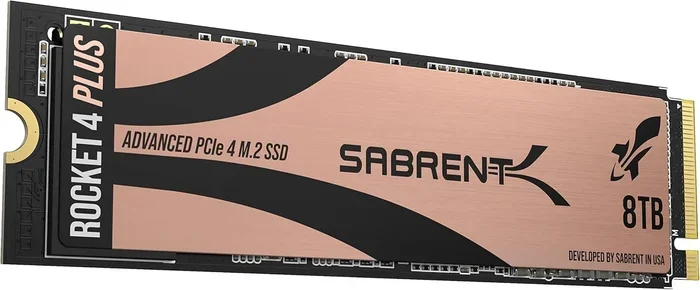
Let us break this down into simple parts. M.2 refers to the physical shape and size of the drive. It is a small circuit board, often called a stick, that plugs directly into a slot on your motherboard. The PCIe part means it connects through the Peripheral Component Interconnect Express bus, which is the same high-speed pathway used by graphics cards. And NVMe stands for Non-Volatile Memory Express, a protocol designed specifically for flash storage.
So when you put it all together, a 1 TB M.2 PCIe NVMe SSD is a compact, high-speed solid state drive that uses the PCIe bus and NVMe protocol to deliver data transfer rates far beyond what older drives can achieve. A typical SATA SSD tops out around 550 MB/s. A 1 TB NVMe M.2 SSD can reach speeds of 5,000 to 7,000 MB/s or even higher on newer Gen4 and Gen5 drives.
The 1 TB capacity gives you a sweet spot between affordability and plenty of space. You can install your Windows operating system, a dozen or more games, and still have room for documents, photos, and videos. For most users, 1 TB hits the perfect balance between cost and usefulness.
How Does NVMe Differ from SATA?
This is one of the most common questions people ask. SATA SSDs use the AHCI protocol, which was designed back when spinning hard drives were the norm. NVMe was built from the ground up for flash memory. It uses a streamlined command queue system that allows the drive to handle thousands of simultaneous operations. The result is dramatically lower latency and much higher throughput.
Think of it like a highway. A SATA SSD is a two-lane road. An NVMe SSD is a multi-lane superhighway. Both get you to your destination, but the NVMe drive handles heavy traffic with ease. If you want the fastest M.2 PCIe NVMe SSD experience, NVMe is the way to go.
Why Choose a 1 TB M.2 NVMe SSD?
There are many reasons to choose a 1 TB M.2 NVMe SSD for your system. Let us look at the biggest advantages that make these drives stand out from the crowd.
Blazing Fast Speeds
The single biggest reason people upgrade to a 1 TB M.2 PCIe NVMe SSD is speed. Boot times drop to just seconds. Games load in a fraction of the time compared to a hard drive. Large video and photo files transfer almost instantly. For creative professionals working with 4K footage or massive datasets, this speed difference is a game changer.
Real-world tests show that a 1 TB NVMe M.2 SSD can copy a 50 GB file in under 10 seconds. The same task on a SATA SSD might take 30 seconds or more. On a traditional hard drive, it could take several minutes. These numbers speak for themselves.
Space Saving Design
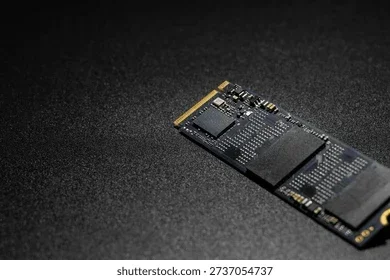
M.2 drives are incredibly small, usually about the size of a stick of gum. They mount directly onto the motherboard, so you do not need to run SATA cables or power cables. This saves space inside your case and makes builds cleaner. It is especially helpful in compact PC cases or thin laptops where every millimeter counts.
Energy Efficiency
NVMe SSDs are designed to be power efficient. They use less electricity than traditional hard drives, which can help extend laptop battery life. They also produce less heat during normal use, contributing to a quieter and cooler system overall.
Key Features to Look For
Not all 1 TB M.2 PCIe NVMe SSDs are created equal. When shopping for one, keep these important features in mind.
PCIe Generation
PCIe Gen3 and Gen4 are the most common versions you will find today. Gen4 offers roughly double the bandwidth of Gen3, which translates to faster real-world speeds. However, Gen3 drives are still very fast and often more affordable. Make sure your motherboard supports the generation you choose. A 1 TB M.2 NVMe SSD rated for Gen4 will work in a Gen3 slot, but it will run at Gen3 speeds.
NAND Flash Type
Most modern NVMe SSDs use TLC (Triple-Level Cell) NAND flash, which stores three bits per cell. TLC offers a great balance of speed, endurance, and cost. Some budget drives use QLC (Quad-Level Cell), which stores four bits per cell and is cheaper but generally slower and less durable over time. For a reliable 1 TB M.2 NVMe SSD, TLC is the recommended choice.
DRAM Cache
Drives with a dedicated DRAM cache handle sustained workloads much better than those without. The DRAM chip stores a map of where data is located on the flash memory, allowing for faster random access. If you plan to use your drive for heavy workloads like video editing or running multiple applications simultaneously, look for a model with DRAM support.
Form Factor and Key Notch
The most common M.2 size is the 2280 format, which means 22 millimeters wide and 80 millimeters long. Most desktop motherboards and many laptops use this size. Make sure your system has an M.2 slot that supports the 2280 length. Also check the key notch type, as PCIe NVMe drives typically use the M key slot.
Top 1 TB M.2 PCIe NVMe SSDs Worth Considering
Here are some of the best options on the market right now for a 1 TB M.2 PCIe NVMe SSD. Each one offers great performance at a competitive price.
The Samsung 970 EVO Plus remains a popular choice for users who want proven reliability and excellent sustained performance. It delivers top-tier read speeds and handles heavy workloads with ease. It is a trusted option for both gamers and professionals.
For those looking at newer technology, the Crucial P310 offers a solid Gen4 NVMe experience at an attractive price point. It is a great entry-level Gen4 drive that provides fast speeds without breaking the bank. It is an excellent choice if you want the benefits of PCIe Gen4 without spending extra money.
If you are interested in the latest generation, keep an eye on Gen5 NVMe M.2 SSDs that are starting to hit the market. These drives push speeds even further and represent the cutting edge of storage technology. However, they currently come at a premium price and require compatible motherboards.
Comparison Table
| Drive | Interface | Max Read Speed | Capacity | DRAM |
|---|---|---|---|---|
| Samsung 970 EVO Plus | PCIe Gen3 NVMe | 3,500 MB/s | 1 TB | Yes |
| Crucial P310 | PCIe Gen4 NVMe | 7,000 MB/s | 1 TB | No |
| WD Blue SN580 | PCIe Gen4 NVMe | 7,400 MB/s | 1 TB | No |
As you can see, Gen4 drives offer significantly higher peak speeds. But real-world differences between Gen3 and Gen4 are often smaller in everyday use. The best M.2 PCIe NVMe SSD for you depends on your budget, your motherboard compatibility, and your specific needs.
How to Install a 1 TB M.2 NVMe SSD
Installing a 1 TB M.2 PCIe NVMe SSD is one of the easiest PC upgrades you can do. You do not need any special tools or technical skills. Here is a simple step-by-step guide.
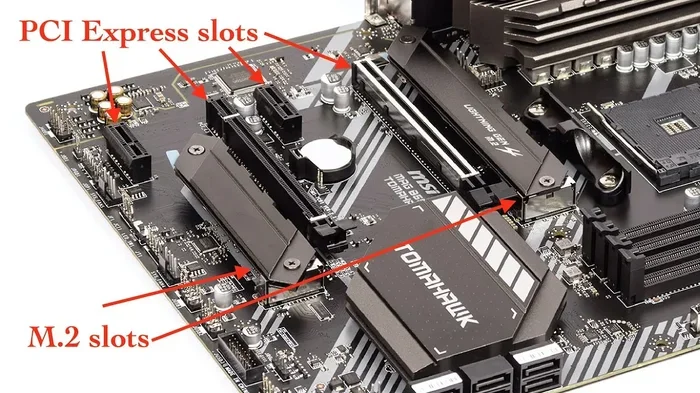
- Find the M.2 Slot: Locate the M.2 slot on your motherboard. It is usually labeled and may have a heatsink cover over it.
- Remove the Heatsink (if present): Unscrew the mounting bracket or heatsink to expose the slot.
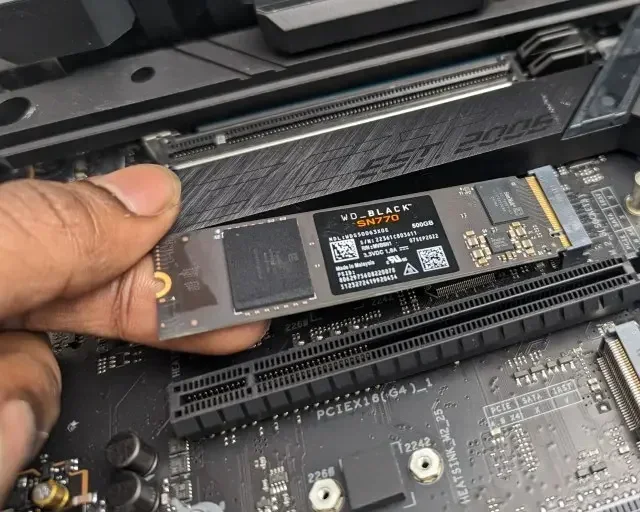
- Insert the Drive: Hold the SSD at a 30-degree angle and gently push it into the slot. The gold connectors should face down.
- Secure the Drive: Press the drive flat and screw it into place using the small M.2 screw that came with your motherboard.
- Replace the Heatsink: If you removed a heatsink, put it back on and secure it with the mounting screw.
- Boot and Initialize: Power on your PC and go into BIOS or Disk Management to initialize the new drive. Format it and you are ready to go.
One important tip is to make sure your motherboard BIOS is up to date. Older BIOS versions may not recognize newer NVMe drives properly. A quick BIOS update before installation can save you a lot of headaches.
Do You Need an NVMe Driver?
Most modern Windows versions (Windows 10 and 11) include native NVMe drivers. You usually do not need to download anything separately. However, if your system is running an older version of Windows or you are using a Linux distribution, you may need to install the specific NVMe M.2 SSD WD Blue driver or the driver provided by your SSD manufacturer. Always check the manufacturer website for the latest driver downloads.
Common Mistakes to Avoid
Even though installing an M.2 SSD is straightforward, there are a few common mistakes that can cause problems. Avoid these to get the best experience from your 1 TB M.2 PCIe NVMe SSD.
- Buying the wrong key type: M.2 slots come in different key configurations (B key, M key, B+M key). Make sure your drive matches your motherboard slot. An M key NVMe drive will not work in a B key SATA slot.
- Ignoring thermal management: High-performance NVMe drives can get hot under heavy loads. If your motherboard does not have a built-in heatsink, consider buying a separate M.2 heatsink or thermal pad. Overheating can cause throttling and slower speeds.
- Skipping BIOS updates: As mentioned above, outdated BIOS can lead to compatibility issues. Always update before installing a new NVMe drive.
- Not checking PCIe generation support: A Gen4 drive in a Gen3 slot will work but run at slower speeds. Check your motherboard manual to know what your slot supports.
- Forgetting to enable the M.2 slot in BIOS: Some motherboards have M.2 slots that are disabled by default. Go into BIOS and make sure the slot is enabled before assuming the drive is faulty.
Who Benefits Most from a 1 TB M.2 NVMe SSD?
Almost anyone can benefit from upgrading to a 1 TB NVMe M.2 SSD, but certain users will see the biggest improvements. Gamers will love the dramatically shorter load times in modern titles. Video editors and content creators will appreciate the fast file transfer speeds when working with large projects. Regular users who are tired of waiting for their computer to boot or applications to open will notice an immediate difference in everyday responsiveness.
Even if you already have a smaller NVMe SSD for your operating system, adding a 1 TB M.2 PCIe NVMe SSD as a secondary drive gives you plenty of fast storage for games, media, and projects. It is a simple upgrade that makes your entire system feel faster.
Final Thoughts
A 1 TB M.2 PCIe NVMe SSD is one of the most impactful upgrades you can make to any computer. It combines compact size, massive capacity, and incredible speed into a single package that transforms how you use your PC. From faster boot times to instant game loads and smooth file transfers, the benefits are real and immediately noticeable.
When choosing your drive, focus on PCIe generation compatibility, NAND type, and DRAM cache based on your needs and budget. Brands like Samsung, Crucial, and WD offer excellent options at every price point. Installation is simple and takes only minutes, so there is no reason to wait.
If you are ready to upgrade, start by checking your motherboard for an available M.2 slot. Then pick the 1 TB M.2 NVMe SSD that fits your use case and budget. You will wonder how you ever managed without it.
Frequently Asked Questions
Is a 1 TB M.2 NVMe SSD enough for gaming?
Yes, a 1 TB M.2 PCIe NVMe SSD is more than enough for most gamers. It can hold 10 to 15 modern games comfortably, depending on their file sizes. If you have a large game library, you can use the NVMe drive for your most-played titles and a secondary drive for the rest.
Do I need a special motherboard for a 1 TB M.2 NVMe SSD?
You need a motherboard with an M.2 slot that supports PCIe NVMe. Most modern motherboards include at least one M.2 slot. Check your motherboard manual to confirm it supports NVMe and which PCIe generation it uses. An older Gen3 slot will still work with a Gen4 drive, just at slower speeds.
Can I use a 1 TB M.2 NVMe SSD as my only drive?
Absolutely. Many users run their entire system from a single 1 TB NVMe M.2 SSD. It works perfectly as a boot drive, application drive, and storage drive all in one. Just make sure you have regular backups since this is your only drive.
How does a 1 TB M.2 NVMe SSD compare to a 1 TB SATA SSD?
A 1 TB M.2 PCIe NVMe SSD is significantly faster than a 1 TB SATA SSD. Read speeds are typically 5 to 10 times higher, and the drive uses the same compact M.2 form factor. The main difference is speed and efficiency, not capacity.
Do NVMe SSDs need cooling?
Most NVMe SSDs run cool during normal use. However, during heavy sustained workloads like large file transfers or extended gaming sessions, they can get warm. Adding a small heatsink or ensuring good airflow inside your case helps maintain peak performance. Some motherboards include built-in M.2 heatsinks for this purpose.
What is the lifespan of a 1 TB M.2 NVMe SSD?
A quality 1 TB M.2 PCIe NVMe SSD typically lasts 5 to 10 years under normal use, depending on the drive’s endurance rating and workload. TLC NAND drives offer excellent durability for most users. Regular use, including daily boot cycles and file transfers, will not wear out the drive prematurely.