Does the Length of a Usb C Cable Affect Speed
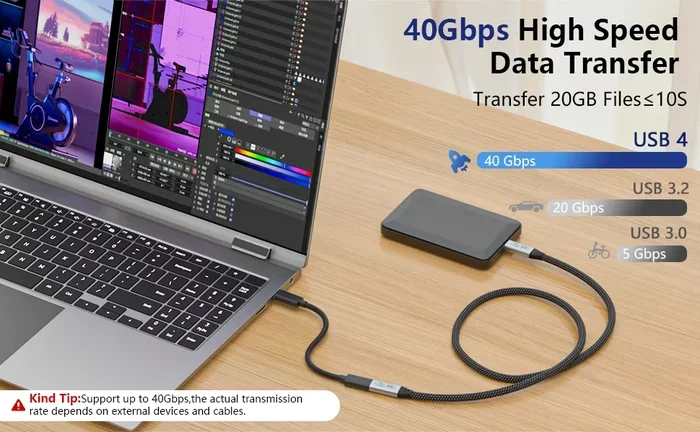
Yes, USB C cable length can affect speed, data transfer rates, and charging performance. Longer cables may experience signal loss and reduced bandwidth, especially with high-speed protocols like Thunderbolt 3 and 4. Choosing the right cable length ensures you get the full speed your devices are capable of delivering.
You plug in your USB C cable, expecting blazing fast speeds. But instead, your file transfer crawls. Your device charges slowly. You wonder: does the length of a USB C cable really affect speed? It turns out, the answer is yes, and it matters more than most people think.
USB C has become the universal standard for charging and data transfer. From laptops to phones, cameras to external drives, this small reversible connector handles it all. But not all USB C cables perform the same way. Cable length plays a huge role in determining how fast data moves and how quickly your device charges. In this guide, we break down exactly how length impacts speed, what you can do about it, and how to pick the right cable for your needs.
Key Takeaways
- Longer cables can slow down data transfer speeds due to signal attenuation and resistance.
- USB C passive cables lose performance beyond 1 meter for high-speed protocols like USB 3.2 and Thunderbolt.
- Active cables boost signal strength and maintain speed over longer distances.
- Cable quality and construction matter just as much as length when it comes to performance.
- Thunderbolt 3 and 4 cables are especially sensitive to length because of their high bandwidth requirements.
- For best results, keep USB C cables under 2 meters for demanding tasks.
📑 Table of Contents
- How USB C Cable Length Affects Speed
- Passive vs Active USB C Cables
- How Cable Length Impacts Charging Speed
- Does Cable Length Matter for External Drives?
- Best Practices for Choosing a USB C Cable
- Common Mistakes People Make with USB C Cables
- Expert Insight: How Professionals Handle Cable Length
- Final Thoughts
How USB C Cable Length Affects Speed
When electricity and data signals travel through a cable, they face resistance. The longer the cable, the more resistance it creates. This resistance causes signal attenuation, which means the signal weakens as it travels. For basic charging, this barely matters. But for high-speed data transfer, even a small increase in length can make a big difference.
Think of it like water flowing through a hose. A short hose delivers strong pressure. A long hose loses pressure along the way. The same principle applies to data signals in USB C cables. Longer cables simply cannot maintain the same signal strength as shorter ones.
The Science Behind Signal Loss
Every cable has something called “attenuation.” This is the gradual loss of signal strength over distance. In USB C cables, attenuation increases with length. For USB 3.0 and USB 3.1 cables, signal loss becomes noticeable beyond about 1 meter. For Thunderbolt 3 and Thunderbolt 4 cables, the threshold is even lower.
Here is a quick breakdown of how length affects different USB standards:
- USB 2.0: Can maintain speed up to about 5 meters without issues.
- USB 3.0/3.1: Performance drops beyond 1 to 2 meters.
- USB 3.2 Gen 2: Best kept under 1 meter for full speed.
- Thunderbolt 3 and 4: Optimal performance under 0.5 to 1 meter.
The key takeaway is simple. The higher the speed of the cable, the shorter it needs to be to maintain that speed. This is why many premium USB C cables are deliberately short.
Passive vs Active USB C Cables
Not all cables are built the same way. There are two main types you should know about: passive cables and active cables. Understanding the difference helps you choose the right one for your setup.
What Is a Passive USB C Cable?
A passive cable relies on the device’s own power to push the signal through. These cables are simple in design and usually cheaper. They work great for short distances and basic tasks like charging or transferring small files.
However, passive cables struggle with long lengths and high-speed protocols. If you need a cable longer than 1 meter for USB 3.2 or Thunderbolt, a passive cable will likely not deliver the full speed you expect. For most users, passive cables work perfectly fine for everyday use under 1 meter.
What Is an Active USB C Cable?
An active cable has built-in electronics that boost the signal as it travels. Think of it like a relay station along a highway. These chips amplify the signal, helping it maintain speed over longer distances.
Active cables are thicker and more expensive, but they solve the length problem. You can find active USB C cables that maintain full speed at 2, 3, or even 5 meters. If you need a longer cable for your setup, an active cable is the best investment for preserving speed.
| Feature | Passive Cable | Active Cable |
|---|---|---|
| Signal Boosting | No | Yes |
| Max Recommended Length | Under 1 meter | Up to 5 meters |
| Price Range | $5 – $15 | $15 – $50+ |
| Best For | Short distance, charging | Long distance, high-speed data |
| Power Draw | None | Uses device power |
How Cable Length Impacts Charging Speed
Most people think about data speed when they hear about cable length. But charging speed is also affected. A longer USB C cable can charge your device more slowly, especially for fast-charging protocols.
Here is why. Fast charging relies on precise voltage and current delivery. A longer cable has slightly higher resistance, which causes a voltage drop. The device receives less power than what the charger pushes out. Over a long cable, this voltage drop adds up.
For everyday charging, a 2-meter USB C cable will still charge your phone at a reasonable speed. But if you rely on fast charging technology like USB Power Delivery (PD) or Qualcomm Quick Charge, shorter cables perform better.
Quick tip: if you need a longer cable for charging, look for one that is rated for high wattage. These cables are built with thicker wires that reduce resistance. This helps maintain charging speed even at longer lengths.
Does Cable Length Matter for External Drives?
If you use an external SSD with your laptop, cable length matters a lot. External drives like the Sandisk Extreme Portable 2TB External USB C NVMe SSD rely on fast data transfer speeds to work efficiently. A slow cable can bottleneck the entire drive, making file transfers painfully slow.
When connecting an external drive, keep the USB C cable as short as practical. If you need distance, use an active cable with signal boosting. This ensures your drive performs at its advertised speeds.
Similarly, if you use a USB C enclosure for an M.2 NVMe SSD, the cable connecting the enclosure to your computer matters. Check out the M 2 NVMe to USB C SSD Enclosure options available, and pair them with a quality short cable for best results.
Real-World Example
Imagine you are transferring a 50GB video file from an external drive to your laptop. With a short, high-quality USB C cable, the transfer takes about 2 minutes. Now imagine using a 3-meter passive cable that cannot maintain USB 3.2 speeds. The same transfer might take 8 or 10 minutes. That is a huge difference for no good reason.
Keep your data transfer cables short and you will save time every single day.
Best Practices for Choosing a USB C Cable
Not sure how to pick the right cable? Follow these practical tips to get the best performance from your USB C setup.
1. Match the Cable to Your Needs
If you only need to charge your phone, a basic short cable works fine. But if you transfer large files or use external drives, invest in a high-speed cable. Match the cable rating to your device’s capabilities for the best results.
2. Keep It Short for Speed
As a general rule, shorter cables deliver faster speeds. For maximum performance, stay under 1 meter for USB 3.2 and Thunderbolt connections. If you need more length, go with an active cable.
3. Check the Cable Rating
Look for the USB logo and speed rating on the cable packaging. USB 3.0 cables have the SS (SuperSpeed) logo. USB 3.2 Gen 2 cables support 10 Gbps. Thunderbolt 3 and 4 cables support up to 40 Gbps. The higher the rating, the more sensitive the cable is to length.
4. Avoid Cheap, Unbranded Cables
Cheap cables often use thin wires and poor shielding. They struggle with signal quality even at short lengths. A well-built cable from a reputable brand performs better at any length. Quality matters more than you might think.
5. Consider Your Setup
Think about where your devices sit. If your laptop sits on a desk and your charger is on the floor, a longer cable is necessary. In that case, buy an active cable rated for the speed you need. If your devices are close together, a short passive cable is all you need.
Common Mistakes People Make with USB C Cables
There are a few mistakes that cost you speed without you even realizing it. Here are the ones to avoid.
- Using a long cable for fast data transfer. This is the number one mistake. Long cables simply cannot maintain high speeds for demanding protocols.
- Buying cables without checking the rating. Not all USB C cables are created equal. A cable that looks the same on the outside can perform very differently on the inside.
- Ignoring cable thickness. Thicker cables usually have better conductors and less resistance. A thin, long cable is the worst combination for speed.
- Using the same cable for everything. Your phone charger cable might not work well for an external drive. Different devices need different cable specs.
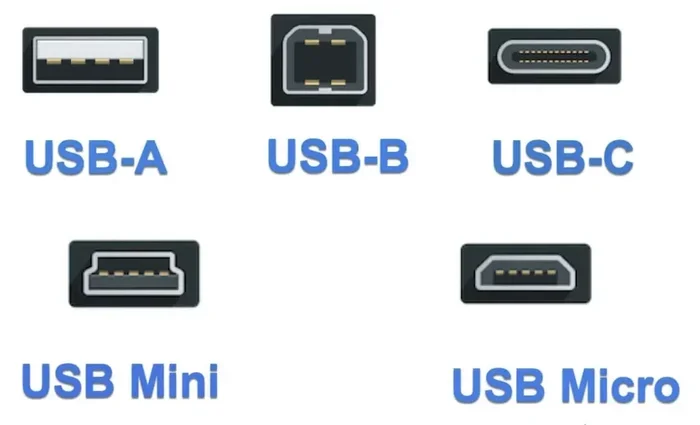
- Assuming all USB C cables support the same speeds. USB C is just a connector shape. The speed depends on the cable’s internal design and rating.
Avoiding these mistakes alone can improve your setup significantly. Take a moment to evaluate your cables and you will notice a real difference in performance.
Expert Insight: How Professionals Handle Cable Length
Professionals who work with large files every day, like video editors and photographers, know the importance of the right cable. They never rely on long passive cables for high-speed transfers. Instead, they use short, certified cables or active cables when distance is unavoidable.
Many also keep spare cables of different lengths on hand. A 0.5-meter cable sits on the desk for quick transfers. A 2-meter active cable connects devices across the room. This simple setup ensures every connection performs at its best.
If you work with external storage devices frequently, the cable you choose can make or break your workflow. Whether you are using a portable SSD or connecting a camera for file transfers, the right cable keeps things moving fast. Professionals also pay attention to the car camera cable USB port connections when transferring footage from dash cameras or security systems, where cable length and signal quality directly impact video transfer speeds.
Final Thoughts
The length of a USB C cable absolutely affects speed. It affects data transfer rates, charging performance, and overall device responsiveness. The shorter the cable, the better the speed, especially for high-performance protocols like USB 3.2 and Thunderbolt.
For everyday use, keep your cables under 1 meter. For longer distances, invest in an active cable with signal boosting. Check the cable rating to make sure it matches your device’s capabilities. And avoid cheap, unbranded cables that cut corners on quality.
These simple steps take seconds but save you hours of slow transfers and frustrating charging times. Your USB C cable is not just a piece of wire it is a critical part of your tech setup. Choose wisely, and your devices will thank you.
Next time you reach for a cable, think about its length. A small change can make a big difference in how fast your devices work. Pick the right cable, and enjoy the full speed of your USB C devices.
Frequently Asked Questions
Does a longer USB C cable charge slower?
Yes, longer cables can charge slower because of increased resistance and voltage drop. The effect is more noticeable with fast charging protocols. For best charging speeds, use a shorter cable rated for high wattage.
What is the maximum recommended length for a USB C cable?
For USB 3.2 and Thunderbolt cables, keep the length under 1 meter for full speed. Active cables can reach 2 to 5 meters while maintaining performance. Standard USB 2.0 cables can work well up to 5 meters.
Can a bad USB C cable damage my device?
A poor-quality cable can potentially damage your device if it lacks proper voltage regulation. Cheap cables may deliver inconsistent power, which can harm sensitive electronics over time. Always use certified cables from reputable brands.
How can I tell if my USB C cable supports fast data transfer?
Look for the SS (SuperSpeed) logo or the USB 3.0/3.1/3.2 rating on the cable. Thunderbolt cables will have the Thunderbolt icon. These markings confirm the cable supports high-speed data transfer rates.
Are all USB C cables the same?
No, USB C cables vary widely in speed, power delivery, and build quality. Some support only 2.0 speeds while others handle 3.2 or Thunderbolt 4. The connector shape is the same, but the internal technology differs significantly.
Do active USB C cables need external power?
Active cables use power from the connected device to run their internal signal-boosting electronics. They do not need a separate power source. However, they may draw slightly more power from your device than a passive cable would.