Why Does My Usb Not Work on My Dvd Player
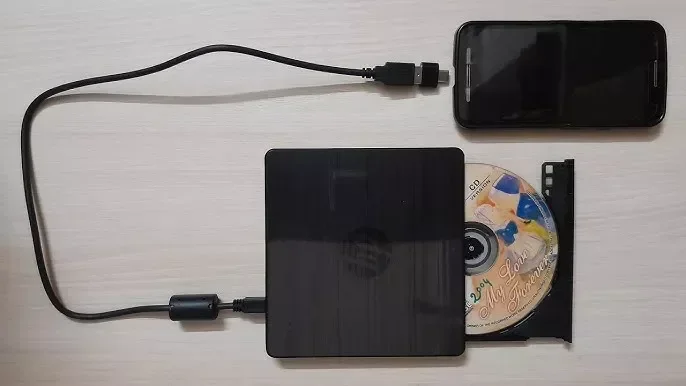
Your USB may not work on your DVD player because of file format issues, incompatible USB storage, or a faulty port. Understanding the most common reasons behind this problem helps you troubleshoot quickly and get back to watching your favorite media. This guide covers every major cause and provides clear, step-by-step solutions you can try right now.
You plug in your USB drive, press the button on your DVD player, and nothing happens. It is frustrating, right? You just want to watch your favorite movie or listen to your playlist, but your device refuses to cooperate. This is a common problem that many people face at home.
The good news is that a USB not working on DVD player issue is usually easy to fix. In most cases, the problem comes down to file format, port issues, or simple compatibility quirks. This guide will walk you through every possible reason and give you practical solutions that actually work.
Whether you are using a USB flash drive, an external hard drive, or a USB stick, you will find helpful tips here. Let us dive into the reasons your device might not be reading your USB and how to solve each one.
Key Takeaways
- File Format Mismatch: Most DVD players only support specific file types like FAT32 or NTFS.
- USB Port Problems: A loose or damaged port can prevent your device from being recognized.
- Storage Size Limits: Some older DVD players cannot read large USB drives over 32GB.
- Firmware Matters: Outdated firmware on your DVD player can cause compatibility issues.
- Simple Fixes Work: Reformatting, updating, or replacing a cable often solves the problem.
📑 Table of Contents
Common Reasons Why Your USB Does Not Work on a DVD Player
Before you start troubleshooting, it helps to understand what might be causing the problem. Several factors can stop your DVD player from recognizing a USB device. Here are the most common culprits.
File Format Incompatibility
Your DVD player has a limited list of file systems it can read. Most players work best with FAT32 or NTFS formats. If your USB drive uses a different format like exFAT or ext4, the player will not recognize it. This is the number one reason people run into USB problems with their media devices.
Think of it like a language barrier. Your DVD player speaks certain “file languages,” and if your USB drive is speaking a different one, they cannot understand each other. Reformatting the drive to a compatible format usually fixes this right away.
USB Port Issues
A loose or dirty USB port can prevent a proper connection. Dust, lint, or even slight damage to the port can block the signal. Sometimes the port itself is not supplying enough power to your USB device.
Try plugging your USB into a different port if your DVD player has more than one. You can also gently clean the port with a soft, dry brush. If the port feels wobbly or loose, it may need professional repair.
Unsupported File Types
Even if your DVD player reads the USB drive, it might not support the specific video or audio files on it. Many players only play certain formats like MP4, AVI, or MKV. If your files are in an unsupported format, the player will show nothing or give an error message.
Converting your media files to a compatible format is often the easiest fix. There are many free tools online that can change your file type in just a few clicks.
USB Drive Size and Power Limitations
Some older DVD players have strict limits on USB storage size. They may not recognize drives larger than 32GB or 64GB. Additionally, certain USB devices need more power than the DVD player port can supply. A powered USB hub can solve this problem.
If you are using a large external hard drive, try a smaller USB flash drive instead. This simple swap often resolves the issue immediately.
Firmware and Software Problems
Your DVD player runs on internal software called firmware. When this software is outdated, it may not support newer USB standards or file types. Checking for a firmware update from the manufacturer can fix many compatibility issues.
Visit the manufacturer’s website, enter your model number, and look for the latest firmware version. Downloading and installing the update is usually a straightforward process.
How to Fix a USB That Will Not Work on Your DVD Player
Now that you know the common causes, let us look at the solutions. These steps are easy to follow and do not require any technical expertise.
Step 1: Check the File System
First, check what file system your USB drive is using. On Windows, right-click the drive in “My Computer” and select “Properties.” Look for the file system type. If it is not FAT32 or NTFS, you will need to reformat it.
Warning: Reformatting will erase all data on your USB drive. Make sure to back up your files first. Use a free tool like Rufus or the built-in Windows formatting tool to convert the drive.
Step 2: Try a Different USB Port
Sometimes the problem is simply a bad connection. Unplug your USB drive and try a different port on the DVD player. If the player has a USB port on the front and back, test both. A different port can sometimes bypass a damaged connection.
Step 3: Convert Your Media Files
If your DVD player recognizes the USB drive but will not play the files, convert them to a supported format. VLC Media Player and HandBrake are excellent free tools for this. They let you choose the output format and quality settings easily.
After converting, copy the new files to your USB drive and try again. This solves the problem in most cases.
Step 4: Update the DVD Player Firmware
Check your DVD player manual or the manufacturer website for firmware updates. Download the latest version and follow the installation instructions. A firmware update can add support for new USB standards and file types.
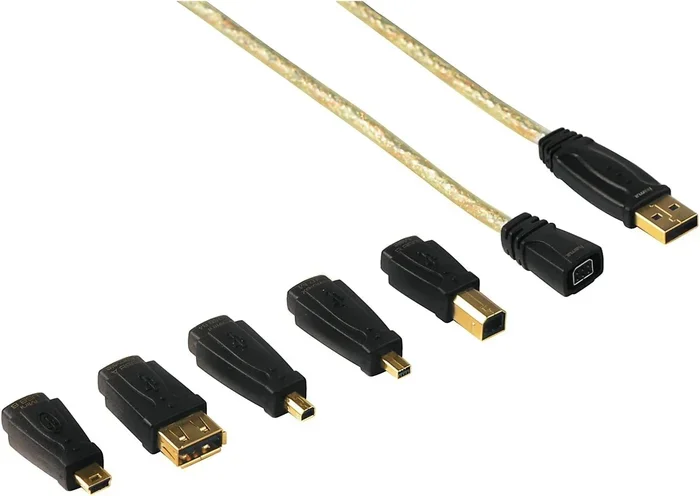
Step 5: Use a Different USB Cable or Drive
A faulty USB cable can cause connection problems. Try a different cable to rule this out. Similarly, test a different USB drive. If the new drive works, the original drive may be defective.
Some USB drives are designed for computers and draw too much power. A simple, low-power flash drive tends to work best with DVD players.
DVD Player USB Compatibility: What You Need to Know
Not all DVD players are created equal when it comes to USB support. Understanding what your player can and cannot do saves you a lot of time and frustration.
| Feature | Supported by Most Players | May Not Work on Older Players |
|---|---|---|
| FAT32 Format | Yes | No |
| NTFS Format | Yes | Sometimes |
| USB 2.0 Drives | Yes | Rarely an issue |
| USB 3.0 Drives | Yes | Backward compatible |
| Drives Over 32GB | Yes | Some older models |
| MP4 and AVI Files | Yes | Rarely an issue |
| MKV and FLAC Files | Sometimes | Often unsupported |
Knowing your player’s limitations helps you choose the right USB drive and file format from the start. When in doubt, stick with FAT32 formatting and common video formats like MP4 for the best results.
Quick Tips to Prevent USB Problems on Your DVD Player
Prevention is always better than troubleshooting. Follow these simple tips to keep your USB playback smooth and hassle-free.
- Always use FAT32 format for maximum compatibility with DVD players.
- Keep your USB drive clean and free of dust or debris.
- Use short, simple file names without special characters.
- Avoid extremely large files if your player has a size limit.
- Update your DVD player firmware every few months.
- Use a high-quality USB cable to ensure a stable connection.
- Eject the USB drive properly before unplugging it.
These small habits go a long way. They can prevent most USB-related issues before they even start.
When to Seek Professional Help
Most USB problems are easy to fix at home. But sometimes the issue goes beyond simple troubleshooting. If you have tried all the steps above and your USB still does not work, it may be time to seek help.
A damaged USB port on the DVD player might need soldering or replacement. Similarly, if your USB drive is physically damaged, no amount of troubleshooting will bring it back to life. In these cases, a professional technician can diagnose the real problem and recommend the right fix.
Also, if your DVD player is very old, it may simply not support modern USB standards. In that case, you might want to consider upgrading to a newer media player that offers better USB compatibility and broader file support.
Final Thoughts
A USB not working on DVD player problem is almost always solvable with a little patience. Start with the simplest fixes like checking the file format and trying a different port. Work your way through the solutions listed in this guide, and you will likely find the answer.
Remember, most DVD players have specific requirements for USB drives and media files. Meeting those requirements ensures smooth playback every time. Keep your files organized, your drives formatted correctly, and your firmware up to date.
With the right approach, you can enjoy your favorite movies, music, and photos from a USB drive on your DVD player without any headaches. Happy watching!
Frequently Asked Questions
Why does my DVD player not recognize my USB drive at all?
The most common reason is a file format mismatch. DVD players typically only recognize drives formatted as FAT32 or NTFS. Try reformatting your USB drive to FAT32 and plugging it back in. This solves the problem for most users.
Can I use a USB hub with my DVD player?
Some DVD players support USB hubs, but many do not. A powered USB hub can help if your drive needs more power than the player’s port can supply. However, it is always best to plug the drive directly into the player first to rule out hub-related issues.
What video formats work best on a DVD player with USB?
MP4 and AVI are the most widely supported formats. MKV and FLAC files may not work on older models. Always check your DVD player manual for a list of supported formats before transferring files to your USB drive.
Does USB cable length affect performance on a DVD player?
Yes, longer cables can cause signal loss or insufficient power delivery. Use a short, high-quality USB cable for the best results. If your drive is not being recognized, try a shorter cable to see if that fixes the issue.
How do I update the firmware on my DVD player?
Visit the manufacturer’s website and search for your model number. Look for a firmware or software download section. Follow the instructions provided to install the update. Updating firmware often improves USB compatibility and fixes known bugs.
Can a corrupted USB drive cause playback issues on a DVD player?
Absolutely. A corrupted or damaged USB drive may not be read properly by the DVD player. Try scanning the drive for errors on your computer and repairing it. If the drive is physically damaged, you will need to replace it with a new one.