Are Usb 3 0 and 3 2 the Same
USB 3.0 and USB 3.2 are not the same, even though they share some similarities. USB 3.2 introduced faster transfer speeds and better bandwidth compared to USB 3.0. Understanding these differences helps you pick the right cables, ports, and devices for your needs.
Have you ever looked at the back of your computer and wondered whether USB 3.0 and USB 3.2 are the same thing? It is an easy question to ask. The names sound almost identical, and both promise fast data transfer. But the truth is they are quite different.
USB technology has evolved a lot over the years. Each new version brought faster speeds, better power delivery, and improved efficiency. USB 3.0 came first and changed how we connect devices. Then USB 3.2 arrived with a big speed boost. But because the naming can be confusing, many people assume they are the same.
In this article, we will break down the real differences between USB 3.0 and USB 3.2. You will learn about speeds, connectors, compatibility, and which one you should use. By the end, you will never mix them up again.
Key Takeaways
- USB 3.0 and USB 3.2 are different: They vary in speed, bandwidth, and naming conventions.
- USB 3.2 offers faster data transfer: It doubles the bandwidth of USB 3.0 in some configurations.
- Backward compatibility matters: USB 3.2 devices work with USB 3.0 and USB 2.0 ports, but at slower speeds.
- Connector types stay the same: Both use USB Type-A and USB Type-C connectors.
- Real-world speeds differ from theoretical max: Cable quality and device limits affect actual performance.
- Check your device specs: Knowing your USB version helps you get the best performance.
📑 Table of Contents
What Is USB 3.0?
USB 3.0 was released in 2008. It was a major upgrade from USB 2.0. The biggest change was the jump in data transfer speed. USB 2.0 topped out at 480 Mbps. USB 3.0 offered 5 Gbps instead. That is more than ten times faster.
USB 3.0 also introduced better power management. Devices could charge faster and use less energy when idle. The port color often changed too. Many USB 3.0 ports were blue inside to help users tell them apart from USB 2.0 ports.
Key Features of USB 3.0
- SuperSpeed USB: USB 3.0 was the first to use the SuperSpeed branding. This meant it could handle 5 Gbps data transfer.
- Full Duplex Communication: Unlike USB 2.0, USB 3.0 could send and receive data at the same time. This made transfers much more efficient.
- Increased Power Output: USB 3.0 provided up to 900 mA of power. That was enough to charge many devices without a wall charger.
- Backward Compatible: USB 3.0 works with older USB 2.0 devices. The speed just drops to USB 2.0 levels when connected.
What Is USB 3.2?
USB 3.2 came along in 2017. It built on the foundation of USB 3.0 and USB 3.1. The main improvement was doubling the bandwidth. USB 3.2 uses two lanes of data instead of one. This pushed the speed to 10 Gbps for Gen 2 and 20 Gbps for Gen 2×2.
But here is where things get tricky. The USB Implementers Forum changed the naming scheme. This caused a lot of confusion. USB 3.2 Gen 1 is actually the same speed as USB 3.0. USB 3.2 Gen 2 matches the old USB 3.1 speed. And USB 3.2 Gen 2×2 doubles that again to 20 Gbps.
Key Features of USB 3.2
- Double Bandwidth: USB 3.2 uses two lanes to move data. This effectively doubles the transfer rate compared to USB 3.0 and USB 3.1.
- Faster External Storage: With 10 Gbps or 20 Gbps, external SSDs can reach their full potential. This is especially useful for portable NVMe drives.
- Better for Video: Higher bandwidth means USB 3.2 can handle more video streams and higher resolutions.
- USB Type-C Focus: USB 3.2 is often paired with USB Type-C connectors. These reversible connectors are easier to use and more durable.
For example, if you use an M.2 NVMe SSD to USB 3.1 adapter, you already experience the importance of faster USB protocols. Upgrading to USB 3.2 can make those speeds even better.
USB 3.0 vs USB 3.2: Speed Comparison
The speed difference is the biggest reason people care about this topic. Let us look at the numbers side by side.
USB 3.0 offers a single data lane with 5 Gbps. In real-world tests, you usually get around 400 to 450 MB/s. That is great for transferring documents, photos, and even HD video.
USB 3.2 Gen 1 is technically the same as USB 3.0. It runs at 5 Gbps. So if you see USB 3.2 Gen 1 on a device, the speed is the same as USB 3.0.
USB 3.2 Gen 2 doubles the speed to 10 Gbps. Real-world transfer rates reach around 900 to 1000 MB/s. This is where you start noticing a big difference.
USB 3.2 Gen 2×2 uses two lanes and hits 20 Gbps. Real-world speeds can reach around 1700 to 2000 MB/s. That is incredibly fast for consumer USB.
So the question is not just “are they the same.” The answer depends on which USB 3.2 generation you are talking about. USB 3.2 Gen 1 is the same as USB 3.0. But USB 3.2 Gen 2 and Gen 2×2 are much faster.
Connectors and Physical Design
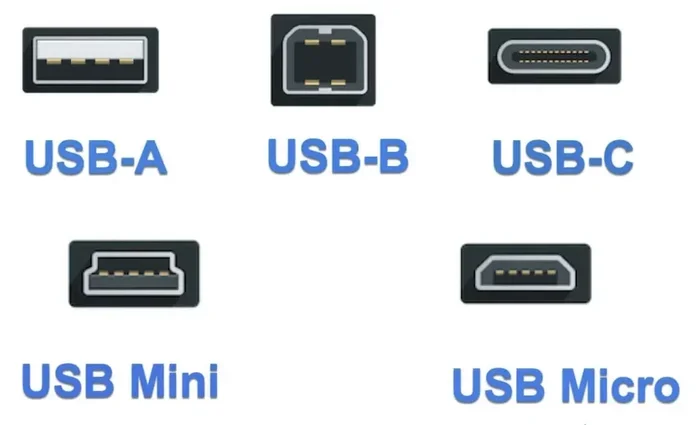
Both USB 3.0 and USB 3.2 use the same connector types. You will find USB Type-A and USB Type-C in both families. This means you can plug a USB 3.0 device into a USB 3.2 port without any issues.
USB Type-A Connectors
The classic rectangular USB plug is Type-A. It has been around for decades. USB 3.0 Type-A ports are usually blue. USB 3.2 Type-A ports do not have a standard color, so you need to check the specs.
USB Type-C Connectors
USB Type-C is the smaller, reversible connector. It has become the standard for modern laptops, phones, and tablets. USB 3.2 works great with Type-C because it can handle the higher bandwidth. USB 3.0 can also use Type-C, but it is less common.
When you buy a cable, make sure it supports the speed you need. A USB 3.0 cable will not give you USB 3.2 speeds, even if you plug it into a USB 3.2 port. The cable becomes the bottleneck.
Are They Backward Compatible?
Yes, USB 3.2 is fully backward compatible with USB 3.0 and USB 2.0. This is one of the best things about USB standards. You can plug an older device into a newer port and it will work.
But here is the catch. The speed will drop to the level of the slower device or cable. If you plug a USB 3.0 flash drive into a USB 3.2 port, it will only run at USB 3.0 speeds. The port is capable of more, but the device cannot use it.
The same goes for cables. A USB 3.0 cable limits the connection to 5 Gbps, no matter what port you use. If you want USB 3.2 speeds, you need a USB 3.2 cable and a USB 3.2 device.
Quick Tips for Compatibility
- Check the cable label: Look for SuperSpeed USB logos. USB 3.2 cables often say “SuperSpeed USB 10 Gbps” or “20 Gbps.”
- Match your devices: Both the host port and the device need to support USB 3.2 for full speed.
- Use quality cables: Cheap cables may not support the higher bandwidth of USB 3.2.
- Check your adapter: If you use an M.2 NVMe SSD enclosure adapter with USB 3.1, upgrading to a USB 3.2 enclosure can significantly boost your transfer speeds.
Which One Should You Use?
The right choice depends on what you need. Here are some practical scenarios to help you decide.
Choose USB 3.0 If…
- You mostly transfer files under 10 GB.
- You use older devices that only have USB 3.0 ports.
- You want budget-friendly cables and accessories.
- Your daily tasks do not need the fastest speeds.
Choose USB 3.2 If…
- You work with large files like 4K video or huge photo libraries.
- You use external NVMe SSDs that can reach 1000 MB/s or more.
- You want future-proof connectivity for your devices.
- You need to connect multiple high-bandwidth devices at once.
For most everyday users, USB 3.0 is still plenty fast. But if you work with large files or want the best performance, USB 3.2 is worth the upgrade. The speed difference is very noticeable when you are copying huge folders or backing up your entire hard drive.
Think about your M.2 NVMe SSD over USB setup. If you are using an external NVMe drive, USB 3.2 Gen 2 or Gen 2×2 will let you reach the drive’s full speed. With USB 3.0, you will leave a lot of performance on the table.
Common Mistakes People Make
There are a few mistakes that many people make when dealing with USB speeds. Avoiding these can save you a lot of frustration.
- Assuming all USB 3.2 is faster than USB 3.0: USB 3.2 Gen 1 is the same speed as USB 3.0. You need Gen 2 or Gen 2×2 for the real upgrade.
- Using old cables with new ports: A USB 2.0 or USB 3.0 cable will cap your speed, even in a USB 3.2 port.
- Ignoring the device limit: Your SSD or flash drive may not support USB 3.2 speeds. Check its specifications first.
- Confusing USB 3.1 and USB 3.2: USB 3.1 Gen 2 is the same as USB 3.2 Gen 2. The naming changed, but the speed stayed the same.
- Not checking the port type: Some ports look the same but support different speeds. Always verify the specs of your hardware.
Expert Insights on USB Evolution
The USB naming changes have confused a lot of people. The USB Implementers Forum wanted to simplify things, but it ended up making them more complicated. Here is what you need to remember.
USB 3.0 was renamed USB 3.2 Gen 1. USB 3.1 was renamed USB 3.2 Gen 2. And USB 3.2 Gen 2×2 is a brand new addition. The underlying technology keeps improving, but the names keep shifting.
When shopping for cables, enclosures, or devices, focus on the speed rating rather than the name. Look for “5 Gbps,” “10 Gbps,” or “20 Gbps” on the packaging. That tells you exactly what you are getting.
External storage has benefited the most from these upgrades. People who use an M.2 NVMe SSD enclosure with USB 3.1 can now move to USB 3.2 for even faster backups and file transfers. The difference is real and worth it for professionals.
Conclusion
So, are USB 3.0 and USB 3.2 the same? The short answer is no. USB 3.0 and USB 3.2 are different in speed, bandwidth, and capabilities. USB 3.2 Gen 2 and Gen 2×2 offer much faster transfer rates than USB 3.0. But USB 3.2 Gen 1 is essentially the same as USB 3.0.
Understanding these differences helps you make better buying decisions. You will know which cables to choose, which ports to use, and which devices will give you the best performance. The next time you shop for USB accessories, check the speed rating and the generation. Your files will transfer faster, and your workflow will be smoother.
Technology keeps moving forward, and USB standards will keep evolving. But for now, knowing the difference between USB 3.0 and USB 3.2 puts you ahead of most users. Use this knowledge to get the most out of your devices and enjoy faster, more reliable connections every day.
Frequently Asked Questions
Is USB 3.0 the same as USB 3.2 Gen 1?
Yes, USB 3.0 and USB 3.2 Gen 1 offer the same 5 Gbps speed. The USB Implementers Forum renamed USB 3.0 to USB 3.2 Gen 1 as part of their new naming scheme.
Can I plug a USB 3.0 device into a USB 3.2 port?
Yes, USB 3.2 is fully backward compatible. Your USB 3.0 device will work in a USB 3.2 port, but it will only run at USB 3.0 speeds.
Do I need a special cable for USB 3.2?
Yes, to get USB 3.2 speeds, you need a cable that supports the higher bandwidth. Look for cables labeled SuperSpeed USB 10 Gbps or 20 Gbps.
What is the fastest USB 3.2 generation?
USB 3.2 Gen 2×2 is the fastest, offering 20 Gbps. It uses two data lanes and requires both a compatible port and a compatible device to reach full speed.
Does USB 3.2 charge devices faster than USB 3.0?
USB 3.2 can deliver more power through USB Power Delivery, but the charging speed depends on the device and charger. The data transfer speed is the main improvement over USB 3.0.
Should I upgrade from USB 3.0 to USB 3.2?
If you work with large files or use fast external SSDs, upgrading to USB 3.2 is worth it. For basic file transfers and everyday use, USB 3.0 is still sufficient.