Why Is My Hdmi Showing No Signal
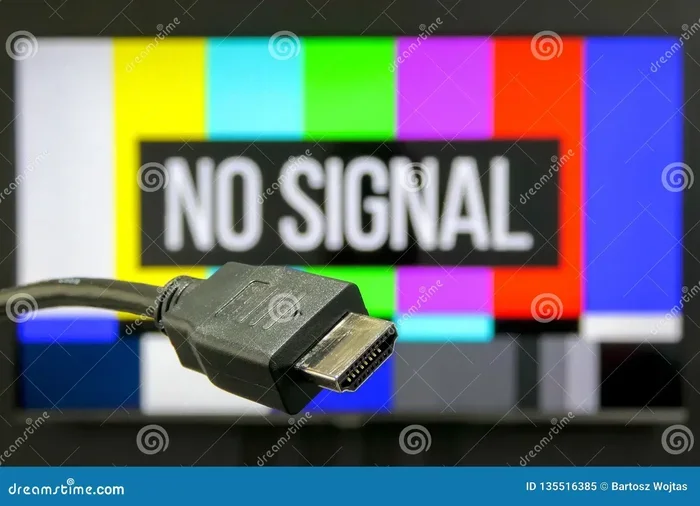
A HDMI showing no signal error means your display is not receiving video input from your device. This problem is usually caused by a loose cable, wrong input source, outdated drivers, or hardware issues. Follow this guide to diagnose and fix the issue quickly and get your screen back up and running.
The HDMI showing no signal error is one of the most frustrating tech problems you can face. Whether you are connecting a laptop, gaming console, or streaming device, a blank screen stops you in your tracks. This guide walks you through every common cause and the easiest fix for each one. You will learn how to check your HDMI cable, update drivers, adjust display settings, and more. By the end, your screen will be back up and running.
Dealing with a no signal HDMI problem can happen to anyone. It does not matter if you are a student, a gamer, or a professional. The good news is that most fixes take only a few minutes. Let us dive into the solutions.
Key Takeaways
- Check the cable first: A loose or damaged HDMI cable is the most common cause of no signal issues. Replacing it often solves the problem instantly.
- Verify the input source: Your display might be on the wrong HDMI port. Cycling through input sources takes seconds and fixes many cases.
- Update your drivers: Outdated graphics drivers frequently cause HDMI handshake failures and no signal errors on laptops.
- Hardware matters: GPU overload, overheating, and peripheral conflicts can all disrupt your HDMI output and cause signal drops.
- Prevention is simple: Use certified cables, manage cable length, keep drivers updated, and maintain good airflow to avoid future HDMI problems.
📑 Table of Contents
What Does HDMI No Signal Mean?
When your screen shows “No Signal” or “HDMI No Signal,” it means your display device is not receiving any video input from the source. The monitor, TV, or projector is powered on but cannot find a feed to display. This is different from a cracked screen or a dead monitor. Your hardware is fine. The connection or signal path is simply broken somewhere.
Understanding this helps you troubleshoot faster. Instead of panicking, you can methodically check each possible cause. The issue usually lies in one of five areas: the cable, the port, the settings, the driver, or the hardware itself. Let us walk through each one.
Common Causes of HDMI No Signal
Several things can trigger the HDMI no signal message. Here are the most common culprits you should check first.
Loose or Damaged HDMI Cable
The simplest cause is a loose connection. If the cable is not fully seated in the port, no data can pass through. Over time, HDMI cables can also wear out. Bent pins inside the connector or frayed wires will break the connection.
Try unplugging the cable from both ends. Plug it back in firmly until you feel it click. If the cable looks damaged or bent, replace it with a new one. A fresh HDMI cable often solves the problem instantly. This is the first thing you should try because it works more often than you might expect.
Wrong Input Source on Your Display
Sometimes the display is working fine, but it is looking at the wrong input. TVs and monitors have multiple ports labeled HDMI 1, HDMI 2, and so on. If your source is plugged into HDMI 2 but the TV is set to HDMI 1, you will see no signal.
Use your remote or monitor buttons to cycle through the input sources. Select the HDMI port where your device is actually connected. This simple step fixes the problem more often than you would think. It is always worth checking before moving on to more complex fixes.
Resolution or Refresh Rate Mismatch
Your computer might be outputting a resolution or refresh rate that your display does not support. For example, if your laptop is trying to push 4K at 144Hz but your monitor only supports 1080p, the screen will go blank. This is a very common HDMI resolution mismatch issue.
Boot your laptop in safe mode or connect it to a different display first. Then lower the resolution and refresh rate in your display settings. Once the screen is visible again, you can gradually increase the settings to find a compatible range. This is especially common when connecting a laptop to an older TV or monitor.
HDMI Handshake Failure
An HDMI handshake failure happens when the source device and the display cannot agree on a connection. This is not a cable problem. It is a communication error between the two devices. The result is the same: a black screen with a no signal message.
Handshake failures are more common when you hot-plug the HDMI cable while both devices are powered on. Always turn off both devices before connecting or disconnecting the cable. This simple habit can prevent many handshake problems.
How to Fix HDMI No Signal on Your Laptop
Follow these steps in order to fix the HDMI not working on laptop problem. Each step addresses a different possible cause. Work through them one by one until the signal returns.
Step 1: Check the Physical Connection
Start with the basics. Unplug the HDMI cable from both the laptop and the display. Inspect the cable ends for dust, debris, or bent pins. Blow out any dust gently. Plug the cable back in firmly on both sides.
Try a different HDMI port on your display if available. Some laptops have multiple output ports. Switching to another port can rule out a faulty port on your computer. Also check if the HDMI port damaged on either device by looking for bent or broken pins with a flashlight.
Step 2: Restart Both Devices
A simple restart can clear temporary glitches in the HDMI handshake process. Turn off your laptop and your display completely. Unplug both from power for at least 30 seconds. Plug them back in and power on. This resets the communication between the devices and often fixes the no signal error immediately.
Step 3: Update Your Display Drivers
Outdated or corrupted graphics drivers are a leading cause of HDMI not working issues. Windows and macOS handle driver updates differently, but both make it easy.
On Windows, go to Settings, then Update & Security, then Windows Update. Check for optional driver updates. You can also visit your GPU manufacturer’s website to download the latest driver directly. On a Mac, update through System Settings and Software Update. Keeping your GPU driver HDMI compatibility up to date prevents many display problems.
Step 4: Adjust Display Settings
If your laptop is outputting a signal your display cannot handle, you need to change the settings. Boot into safe mode if you cannot see anything on screen.
Right-click on your desktop and select Display Settings. Look for Display Resolution and refresh rate. Set both to the lowest supported option for your external display. This ensures compatibility while you work on a permanent fix. You can raise the settings later once the connection is stable.
Step 5: Check for Hardware Conflicts
Sometimes other hardware interferes with the HDMI output. USB devices, docking stations, and even peripherals can create conflicts. Disconnect all unnecessary devices and try the HDMI connection again.
If you use a docking station, connect the HDMI cable directly to your laptop instead. This helps you determine whether the dock is causing the issue. A display settings HDMI conflict can also arise when multiple monitors are connected. Remove all but one external display and test again.
HDMI Cable and Port Troubleshooting
A faulty cable or damaged port is one of the top reasons for HDMI showing no signal. Here is how to diagnose and fix these problems step by step.
Testing Your HDMI Cable
The best way to test a cable is to use it with a different device. Connect your laptop to a TV using the same cable. If the TV works fine, the cable is good and the problem is with your original display. If the TV also shows no signal, the cable is likely faulty.
You can also try a different cable with your original setup. If the new cable works, your old cable needs replacing. HDMI cable compatibility matters more than many people realize. Not all cables support the same bandwidth or resolution levels.
Inspecting the HDMI Port
Look closely at the HDMI port on both your laptop and your display. Are there any bent or broken pins? Is there dust or lint inside the port? Use a flashlight to get a good look.
Compressed air can help clean out debris from the port. Be gentle and use short bursts. If the port is physically damaged, you may need professional repair or a HDMI adapter issues workaround. A USB-C to HDMI adapter can sometimes bypass a damaged port entirely.
Cable Length and Quality Matters
Not all HDMI cables are created equal. A very long cable can weaken the signal, especially at higher resolutions. If you are using a cable longer than 15 feet, try a shorter one to see if that fixes the issue. An HDMI cable too long can result in signal loss and intermittent no signal errors.
Buy cables that are certified by HDMI Licensing. Look for labels like “Premium High Speed HDMI.” These cables are tested to handle the bandwidth needed for 4K and higher refresh rates. Cheap uncertified cables often fail at higher resolutions. HDMI cable faulty connections from low-quality cables are extremely common.
No Signal on TV HDMI
If you are dealing with no signal on TV HDMI, the problem might be specific to your television. Modern smart TVs have multiple HDMI ports, and some may not support all features. Try switching to a different HDMI port on your TV. Also check if your TV has an HDMI-CEC setting that might be interfering with the connection.
Some TVs require you to switch from internal speakers to external audio output when an HDMI device is connected. Check your TV audio settings as well. A simple HDMI cable not working issue on a TV can often be traced back to a settings mismatch rather than a hardware problem.
When Your GPU or Hardware Is the Problem
Sometimes the issue goes deeper than cables and settings. Your graphics card and other hardware components can be the root cause of your external monitor no signal problem.
GPU Overload and HDMI Handshake Failures
A demanding graphics workload can cause your GPU to spike to 100 percent during the HDMI handshake process. When the GPU is overwhelmed, it may fail to establish a stable connection with the display. This results in the no signal message on your screen.
Reduce the graphical load before connecting your external display. Close unnecessary programs and lower in-game settings. This gives your GPU the breathing room it needs to handle the HDMI output properly. If you frequently see GPU usage at maximum, your card may be too weak for the resolution you are trying to push.
Overheating and System Stability
When your laptop overheats, it can throttle performance and disrupt the HDMI output. If you notice your computer fan running constantly while trying to use HDMI, heat buildup might be interfering with the signal path. Overheating can cause intermittent no signal issues that come and go.
Make sure your laptop’s vents are not blocked. Use it on a hard flat surface instead of a bed or couch. A cooling pad can also help maintain safe temperatures during heavy use. Clean your vents regularly to prevent dust buildup that traps heat inside the chassis.
Peripheral Conflicts with HDMI Output
Connected peripherals can sometimes interfere with HDMI output. If you notice that your mouse stops responding right before the HDMI signal drops, the two issues may be related. A faulty USB controller or power management setting could be affecting both your peripherals and your display output.
Disconnect all USB devices except your keyboard and mouse. Try the HDMI connection again. If the signal returns, reconnect devices one by one to find the culprit. This isolation method is one of the most effective ways to identify hidden hardware conflicts.
Intermittent HDMI Dropouts
Some users experience an HDMI connection that works for a few minutes and then drops. This can be incredibly annoying. Intermittent dropouts often point to a loose cable connection or a port that is failing. The mouse keep freezing on your laptop can also be a symptom of the same underlying hardware instability that causes HDMI dropouts.
Wiggle the HDMI cable gently at both ends while watching the screen. If the signal flickers, the cable or port is likely the problem. Replace the cable first, as it is the cheapest fix. If the problem persists after a new cable, the port on your laptop or display may need professional repair.
HDMI Splitter and Adapter Problems
Using an HDMI splitter problems setup can introduce signal degradation. Splitters divide the signal between multiple displays, and cheap splitters often cannot handle the bandwidth. If you are using a splitter or adapter, try connecting directly without it to see if the signal returns.
Adapters can also be a source of HDMI adapter issues. Active adapters require power, and passive adapters have bandwidth limitations. Make sure your adapter matches your resolution and refresh rate needs. A mismatched adapter is a common reason for monitor not detecting HDMI even when everything else looks fine.
Preventing HDMI No Signal Issues
Once you fix the problem, you want to make sure it does not come back. Here are some simple habits that keep your HDMI connection stable and reliable.
- Always unplug cables gently. Yanking an HDMI cable out can damage the pins over time. Pull from the connector body, not the cord itself.
- Use certified cables. Premium High Speed HDMI cables handle modern resolutions reliably. Avoid the cheapest options from unknown brands.
- Keep your drivers updated. Graphics driver updates often include fixes for display output issues. Check for updates at least once a month.
- Manage your laptop temperature. Good airflow prevents overheating that can disrupt HDMI signals. Clean your vents regularly and use proper surfaces.
- Avoid extreme cable lengths. Keep HDMI cables under 15 feet for best performance. Use an active repeater for longer runs to boost the signal.
- Power cycle before connecting. Turn off both devices before plugging in the HDMI cable. This prevents handshake failures and connection errors.
Following these simple tips will save you a lot of frustration. A stable HDMI connection should just work every time without you having to think about it.
Conclusion
A HDMI showing no signal error is almost always fixable at home without professional help. Start with the simplest checks like cable connections and input sources. Move on to driver updates and display settings if those do not work. Hardware issues like GPU overload or overheating are less common but still worth investigating.
Most of the time, a new cable or a quick restart solves everything. Do not panic when the screen goes blank. Work through the steps in this guide methodically, and your display will be back in no time. The key is patience and checking each possible cause one at a time.
Frequently Asked Questions
Why does my HDMI show no signal even with a new cable?
A new cable can still cause issues if it is not compatible with your resolution or refresh rate settings. Make sure the cable supports the bandwidth your devices need. Also check that the correct input source is selected on your display. A mismatch between the cable specifications and your output settings is the most likely culprit.
Can a faulty GPU cause HDMI no signal?
Yes, a faulty or overloaded GPU can prevent HDMI output entirely. If your GPU is overheating or crashing during the handshake process, the display will show no signal. Update your graphics drivers first and monitor your GPU temperatures. If the problem persists, the GPU itself may need to be checked or replaced.
How do I know if my HDMI port is damaged?
Look closely at the port for bent or broken pins using a flashlight. Try connecting a different device with the same cable to rule out the source device. If the port is physically damaged, you may need professional repair or a USB-C to HDMI adapter as a workaround. Loose connections that flicker in and out also suggest port damage.
Why does my HDMI work sometimes but not other times?
Intermittent HDMI issues are usually caused by a loose cable, a failing port, or overheating hardware. Wiggle the cable gently at both ends while watching the screen. If the signal flickers, the cable or port is likely the problem. Overheating can also cause the GPU to drop the HDMI output temporarily when temperatures get too high.
Does HDMI cable length affect signal quality?
Yes, longer HDMI cables can weaken the signal, especially at higher resolutions like 4K. Keep cables under 15 feet for the best performance. If you need a longer run, use an active HDMI repeater or an active fiber HDMI cable. These boost the signal and maintain quality over longer distances.
What should I do if my laptop shows no signal on an external monitor?
Start by checking the physical cable connection and trying a different HDMI port. Restart both devices and make sure the correct input source is selected on the monitor. Update your graphics drivers and check your display settings for resolution mismatches. If none of these work, test with a different cable or monitor to isolate the problem.