Does Usb C to Displayport Support 144hz
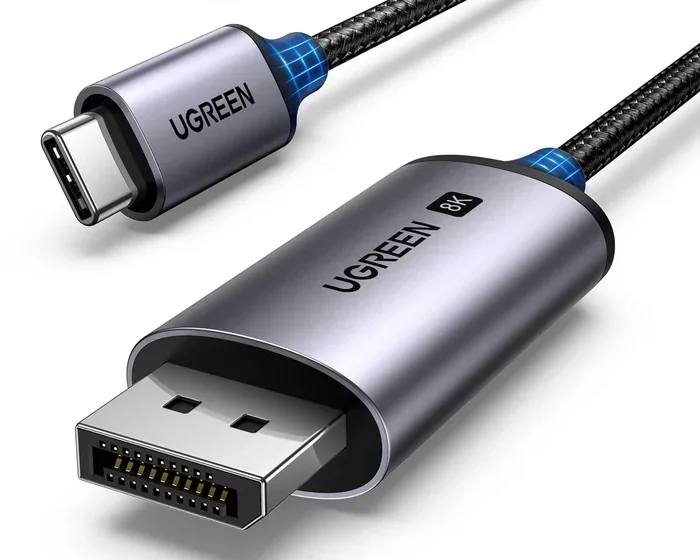
Yes, USB C to DisplayPort can support 144Hz, but it depends on your cable, adapter, and the video bandwidth your device delivers. Not every USB C to DisplayPort setup will hit that 144Hz target, and using the wrong adapter can limit your refresh rate significantly. In this guide, we explain exactly what you need for a reliable 144Hz connection over USB C DisplayPort.
You have a sleek laptop with a USB C port, a brand new 144Hz monitor, and one big question: does USB C to DisplayPort support 144Hz? It is a fair question. Gamers, content creators, and professionals all want smooth visuals, and 144Hz makes a real difference. The short answer is yes, but the full story is a bit more nuanced.
Not every USB C to DisplayPort setup will deliver 144Hz. The cable you use, the adapter you choose, and the capabilities of your device all matter. In this article, we walk through everything you need to know. We cover how USB C and DisplayPort work together, what bandwidth you need, and how to avoid common pitfalls that kill your refresh rate.
Whether you are gaming at 1080p or pushing pixels at 1440p, this guide has you covered. We will also share quick tips and expert insights to help you get the most out of your USB C to DisplayPort connection. Let us dive in.
Key Takeaways
- USB C to DisplayPort can support 144Hz: But only with the right cable, adapter, and video bandwidth.
- USB C Alt Mode is essential: Your device must support DisplayPort Alt Mode over USB C for high refresh rates.
- Thunderbolt 3 and Thunderbolt 4 cables make it easier: They offer the bandwidth needed for 144Hz at higher resolutions.
- Passive adapters have limits: Some passive USB C to DisplayPort adapters cannot handle 144Hz at 1440p or 4K.
- Check your monitor and GPU specs: Both sides of the connection must support 144Hz over USB C.
- Active adapters can help bridge the gap: They boost signal quality and may unlock 144Hz where passive options fail.
📑 Table of Contents
- Understanding USB C to DisplayPort and 144Hz
- Does USB C to DisplayPort Support 144Hz? The Full Answer
- USB C to DisplayPort vs Other Connections for 144Hz
- How to Get 144Hz Over USB C to DisplayPort
- Common Mistakes That Prevent 144Hz Over USB C
- Expert Insights on USB C to DisplayPort 144Hz
- Final Thoughts
Understanding USB C to DisplayPort and 144Hz
Before we answer the big question, let us understand the basics. USB C is a connector type. DisplayPort is a display protocol. When you use a USB C to DisplayPort cable or adapter, you are using the USB C port to send a DisplayPort signal to your monitor.
USB C supports something called DisplayPort Alt Mode. This allows the USB C port to carry a DisplayPort signal directly. When your device supports this mode, it can send high-bandwidth video to an external display. The key question for 144Hz is whether the connection has enough bandwidth to handle that refresh rate at your desired resolution.
What Is DisplayPort Alt Mode?
DisplayPort Alt Mode is a feature built into USB C. It lets the USB C port act like a DisplayPort output without needing extra hardware. Most modern laptops, tablets, and even some desktops support this mode. When your device has DisplayPort Alt Mode, you can plug in a USB C to DisplayPort cable or adapter and expect full performance.
However, not all USB C ports support Alt Mode. Some USB C ports are only for data and charging. They cannot carry video signals at all. This is a common mistake people make when trying to connect a high refresh rate monitor. Always check your device specifications before buying a USB C to DisplayPort adapter.
Why Does 144Hz Matter?
144Hz means your monitor refreshes the image 144 times per second. That is much smoother than the standard 60Hz. For gaming, fast-paced action looks buttery smooth. For video editing, you see more accurate motion. For general use, scrolling and animations feel noticeably snappier.
But 144Hz demands more from your connection. A 1080p display at 144Hz needs less bandwidth than a 1440p or 4K display at 144Hz. The USB C to DisplayPort link must be able to handle that data load. If it cannot, your monitor may drop to a lower refresh rate or show no signal at all.
Does USB C to DisplayPort Support 144Hz? The Full Answer
So, does USB C to DisplayPort support 144Hz? The answer depends on three factors: your device, your cable or adapter, and your monitor. Let us break each one down.
Factor 1: Your Device
Your laptop or desktop must support USB C video output with enough bandwidth. Most modern devices with USB C ports support DisplayPort Alt Mode. But the version matters. USB 3.1 Gen 2 and USB 3.2 Gen 2 offer the bandwidth needed for 144Hz at 1080p and even 1440p. Older USB 3.0 or USB 2.0 ports may struggle or fail entirely.
If your device uses Thunderbolt 3 or Thunderbolt 4, you are in great shape. These protocols offer up to 40Gbps of bandwidth, which is more than enough for 144Hz at 4K. Many high-end laptops and workstations come with Thunderbolt ports that handle USB C to DisplayPort 144Hz with ease.
Factor 2: Your Cable or Adapter
The cable or adapter you use plays a huge role. A cheap, low-quality USB C to DisplayPort cable may not have the bandwidth to support 144Hz. Look for cables rated for DisplayPort 1.4 or higher. These cables support the HBR2 (High Bit Rate 2) or HBR3 signaling needed for high refresh rates.
Adapters are another story. Some USB C to DisplayPort adapters are passive, meaning they simply convert the signal without boosting it. Others are active and include a chip that helps maintain signal quality. For 144Hz, an active adapter is often the safer choice, especially if you are running higher resolutions.
Here is a quick comparison of common setups:
- USB C to DisplayPort cable (Alt Mode): Best for direct connections. Supports 144Hz at 1080p and often 1440p.
- Passive USB C to DisplayPort adapter: May work for 144Hz at 1080p but could struggle at 1440p or 4K.
- Active USB C to DisplayPort adapter: More reliable for 144Hz across multiple resolutions. Includes signal boosting.
- Thunderbolt 3/4 to DisplayPort adapter: Excellent for 144Hz at 4K. Highest bandwidth and most reliable.
Factor 3: Your Monitor
Your monitor must also support 144Hz over its DisplayPort input. Most modern 144Hz monitors do, but some budget models may only support 144Hz at 1080p. Check your monitor specs to confirm the maximum refresh rate at your target resolution.
Also, make sure your monitor’s DisplayPort input is version 1.2 or higher. DisplayPort 1.2 supports HBR2, which is needed for 144Hz at 1440p. DisplayPort 1.4 adds HBR3 support, which opens the door for 144Hz at 4K in some cases.
USB C to DisplayPort vs Other Connections for 144Hz
How does USB C to DisplayPort compare to other ways of connecting a 144Hz monitor? Let us look at the most common options.
Direct DisplayPort Connection
A native DisplayPort cable from your GPU or motherboard to your monitor is the gold standard. It offers the full bandwidth of DisplayPort without any conversion. For 144Hz at 1440p or even 4K, a direct DisplayPort connection is hard to beat.
However, many laptops do not have a full-size DisplayPort output. That is where USB C to DisplayPort comes in. It bridges the gap and brings near-native performance to portable devices.
HDMI 2.0 and 2.1
HDMI is another common option. HDMI 2.0 supports 144Hz at 1080p and 1440p, but not at 4K. HDMI 2.1 can handle 144Hz at 4K and even higher refresh rates. If your device only has HDMI output, you will need a different adapter path.
Some users also connect through a USB C dock that includes DisplayPort output. These docks often have their own display chips and can deliver solid 144Hz performance. Just make sure the dock supports the bandwidth you need.
USB C to HDMI Adapters
You might also see USB C to HDMI adapters on the market. These work differently from USB C to DisplayPort adapters. HDMI and DisplayPort use different signaling protocols, and the adapter must convert between them. Some USB C to HDMI adapters can support 144Hz at 1080p, but performance varies widely by product.
How to Get 144Hz Over USB C to DisplayPort
Ready to set up your 144Hz monitor over USB C? Follow these steps to get the best results.
Step 1: Check Your Device Specifications
Look up your laptop or desktop manual. Confirm that your USB C port supports DisplayPort Alt Mode. Check the video bandwidth it can deliver. If you are unsure, search for your device model online with the terms “USB C DisplayPort 144Hz” and see what other users report.
Step 2: Choose the Right Cable or Adapter
Buy a USB C to DisplayPort cable or adapter rated for DisplayPort 1.4 or higher. Look for HBR2 or HBR3 support. Avoid cheap no-name adapters, as they often use low-quality chips that limit bandwidth. Trusted brands and well-reviewed products are worth the investment.
Step 3: Update Your Display Drivers
Outdated GPU drivers can cause refresh rate issues. Update your display drivers before connecting your monitor. Both NVIDIA and AMD regularly release drivers that improve USB C display compatibility.
Step 4: Configure Your Monitor Settings
Once connected, go to your operating system display settings. Select the correct refresh rate from the display menu. On Windows, right-click the desktop, choose Display Settings, then Advanced Display Settings. Set the refresh rate to 144Hz. On macOS, go to System Preferences, Displays, and hold the Option key to reveal the refresh rate dropdown.
Quick Tips for the Best 144Hz Experience
- Always use a cable or adapter rated for the bandwidth you need.
- Avoid daisy-chaining multiple adapters. Each connection adds potential signal loss.
- If 144Hz does not show up, try a different USB C port on your device.
- Keep your GPU drivers and monitor firmware up to date.
- For the best results at 1440p or 4K, consider a Thunderbolt 3 or 4 setup.
Common Mistakes That Prevent 144Hz Over USB C
Many users run into problems when trying to get 144Hz over USB C to DisplayPort. Here are the most common mistakes and how to avoid them.
Using the Wrong Cable
A USB C cable that only supports data and charging cannot carry video signals. You need a cable that supports DisplayPort Alt Mode or a dedicated USB C to DisplayPort cable. Using a regular charging cable will not work.
Choosing a Low-Quality Adapter
Budget adapters often cut corners on the internal chip. They may support 4K at 30Hz or 1080p at 60Hz but fail at 144Hz. Read reviews carefully and look for adapters that specifically advertise 144Hz support.
Ignoring Device Limitations
Some USB C ports are limited to USB 2.0 or USB 3.0 speeds. These simply cannot deliver enough video bandwidth for 144Hz. Always verify your port’s capabilities before purchasing adapters or cables.
Not Checking Monitor Compatibility
Even if your connection is perfect, your monitor must support 144Hz at your chosen resolution. A 1080p 144Hz monitor and a 4K 60Hz monitor are very different. Make sure your monitor settings match what your connection can deliver.
Expert Insights on USB C to DisplayPort 144Hz
Industry experts agree that USB C to DisplayPort is a reliable path to 144Hz, provided you use the right equipment. DisplayPort Alt Mode over USB C has matured significantly in recent years. Most modern devices handle it well, and adapters have become more capable.
One thing experts emphasize is the importance of active adapters for demanding setups. If you are pushing 144Hz at 1440p or higher, an active adapter with its own signal processing chip gives you a much better chance of success. Passive adapters work fine for 1080p at 144Hz, but they hit limits faster as resolution increases.
Another tip from the experts is to avoid USB hubs between your device and the adapter. Hubs add latency and can reduce available bandwidth. A direct connection from your device to the USB C to DisplayPort adapter or cable is always best for 144Hz performance.
Finally, keep an eye on emerging standards. USB4 and Thunderbolt 4 are making USB C video even more powerful. These protocols offer the bandwidth to support 144Hz at 4K and beyond. If you are shopping for new hardware, look for USB4 or Thunderbolt 4 support for future-proofing your setup.
For users who also need to connect storage devices through USB C, a USB C SSD enclosure can be a great addition to your workspace. These enclosures let you use the same USB C port for both display output and fast data transfer, though you will want to make sure your setup can handle both tasks simultaneously without bottlenecking.
Final Thoughts
So, does USB C to DisplayPort support 144Hz? Yes, it absolutely can. With the right device, cable, and adapter, you can enjoy smooth 144Hz visuals through a USB C connection. The key is understanding your hardware and choosing equipment that matches your needs.
Start by confirming your device supports DisplayPort Alt Mode over USB C. Then invest in a quality cable or adapter rated for the bandwidth you need. Finally, configure your monitor and operating system settings correctly. Follow these steps, and you will be enjoying buttery smooth 144Hz gameplay or content creation in no time.
The world of USB C connectivity is evolving fast. New standards like USB4 and Thunderbolt 4 are making high refresh rate connections even more accessible. Whether you are a gamer, a designer, or a professional, USB C to DisplayPort is a versatile and reliable way to get the most out of your 144Hz monitor.
Frequently Asked Questions
Can I get 144Hz over USB C to DisplayPort at 4K resolution?
It is possible but depends on your hardware. Thunderbolt 3 or Thunderbolt 4 connections have the bandwidth for 4K at 144Hz. Standard USB C with DisplayPort Alt Mode may only support 144Hz at 1080p or 1440p. Check your device and adapter specs carefully to confirm 4K 144Hz support.
Do I need an active or passive adapter for 144Hz?
For 144Hz at 1080p, a passive adapter often works fine. For 144Hz at 1440p or higher, an active adapter is recommended. Active adapters include a signal chip that boosts the video signal, helping maintain the high refresh rate at demanding resolutions.
Why is my USB C to DisplayPort not showing 144Hz?
This usually happens for one of three reasons: your cable or adapter does not support enough bandwidth, your device does not have DisplayPort Alt Mode enabled, or your monitor is set to a lower refresh rate in its settings. Check each of these and update your display drivers.
Can I use a USB C to DisplayPort adapter with a desktop GPU?
Yes, you can. Most desktop GPUs with USB C outputs support DisplayPort Alt Mode. However, a direct DisplayPort cable from the GPU to the monitor will always deliver the best performance. Use the adapter only when a direct connection is not available.
Is Thunderbolt 3 or Thunderbolt 4 better for USB C to DisplayPort 144Hz?
Both Thunderbolt 3 and Thunderbolt 4 offer excellent bandwidth for 144Hz over USB C to DisplayPort. Thunderbolt 4 provides the most future-proof option with up to 40Gbps of bandwidth, supporting 144Hz at higher resolutions with ease.
What is the difference between USB 3.1 and USB 3.2 for DisplayPort over USB C?
USB 3.1 Gen 2 and USB 3.2 Gen 2 are essentially the same protocol, offering up to 10Gbps of bandwidth. This is enough for 144Hz at 1080p and 1440p. The naming changed between USB 3.1 and USB 3.2, but the underlying speed standard remains the same for video output purposes.
=== CONCLUSION ===
USB C to DisplayPort can support 144Hz, and it is a great way to connect high refresh rate monitors to laptops and devices without full-size DisplayPort outputs. The key is using the right combination of device, cable, and adapter. DisplayPort Alt Mode, sufficient video bandwidth, and a quality adapter all work together to deliver smooth 144Hz visuals.
By following the tips and guidelines in this article, you can avoid the common mistakes that prevent 144Hz over USB C. Choose your equipment wisely, configure your settings correctly, and enjoy the fluid, responsive experience that 144Hz delivers. Whether you are gaming, editing video, or simply want a smoother desktop experience, USB C to DisplayPort is a powerful and convenient solution for high refresh rate displays.