Where Is Usb Connection Settings
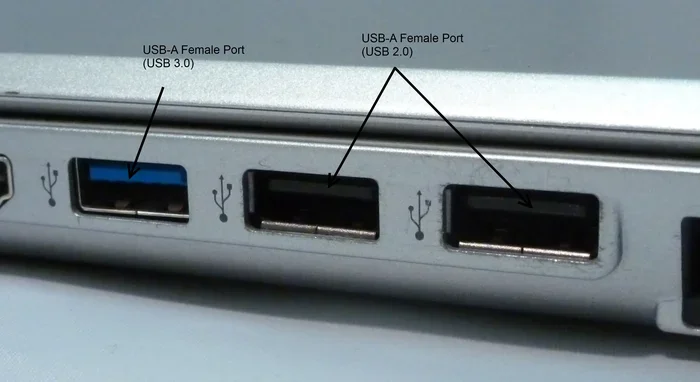
Finding your USB connection settings is easier than you think, whether you use Windows or Mac. This guide walks you through every step to locate, adjust, and troubleshoot your USB device settings. You will learn how to manage ports, update drivers, and fix common USB problems quickly.
Ever plugged in a USB device and wondered where all the settings are hiding? You are not alone. Many people struggle to find their USB connection settings on both Windows and Mac computers. The good news is that once you know where to look, everything becomes much simpler.
This guide will show you exactly how to find your USB connection settings, adjust them, and fix common problems. Whether you are dealing with a device that will not connect or you just want to optimize your setup, we have you covered. Let us dive right in.
Key Takeaways
- USB settings live in Device Manager on Windows and System Preferences on Mac, making them easy to find once you know where to look.
- Updating USB drivers can resolve most connection problems instantly.
- Power management settings can affect how your USB devices perform and stay connected.
- USB port configuration options let you control data transfer speeds and power delivery.
- Troubleshooting steps like restarting the USB controller often fix stubborn connection issues.
- External USB devices such as enclosures and adapters need proper driver support to work correctly.
- USB-C and USB 3.0 settings differ from older USB standards and require specific configuration steps.
📑 Table of Contents
- Understanding USB Connection Settings
- How to Find USB Connection Settings on Windows
- Finding USB Settings on Mac
- Common USB Connection Problems and Fixes
- Optimizing Your USB Connection Settings
- USB Adapters, Enclosures, and External Devices
- Quick Tips for Better USB Management
- Expert Insights on USB Configuration
- When to Seek Professional Help
- Conclusion
Understanding USB Connection Settings
Before you start searching, it helps to understand what USB connection settings actually control. These settings manage how your computer communicates with USB devices. They handle things like power delivery, data transfer speed, and device recognition.
Every USB device you plug in relies on these settings. From a simple flash drive to a complex external hard drive enclosure, your computer needs the right configuration to work properly. When something goes wrong, the USB connection settings are usually the first place to check.
What Do USB Connection Settings Control?
Your USB settings control several important functions. Here is what you can typically adjust:
- Power management for USB ports
- Data transfer speed settings
- Device power delivery limits
- Driver updates for USB controllers
- Port enablement or disablement
- USB selective suspend options
Understanding these controls helps you troubleshoot faster. For example, if your mouse keeps disconnecting, the power management settings might be to blame. If your external drive runs slow, your data transfer settings could be the culprit.
How to Find USB Connection Settings on Windows
Windows makes it relatively easy to access your USB connection settings. The main hub is Device Manager, and it is built right into the operating system. Here is how to get there step by step.
Step 1: Open Device Manager
Press the Windows key and type “Device Manager.” Click on the app when it appears. You can also right-click the Start button and select Device Manager from the menu. This opens the central hub for all your hardware settings.
Step 2: Locate Universal Serial Bus Controllers
Once Device Manager opens, look for the section labeled “Universal Serial Bus controllers.” Click the arrow next to it to expand the list. You will see all your USB controllers and hubs listed there.
Each entry represents a different USB port or controller on your computer. If you have USB 3.0 ports, you will see entries that mention “USB 3.0” or “xHCI.” These are the controllers that manage your modern USB connections.
Step 3: Access Individual Device Settings
Right-click on any USB device or controller and select “Properties.” From there, you can access several tabs:
- General – Shows the device status and type
- Driver – Lets you update or roll back drivers
- Power Management – Controls whether the device can be turned off to save power
- Details – Shows detailed device properties and IDs
These settings give you direct control over how each USB device behaves. If something is not working right, checking these properties is always a good first step.
Finding USB Settings on Mac
Mac users have a different path to their USB connection settings. macOS handles USB devices through System Preferences and the System Information tool. Here is how to navigate the Mac environment.
Using System Preferences
Click the Apple menu and select “System Preferences” (or “System Settings” on newer macOS versions). From there, look for “Displays” or “Bluetooth & Devices” depending on your macOS version. USB devices often show up in these sections.
For more detailed USB information, click the Apple menu, choose “About This Mac,” and then click “System Report.” Scroll down to the USB section to see all connected devices and their details. This is the Mac equivalent of Windows Device Manager.
USB Power Management on Mac
Macs handle USB power differently than Windows PCs. Your Mac may automatically reduce power to USB ports when not in use. This helps save battery but can sometimes cause devices to disconnect. You can adjust these settings in Energy Saver preferences on older macOS versions.
If you use an M.2 NVMe SSD in USB enclosures on your Mac, you may need to ensure your USB-C ports are configured for full power delivery. Some Mac models have specific power requirements for external storage devices.
Common USB Connection Problems and Fixes
Even when you find your USB connection settings, problems can still happen. Let us look at the most common issues and how to fix them.
Device Not Recognized
If your computer does not recognize a USB device, the first thing to check is the cable. A damaged cable is the most common cause of connection failures. Try a different cable before diving into settings.
Next, check Device Manager on Windows. Look for any devices with a yellow warning icon. This indicates a driver problem. Right-click the device and select “Update driver” to fix it.
If you are using an external drive with a NVMe SSD to USB adapter, make sure the adapter drivers are up to date. Outdated adapter drivers are a frequent cause of unrecognized devices.
Slow Transfer Speeds
Slow USB transfers can be frustrating. Here are common causes:
- You are using a USB 2.0 port instead of USB 3.0 or USB-C
- The cable does not support high-speed data transfer
- Power management settings are limiting the port performance
- The USB device itself is older and slower
To fix slow speeds, check your USB port configuration in Device Manager. Make sure the USB controller is set to the latest version. Also, try plugging your device into a different port to rule out a faulty port.
Device Keeps Disconnecting
Devices that keep disconnecting often point to power management issues. Windows has a feature called “USB selective suspend” that turns off USB ports to save power. This can sometimes be too aggressive.
To disable USB selective suspend, go to Control Panel > Power Options > Change plan settings > Change advanced power settings. Look for “USB settings” and expand it. Set “USB selective suspend” to “Disabled.”
If you experience this issue with a wireless mouse, check our guide on why your USB mouse might not be working for additional troubleshooting tips.
Optimizing Your USB Connection Settings
Once your USB devices are working, you can optimize your settings for better performance. These tweaks can make a real difference, especially with external storage and high-speed peripherals.
Enable USB 3.0 and USB-C Optimizations
Modern computers support USB 3.0 and USB-C standards. These offer much faster speeds than older USB 2.0 ports. To make sure you are getting the best performance, check your USB controller settings in Device Manager.
Look for properties on your USB 3.0 controller and ensure the “Link State Power Management” is set to “Maximum Performance.” This prevents the system from putting the USB port into a low-power state that can slow things down.
Adjust Power Delivery Settings
If you use power-hungry USB devices, you may need to adjust power delivery settings. Some devices need more current than others. High-speed external SSDs, for example, often require more power than a simple flash drive.
When using devices like a M.2 NVMe to USB-C SSD enclosure, make sure your USB-C port supports the necessary power output. USB-C ports that only provide 5 watts may not be enough for drives that need more power. Look for ports that support USB Power Delivery (USB PD) for the best results.
Update USB Drivers Regularly
Keeping your USB drivers updated is one of the best things you can do. Updated drivers fix bugs, improve compatibility, and boost performance. Windows Update usually handles this automatically, but you can check manually.
In Device Manager, right-click your USB controller and select “Update driver.” Choose “Search automatically for drivers.” Windows will check for the latest version and install it if available.
USB Adapters, Enclosures, and External Devices
Many people use USB adapters and enclosures to connect devices that would not otherwise plug directly into their computer. These accessories open up a lot of possibilities but need proper configuration.
Using NVMe SSD Enclosures Over USB
USB enclosures let you turn internal NVMe SSDs into portable external drives. This is a great way to get fast storage that you can carry anywhere. When you set up an enclosure, the USB connection settings on your computer need to recognize the new storage device.
Most modern enclosures work plug-and-play. You simply connect the enclosure to your computer and it shows up as a new drive. However, if it does not appear, checking your USB settings is the first troubleshooting step.
For those looking for the largest storage options, you might want to explore what the biggest NVMe SSD options are on the market.
Choosing the Right USB Adapter
Not all USB adapters are created equal. When picking an adapter for your NVMe SSD or other device, consider these factors:
- USB standard – USB 3.0, USB 3.1, or USB-C for the fastest speeds
- Power delivery – Make sure the adapter can power your device
- Driver support – Check that your operating system supports the adapter
- Build quality – A well-built adapter lasts longer and performs better
For example, if you are using an M.2 NVMe SSD USB 3.1 adapter, make sure your computer has a USB 3.1 port to take full advantage of the speed. Plugging it into a USB 2.0 port will bottleneck the performance.
Quick Tips for Better USB Management
Here are some practical tips to keep your USB connections running smoothly:
- Label your USB cables so you know which ones support high-speed transfers.
- Use a USB hub with its own power supply when connecting multiple devices.
- Eject devices safely before unplugging them to prevent data corruption.
- Keep your drivers updated through Windows Update or the manufacturer website.
- Avoid extension cables for high-speed devices, as they can reduce signal quality.
- Clean your USB ports regularly to prevent dust buildup that causes connection issues.
These small habits go a long way in keeping your USB devices happy and your USB connection settings running at their best.
Expert Insights on USB Configuration
According to tech experts, most USB connection issues come down to three things: outdated drivers, incorrect power settings, and faulty cables. Before you start changing deep system settings, always rule these out first.
One expert tip is to create a restore point before making changes to your USB settings. This way, if something goes wrong, you can easily roll back to a working configuration. It is a simple precaution that saves a lot of headaches.
Also, keep in mind that different operating systems handle USB settings differently. What works on Windows may not apply to macOS or Linux. Always look for OS-specific guidance when troubleshooting USB issues.
When to Seek Professional Help
Most USB connection problems can be fixed at home with the steps in this guide. However, some situations warrant professional help. If your USB ports are physically damaged or if you have tried everything and devices still will not connect, it might be a hardware issue.
A technician can check your motherboard’s USB controllers and determine if a replacement is needed. This is rare but does happen, especially on older laptops or computers that have seen heavy use over the years.
Conclusion
Finding your USB connection settings does not have to be a mystery. Whether you are on Windows or Mac, the steps in this guide should help you locate and manage your USB configuration with confidence. From Device Manager on Windows to System Information on Mac, the tools are already built into your computer.
Remember to keep your drivers updated, check your power management settings, and use quality cables and adapters. These simple habits will keep your USB devices running smoothly for years to come. Now that you know where everything is, you can tackle any USB problem that comes your way.
Frequently Asked Questions
Where are USB connection settings located on Windows 11?
On Windows 11, open Device Manager by right-clicking the Start button and selecting it. Look for “Universal Serial Bus controllers” to access all your USB connection settings. You can also find basic USB settings in Settings > Bluetooth & devices > USB.
Why is my USB device not showing up in settings?
Your device may not appear because of a driver issue, a faulty cable, or a disabled port. Open Device Manager and look for any devices with a yellow warning icon. Try a different USB port or cable first before adjusting settings.
How do I update my USB drivers?
In Device Manager, right-click your USB controller and select “Update driver.” Choose “Search automatically for drivers” and Windows will find the latest version. You can also visit your computer manufacturer’s website for specific driver downloads.
Can USB power settings affect device performance?
Yes, absolutely. USB power management settings can limit the power delivered to your devices. If a device is not getting enough power, it may disconnect or perform poorly. Adjusting USB selective suspend and link state power management can help.
What is the difference between USB 2.0 and USB 3.0 connection settings?
USB 3.0 offers much faster data transfer speeds than USB 2.0. In Device Manager, USB 3.0 controllers are labeled as such, and their settings include options for SuperSpeed transfers. USB 2.0 settings are simpler and do not include high-speed data options.
How can I fix a USB port that keeps disconnecting?
Go to Power Options in Control Panel and disable USB selective suspend. Also check Device Manager for driver issues and try a different USB port. If the problem persists, the port itself may be faulty and need repair.