Where Does the Usb Key Go
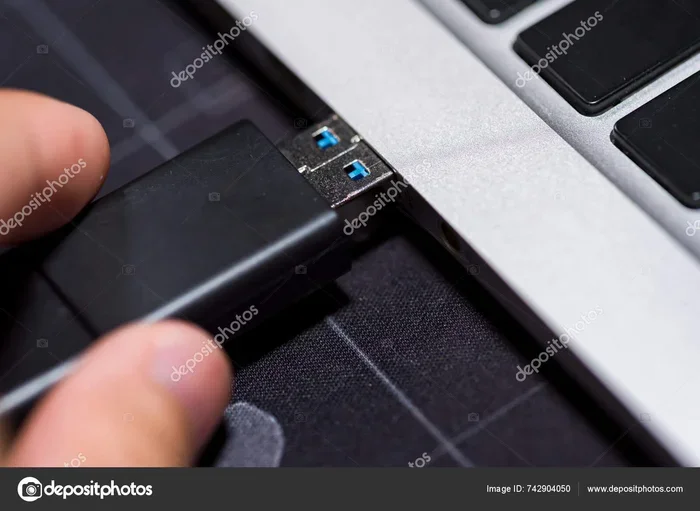
A USB key goes into the USB port on your computer, laptop, or device. Most desktops have ports on the back panel, while laptops often have them on the sides or front. Knowing the right port and orientation saves time and protects your hardware.
You just bought a USB key and you want to start moving files around. But wait — where does the USB key go? It sounds like a simple question, but not everyone knows the right answer. Plugging a flash drive into the wrong port or flipping it the wrong way can cause frustration. This guide walks you through exactly where your USB key goes on every device you own.
Whether you are using a desktop computer, a laptop, or even a smart TV, the process is pretty straightforward once you know what to look for. USB keys are small, portable storage devices that let you carry files from one computer to another. They plug directly into a USB port, and your computer recognizes them almost instantly.
In this article, we cover every spot where a USB key can go. We also talk about the different types of USB ports, common mistakes to avoid, and tips to keep your data safe. By the end, you will never second-guess yourself again.
Key Takeaways
- USB-A ports are the standard rectangular slots where most USB keys plug in directly.
- USB-C ports are the smaller, oval-shaped slots found on newer laptops and devices.
- Front and back panel ports serve different purposes — back panels usually offer better performance.
- USB hubs expand your port options when your device has limited USB connections.
- Always eject your USB key safely before pulling it out to avoid data loss.
- USB adapters let you use older drives on newer ports and vice versa.
📑 Table of Contents
What Is a USB Key and How Does It Work
A USB key is a tiny storage device that fits right into a USB port. People also call it a flash drive, thumb drive, or jump drive. These little gadgets store documents, photos, videos, and just about any other file type you can think of. They are plug-and-play, which means you do not need to install any software before using them.
Here is how it works in simple terms. You insert the USB key into a port on your computer. The computer recognizes the device and assigns it a drive letter. From there, you can drag and drop files onto it just like you would with any folder. When you are done, you safely remove the drive and take it with you.
Types of USB Keys You Will Encounter
Not all USB keys look the same. Some have a standard USB-A connector, which is the big flat rectangle. Others use the smaller USB-C connector, which is oval-shaped and reversible. There are also older USB keys with Mini-USB or Micro-USB connectors, though these are rare now.
The type of connector on your USB key determines where it can plug in. A USB-A key needs a USB-A port. A USB-C key needs a USB-C port. Some USB-C keys come with an adapter so they can work with USB-A ports too. This is where USB adapters become really handy, especially if you have an older device but a newer flash drive.
Where Does the USB Key Go on a Desktop Computer
Desktop computers have USB ports in a few different places. The most common spots are the back of the tower and the front of the case. Each location has its own advantages, and knowing the difference helps you get the best performance from your USB key.
Back Panel USB Ports
The back panel of a desktop tower usually has four to eight USB ports. These ports connect directly to the motherboard, which means they offer the most stable connection. If you use your USB key for heavy tasks like transferring large files or running programs directly from the drive, the back panel is the best place.
Most back panels have a mix of USB-A and USB-C ports. The USB-A ports look like wide rectangles. The USB-C ports are smaller and oval-shaped. Your USB key will fit into either one, depending on the connector type.
Front Panel USB Ports
The front of a desktop case also has USB ports, usually two to four of them. These are convenient because they are easy to reach. However, front panel ports sometimes have slightly slower data transfer rates because they connect through a cable to the motherboard rather than directly.
For everyday tasks like moving documents or copying photos, the front panel works just fine. But for large file transfers, the back panel gives you a more reliable connection.
Where Does the USB Key Go on a Laptop
Laptops are more compact than desktops, so the USB ports are harder to find sometimes. Most laptops place their USB ports on the sides or along the back edge. Some newer laptops only have USB-C ports, which means you may need an adapter for older USB keys.
Side Ports on Laptops
The sides of a laptop are the most common place for USB ports. On many models, you will find two to three ports spread across both sides. Look for the small rectangular or oval-shaped slot. That is where your USB key goes.
If your laptop has USB-C ports only, you can still use a standard USB-A flash drive. Just plug in a USB-C adapter or a USB-C to USB-A cable. These adapters are small and affordable, and they make your old USB keys work perfectly on new laptops.
USB Hubs for Laptops with Few Ports
Some laptops only have one or two USB ports. That is not enough if you need to plug in a USB key, a mouse, and a charger at the same time. A USB hub solves this problem. You plug the hub into one laptop port, and the hub gives you several extra ports to use.
USB hubs come in powered and unpowered versions. Powered hubs have their own power source and can charge devices while also serving as a connection point for your USB key. Unpowered hubs draw power from the laptop, which works fine for simple flash drives.
Where Does the USB Key Go on Other Devices
USB keys are not just for computers. Many other devices accept USB flash drives, and knowing where to plug them in expands your options a lot.
Televisions and Smart TVs
Most modern TVs have at least one USB port, usually hidden behind a panel on the side or back. You can plug a USB key directly into a TV and watch movies, view photos, or listen to music stored on the drive. Just make sure your USB key is formatted in a compatible file system like FAT32 or NTFS.
Car Stereos and Infotainment Systems
Many car stereos have a USB port for playing music from a flash drive. The port is usually located in the center console or near the gear shift. Plugging in a USB key lets you play your favorite songs without needing Bluetooth or an aux cable.
Printers and Scanners
Some printers and scanners have a USB port where you can plug in a flash drive directly. This lets you print documents or scan photos without connecting to a computer first. Check your device manual to see if this feature is supported.
USB Port Types Explained
Understanding the different USB port types helps you know exactly where your USB key goes. Each type has a different shape, size, and purpose. Here is a quick breakdown of the most common ones you will encounter.
| Port Type | Shape | Common On | Key Feature |
|---|---|---|---|
| USB-A | Large rectangle | Desktops, older laptops | Standard port for most flash drives |
| USB-C | Small oval | New laptops, phones, tablets | Reversible, faster speeds |
| USB Mini-B | Small rectangle with top flap | Older cameras, devices | Rare now, mostly legacy |
| USB Micro-B | Small rectangle, thinner | Older phones, portable devices | Being replaced by USB-C |
The most important thing to remember is that your USB key connector must match the port shape. A USB-A connector will not fit into a USB-C port without an adapter. Similarly, a USB-C connector will not fit into a USB-A port on its own.
When shopping for a new USB key, look for one that supports both USB-A and USB-C. Many modern flash drives come with dual connectors so you can use them on any device without worrying about compatibility.
Common Mistakes When Using a USB Key
Even though USB keys are simple devices, people still make mistakes that can damage the drive or lose data. Here are the most common errors and how to avoid them.
Forcing the USB Key In
USB keys only go in one way. If it does not fit, do not force it. Flip the connector over and try again. USB-A connectors have a specific orientation — the top edge usually has the logo or the plastic tab. USB-C connectors are reversible, so they work either way.
Forcing a USB key can bend or break the internal pins. Once the connector is damaged, the drive may stop working entirely. If it does not slide in easily, check the port and the connector for dust or debris first.
Forgetting to Eject the Drive
One of the biggest mistakes people make is pulling the USB key out without ejecting it first. When your computer is still writing data to the drive, removing it can corrupt files or even damage the entire drive.
Always use the safely remove or eject option in your operating system before unplugging the USB key. On Windows, right-click the drive icon and select Eject. On Mac, drag the drive icon to the trash bin or click the eject button in Finder.
Using the Wrong File System
Some devices only read USB keys formatted in specific file systems. For example, many car stereos and TVs only support FAT32. If your USB key is formatted as exFAT or NTFS, the device may not recognize it at all.
Before using a USB key with a non-computer device, check what file system it needs. You can format a USB key through your computer’s disk management tools. Just remember that formatting erases all data on the drive, so back up your files first.
Tips to Get the Most Out of Your USB Key
A few simple habits can make your USB key last longer and perform better. These tips apply to all types of flash drives and all devices.
- Keep your USB key clean. Wipe the connector with a dry cloth occasionally. Dust and lint can build up and cause connection problems.
- Store it in a safe place. USB keys are small and easy to lose. Use a keychain case or a small pouch to protect it.
- Avoid extreme temperatures. Heat and cold can damage the internal memory. Do not leave your USB key in a hot car or in direct sunlight.
- Back up your data. A USB key is a backup tool, not a permanent storage solution. Always keep copies of important files on your computer or in the cloud.
- Use a USB hub for multiple devices. If you need to connect several USB devices at once, a powered hub keeps everything running smoothly without overloading your laptop’s ports.
For users who work with external storage regularly, understanding how USB connections work across different devices is essential. Many people also use USB adapters and enclosures to connect internal drives externally, which opens up even more possibilities for portable storage. Devices like the Sandisk Extreme Portable 2Tb External USB C NVMe SSD show how far USB storage technology has come, offering blazing fast speeds through USB-C connections.
Whether you are using a simple flash drive or an advanced external SSD connected through a M.2 NVMe SSD USB adapter, the basic principle remains the same — you plug the device into a compatible USB port, and your computer recognizes it. The key is matching the right connector to the right port, and using adapters when needed.
Final Thoughts
So where does the USB key go? The answer is simple — it goes into any available USB port on your device. Desktop computers offer ports on both the front and back panels. Laptops have them on the sides. And many other devices like TVs, cars, and printers also accept USB flash drives.
The real skill is knowing which port to use for the best performance and understanding how the different USB connector types work together. With a basic USB-A flash drive, you can plug into most USB-A ports without any issues. If you have a USB-C drive, you may need an adapter for older devices.
Take care of your USB key, eject it safely, and keep it in a protective case. These small habits go a long way in keeping your data safe and your drive working for years. Now that you know exactly where the USB key goes, you can use it with confidence on any device you own.
Frequently Asked Questions
Can I plug a USB key into any USB port?
Yes, as long as the connector type matches. A USB-A flash drive fits into USB-A ports, and a USB-C flash drive fits into USB-C ports. If the types do not match, you can use a simple adapter to make it work.
Why won’t my USB key show up on my computer?
Try plugging the USB key into a different port. Sometimes ports on the front panel do not work as reliably as back panel ports. You can also check Disk Management on Windows or Disk Utility on Mac to see if the drive is recognized but not assigned a letter.
Is it safe to leave a USB key plugged in all the time?
It is generally safe for short periods, but leaving it plugged in constantly can wear out the connector over time. It also exposes the drive to power surges. For long-term storage, it is better to remove the USB key and store it properly.
Can I use a USB key on a smart TV?
Yes, most smart TVs have a USB port where you can plug in a flash drive. Make sure the drive is formatted in a compatible file system like FAT32. This lets you view photos, play videos, and listen to music directly from the TV.
What is the difference between USB-A and USB-C?
USB-A is the traditional large rectangular connector found on most computers and older devices. USB-C is a smaller, oval-shaped connector that is reversible and found on newer laptops, phones, and tablets. USB-C also supports faster data transfer speeds.
How do I safely remove a USB key from my computer?
On Windows, right-click the USB drive icon in File Explorer and select Eject. On Mac, drag the drive icon to the trash or click the eject button next to the drive name in Finder. Wait for the confirmation message before pulling the drive out.