Why Cant I Format Usb as Fat32
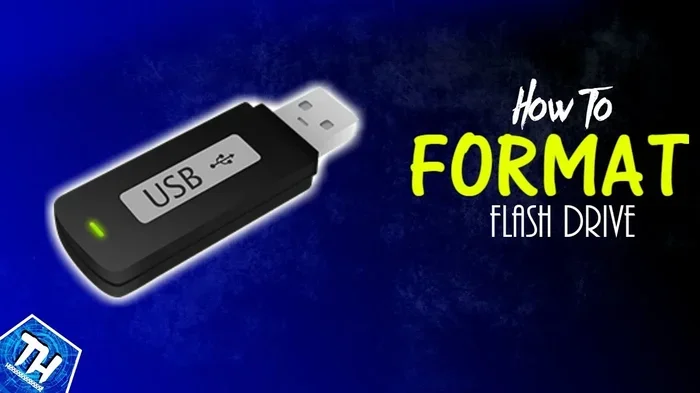
You cant format USB as FAT32 because of file size limits, partition size restrictions, and Windows formatting tool limitations. This guide walks you through every reason this happens and gives you simple, proven fixes to get your drive formatted as FAT32 quickly. Whether you are using Windows 10, Windows 11, or a Mac, we have the solution for you.
Key Takeaways
- FAT32 has a 4GB file size limit and a 32GB partition cap in Windows, which blocks formatting for larger drives.
- Windows File Explorer and Disk Management hide FAT32 as an option for drives over 32GB, frustrating many users.
- Third-party tools like Rufus and GUIFormat can bypass these limits and format any USB drive as FAT32.
- Command-line tools like DiskPart offer a free, built-in workaround for formatting large USB drives as FAT32.
- exFAT is often a better choice than FAT32 for modern USB drives, especially those over 32GB.
- Always back up your data before formatting, as the process erases everything on the drive.
📑 Table of Contents
- Why Cant I Format USB as FAT32
- What Is FAT32 and Why Does It Matter
- Common Reasons You Cant Format USB as FAT32
- How to Format USB as FAT32 Using Built-in Windows Tools
- Alternative Methods to Format USB as FAT32
- FAT32 vs exFAT vs NTFS: Which Should You Choose
- Tips to Avoid USB Formatting Problems
- Expert Insights and Common Mistakes
- Conclusion
Why Cant I Format USB as FAT32
You plug in your USB drive. You right-click. You look for FAT32. And then… its not there. Sound familiar? You are not alone. Thousands of people search for why cant I format USB as FAT32 every single day. The frustration is real, especially when you just want to format a simple flash drive and it refuses to cooperate.
The truth is, FAT32 is an older file system. It dates back to the Windows 95 era. Over the decades, storage technology has grown. Files got bigger. Drives got larger. But FAT32 stayed the same. It has strict limits that make it impractical for modern use. This creates a lot of confusion when you are trying to format a USB drive.
In this guide, we will break down every reason why Windows blocks FAT32 formatting. We will also give you real, working solutions to get the job done. No jargon. No fluff. Just clear, actionable steps you can follow right now.
Whether you are trying to format a small thumb drive or a bulky external SSD stored inside a M.2 NVMe SSD in USB enclosures, this article covers you. Let us dive in.
What Is FAT32 and Why Does It Matter
FAT32 stands for File Allocation Table 32. It is one of the oldest and most widely supported file systems in the world. Almost every device can read FAT32. That includes Windows PCs, Macs, Linux machines, gaming consoles, smart TVs, and car stereos. This universal compatibility is why many people want to use it.
But FAT32 comes with serious limitations. These limits are the root cause of most formatting headaches.
The 4GB File Size Limit
The biggest FAT32 restriction is the 4GB file size cap. No single file on a FAT32 drive can exceed 4GB. If you try to copy a 5GB video file onto a FAT32-formatted USB drive, it will fail. This is a hard limit baked into the file system itself. No workaround exists within FAT32.
The 32GB Partition Limit in Windows
Windows has a second limitation. The built-in Format tool will not let you create a FAT32 partition larger than 32GB. If you have a 64GB USB drive, Windows will gray out FAT32 as an option. This is not a technical limitation of FAT32 itself. It is a choice Microsoft made in the Format tool. Other operating systems can format FAT32 partitions much larger than 32GB.
Why People Still Want FAT32
Given these limits, why do people still want FAT32? The answer is compatibility. FAT32 works everywhere. If you need a USB drive that works on a Windows PC, a Mac, a PlayStation, a smart TV, and a car audio system, FAT32 is the safest bet. exFAT and NTFS have wider compatibility gaps. exFAT does not work on older devices. NTFS is not natively readable by Macs without extra software.
Common Reasons You Cant Format USB as FAT32
Several factors can block FAT32 formatting. Let us look at each one in detail.
Reason 1: The Drive Is Larger Than 32GB
This is the most common reason. If your USB drive is 64GB, 128GB, or larger, the Windows Format tool simply will not offer FAT32. Microsoft designed the tool this way to push users toward NTFS or exFAT. But many people specifically need FAT32 for device compatibility reasons.
Reason 2: The File You Are Trying to Copy Exceeds 4GB
Sometimes the drive is small enough to format as FAT32. But you still cannot use it because a single file is too large. This is especially common with video files, disk images, and large game backups. If you have ever tried to format a 16GB drive and still ran into issues, this 4GB file limit is likely the culprit.
Reason 3: The Drive Is Write-Protected
A write-protected USB drive cannot be formatted at all. Check the physical switch on the side of the drive. Some USB drives and SD cards have a tiny lock switch. If it is in the locked position, formatting will fail. Remove the lock and try again.
Reason 4: The Drive Has Bad Sectors or Errors
Corrupted USB drives can refuse to format. If the file system is damaged or the drive has bad sectors, Windows may block the format process. In this case, you may need to use a tool to repair the drive first or force a full format.
Reason 5: The Drive Is Connected via an Adapter
If you are using a NVMe SSD to USB adapter or an enclosure, the adapter firmware can sometimes interfere with formatting. Some adapters do not properly communicate format commands to the drive. This is less common but does happen with cheaper adapters.
How to Format USB as FAT32 Using Built-in Windows Tools
For drives 32GB and under, Windows makes FAT32 formatting easy. Here is how to do it step by step.
Method 1: Using File Explorer
- Plug in your USB drive.
- Open File Explorer and right-click the drive.
- Select Format from the menu.
- In the File System dropdown, choose FAT32.
- Check the Quick Format box.
- Click Start and wait for the process to finish.
This method works great for drives up to 32GB. It is fast and simple. But if your drive is larger, FAT32 will not appear in the dropdown. That is when you need the methods below.
Method 2: Using Disk Management
Disk Management is another built-in Windows tool. It gives you more control over partitions and formatting.
- Right-click the Start button and select Disk Management.
- Find your USB drive in the list.
- Right-click the partition and select Format.
- Choose FAT32 from the file system dropdown.
- Click OK to start the format.
Note: Disk Management also hides FAT32 for drives over 32GB. So this method has the same limitation as File Explorer for larger drives.
Method 3: Using the Command Prompt with DiskPart
DiskPart is a powerful command-line tool. It can format drives larger than 32GB as FAT32. Here is how:
- Open Command Prompt as Administrator.
- Type diskpart and press Enter.
- Type list disk and press Enter.
- Find your USB drive by size and type select disk X (replace X with the disk number).
- Type clean and press Enter. This wipes the drive completely.
- Type create partition primary and press Enter.
- Type format fs=fat32 quick and press Enter.
- Type assign and press Enter.
DiskPart does not have the 32GB limit. It will format any size drive as FAT32. But be careful. The clean command erases all data on the selected disk. Make sure you pick the right disk.
Alternative Methods to Format USB as FAT32
If the built-in Windows tools do not work for you, do not worry. There are several free third-party tools that can format any USB drive as FAT32, regardless of size.
Using Rufus
Rufus is a popular free tool for creating bootable USB drives. It also works as a FAT32 formatter for large drives.
- Download Rufus from the official website.
- Select your USB drive in the Device dropdown.
- Click SELECT and choose your ISO or leave it blank for a blank format.
- In the File System dropdown, choose FAT32.
- Click Start and wait for the process to complete.
Rufus is lightweight and does not require installation. It works on Windows 10 and Windows 11. Many people use it for bootable USB creation, but it is equally great for simple FAT32 formatting.
Using GUIFormat (Swiss Army Knife of Formatting)
GUIFormat is a small, free GUI tool that wraps the Linux mkfs.vfat command. It can format drives of any size as FAT32 on Windows.
- Download GUIFormat from the official source.
- Select your USB drive.
- Choose FAT32 as the file system.
- Click Format and wait for completion.
Using the Mac Terminal (For Mac Users)
If you are on a Mac, you can format USB drives as FAT32 using the Terminal. Macs do not have the 32GB limit that Windows has.
- Open Terminal from Applications > Utilities.
- Type diskutil list and press Enter to find your USB drive.
- Type diskutil partitionDisk /dev/diskX 1 MBRFormat FAT32 USBNAME 100% and press Enter.
- Replace diskX with your actual disk identifier and USBNAME with your desired drive name.
Macs can format large USB drives as FAT32 without any issues. If you have a drive like the SanDisk Extreme Portable 2TB external USB C NVMe SSD and need FAT32 compatibility, a Mac Terminal command is one of the easiest paths.
FAT32 vs exFAT vs NTFS: Which Should You Choose
FAT32 is not the only option. Understanding the differences helps you pick the right file system for your needs.
| Feature | FAT32 | exFAT | NTFS |
|---|---|---|---|
| Max File Size | 4GB | 16EB (practically unlimited) | 16EB |
| Max Partition Size | 2TB | 128PB | 256TB |
| Windows Compatibility | Full | Full | Full |
| Mac Compatibility | Full | Full (read/write) | Read-only |
| Linux Compatibility | Full | Full | Read/write with tools |
| Journaling | No | No | Yes |
| Best For | Small drives, older devices | Large USB drives, cross-platform | Windows-only internal drives |
exFAT is the modern replacement for FAT32 in most cases. It removes the 4GB file size limit and the 32GB partition limit. It works on Windows, Mac, and Linux. If your devices support exFAT, it is usually the better choice.
NTFS is best for Windows internal drives. It supports journaling, file permissions, and encryption. But it is not ideal for USB drives that need to work with Macs or other devices.
FAT32 remains the king of universal compatibility. Use it when you need your USB drive to work on the widest range of devices, especially older ones that do not support exFAT.
When to Use Each File System
- Use FAT32 when you need compatibility with older devices, gaming consoles, car stereos, or smart TVs.
- Use exFAT when you need to transfer large files and want cross-platform support.
- Use NTFS when the drive will only be used on Windows and you need advanced features like file permissions.
Tips to Avoid USB Formatting Problems
Formatting issues can be annoying, but most of them are preventable. Here are some practical tips to keep your USB drives healthy and ready to format.
Always Eject Your USB Drive Properly
Never just pull the plug. Use the Safely Remove Hardware option in Windows. Improper ejection can corrupt the file system and cause formatting errors later.
Keep Your Drives Clean and Dry
Physical damage to the USB connector can cause connection issues that mimic formatting problems. Keep your drives clean and store them in a protective case.
Use Quality USB Drives
Cheap USB drives are more prone to errors and corruption. Investing in a reliable drive from a trusted brand saves you headaches down the road. If you use an external SSD in a M.2 NVMe SSD to USB 3.1 adapter, make sure the adapter is from a reputable brand.
Update Your USB Drivers
Outdated USB drivers can cause formatting failures. Go to Device Manager, find your USB controllers, and check for driver updates. A simple driver update can sometimes solve stubborn formatting issues.
Try a Different USB Port
Sometimes the problem is not the drive or the file system. It is the USB port. Try plugging your drive into a different port, preferably a USB port directly on the back of your computer rather than a front panel or hub.
Expert Insights and Common Mistakes
Common Mistake: Formatting the Wrong Drive
This is the most dangerous mistake. Always double-check the drive letter before you click Format. Formatting the wrong drive erases all data on it. There is no undo button.
Common Mistake: Skipping the Backup
Even a quick format erases all data on the drive. Always back up your files before formatting. Use cloud storage, an external hard drive, or a different USB stick to store your backups.
Expert Tip: Use Disk Management for Complex Drives
If your USB drive has multiple partitions or a confusing layout, use Disk Management to clean it first. The clean command in DiskPart wipes everything and gives you a fresh start. This solves most stubborn formatting problems.
Expert Tip: Check for Hardware Write-Protection
Some USB drives have hardware-level write protection that is not controlled by a physical switch. If you cannot format the drive no matter what you try, the drive itself may be write-protected at the firmware level. In that case, the drive may be defective and need replacement.
Conclusion
So why cant you format USB as FAT32? The answer usually comes down to drive size limits, the 4GB file size restriction, or Windows formatting tool limitations. But none of these are permanent roadblocks. You have multiple proven solutions at your fingertips.
For drives 32GB and under, the built-in Windows Format tool works perfectly. For larger drives, DiskPart, Rufus, GUIFormat, or a Mac Terminal command can get the job done. And if FAT32 is not strictly necessary, consider switching to exFAT for a more modern and flexible experience.
The key is to understand why the formatting fails and then pick the right solution for your situation. With the steps in this guide, you can format any USB drive as FAT32 in just a few minutes. No expensive software needed. No technical degree required. Just clear, simple instructions that actually work.
Go ahead and try the method that fits your situation. Your USB drive will thank you for it.
Frequently Asked Questions
Why does Windows not let me format my USB as FAT32?
Windows hides FAT32 as an option for drives larger than 32GB. This is a software limitation in the built-in Format tool, not a technical limit of FAT32 itself. You can use DiskPart, Rufus, or GUIFormat to bypass this restriction and format large drives as FAT32.
Can I format a 64GB USB drive as FAT32?
Yes, you can. Windows File Explorer and Disk Management will not offer FAT32 for drives over 32GB. But you can use the DiskPart command-line tool, Rufus, or GUIFormat to format a 64GB drive as FAT32 without any problems.
What is the difference between FAT32 and exFAT?
FAT32 has a 4GB file size limit and a 32GB partition limit in Windows. exFAT removes both of these limits and supports much larger files and partitions. exFAT also works on Windows, Mac, and Linux, making it a more versatile choice for modern USB drives.
Will formatting my USB drive as FAT32 erase all my data?
Yes, formatting erases all data on the drive. Always back up your files before you begin the formatting process. Even a quick format removes all existing data from the drive.
Can I format a USB drive as FAT32 on a Mac?
Yes. Macs do not have the 32GB partition limit that Windows has. You can use Disk Utility or the Terminal to format USB drives as FAT32 on a Mac. The Terminal method works for drives of any size.
Is FAT32 still a good choice for USB drives in 2024?
FAT32 is still a great choice if you need maximum device compatibility. It works on almost every device that can read a USB drive. However, if you need to store files larger than 4GB, exFAT is the better option for most users in 2024.