Why Isnt My Usb Drive Showing Up on My Mac
When your USB drive isn’t showing up on your Mac, it can feel frustrating and stressful. Whether your external hard drive, flash drive, or SSD is connected but invisible, the problem usually has a simple fix. This guide walks you through every common cause and solution step by step, so you can get your files accessible again fast.
You plug in your USB drive, wait a few seconds, and… nothing. The drive icon does not show up on your desktop, and it is nowhere to be found in Finder. This is one of the most common frustrations Mac users face, and it happens to almost everyone at some point. Whether you are using a USB flash drive, an external hard drive, or an SSD, the same basic troubleshooting steps apply.
The good news is that most of the time, this is a minor issue with a straightforward fix. In this article, we will go through every reason your drive might not be showing up and give you clear, actionable steps to solve the problem. We will also share tips that go beyond the basics, so you can prevent this from happening again.
Before you panic about lost data, take a deep breath. Let us figure out what is going on with your USB drive not showing up on Mac and get it sorted out together.
Key Takeaways
- Check Physical Connections First: A loose cable or dirty USB port is the most common reason a drive won’t appear.
- Use Disk Utility to Mount or Repair: Your Mac has built-in tools that can fix unmounted or corrupted drives quickly.
- Check System Settings and Permissions: macOS sometimes hides drives due to Finder preferences or security settings.
- Try a Different Port or Cable: Faulty hardware is often the culprit, and switching ports can solve the problem instantly.
- Reformatting Is a Last Resort: If all else fails, reformatting can bring your drive back, but you will lose all data.
- Know When to Seek Professional Help: Persistent hardware failure signs mean it is time to consult an expert.
📑 Table of Contents
Why Your USB Drive Might Not Be Showing Up on Your Mac
There are several reasons a USB drive could be invisible on a Mac. Understanding the root cause is the first step toward fixing it. Here are the most common culprits.
Physical Connection Issues
The simplest explanation is often the right one. A loose cable, a dirty USB port, or a faulty adapter can prevent your Mac from detecting any connected device. This is the same reason why my USB mouse is not working on my laptop sometimes — the connection just is not making proper contact. Give the cable a gentle wiggle and try a different port. If you are using a USB hub, plug the drive directly into your Mac to rule out hub-related problems.
Drive Is Not Mounted
macOS uses a process called “mounting” to make a drive accessible. If the drive is not mounted, it simply will not appear anywhere on your system. This can happen after an unexpected shutdown, a software crash, or even a minor glitch. The good news is that unmounted drives can usually be fixed without any data loss.
File System Compatibility Problems
Macs work best with drives formatted as APFS or Mac OS Extended (Journaled). If your drive was formatted for Windows (NTFS) or Linux (ext4), your Mac might read it as write-protected or not show it at all. This is a very common issue when moving drives between different operating systems.
macOS Finder Settings
Sometimes the drive is actually connected and working, but Finder is just not displaying it. This can happen if your Finder preferences are set to hide external drives or if you are viewing the wrong location in Finder.
Corrupted Drive or File System Errors
Over time, drives can develop file system errors that prevent them from being recognized properly. These errors can be caused by improper ejection, power surges, or physical wear and tear. If your drive makes clicking or grinding noises, it might be a sign of physical failure.
How to Fix a USB Drive That Is Not Showing Up on Your Mac
Now that you know the possible causes, let us walk through the fixes. Work through these steps in order, starting with the simplest solutions first.
Step 1: Check the Cable and USB Port
This sounds basic, but it solves the problem more often than you might think. Start by unplugging the cable from both your Mac and the drive. Inspect the cable for any visible damage like fraying or bent connectors. Try a different cable if you have one available.
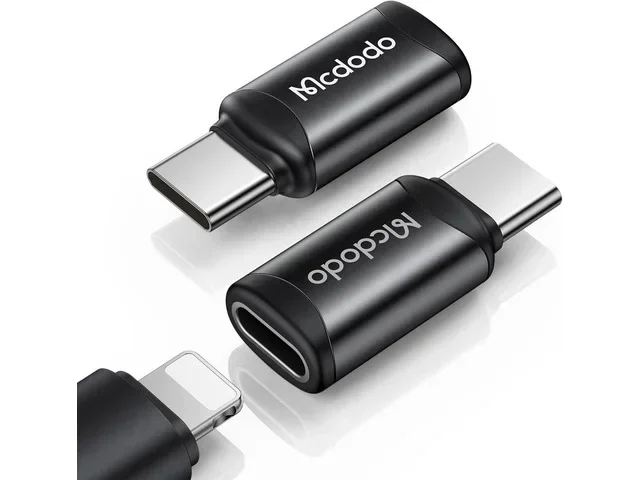
Next, try plugging the drive into a different USB port on your Mac. Avoid using USB hubs or extensions at this stage — plug directly into your Mac. If you are using a USB-C adapter, try a different adapter or a different USB-C port.
Here is a quick tip: if you have another USB device like a mouse or keyboard, plug it into the same port to confirm the port is working. If other devices also fail to connect, the port itself might be the problem.
Step 2: Restart Your Mac
A simple restart can clear up temporary software glitches that prevent your Mac from recognizing connected devices. This is similar to how restarting fixes many mouse not showing on laptop issues — it resets the USB controller and clears any temporary errors in the system.
After restarting, plug the drive back in and wait at least 30 seconds before checking again. Sometimes macOS needs a moment to detect and initialize new hardware.
Step 3: Check Disk Utility
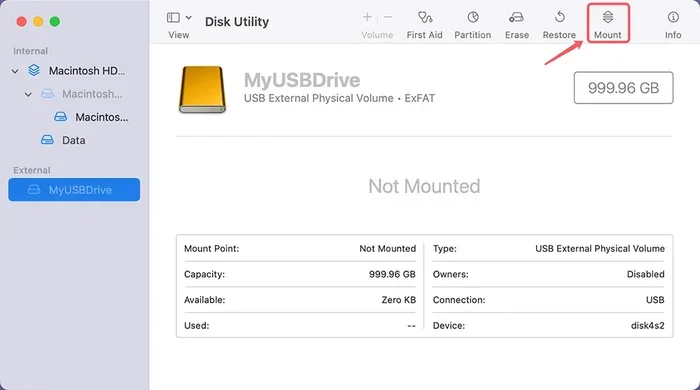
Disk Utility is a powerful built-in Mac tool that can diagnose and repair drive issues. Here is how to use it:
- Open Spotlight by pressing Command + Space.
- Type “Disk Utility” and press Enter.
- Look for your drive in the sidebar on the left.
- If you see the drive but it is grayed out, click Mount.
- If the drive does not appear at all, click View and then Show All Devices.
If Disk Utility shows your drive, you can try running First Aid to repair any file system errors. Click on the drive, then select First Aid from the top menu, and follow the on-screen prompts.
Step 4: Check Finder Preferences
Your Mac might be hiding the drive because of Finder settings. To check this:
- Open Finder.
- Click Finder in the menu bar at the top and select Settings (or Preferences).
- Go to the General tab.
- Make sure the checkbox for “External disks” is checked.
- Also check the Sidebar tab and ensure “External disks” is enabled.
After making these changes, your drive should appear in Finder and on your desktop if you have desktop icons enabled.
Step 5: Check System Information
If your drive is still not showing up, it is worth checking whether macOS detects the hardware at all. Go to the Apple menu, select About This Mac, then click System Report. Under the USB section in the sidebar, look for your drive. If it appears here but not in Finder, the issue is likely a software or mounting problem rather than a hardware failure.
File System Format and Compatibility
The format of your USB drive plays a big role in whether your Mac can use it. Different file systems work differently across operating systems, and compatibility issues are a leading cause of drives not appearing.
Understanding Mac-Compatible Formats
Macs natively support APFS and Mac OS Extended (Journaled). If your drive uses either of these formats, it should show up without any issues. ExFAT is also fully supported on Mac and works well for drives that need to be used with both Mac and Windows computers.
What About NTFS Drives?
If your drive is formatted as NTFS (the default for Windows), your Mac can read it but cannot write to it. In some cases, the drive might not appear at all or might appear as read-only. You can use third-party NTFS drivers to enable full read and write access, but the simplest solution is to reformat the drive as ExFAT if you need cross-platform compatibility.
When to Reformat
Reformatting erases all data on the drive, so only do this as a last resort. Make sure you have backups of any important files before proceeding. To reformat, open Disk Utility, select the drive, click Erase, choose ExFAT or Mac OS Extended, and give it a new name.
| File System | Mac Read | Mac Write | Windows Compatible | Best For |
|---|---|---|---|---|
| APFS | Yes | Yes | No | Mac-only drives |
| Mac OS Extended | Yes | Yes | No | Mac-only drives (older macOS) |
| ExFAT | Yes | Yes | Yes | Cross-platform use |
| NTFS | Yes | No | Yes | Windows drives on Mac (read only) |
Advanced Troubleshooting Steps
If the basic fixes did not work, do not give up yet. There are several more advanced steps you can try.
Reset the SMC and NVRAM
The System Management Controller (SMC) and NVRAM handle hardware-level functions on your Mac, including USB port management. Resetting them can resolve stubborn connectivity issues. The process varies depending on your Mac model, so check Apple’s official support page for instructions specific to your machine.
Create a New User Account
Sometimes the issue is tied to your user profile rather than the drive itself. Creating a new administrator account and testing the drive there can help you determine if a corrupted user preference is causing the problem.
Update macOS
Outdated software can cause compatibility issues with newer drives. Go to the Apple menu, select System Settings, then Software Update, and install any available updates. Apple frequently releases patches that improve external device support.
Try the Drive on Another Computer
This is a simple but effective diagnostic step. If the drive shows up on another computer, the problem is with your Mac, not the drive. If it does not show up anywhere, the drive itself is likely faulty.
Preventing USB Drive Issues on Your Mac
Prevention is always better than cure. Here are some habits that will help keep your USB drives working smoothly with your Mac.
- Always eject drives properly: Do not just pull the cable out. Use the eject button in Finder or drag the drive icon to the Trash (which turns into an Eject icon).
- Use high-quality cables: Cheap or damaged cables are a leading cause of connection issues. Invest in braided or reinforced cables that last longer.
- Keep your macOS updated: Software updates often include fixes for hardware compatibility and USB controller bugs.
- Avoid using drives in extreme temperatures: Heat and moisture can damage both the drive and the connectors.
- Scan for malware regularly: While Macs are less prone to malware, external drives can carry infected files from other computers.
- Keep backup copies: Use Time Machine or cloud storage to back up important files from your external drives regularly.
When to Seek Professional Help
Most USB drive issues can be resolved at home with the steps outlined above. However, there are situations where professional help is the right call. If your drive makes unusual clicking or grinding sounds, it could indicate physical damage to the internal components. If Disk Utility shows the drive but reports a fatal error, the controller board might be failing. And if you have tried every troubleshooting step and the drive simply will not mount, it is time to consult a data recovery specialist.
Professional data recovery services can be expensive, but they are often the only option when a drive has suffered physical or severe logical damage. If the data on the drive is extremely valuable, it is worth contacting a reputable service before attempting any aggressive repair steps that could make the situation worse.
Conclusion
Dealing with a USB drive that will not show up on your Mac can be annoying, but it is rarely a permanent problem. Most of the time, the issue comes down to a simple physical connection, a mounting problem, or a file system compatibility issue. By working through the steps in this guide, you should be able to get your drive back up and running in no time.
Remember to always eject your drives properly, use good quality cables, and keep your macOS updated. These small habits will save you a lot of trouble in the long run. If you have tried everything and the drive still will not cooperate, do not hesitate to reach out to a professional for help.
The key takeaway is that patience and a systematic approach will get you through almost any USB drive issue. Your data is likely still safe, and with the right fix, your drive will be accessible again before you know it.
Frequently Asked Questions
Why does my USB drive show up in Disk Utility but not on the desktop?
This usually means the drive is connected but not mounted, or Finder is set to hide external drives. Check your Finder preferences to make sure “External disks” is enabled, and try clicking Mount in Disk Utility. This is a common macOS behavior and is easy to fix.
Can a faulty USB cable cause a drive not to show up?
Yes, absolutely. A damaged or low-quality cable is one of the most common reasons a USB drive will not appear on your Mac. Try using a different cable first before moving on to more complex troubleshooting steps.
Is it safe to reformat a USB drive on my Mac?
Reformatting erases all data on the drive, so it is only safe if you have a backup of everything important. If you have no backup, consider consulting a data recovery professional before reformatting.
Why does my USB drive work on Windows but not on my Mac?
This is almost always a file system compatibility issue. Windows uses NTFS by default, which Macs can read but not write to. Reformatting the drive as ExFAT will make it fully compatible with both operating systems.
How do I know if my USB port is broken on my Mac?
Plug another USB device into the same port. If that device also does not work, the port may be faulty. You can also check System Information under the USB section to see if macOS detects anything connected to that port.
What should I do if my USB drive is making clicking noises?
Clicking noises usually indicate physical damage to the internal components of the drive. Stop using it immediately to avoid further damage, and contact a professional data recovery service. Continuing to power on a damaged drive can make data recovery impossible.