How to Cancel Xbox Game Pass on Pc
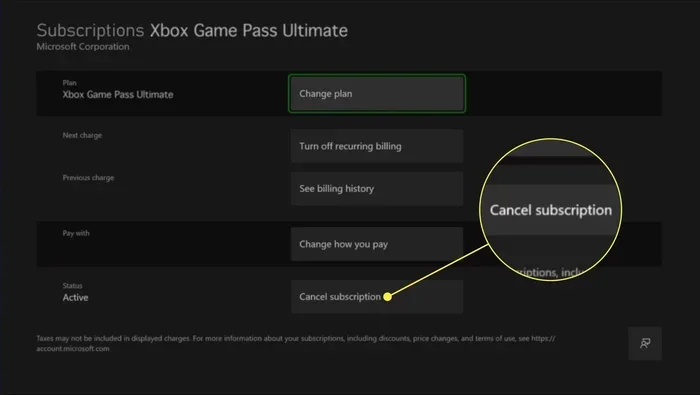
Cancelling your Xbox Game Pass on PC is quick and easy when you know the right steps. Whether you have PC Game Pass or Ultimate, you can stop your subscription through your Microsoft account or the Xbox app. This guide covers every method, including how to get a refund and avoid unwanted renewals.
Have you been wondering how to stop your Xbox Game Pass on PC from charging your card every month? You are not alone. Thousands of gamers sign up for Xbox Game Pass PC and then forget to cancel when they are done playing. The result is an unwanted charge that sneaks onto your credit card statement.
Good news. Cancelling your Xbox Game Pass subscription is straightforward. It takes just a few minutes, and you do not need any technical skills. Whether you use the Xbox app or prefer the browser, this guide will walk you through every step. We also cover refunds, timing, and how to avoid getting charged again.
By the end of this article, you will know exactly how to cancel your Xbox Game Pass on PC and manage your Microsoft subscription with confidence. Let us get started.
Key Takeaways
- Multiple cancellation methods: You can cancel through the Xbox app, Microsoft account website, or your browser.
- Refunds are possible: You may qualify for a partial refund if you cancel early in your billing cycle.
- Access stays until the end: Cancelling does not remove your games immediately. You keep access until the current billing period ends.
- Auto-renewal is the culprit: Most people forget to turn off auto-renewal, leading to unwanted charges.
- Reactivating is simple: You can restart your Xbox Game Pass PC subscription anytime without losing your profile.
- Check your billing date: Knowing when your renewal date falls helps you time the cancellation perfectly.
📑 Table of Contents
- Why People Cancel Xbox Game Pass on PC
- How to Cancel Xbox Game Pass on PC Through the Xbox App
- How to Cancel Xbox Game Pass on PC Through Microsoft Account
- What Happens After You Cancel Xbox Game Pass on PC
- Can You Get a Refund After Cancelling Xbox Game Pass on PC?
- How to Avoid Unwanted Xbox Game Pass Charges
- How to Reactivate Xbox Game Pass on PC Later
- Common Mistakes People Make When Cancelling Xbox Game Pass
- Comparison: Xbox Game Pass PC vs Xbox Game Pass Ultimate
- Final Thoughts on Cancelling Xbox Game Pass on PC
Why People Cancel Xbox Game Pass on PC
There are many reasons gamers decide to cancel their Xbox Game Pass subscription. Understanding these reasons can help you decide if cancellation is the right move for you.
You Finished the Games You Wanted
Maybe you downloaded a few great titles during your PC Game Pass membership. Games like the ones found in our Best Platformer Story Games on PC Game Pass list or the Best Action Adventure Story Games on PC Game Pass list gave you plenty to play. Now you have beaten them and do not need the subscription anymore.
You Want to Save Money
Subscriptions add up fast. Even a small monthly fee can become a burden over time. Many players prefer to buy individual games instead of paying for a monthly game pass every month. Cancelling frees up money for other things.
You Switched to a Different Gaming Service
The gaming world has many options. Some players move to competing services or decide to build a permanent game library. Whatever the reason, knowing how to cancel Xbox Game Pass on PC gives you full control over your spending.
How to Cancel Xbox Game Pass on PC Through the Xbox App
The Xbox app on your PC is the fastest way to stop your Xbox Game Pass renewal. Follow these simple steps carefully.
- Open the Xbox app on your Windows PC.
- Sign in with the Microsoft account linked to your Game Pass subscription.
- Click on your profile picture in the top-left corner.
- Select “My account” from the dropdown menu.
- Scroll down to the Subscription section. You will see your active Xbox Game Pass plan listed here.
- Click on “Manage” next to your subscription.
- Select “Cancel subscription.” Follow the on-screen prompts to confirm.
Once you complete these steps, your Xbox Game Pass PC cancellation is processed. You will still have access to all your games until the current billing period ends. This is an important detail to keep in mind.
What If the Cancel Option Is Greyed Out?
Sometimes the cancel button does not work. This usually happens when your subscription is managed through a third party. For example, if you bought your Xbox Game Pass through a retailer or a gift card, you may need to cancel through that provider instead. Check your email receipt to find out where the subscription was purchased.
How to Cancel Xbox Game Pass on PC Through Microsoft Account
If the Xbox app does not work for you, there is another way. You can cancel your Game Pass subscription directly through your Microsoft account online. This method works on any device with a web browser.
- Open your browser and go to account.microsoft.com.
- Sign in with the Microsoft account tied to your Xbox Game Pass.
- Click on “Services and subscriptions.” This option is in the top navigation bar.
- Find your Xbox Game Pass in the list of active subscriptions.
- Click on it to view details.
- Click “Cancel.” You will be asked to confirm your choice.
- Follow the prompts to complete the Xbox Game Pass cancellation.
This method gives you full control over all your Microsoft subscriptions in one place. You can also turn off auto-renewal for other services at the same time. It is a great way to manage your digital spending all at once.
Managing Multiple Subscriptions
Many people have more than one Microsoft subscription. You might have Xbox Game Pass Ultimate, Office 365, and OneDrive storage all active. The Microsoft account dashboard lets you see everything in one view. This makes it easy to review what you are paying for and cancel anything you no longer need.
What Happens After You Cancel Xbox Game Pass on PC
Understanding what happens after cancellation helps set the right expectations. Here is a clear breakdown of the process.
You Keep Access Until the Billing Period Ends
When you cancel Xbox Game Pass on PC, your games do not disappear immediately. You continue to enjoy all the benefits of your Game Pass membership until the end of the current billing cycle. For example, if you cancel on the 15th of the month and your renewal date is the 20th, you keep access until the 20th.
Your Downloaded Games Stay on Your PC
The games you downloaded during your PC Game Pass subscription remain on your hard drive. However, you may lose the ability to launch them once the billing period ends. To keep playing them, you would need to purchase them individually.
Your Profile and Achievements Are Safe
Cancelling your subscription does not delete your Xbox profile. Your gamerscore, achievements, and friends list all stay intact. You can always reactivate your Xbox Game Pass later and pick up right where you left off.
Can You Get a Refund After Cancelling Xbox Game Pass on PC?
This is one of the most common questions about Xbox Game Pass cancellation. The answer depends on when you cancel and Microsoft’s refund policy.
Microsoft’s Refund Policy for Game Pass
Microsoft generally offers a partial refund if you cancel early in your billing cycle. The amount depends on how many days remain before your renewal date. You typically receive a prorated refund based on unused days.
How to Request a Refund
To request a refund for your Xbox Game Pass, follow these steps:
- Go to the Microsoft refund portal at support.microsoft.com.
- Sign in with your Microsoft account.
- Find the Xbox Game Pass transaction in your order history.
- Select “Request a refund” and follow the prompts.
- Choose a reason for the refund. “I did not realize it was a recurring charge” is a common and valid option.
Refunds are usually processed within a few business days. However, they are not guaranteed. Microsoft reviews each request on a case-by-case basis. Acting quickly after your purchase improves your chances of getting a full refund.
How to Avoid Unwanted Xbox Game Pass Charges
Prevention is always better than cure. Here are some tips to make sure you do not get charged for Xbox Game Pass when you do not want to be.
Turn Off Auto-Renewal
The easiest way to avoid unwanted charges is to turn off auto-renewal. When auto-renewal is off, your subscription simply expires at the end of the billing period. You do not need to remember to cancel every month.
Set a Calendar Reminder
If you plan to cancel at a specific time, set a reminder on your phone or calendar. This helps you time your cancellation just before your renewal date. Doing so ensures you get the most value from your subscription while avoiding extra charges.
Remove Your Payment Method
As an extra safety measure, you can remove your payment method from your Microsoft account. Without a valid payment option, auto-renewal cannot process. This is a foolproof way to prevent any future charges.
How to Reactivate Xbox Game Pass on PC Later
Thinking about coming back to Xbox Game Pass in the future? Good news. Reactivating your subscription is just as easy as cancelling it.
Simply open the Xbox app or visit the Microsoft website. Sign in and choose your preferred Game Pass plan. Your old profile, games list, and achievements will all be waiting for you. You can pick up right where you left off without any hassle.
If you enjoyed games from lists like our Best Hack And Slash Games on PC Game Pass guide, you can easily dive back into those titles when you reactivate. The flexibility of Xbox Game Pass is one of its biggest strengths.
Common Mistakes People Make When Cancelling Xbox Game Pass
Avoid these common pitfalls to make your cancellation process smooth and stress-free.
- Waiting too late to cancel. If you cancel after your renewal date, you will be charged for the next month. Always cancel a few days before renewal.
- Forgetting to check third-party purchases. Subscriptions bought through a retailer need to be cancelled through that retailer, not Microsoft.
- Confusing Game Pass with Xbox Live Gold. These are separate subscriptions. Make sure you are cancelling the right one.
- Not checking for a refund. Many people do not know they are eligible for a partial refund. Always check before moving on.
- Thinking games get deleted. Your downloaded games stay on your PC. They just may not be playable after the subscription ends.
Comparison: Xbox Game Pass PC vs Xbox Game Pass Ultimate
Not sure which subscription you have? Here is a quick comparison to help you understand the difference.
| Feature | PC Game Pass | Game Pass Ultimate |
|---|---|---|
| Platform | PC only | PC, Xbox, and cloud |
| Console Games | No | Yes |
| Cloud Gaming | No | Yes |
| Price | Lower | Higher |
| Cancellation Process | Same steps | Same steps |
The cancellation process is the same for both plans. Whether you have PC Game Pass or Ultimate, you follow the same steps through your Microsoft account. The only difference is what you get access to.
Final Thoughts on Cancelling Xbox Game Pass on PC
Cancelling your Xbox Game Pass on PC is a simple process that anyone can do. Whether you use the Xbox app or the Microsoft website, the steps are clear and easy to follow. You keep your games until the billing period ends, your profile stays safe, and you can always come back later.
Remember to check for a refund, turn off auto-renewal, and remove your payment method if you want extra peace of mind. These small steps save you money and prevent unwanted charges in the future.
Taking control of your Xbox Game Pass subscription is one of the best things you can do for your gaming budget. Follow the steps in this guide, and you will be done in just a few minutes.
Frequently Asked Questions
Can I cancel Xbox Game Pass on PC at any time?
Yes, you can cancel your Xbox Game Pass on PC at any time. There is no penalty for cancelling early. Your access continues until the end of the current billing period, so you do not lose anything you have already paid for.
Will I lose my downloaded games after cancelling?
Your downloaded games stay on your PC after cancellation. However, you may not be able to launch them once the subscription period ends. To keep playing them permanently, you will need to purchase them individually from the Microsoft Store.
How do I know which Xbox Game Pass plan I have?
You can check your plan by opening the Xbox app and clicking on your profile. Go to “My account” and look at the subscription section. It will clearly show whether you have PC Game Pass, Ultimate, or another plan.
Can I get a full refund when I cancel Xbox Game Pass on PC?
Full refunds are rare, but partial refunds are possible. Microsoft typically refunds unused days if you cancel early in your billing cycle. Contact Microsoft Support or use the refund portal to request your refund.
How long does it take for Xbox Game Pass to cancel?
The cancellation is immediate. As soon as you confirm, your subscription status changes to “cancelled.” Your access to Game Pass benefits continues until the current billing period ends, though.
Can I cancel Xbox Game Pass on PC if I bought it through a gift card?
Gift card subscriptions can be trickier to cancel. If you purchased your Game Pass with a gift card, you may need to cancel through the retailer or the gift card provider. Check your purchase confirmation email for details on how to manage that specific subscription.